Change a saved report
Change a saved report the way you build one: click a word in its steps, or + to add one (see Build a report). Your changes show only to you until you save them.
Save or discard your changes
Section titled “Save or discard your changes”As soon as you change a step, a bar at the top of the screen says Unsaved changes to the report’s name:
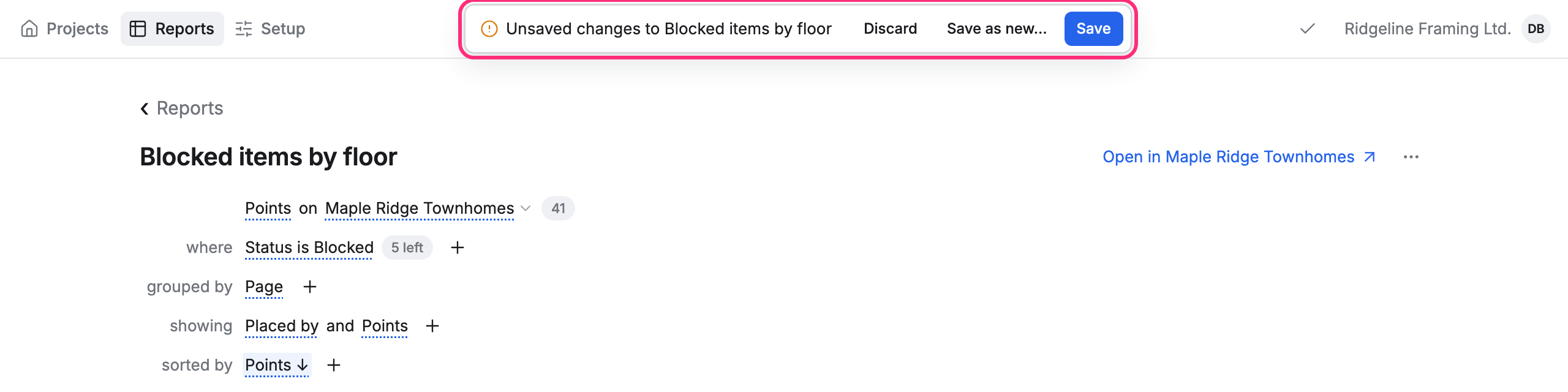
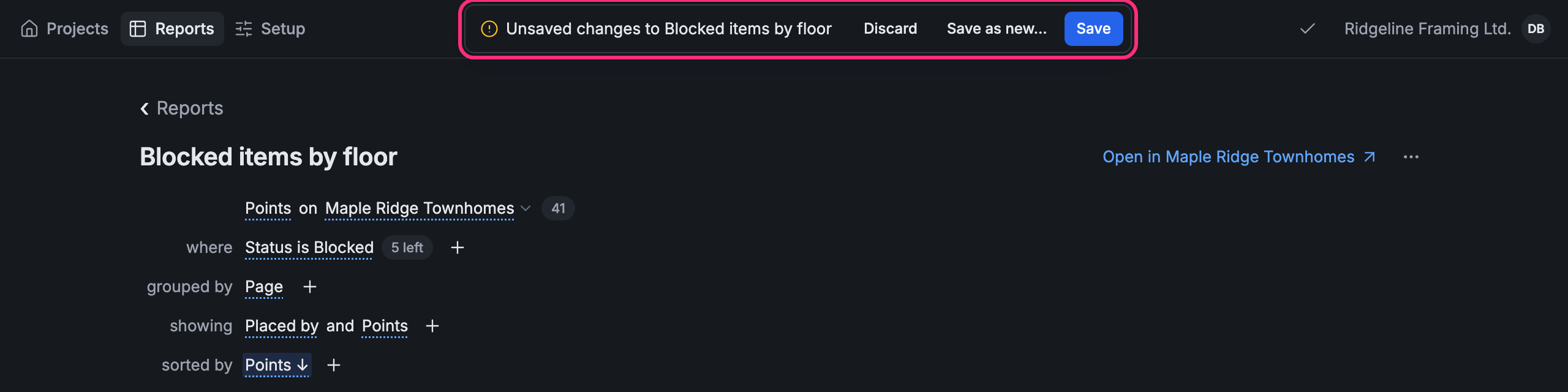
- Save changes the report for everyone who runs it.
- Save as new… keeps your changes as a new report, with a name you type. The report you started from stays as it was.
- Discard throws your changes away.
Sorting the table by a column’s name doesn’t count as a change: it only sorts what you see.
If you leave with changes
Section titled “If you leave with changes”If you go to another screen before saving, Pointmap asks first:
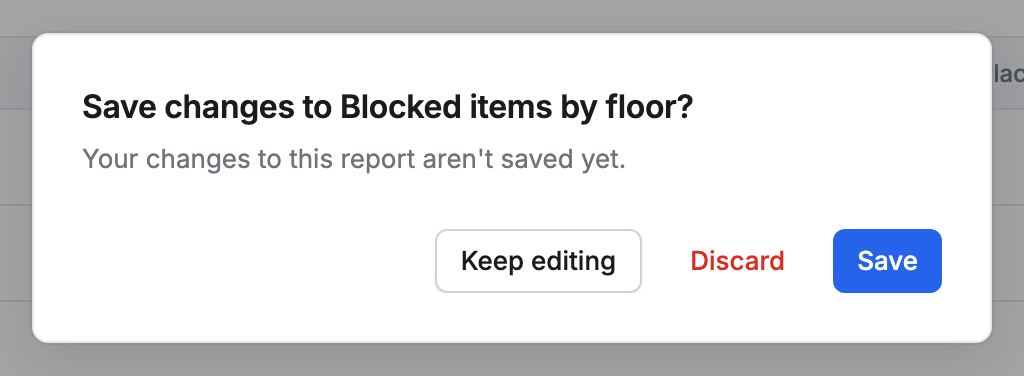
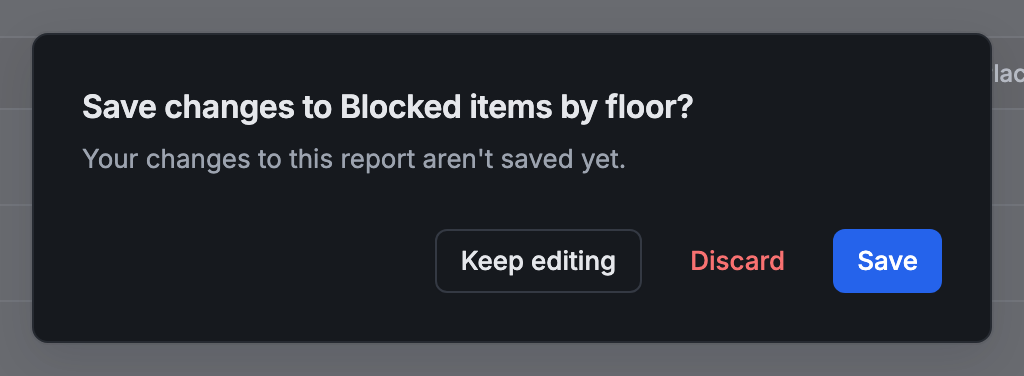
- Keep editing stays on the report.
- Discard throws your changes away and goes.
- Save saves them and goes.
Going from the report to its points on the plan doesn’t ask: your changes wait on the report until you come back.
Copy, rename or delete a report
Section titled “Copy, rename or delete a report”On the Reports list, click ⋯ at the end of a report’s row:


- Duplicate makes a copy named after the report with copy at the end, and opens it. Change the copy as you like.
- Rename gives the report a new name.
- Delete removes the report for everyone. Pointmap asks first.
Who can change a report
Section titled “Who can change a report”-
Owners and admins can change, save, rename and delete reports.
-
Members can change any report to look at it differently. They can’t save over a report someone else made: the bar has Discard and Save as new… only, so they keep their version as a new report of their own.


-
Guests can open reports and read them. They can click a step to read it, but can’t change it, and they have no ⋯ menu and no column list.
A report shows each person only the points they can see. See Run a report.