Save time with templates
A template is a starting card for one card type: an HDU2 hold-down is a Hold-down card with the hold-down, the quantity and the install steps already filled in. When you place a point, you pick a template and the card comes filled in (see Place a point on a drawing). Every card type has a Default template, and you can add as many others as you need.
A point’s template
Section titled “A point’s template”The line under a point’s title starts with the point’s template, Bearing wall, or with its card type, Wall, when the point has the type’s Default template. The layer is at the other end. Click the name to open its menu.


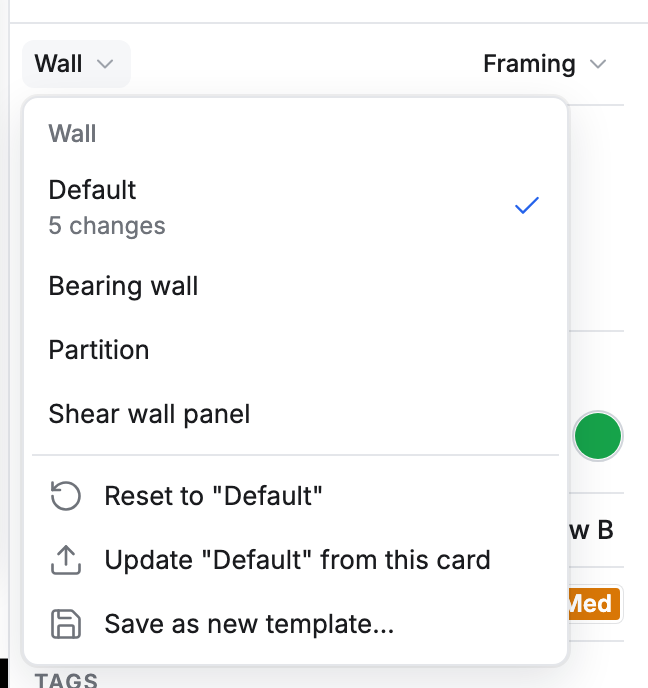
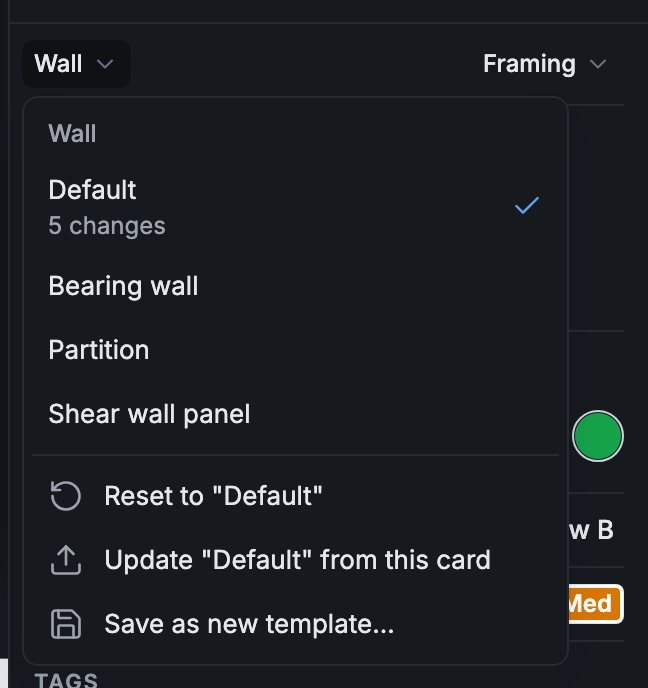
The menu names the card type at the top, then lists its templates, with a check on this point’s. 5 changes under it says how far the card has moved from that template.
On a point you’ve just placed, Card types at the top of the menu lists the other card types. Click one to start the point over as that type, or click the point’s own type to go back to its templates. Once you change anything on the card, its type stays.
To put the card back as the template has it, click Reset to “Default”. It’s there only when the card has changes. Click Undo in the message at the bottom of the screen to take it back.
Switch a point to another template
Section titled “Switch a point to another template”Click another template in the menu. If the card has changes, Pointmap asks first (Replace your 5 changes with “Bearing wall”?): click Replace to go ahead, or Cancel.
The message at the bottom says Applied “Bearing wall”, with Undo. Look over the card after you switch: not every line changes.
Save a point as a template
Section titled “Save a point as a template”Most templates start on a real point that is filled in the way you want.
-
Click the name under the point’s title.
-
Click Save as new template….
-
Type a Template name, then click Save.
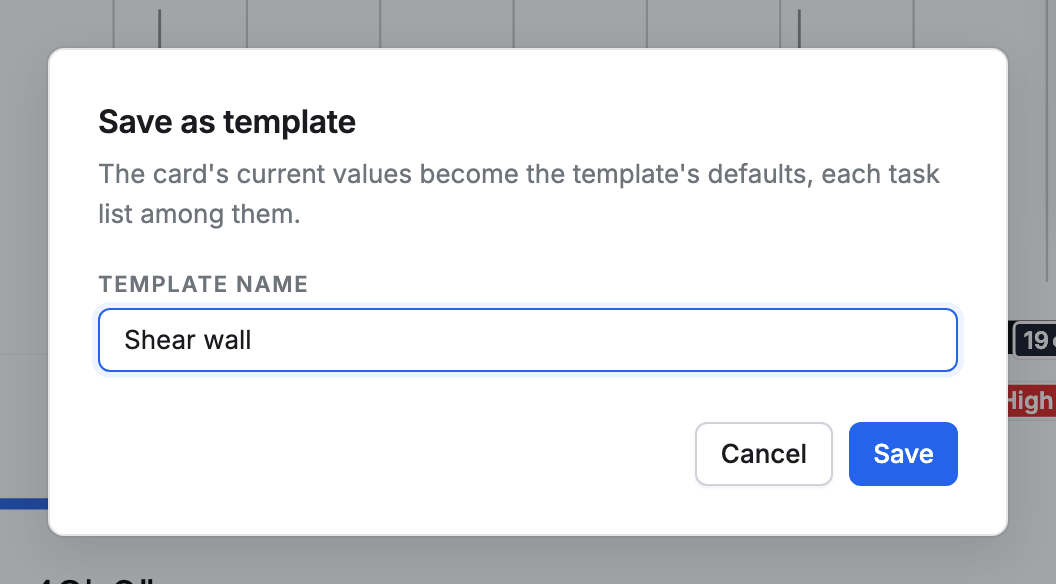
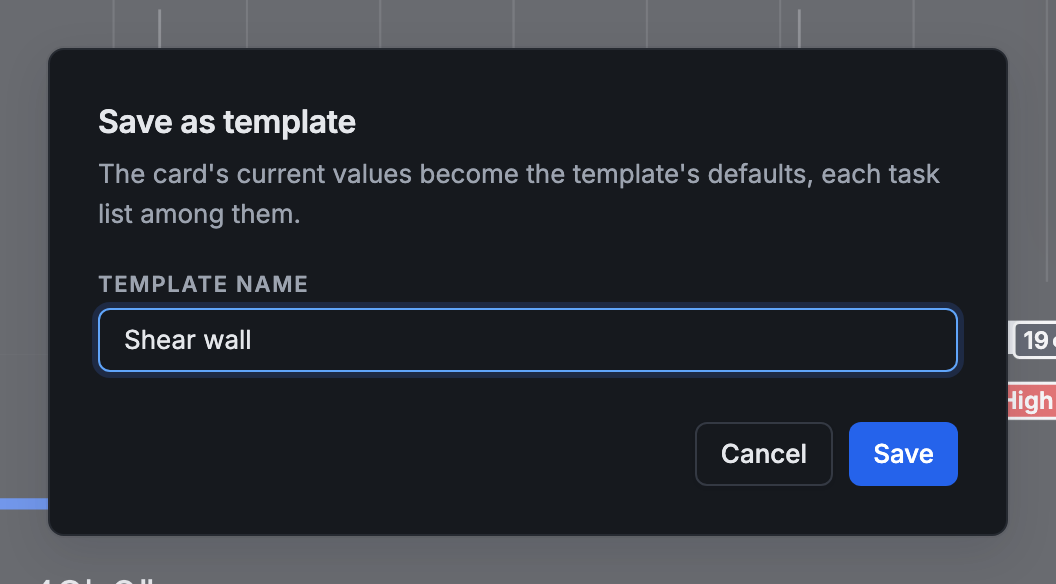
The card’s answers, task lists included, become the template’s.
Update a template from a point
Section titled “Update a template from a point”Owners and admins can also change the template itself to match a point:
-
Click the name under the point’s title.
-
Click Update “Default” from this card, with your template’s name in place of Default.
-
Click Update.
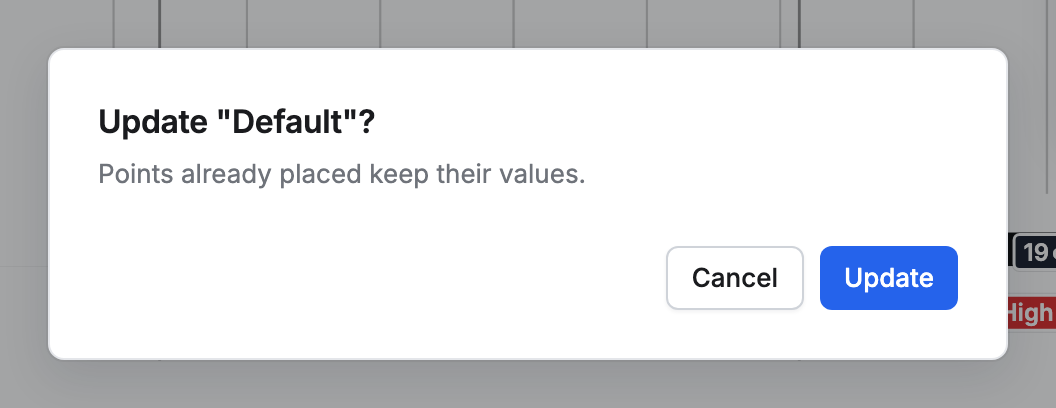
Points already placed keep their values.
Make a template in Setup
Section titled “Make a template in Setup”-
Click Setup at the top of the screen, then a card type in the list on the left. It opens to its templates.
-
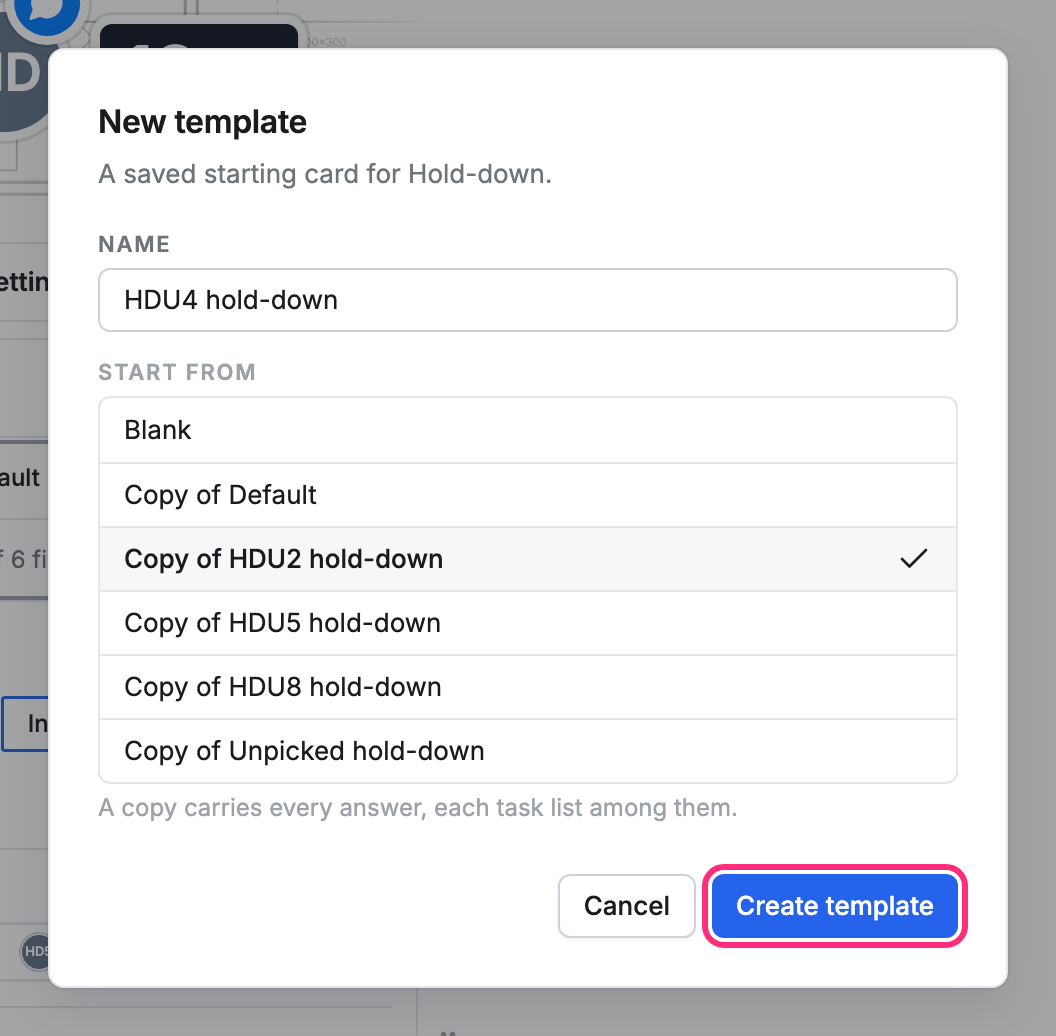
Click + New template under them, or Template above the card, then New template….
-
Type a Name. Under Start from, keep Blank or pick a copy of a template you have.
-
Click Create template.
Change a template
Section titled “Change a template”-
In Setup, click the template in the list on the left, or pick it from Template above the card. Under Template, a line says how much of the card it fills in: Template fills 4 of 6 fields.
-
Change any answer on the card. The line now reads Edited · 1 change.
-
Click Save on that line to keep the change to the template, or Discard to drop it.
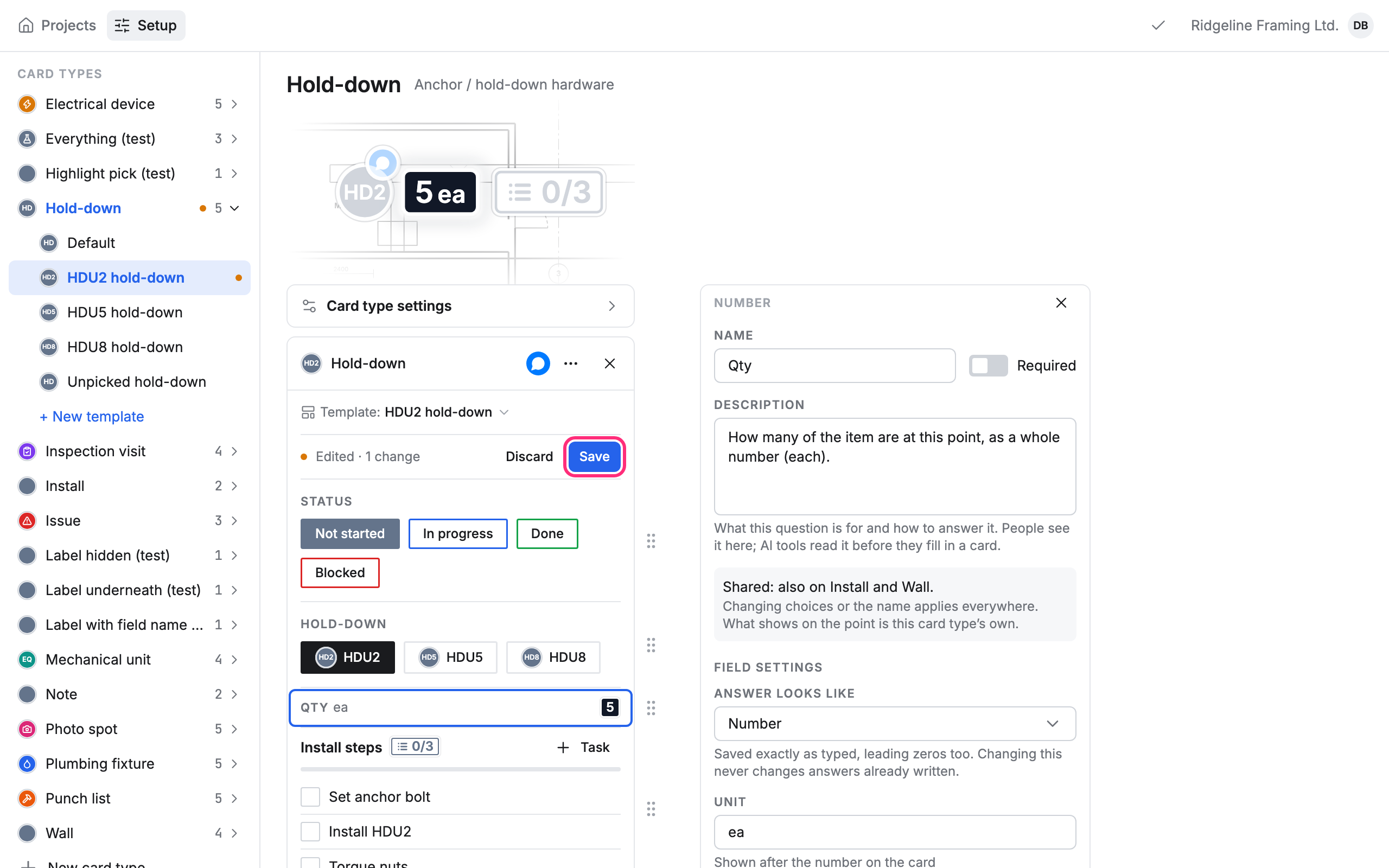
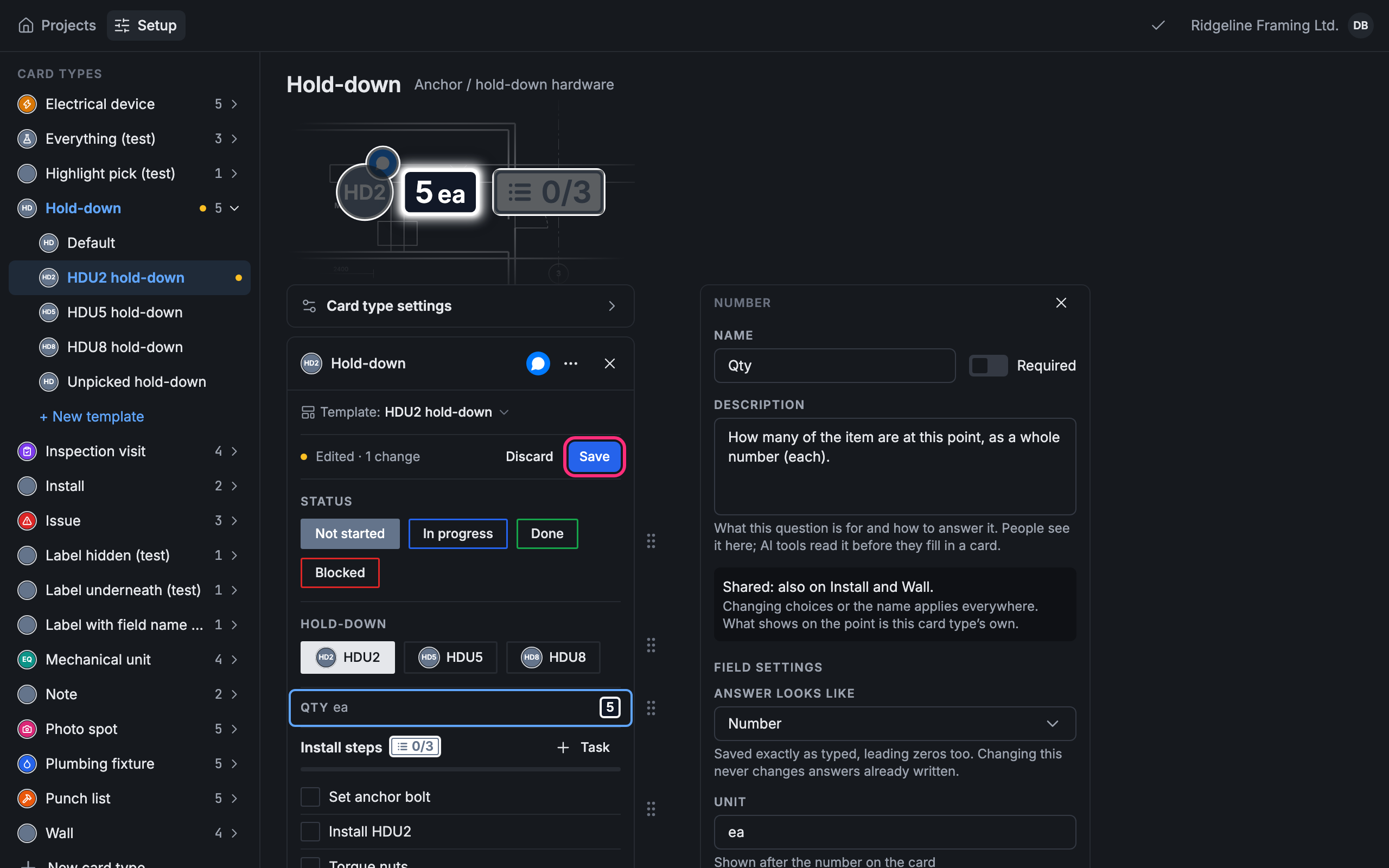
This Save is the template’s alone. The bar at the top saves changes to the card type, like its fields. If you pick another template with changes not saved, Pointmap asks first: Save changes to HDU2 hold-down?
Changing a template never changes points already made from it.
Copy, rename or delete a template
Section titled “Copy, rename or delete a template”Pick the template, then click Template above the card:
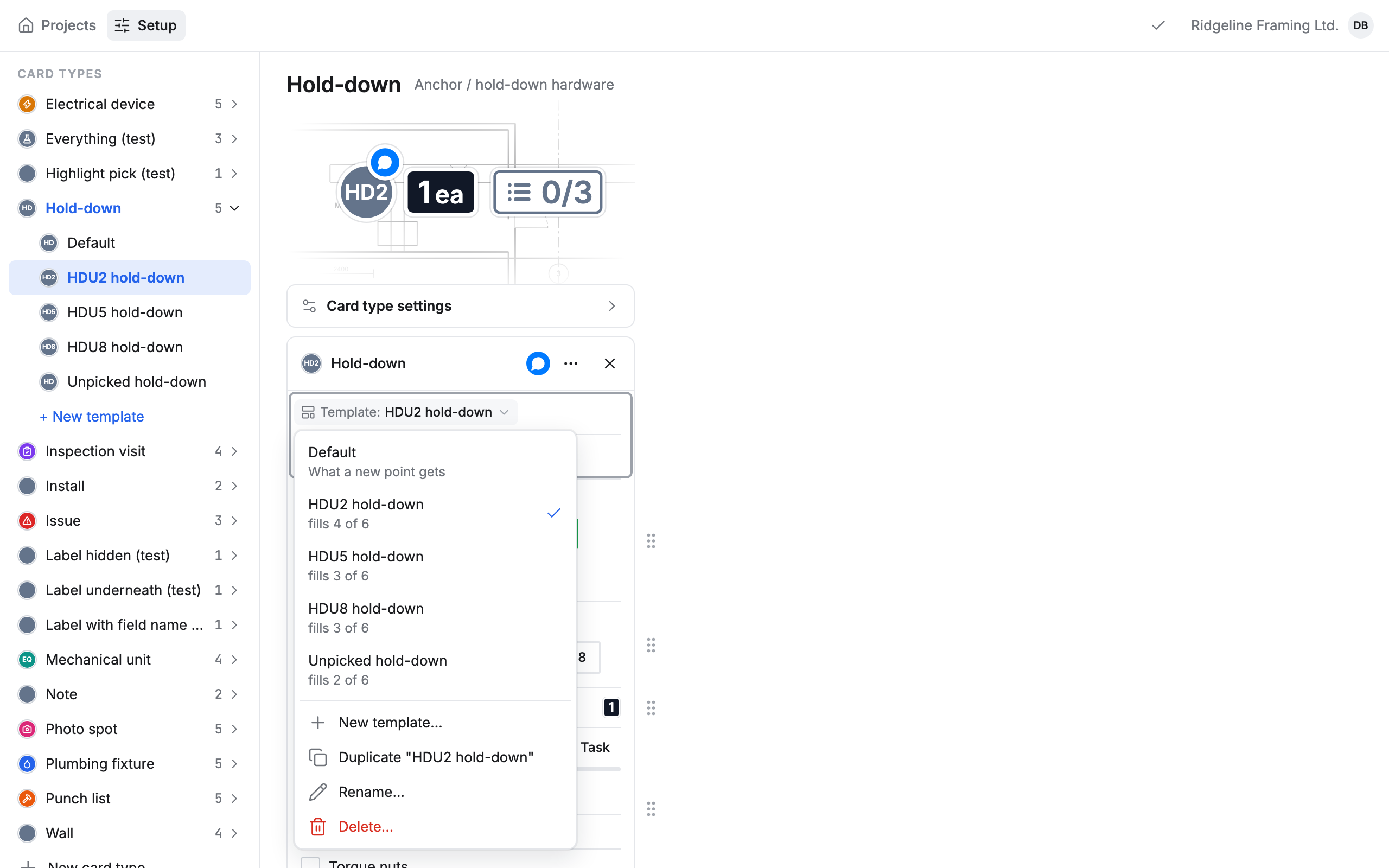
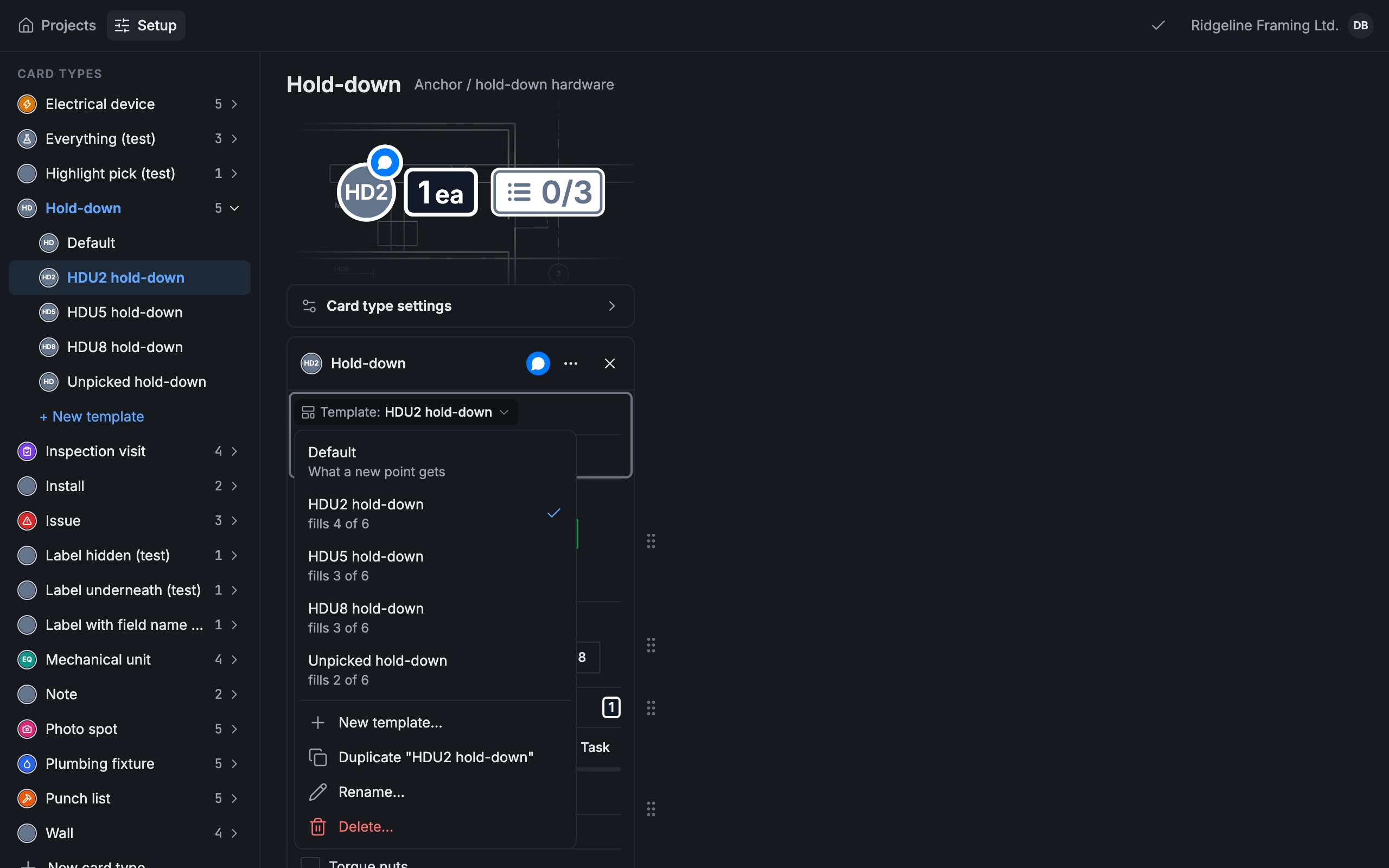
- Duplicate “HDU2 hold-down” makes a copy.
- Rename… gives it a new name.
- Delete… removes it, once you confirm. A card type’s Default can’t be deleted.