Add photos and files to a card
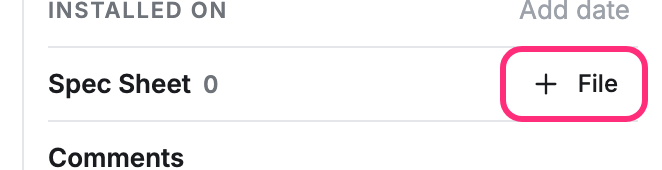
A card type can ask for photos (a Photos line) and for documents like a spec sheet (a files line, here Spec Sheet). The number beside the name says how many the card holds.
Add photos
Section titled “Add photos”-
Open the point’s card and click + Photo.
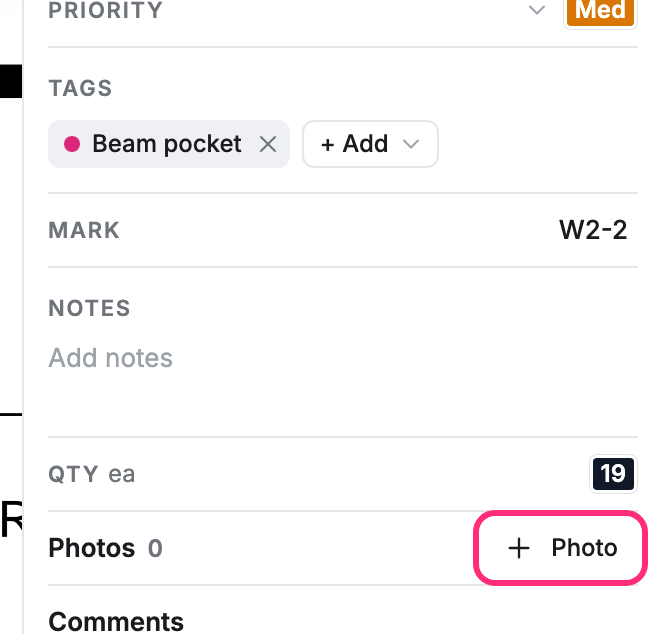
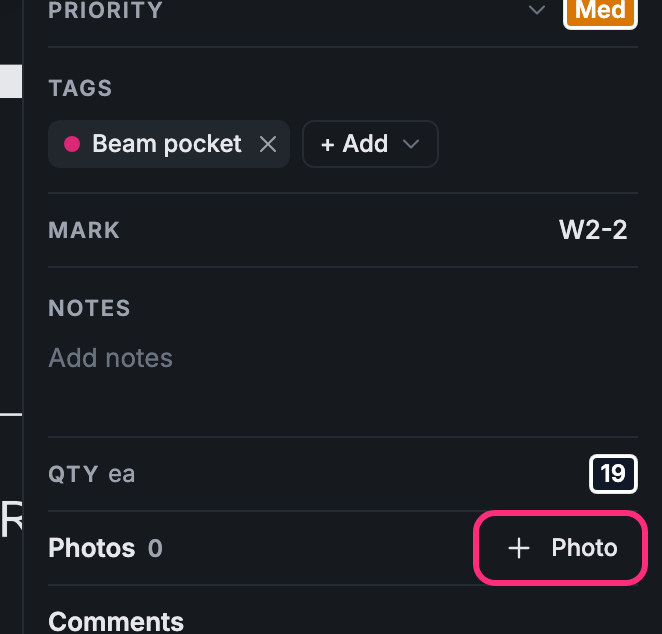
-
Pick one or more pictures on your computer.
The photos show as tiles, under a heading for the day each was taken.
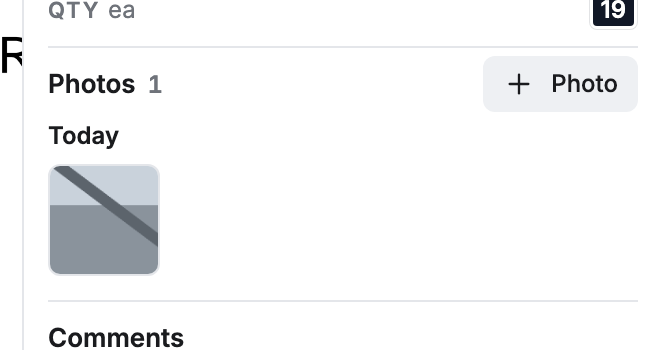
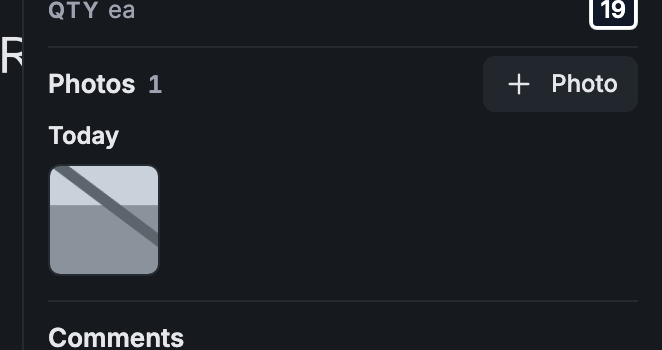
Look at a photo
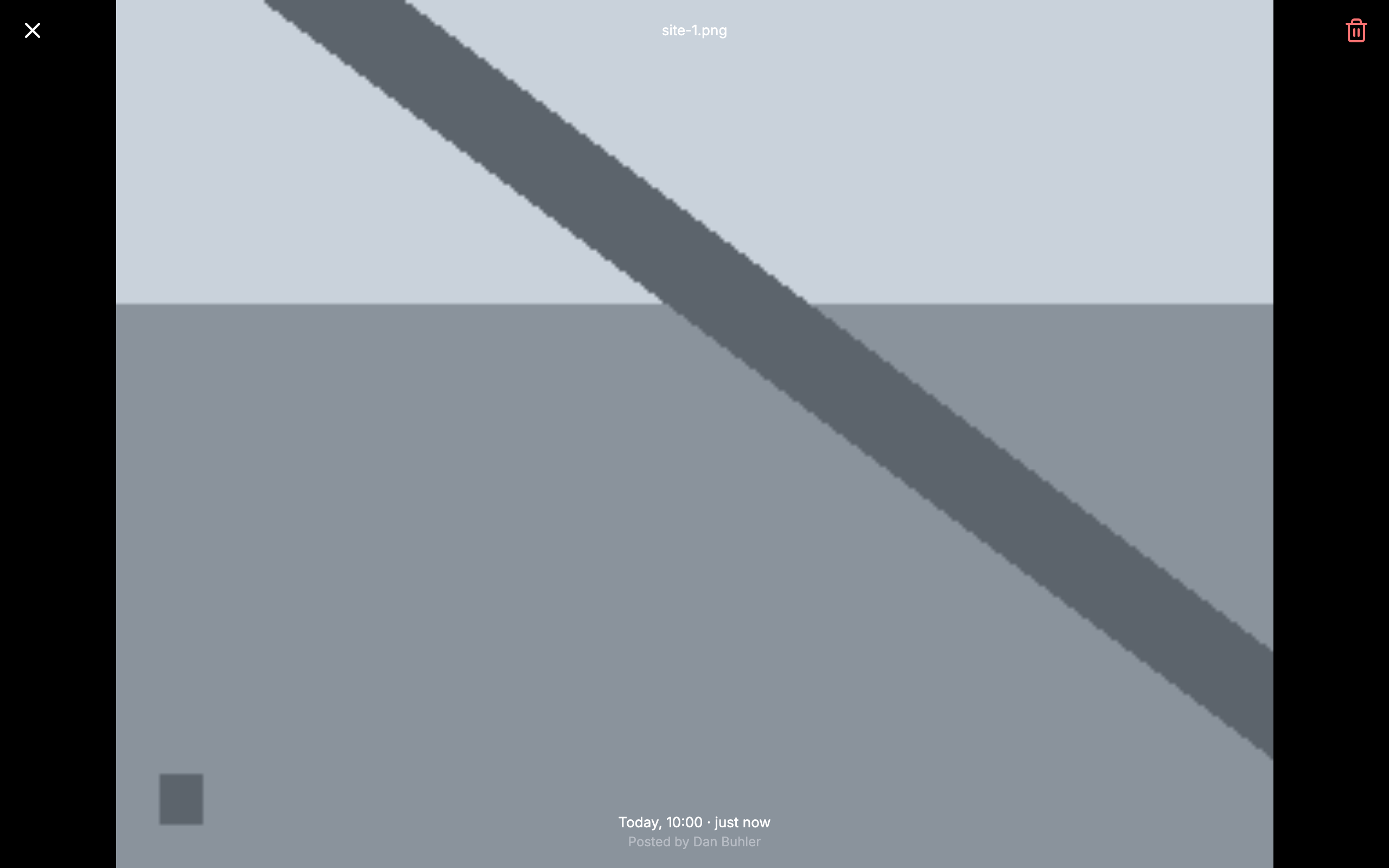
Section titled “Look at a photo”Click a tile. The photo opens full screen, with the day and time it was taken and who posted it. With several photos, the arrows step through them. Press Esc or click ✕ to close it; the point stays selected.
Delete a photo
Section titled “Delete a photo”Press and hold the tile, then click Delete photo. Or click the trash can while the photo is open. Changed your mind? Click Undo.
Attach a file
Section titled “Attach a file”-
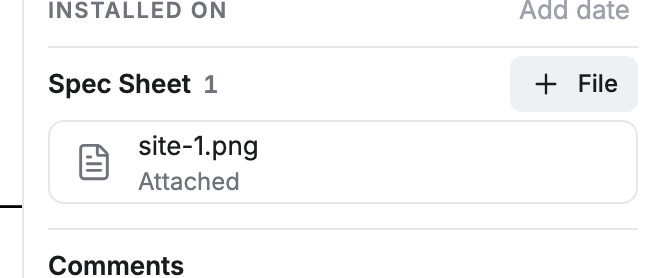
Click + File beside the line’s name.
-
Pick the file on your computer.
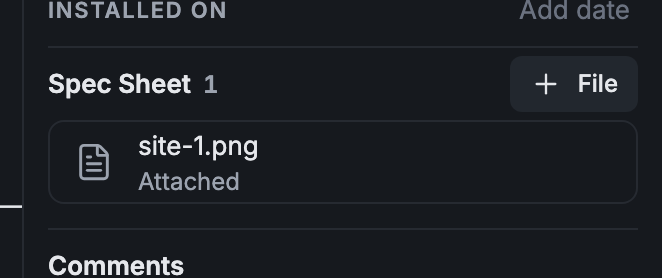
The file shows as a row with its name.
To remove it, press and hold the row, click Remove document, then Remove document again to confirm. Undo brings it back.
On a phone
Section titled “On a phone”+ Photo opens the camera. Take as many photos as you need, then attach them all at once.