Make a group and add people to it
A group holds people. Share a project with the group and everyone in it gets that access. Someone who joins the crew gets it when you add them to the group, and someone who leaves loses it when you take them out.
Everyone who works in your company is already in Members. A project’s share list always has a Members row, so Members isn’t in the list of groups.
Make a group
Section titled “Make a group”-
Click your initials at the top right, then Settings. Click Groups, then New group.
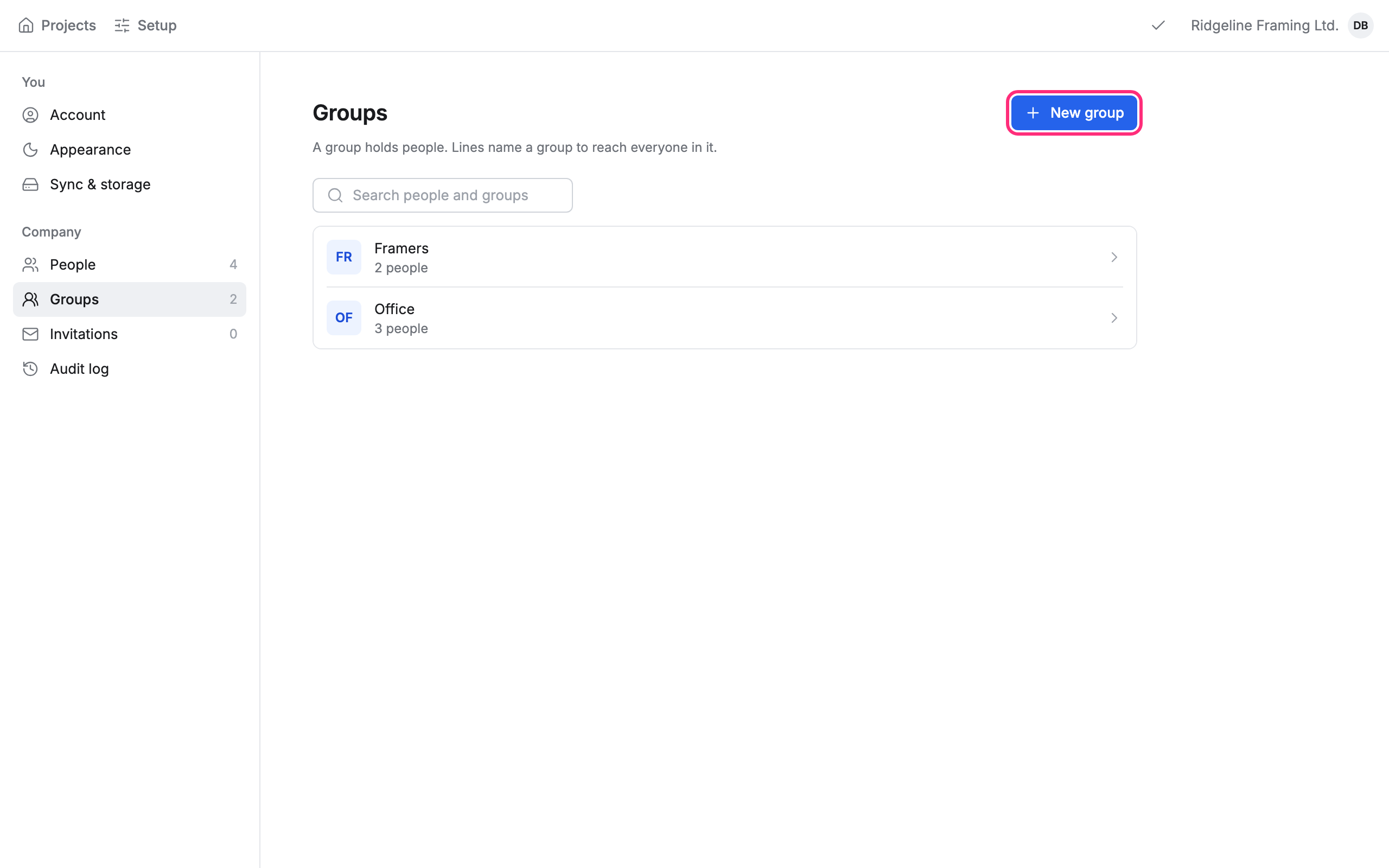
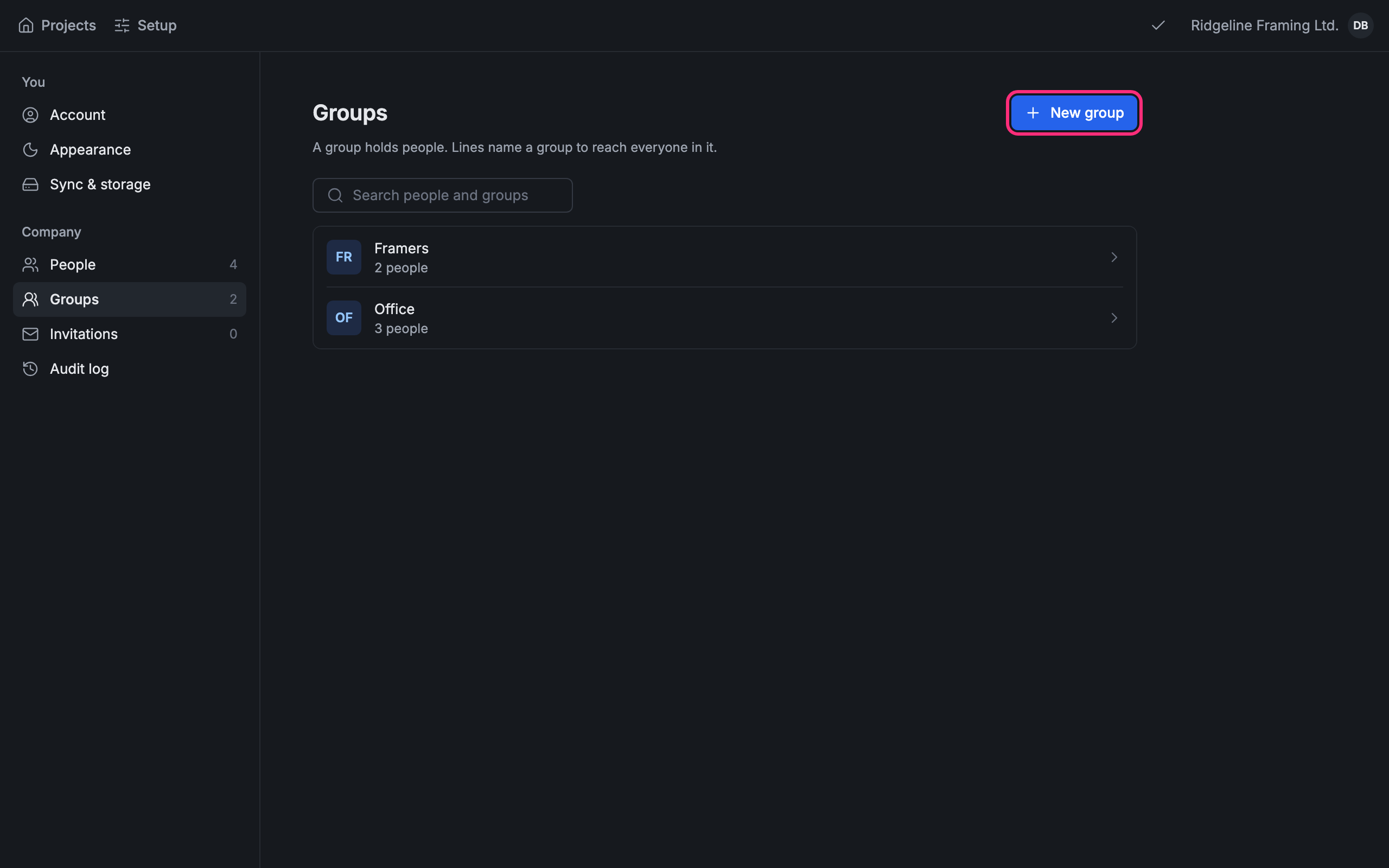
-
Type a Name.
-
To start from someone’s projects, pick them under Copy access from. The group starts with a copy of their projects and the lines under them.
-
Click Create.
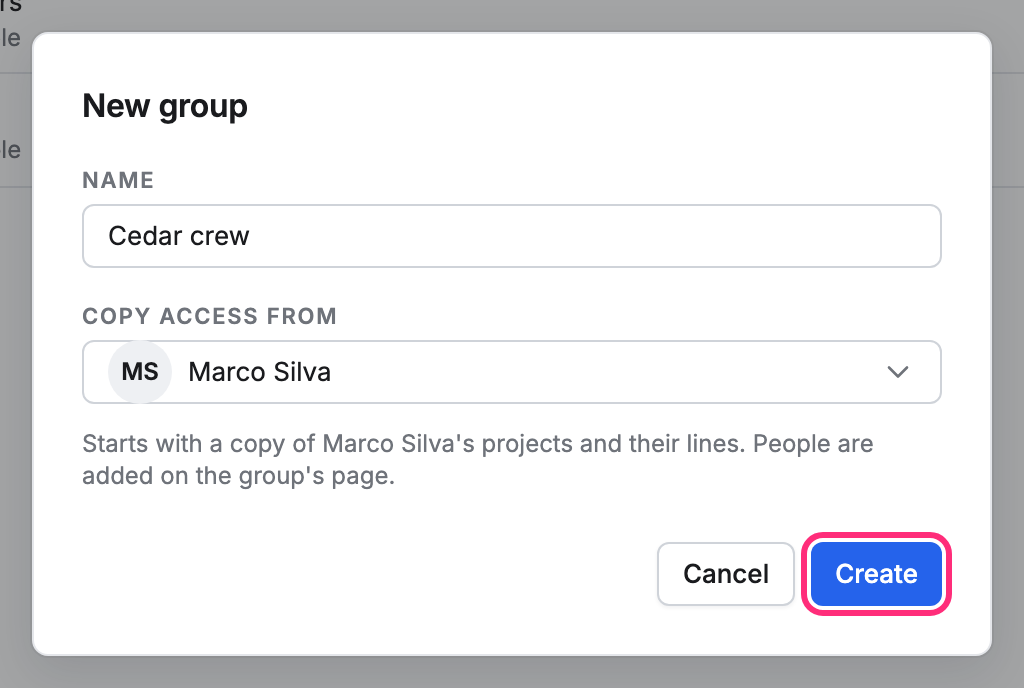
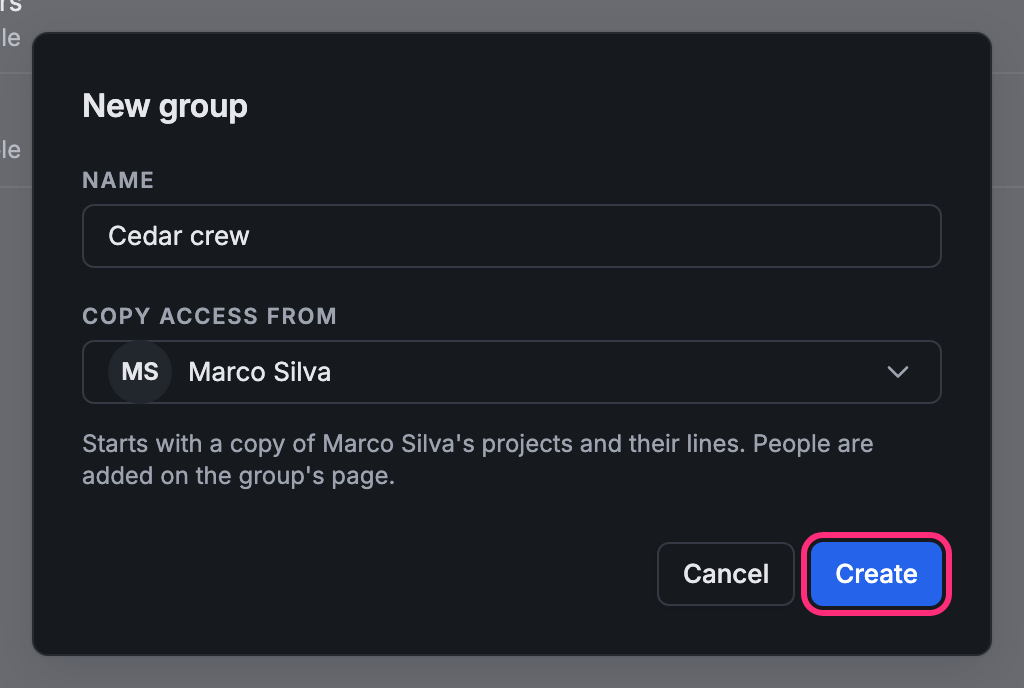
The group’s page opens.
Add people to a group
Section titled “Add people to a group”-
Open the group from Settings › Groups.
-
Under People, click Add a person and pick them.
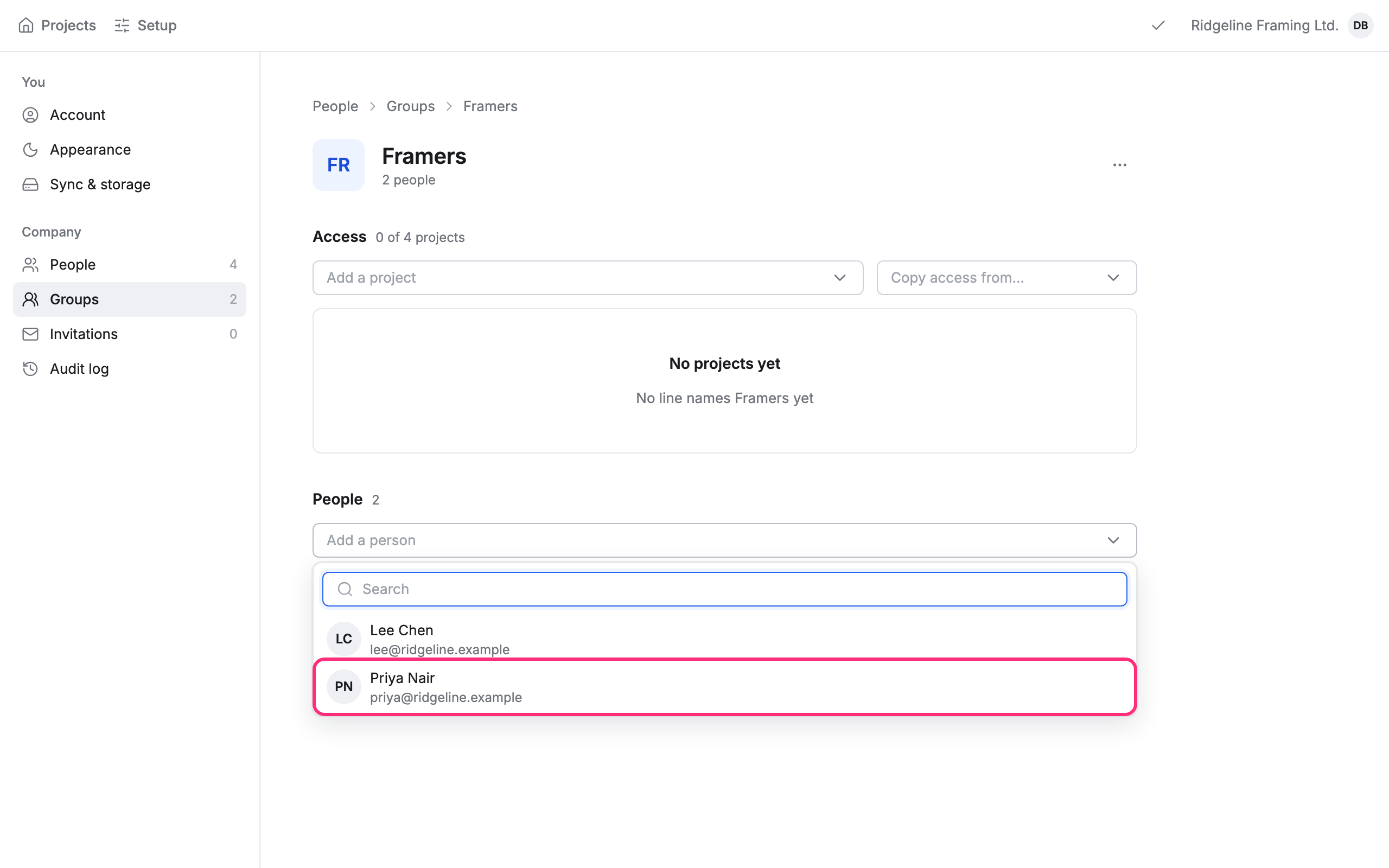
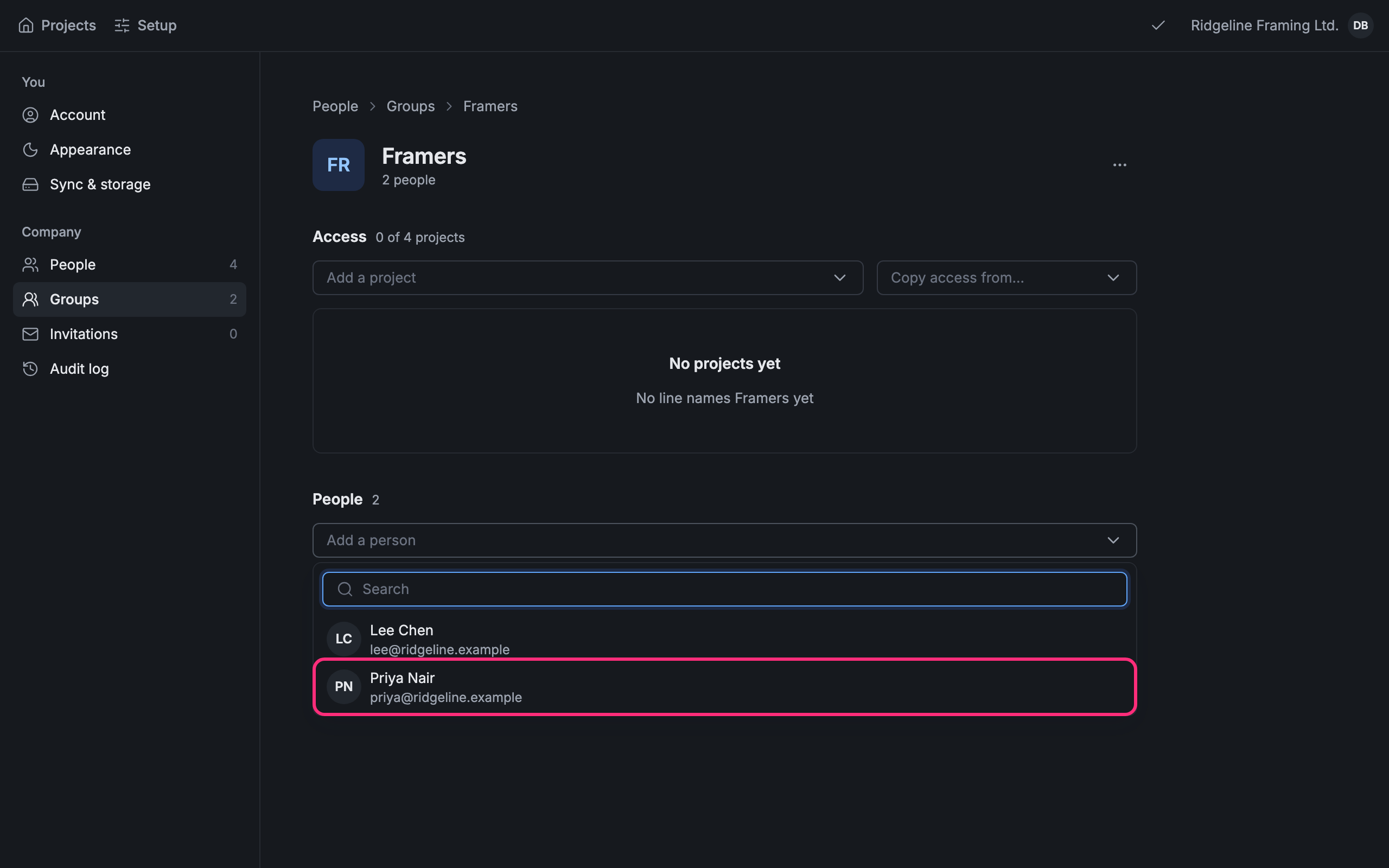
You can also add someone from their own page: Add to a group under Groups. To take someone out, click ⋯ on their row in the group, then Remove and their name.
Give a group a project
Section titled “Give a group a project”On the group’s page, under Access, click Add a project and pick it. The group gets it at Can view; change the level from the project’s Access. Copy access from… gives the group the same projects as a person.
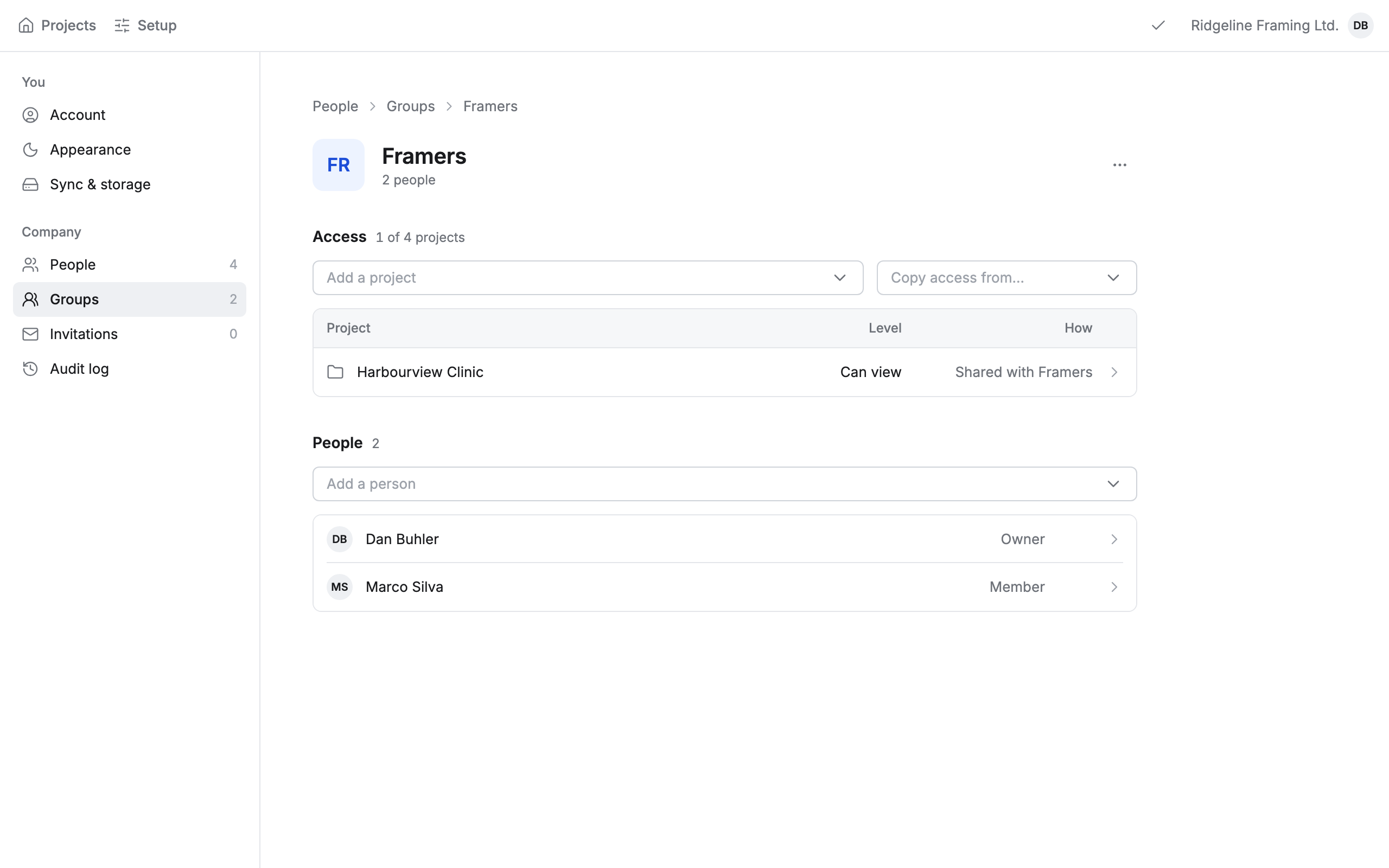
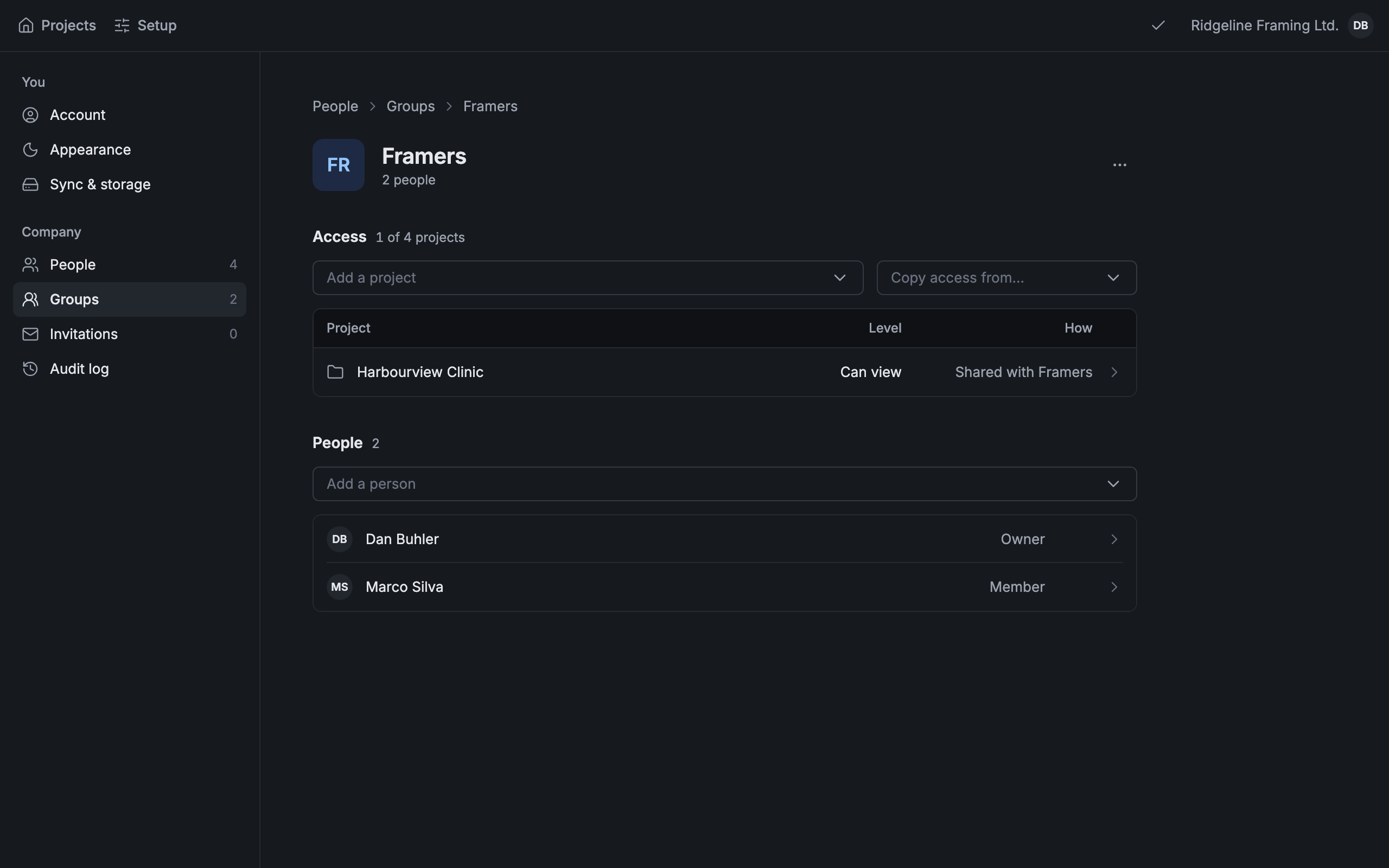
To rename or delete a group, click ⋯ at the top of its page.