Sync and work offline
Every change you make is saved on your device first, then sent to your company’s other devices. With no signal you keep working: the changes wait and go out once you’re back online.
See if everything is synced
Section titled “See if everything is synced”The sync status is at the top right, beside your company’s name. A check mark means everything is synced.


Press it for the details: when this device Last synced, how many Pending changes are waiting to go out, Work offline, and Retry to try sending now.
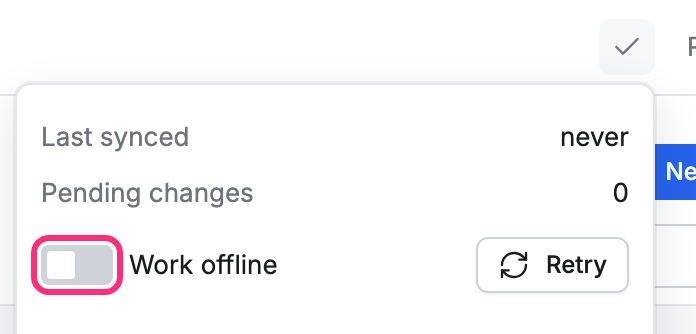
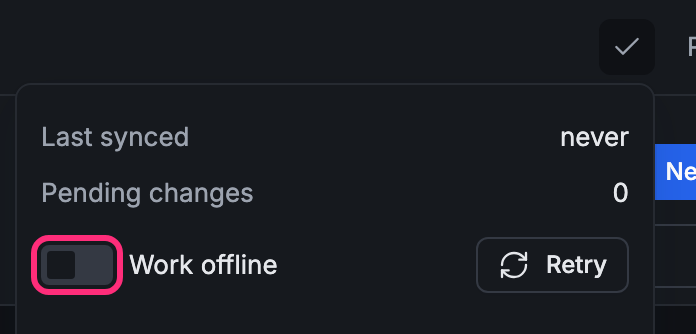
Work offline
Section titled “Work offline”Turn on Work offline in the sync details to stop sending and receiving, for example on a slow or costly connection. The status says Offline and counts the changes that wait, such as Offline · 1 pending.
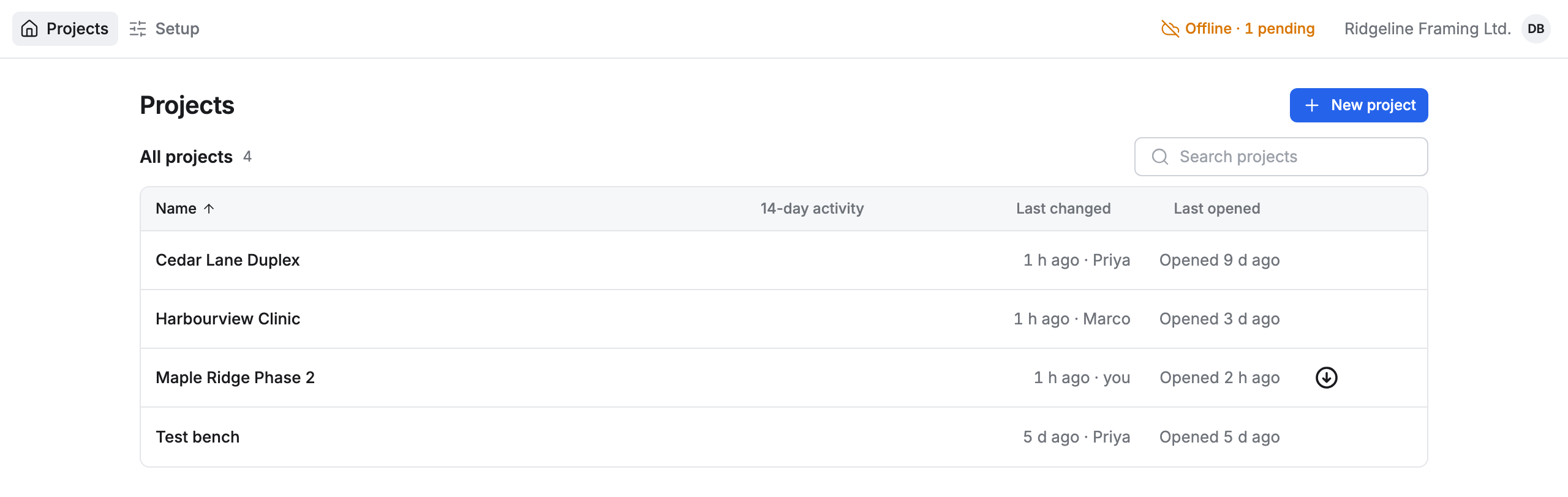
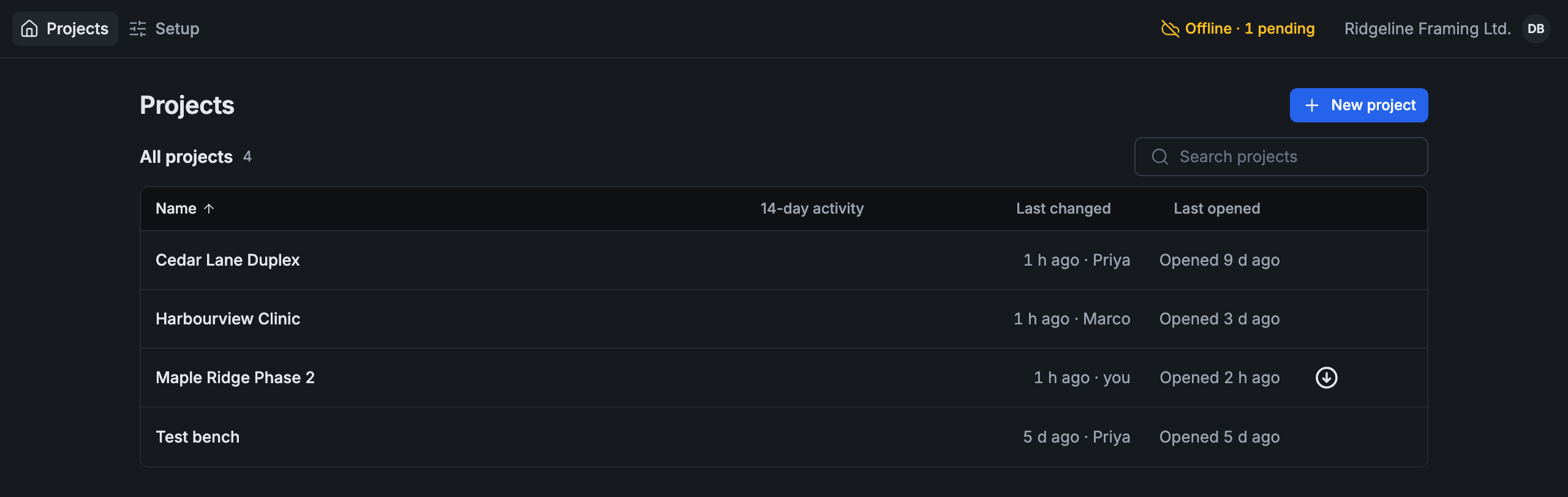
Turn Work offline off again and the waiting changes go out. The status goes back to the check mark.
Some things need a connection and are dimmed while you’re offline, such as changing who has access (Changing access needs a connection) and invites and join codes (Invites and join codes need a connection). Placing points and other work on the drawings goes on as usual.
When a change is refused
Section titled “When a change is refused”Now and then the server turns a change down, for example when you no longer have the right to make it. The status then says how many were refused, such as 1 refused, and the change is taken back on your device.
- Press the status. The sync details list each refused change with its reason.
- Press Discard, then Discard change, to clear it from the list.
Choose what syncs on mobile data
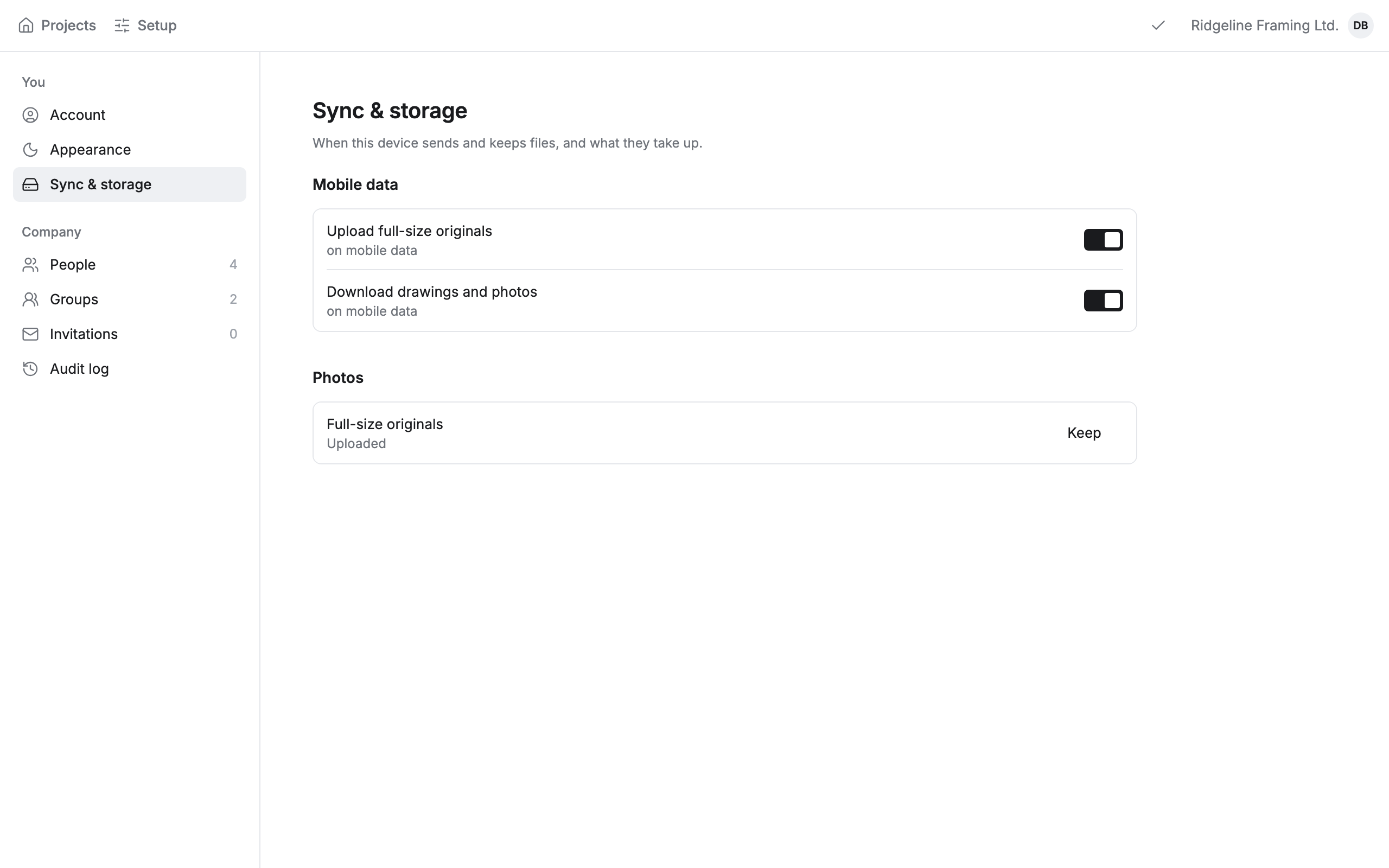
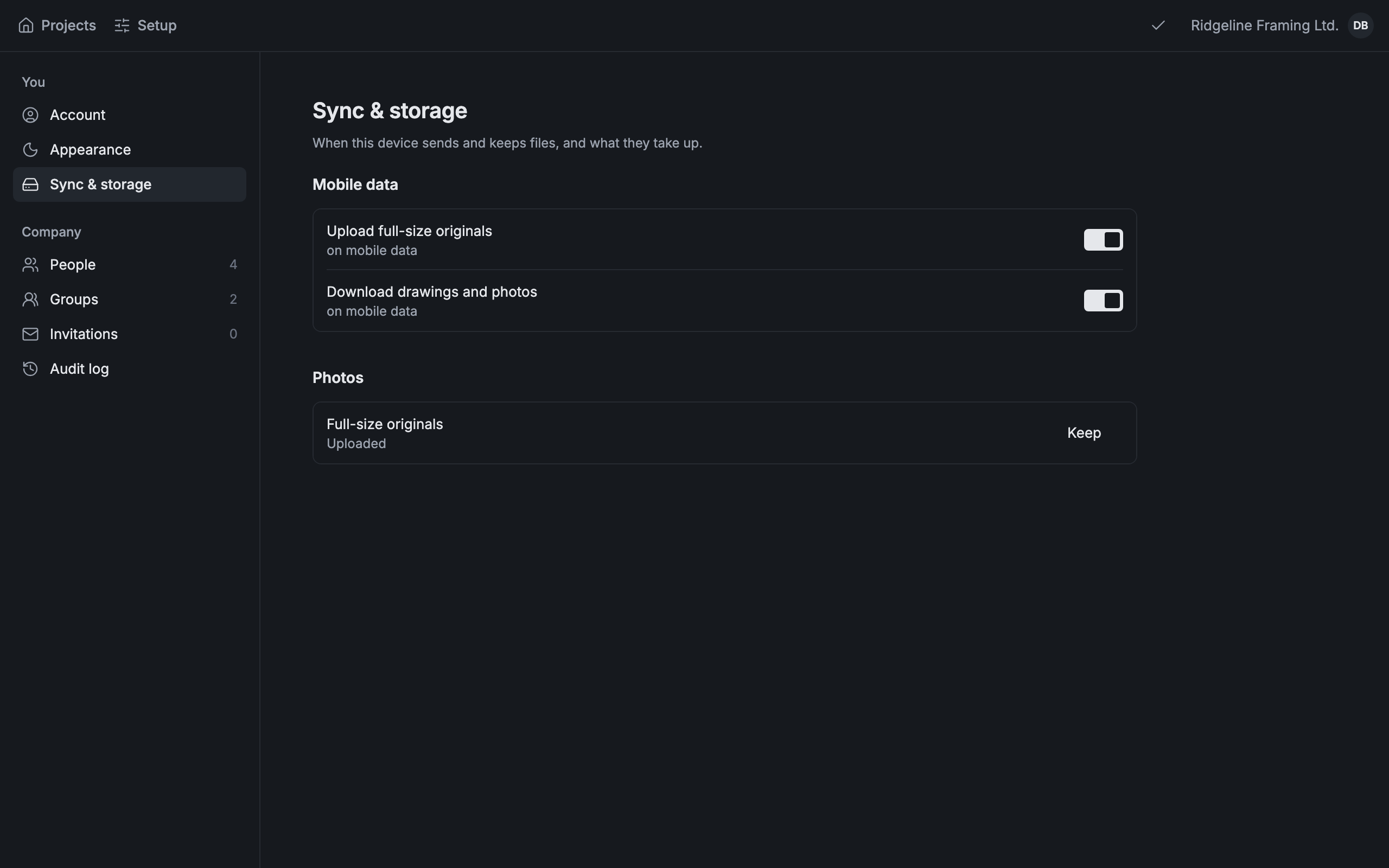
Section titled “Choose what syncs on mobile data”Click your initials at the top right, then Settings, then Sync & storage.
- Photos and PDFs on cards always upload, on any connection.
- Upload full-size originals and Download drawings and photos on mobile data: both on to start. Turn one off to wait for Wi-Fi.
- Full-size originals: what this device does with a photo’s full-size original (Keep here).
To keep a whole project ready for no signal, see Keep a project offline.