Find your way around
Find a project
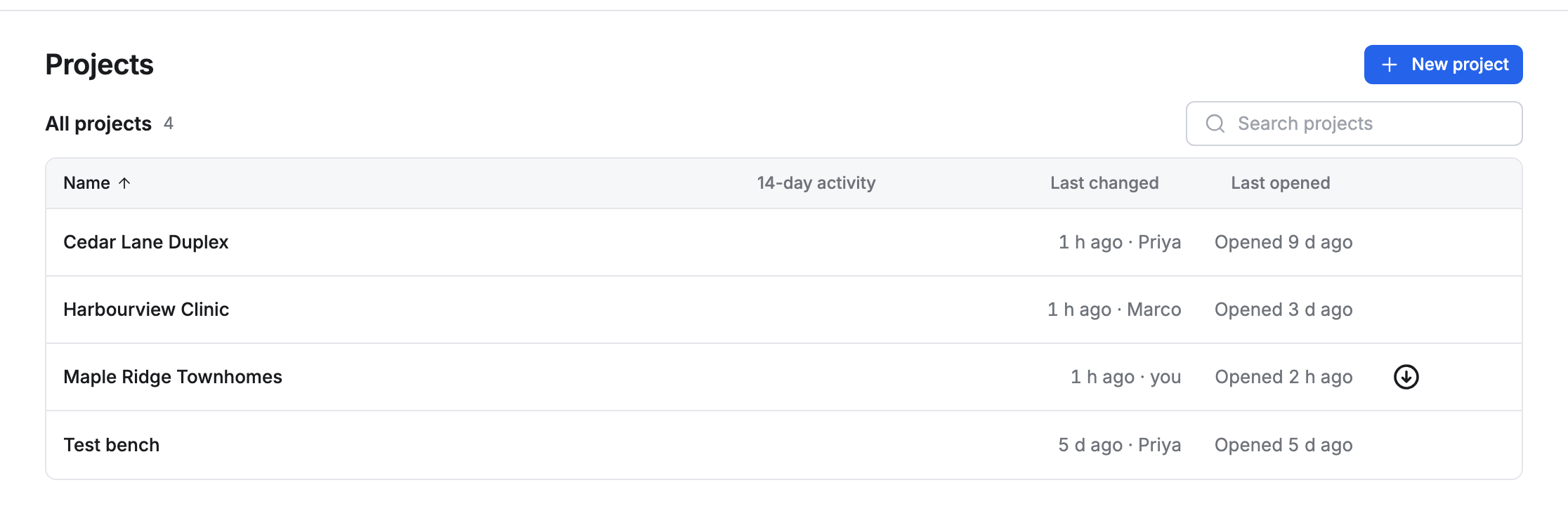
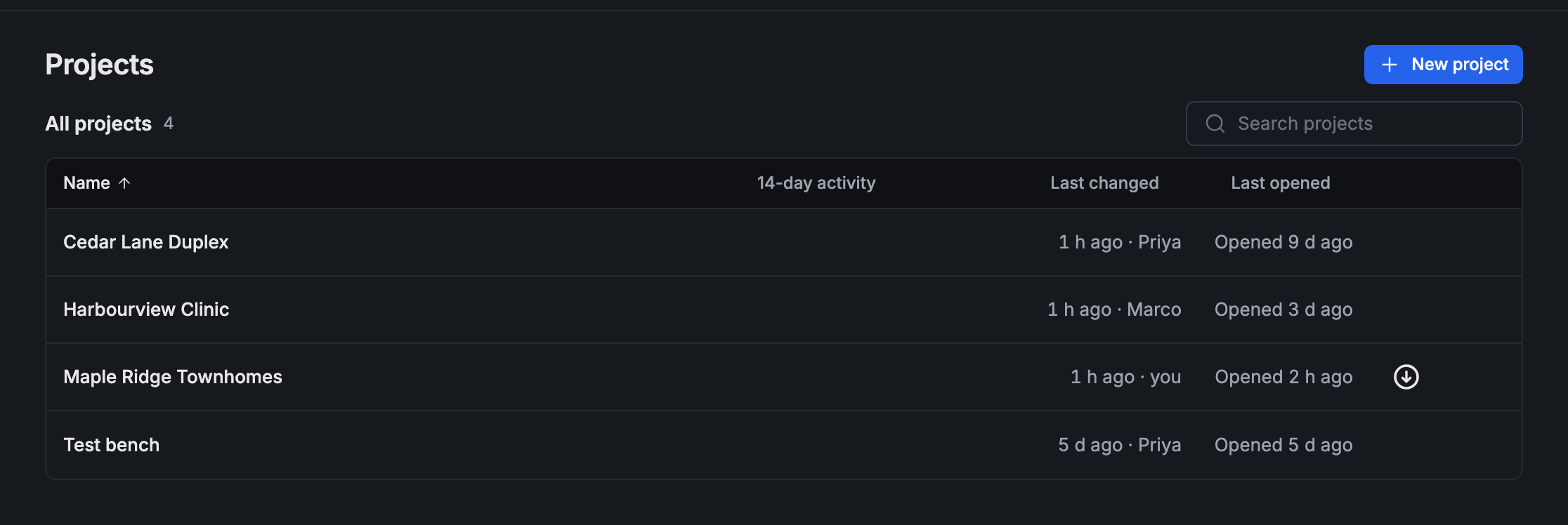
Section titled “Find a project”Projects, at the top left, lists every project you can open, A to Z. Each row says when the project was last changed and by whom, and when you last opened it. Click a project to open it.
-
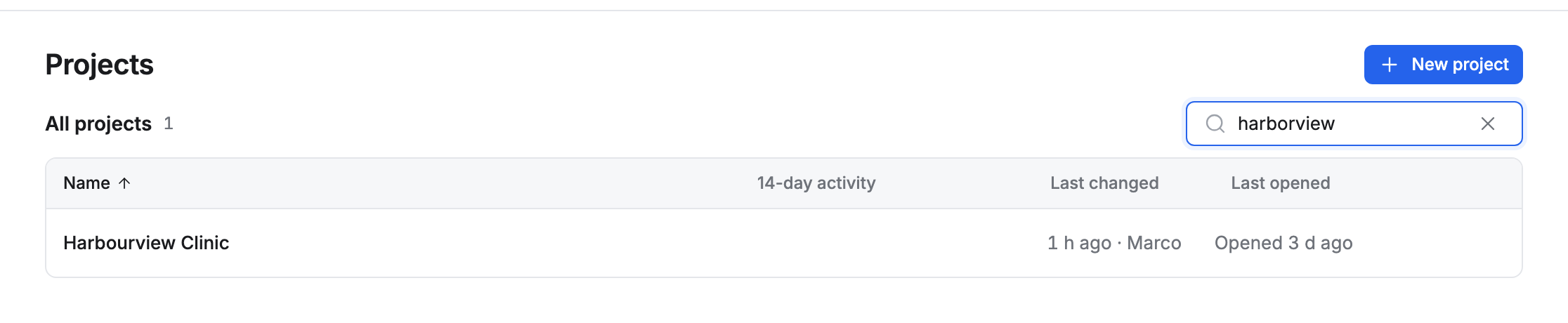
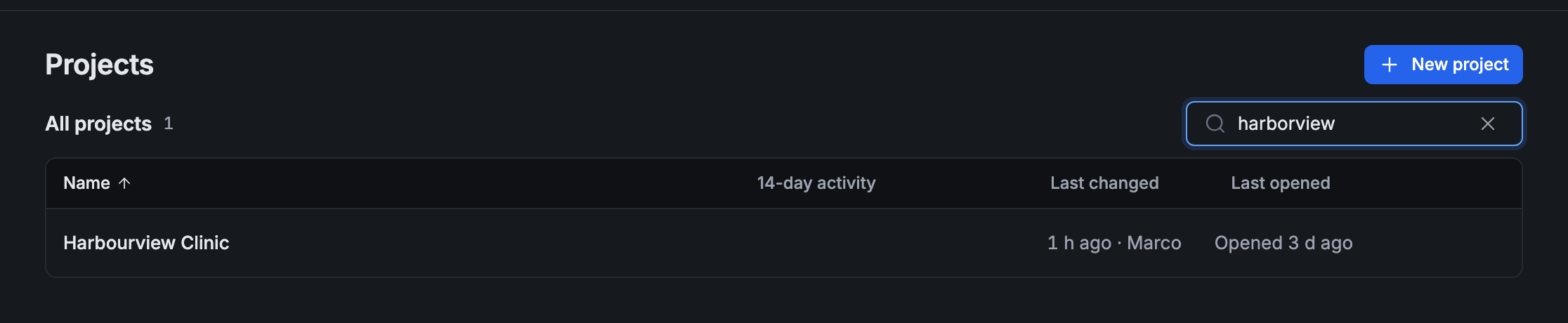
Type in Search projects to narrow the list. The search forgives small spelling differences: “harborview” finds Harbourview Clinic.
-
Click a column head (Name, Last changed, Last opened) to sort by it. Click it again to turn the order round.
-
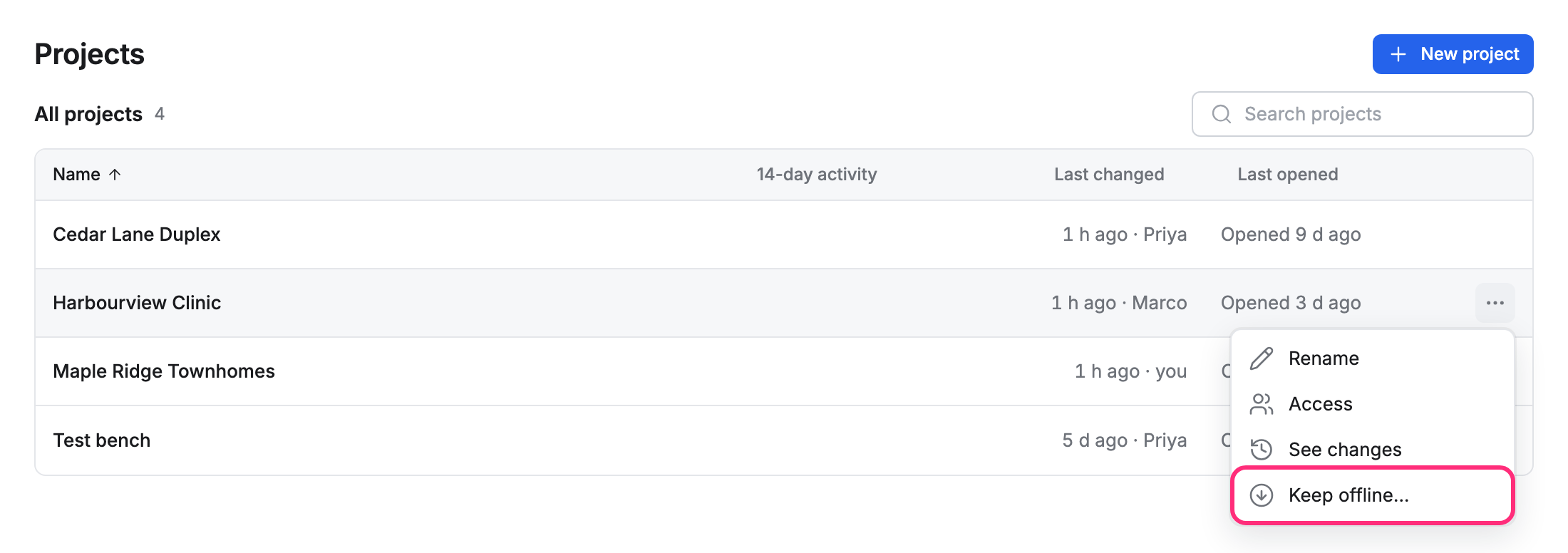
A project’s ⋯ has Rename, Access, See changes (owners and admins) and Keep offline….
Projects, Reports and Setup, at the top left, go to the parts of Pointmap. For Settings, click your initials at the top right, or press ⌘,.
Move around a project
Section titled “Move around a project”In a project, the title bar shows where you are: the project › the page that’s open. Press Projects, at its left, to go back to the list. The page’s name changes as you turn pages.


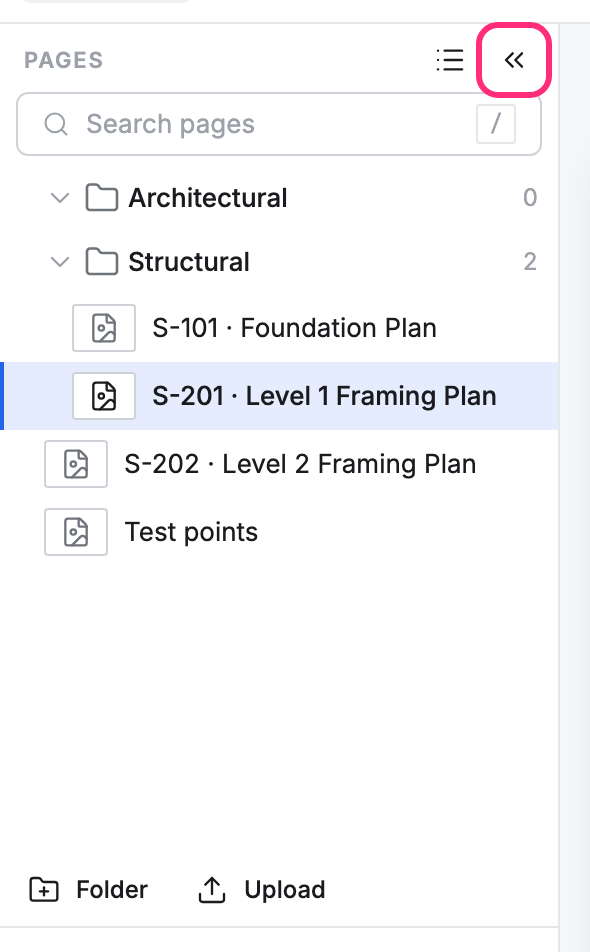
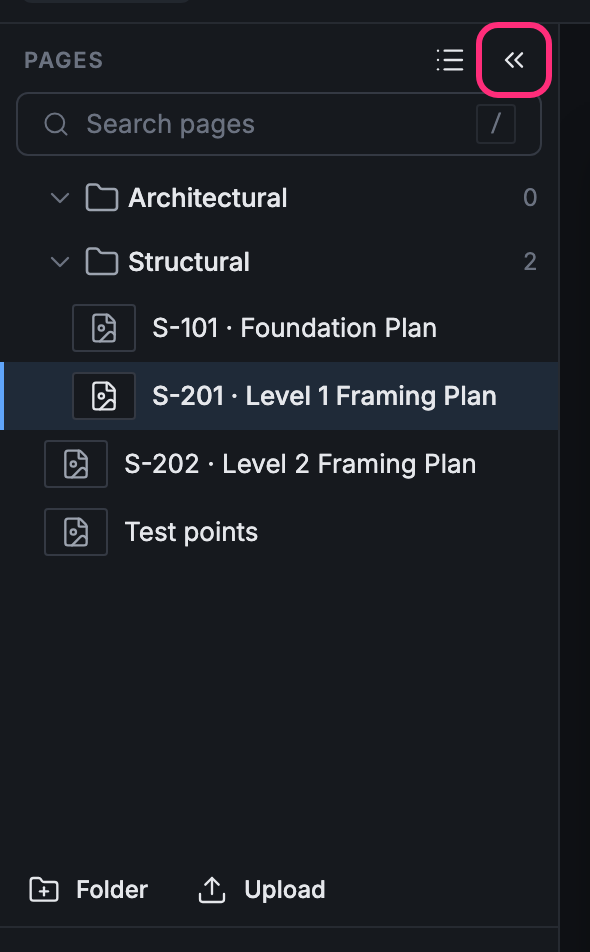
To give the drawing the whole window, press « beside Pages (or ⌘\). A button stays at the drawing’s corner to bring the pages back.
Pick up where you left off
Section titled “Pick up where you left off”Pointmap remembers where you were. Open it again and it goes back to the last page you had open, at the same zoom, with the same point selected. A drawing always opens with Select on, whatever tool you were using.
Use keyboard shortcuts
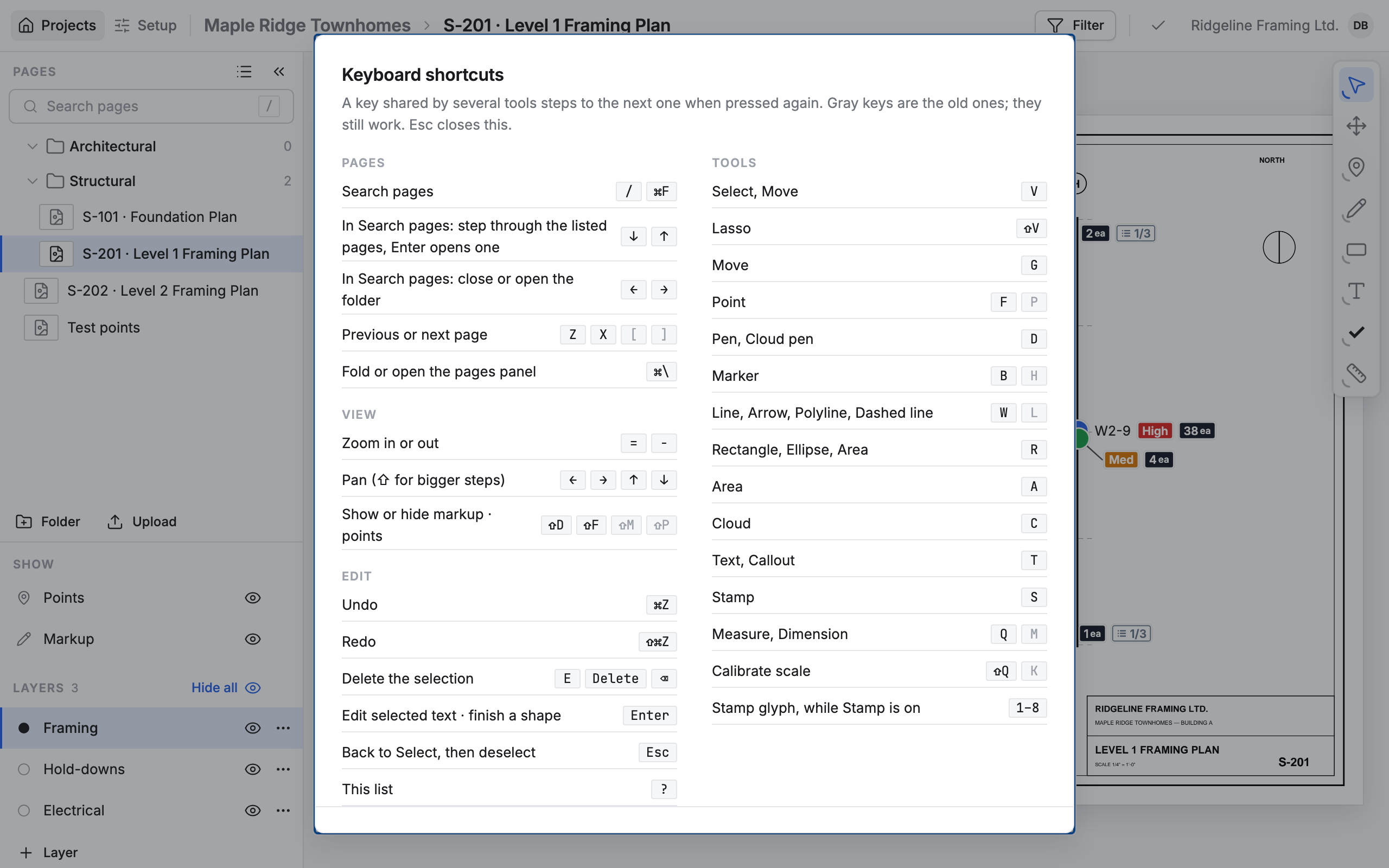
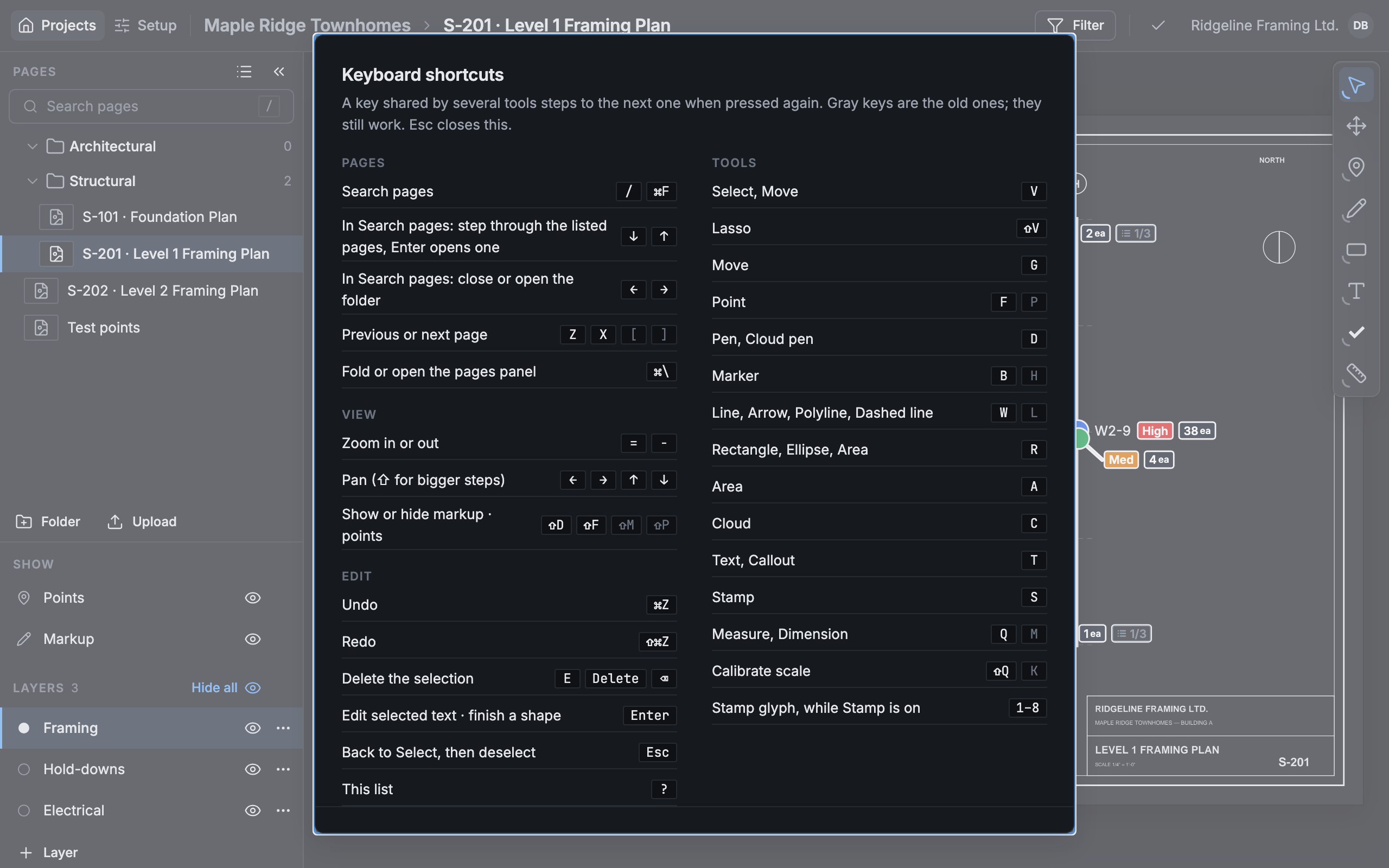
Section titled “Use keyboard shortcuts”Press ? on a drawing to see every shortcut. A few to start with:
- / or ⌘F: search the pages.
- Z and X: the previous and next page.
- = and -: zoom in and out. The arrow keys move around the drawing.
- ⌘Z: undo.
Keep a project offline
Section titled “Keep a project offline”A project you keep offline downloads its drawings and photos to this computer, so it opens with no signal.
-
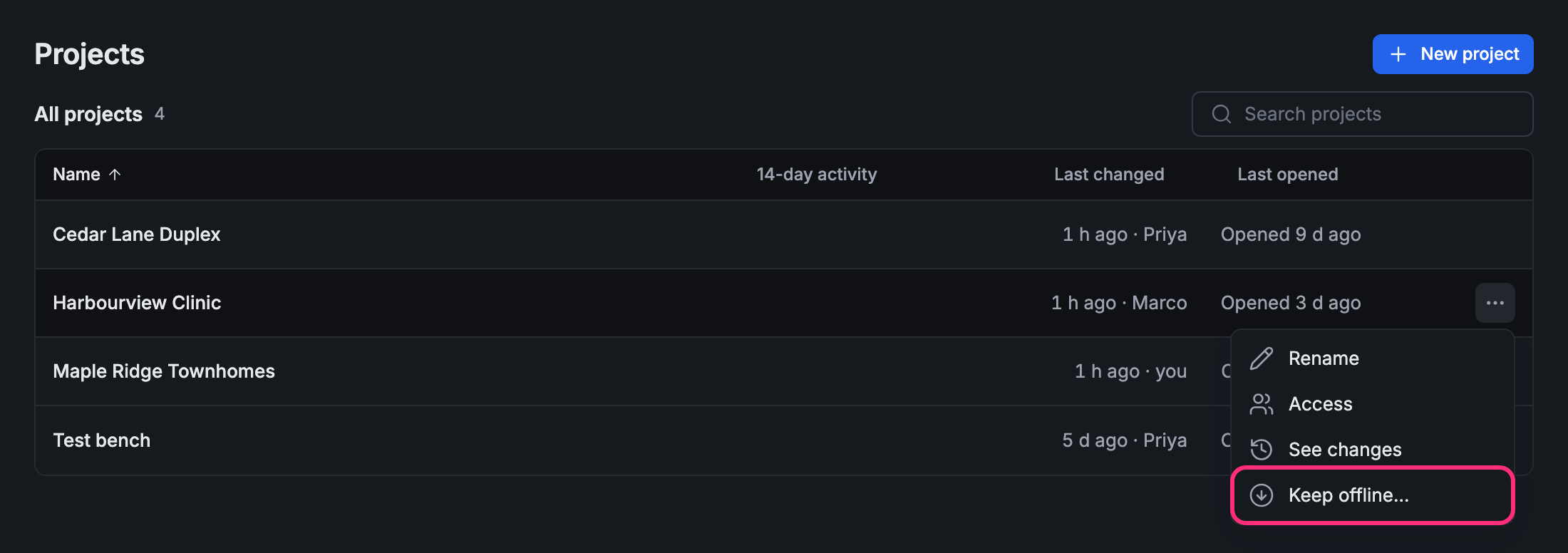
On the Projects list, press the project’s ⋯, then Keep offline….
-
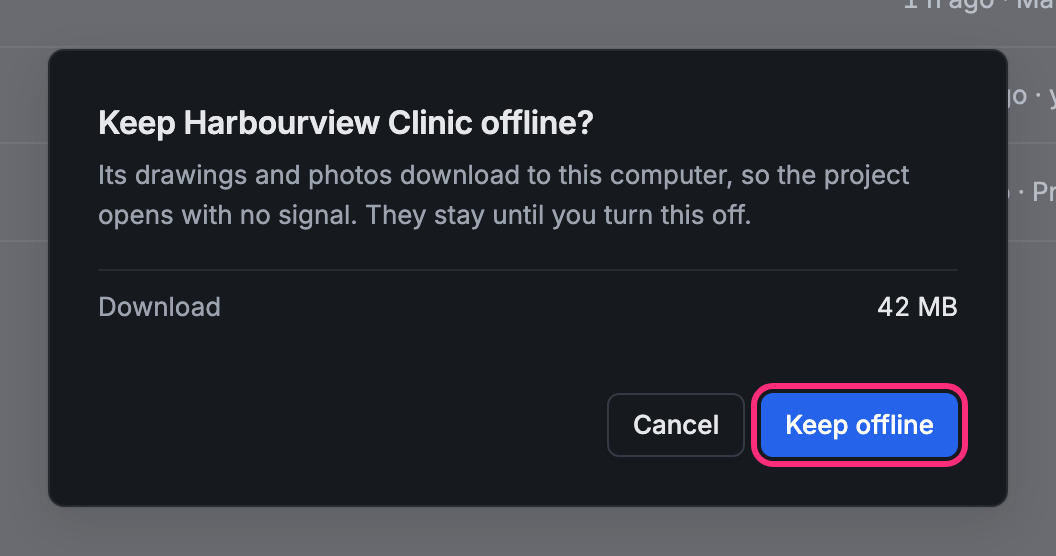
Check the Download size, then press Keep offline.
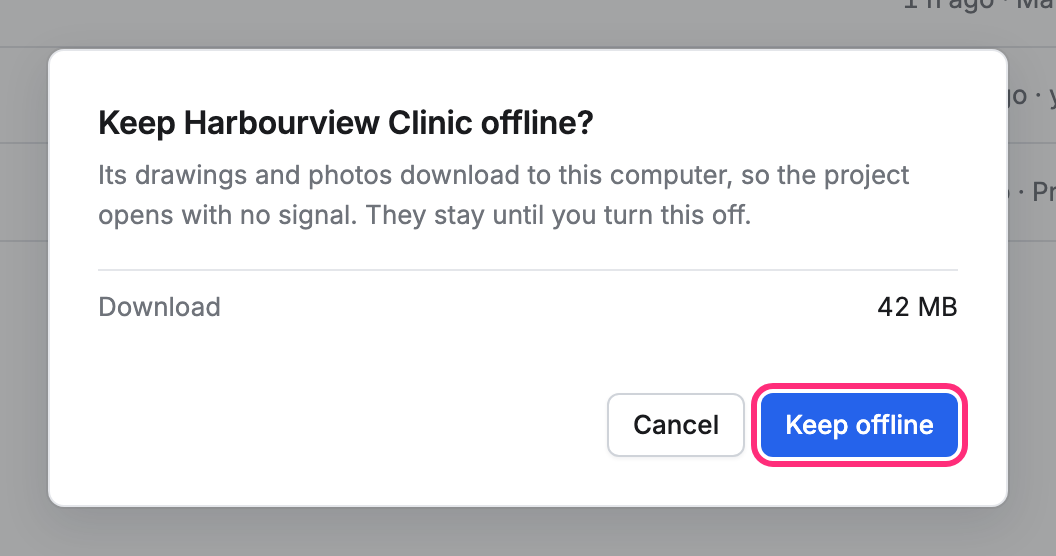
A ring beside the project fills as it downloads. When it’s done, the project shows the kept-offline mark. The files stay until you turn this off.
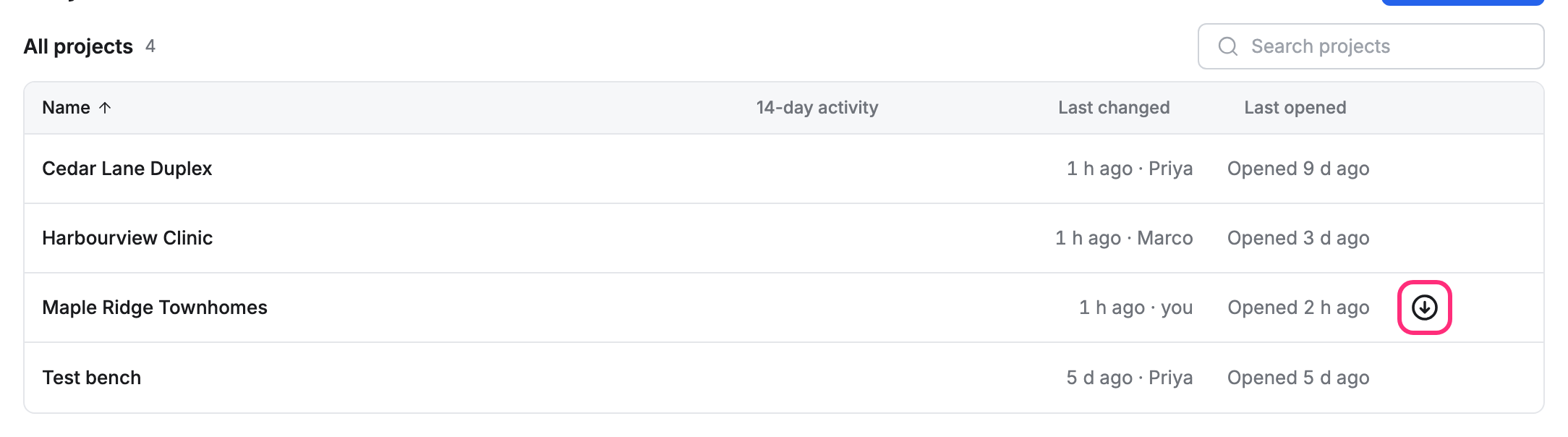
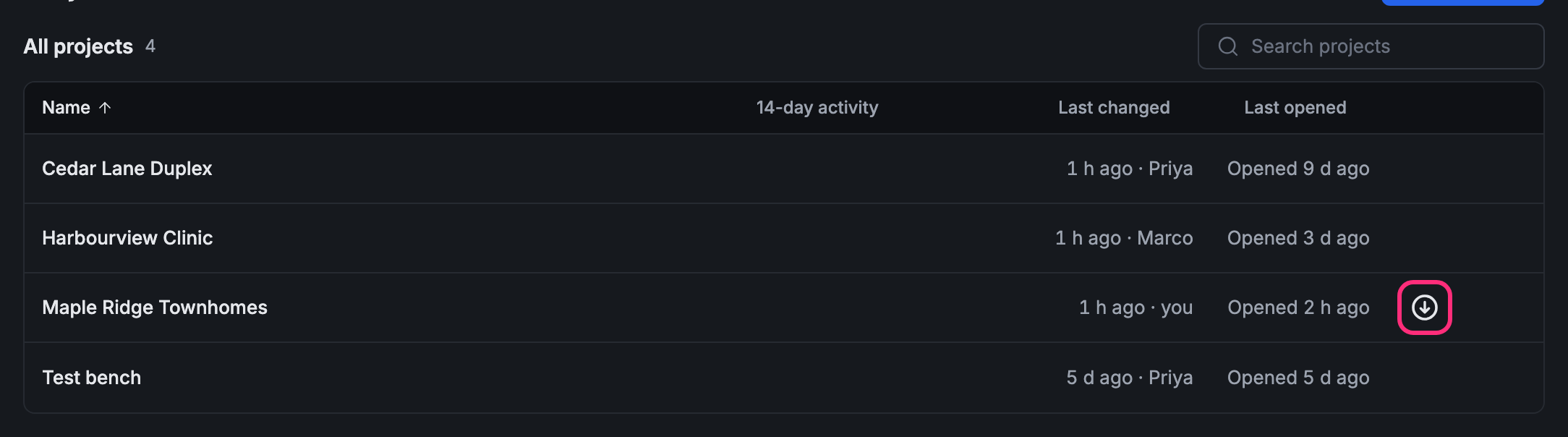
To stop, press the mark (or the project’s ⋯), then Stop keeping offline, and confirm with Remove downloads.
A browser on a phone doesn’t keep projects offline.