Upload drawings
A project’s drawings come in as one file: a PDF set or an image. Pointmap splits it into pages and reads each page’s sheet number, so a new issue of a sheet you already have lands on that sheet as a new version.
Upload a file
Section titled “Upload a file”-
Open the project. Under the page list, press Upload.
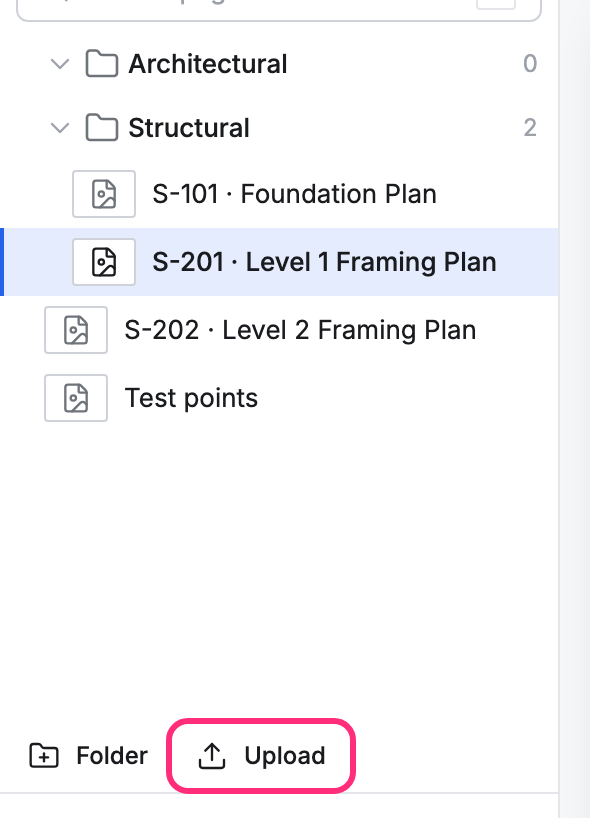
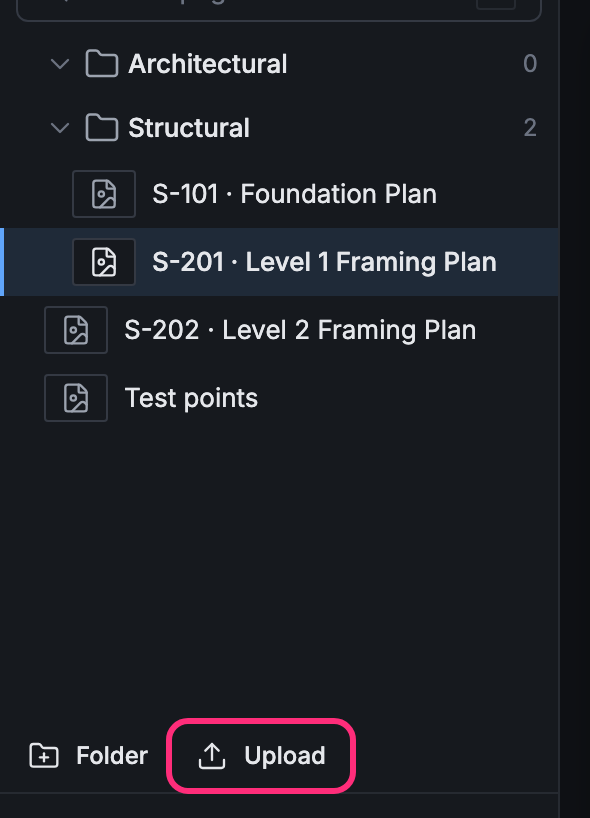
-
Choose what the pages should become. New sheets adds them as sheets; a sheet number you already have still becomes a new version of that sheet. New versions is for a new issue of sheets you already have.


-
Drop the file on Drop a PDF or image, or browse, or press Browse and pick it.
The file is split and read on the server. Each page’s sheet number comes from its bookmark or its title block.
Check where each page goes
Section titled “Check where each page goes”Before anything is added, the review lists every page of the file. With New sheets, it shows:
- at the top, how many pages become new versions, how many become new sheets, and how many are to check;
- Version name (Pointmap fills in one, such as Version 5), Issued on, and Replaces an earlier upload;
- Folder for new sheets: Unfiled, one of the project’s folders, or New folder…, which asks for the folder’s name;
- one row per page, under Page, Sheet number, Name and Goes to: a picture of the page, its sheet number, its name, and where it goes, such as New version of S-101 (its 2nd) or New sheet.
To check a page:
- Press its picture. The page opens full screen, with 2 of 3 and the page’s number and sheet at the top.
- Use the arrows to step through the pages, and press Done to go back to the review.
To change a page, edit its sheet number or name, or pick where it goes from its list. A page you set to New sheet goes into the Folder for new sheets.
Check new versions
Section titled “Check new versions”With New versions, the review pairs each page of the file with the sheet it would replace. Version name, Issued on and Replaces an earlier upload are at the top, with a line that sums it up, such as 3 sheets get a new version. Pages that need a look come first, and when more than five are sure matches, those fold under a row such as 6 more confident matches · Show.
Each row has three parts:
- Sheet already here: the sheet, its name and how many versions it has.
- Proposed: what happens to the page and why, and a list to change it.
- Page in this file: a picture of the page, its sheet number and name, which you can edit, and where the number came from.
Proposed says one of these:
- Replaces S-101: the page becomes that sheet’s next version.
- Renumbered from S-101: the number is new, but the page looks like that sheet.
- New sheet: nothing here matches, so the page is added as a sheet.
- Skip: a letter-size page with no number, like nothing here. It isn’t added unless you change it.
- Check: Pointmap can’t tell, for example when two pages have the same number. Pick where it goes from its list.
To see what changed, press a page’s picture. The sheet and the page open side by side, with a count of the changes. Sensitivity sets how small a change counts, and Boxes marks them. Press Done to go back to the review.
Add stays dimmed until every Check is picked and no two pages go to the same sheet. The review says which row to change.
Add the pages
Section titled “Add the pages”Press Add 3 pages (the button counts the pages, and any you skip). The pages are added and the drawing opens. A sheet that got a new version shows its version name with the page.
Press Cancel to leave without adding anything.
Only people who can change the project’s sheets can upload. For everyone else, Upload is dimmed and says why when pressed.