Track tasks on a point
A card type can carry a task list, like the Install steps on a hold-down. Each point gets its own copy, so you tick off the work one point at a time. The count beside the list’s name, here 1/3, also shows on the point.
Tick a task
Section titled “Tick a task”Click the box in front of a task. It is crossed out, the count goes up and the bar under the heading fills.
Add a task
Section titled “Add a task”-
Click + Task beside the list’s name.
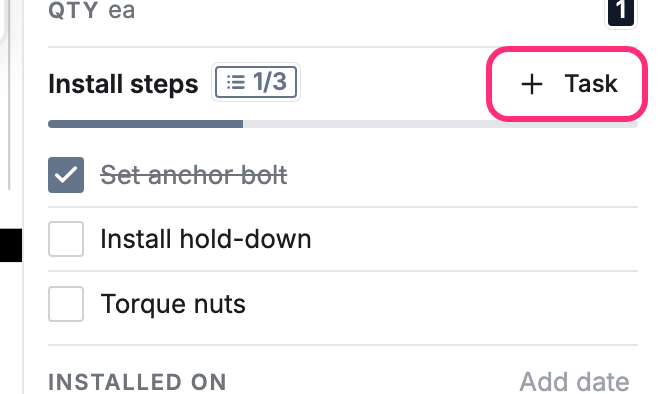
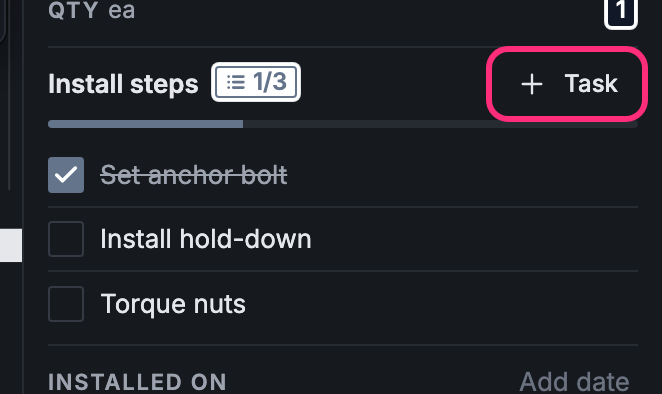
-
Type the task and press Enter. The line stays open for the next one.
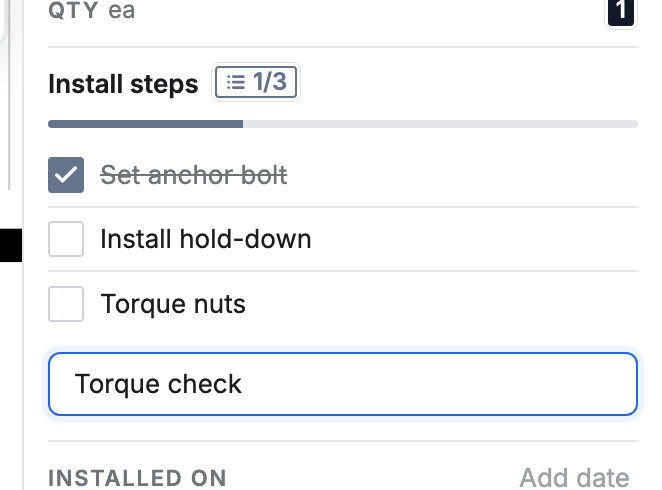
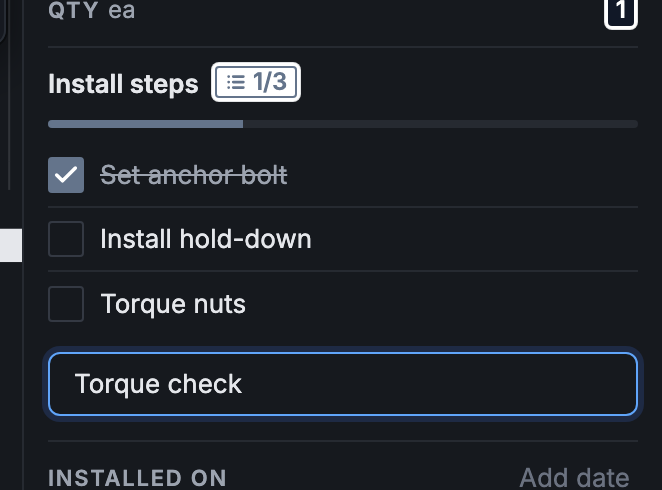
-
When you’re done, leave the line empty. Press Esc to throw away a task you have half typed.
The new task is on this point only. To give every new point the same tasks, put them in a template: see Templates.
Rename a task
Section titled “Rename a task”Click the task’s words and type. Press Enter or click away to keep the new name, or press Esc to keep the old one.
If you can tick tasks but can’t add or rename them, the list is closed: whoever set up the card type turned off Anyone can add tasks for that field.
Find points with open tasks
Section titled “Find points with open tasks”-
Click Filter at the top of the drawing.
-
Under Tasks, pick the list and what you want, for example Install steps: Open tasks. You can also pick All done or No tasks.
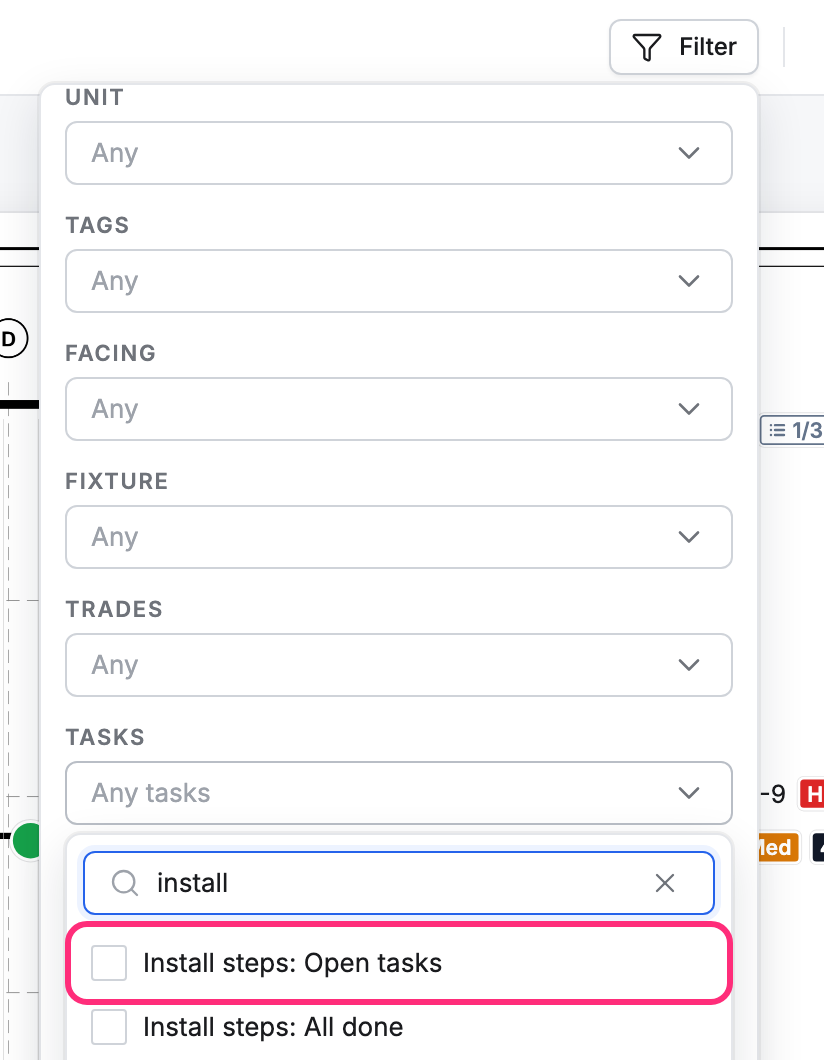
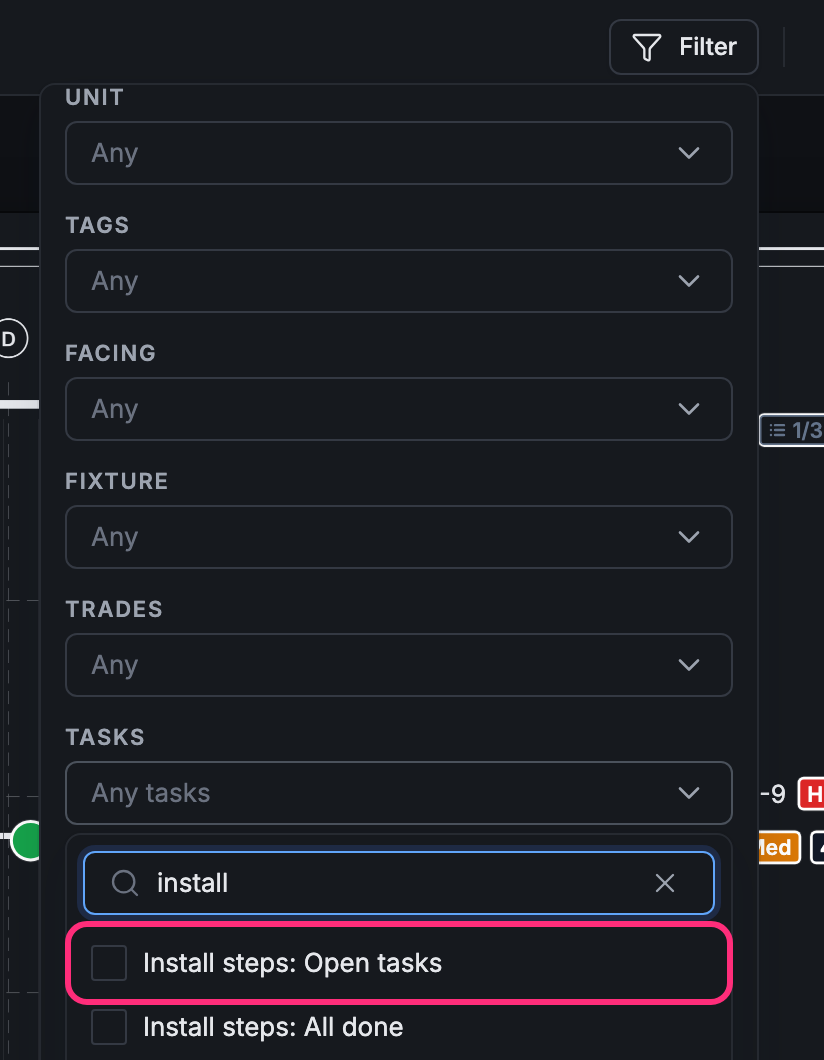
The drawing shows only the points that match. Click the × on the filter’s chip to show them all again.