Sign in
Pointmap has no password to remember: it emails you a six-digit code each time you sign in.
Sign in with a code
Section titled “Sign in with a code”-
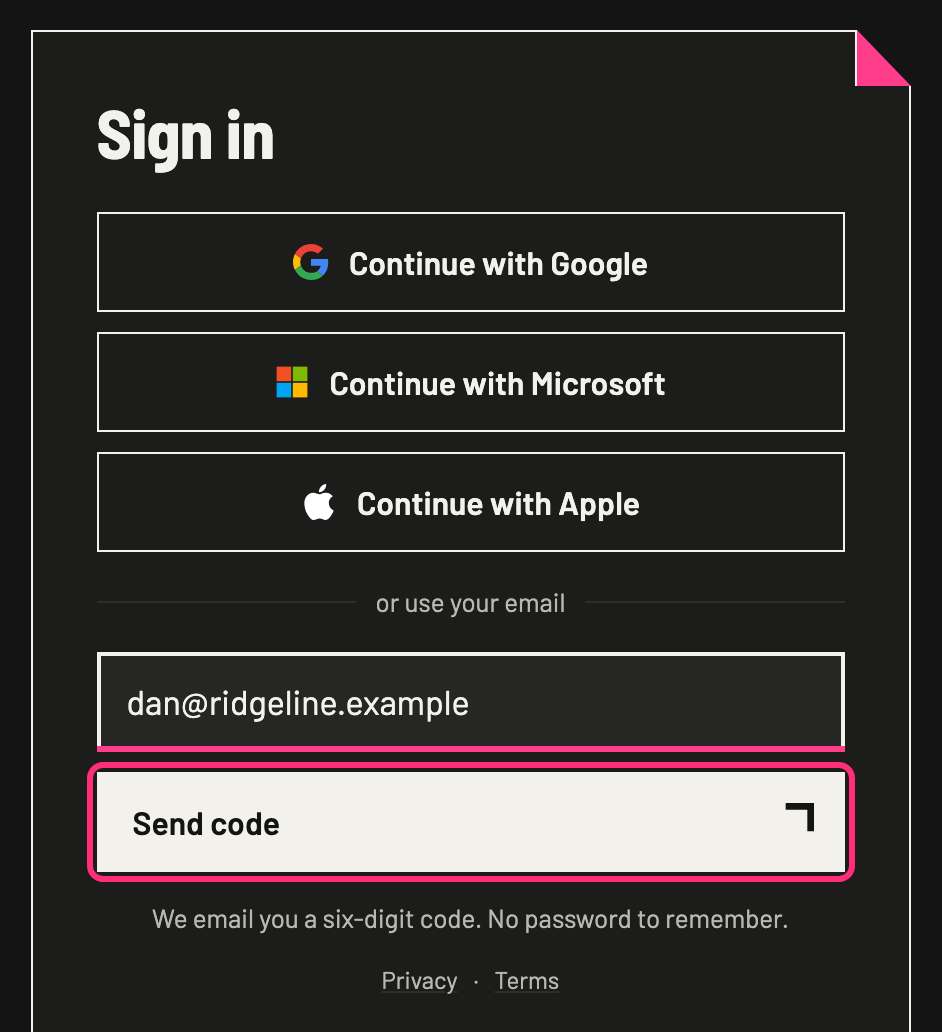
Type your email under or use your email, then press Send code.
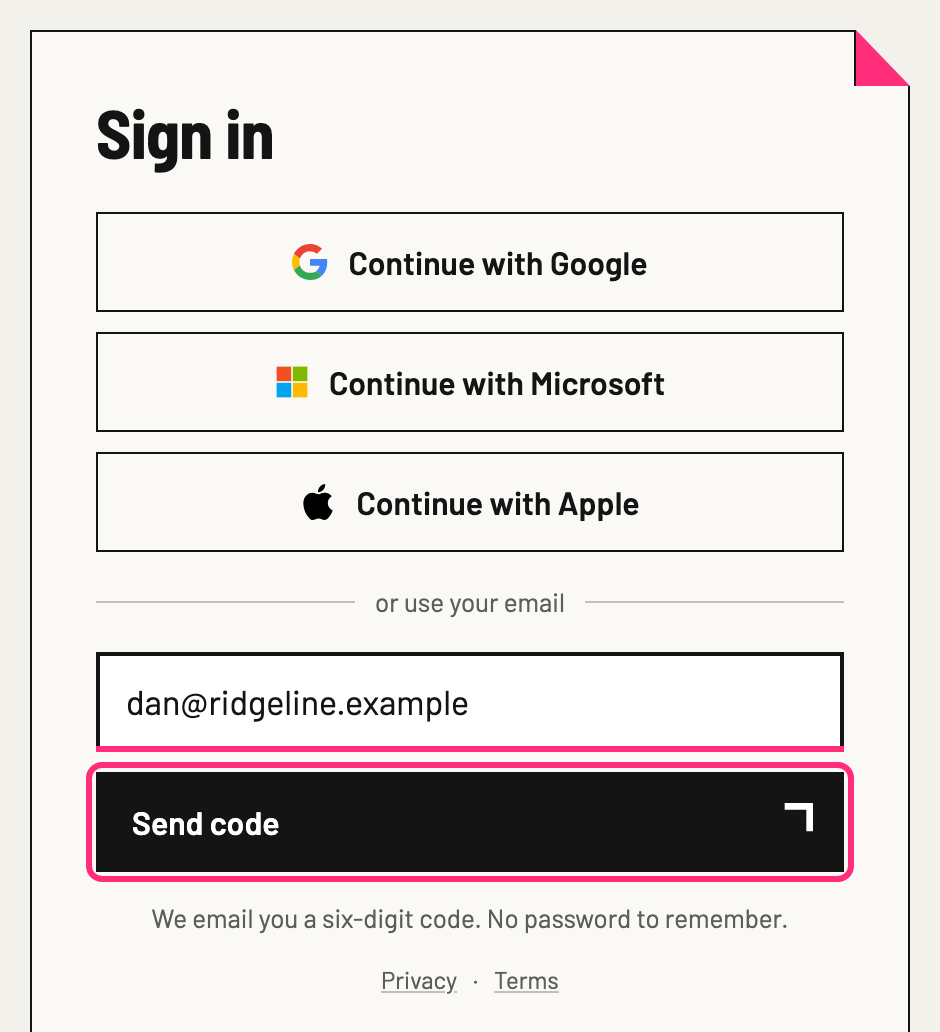
-
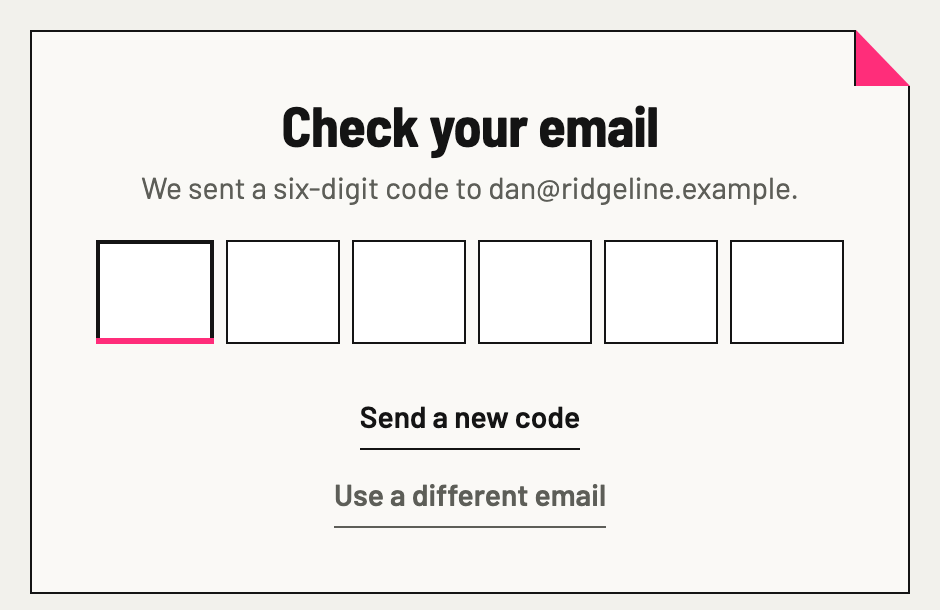
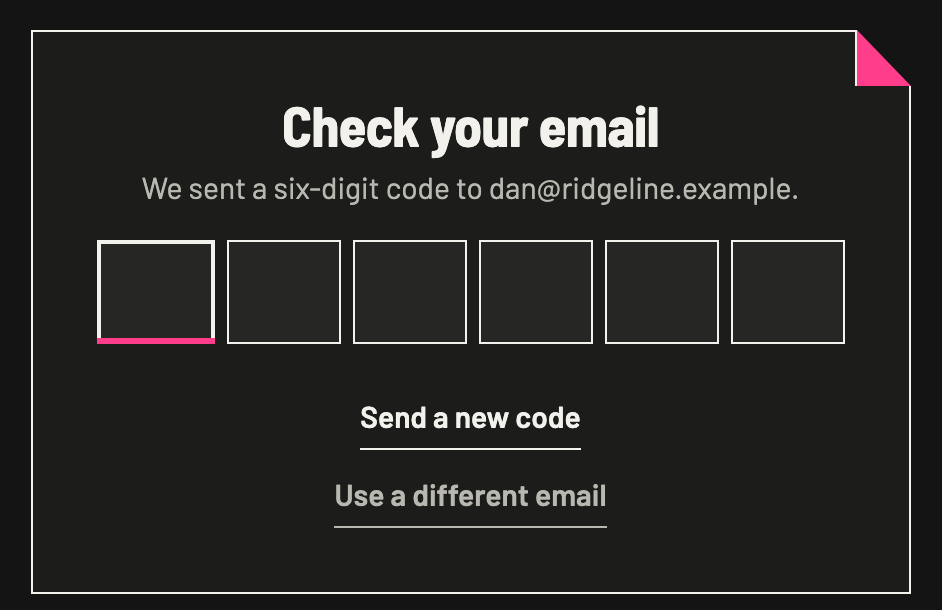
Check your email: type the six digits from the email into the boxes.
Pointmap opens your projects. If you opened a link to a drawing while signed out, it opens that drawing instead.
No email? Press Send a new code. Typed the wrong address? Press Use a different email.
On a device you’ve signed in on before, the way you used last is marked Last used, and if it was your email, the address is already filled in.
Use a password instead
Section titled “Use a password instead”You can set a password as well, and keep signing in by code.
- Press your initials at the top right, then Settings. Under Sign in press Set a password.
- Type a Password of at least 8 characters, then press Set password. “Password set” shows.
Next time, after Send code, press Use a password instead, type your password and press Sign in. Use a code instead goes back to the code.
Sign out
Section titled “Sign out”- Press your initials at the top right.
- Press Sign out of and your company’s name, then Sign out.
That company’s projects, drawings and photos are removed from this device; sign back in to see them again. If changes are still waiting to be sent, the question says how many (“1 change hasn’t been sent yet”). Wait until they’re sent, or press Discard them and sign out to drop them.