Invite people and make join codes
Owners and admins bring people in from Settings › People. Send an invite when you know the person’s email. Make a join code when a crew needs to join on site: everyone who opens the code’s link joins the same way.
The person you invite joins from the link. What they see is on Join a company.
Invite someone by email
Section titled “Invite someone by email”-
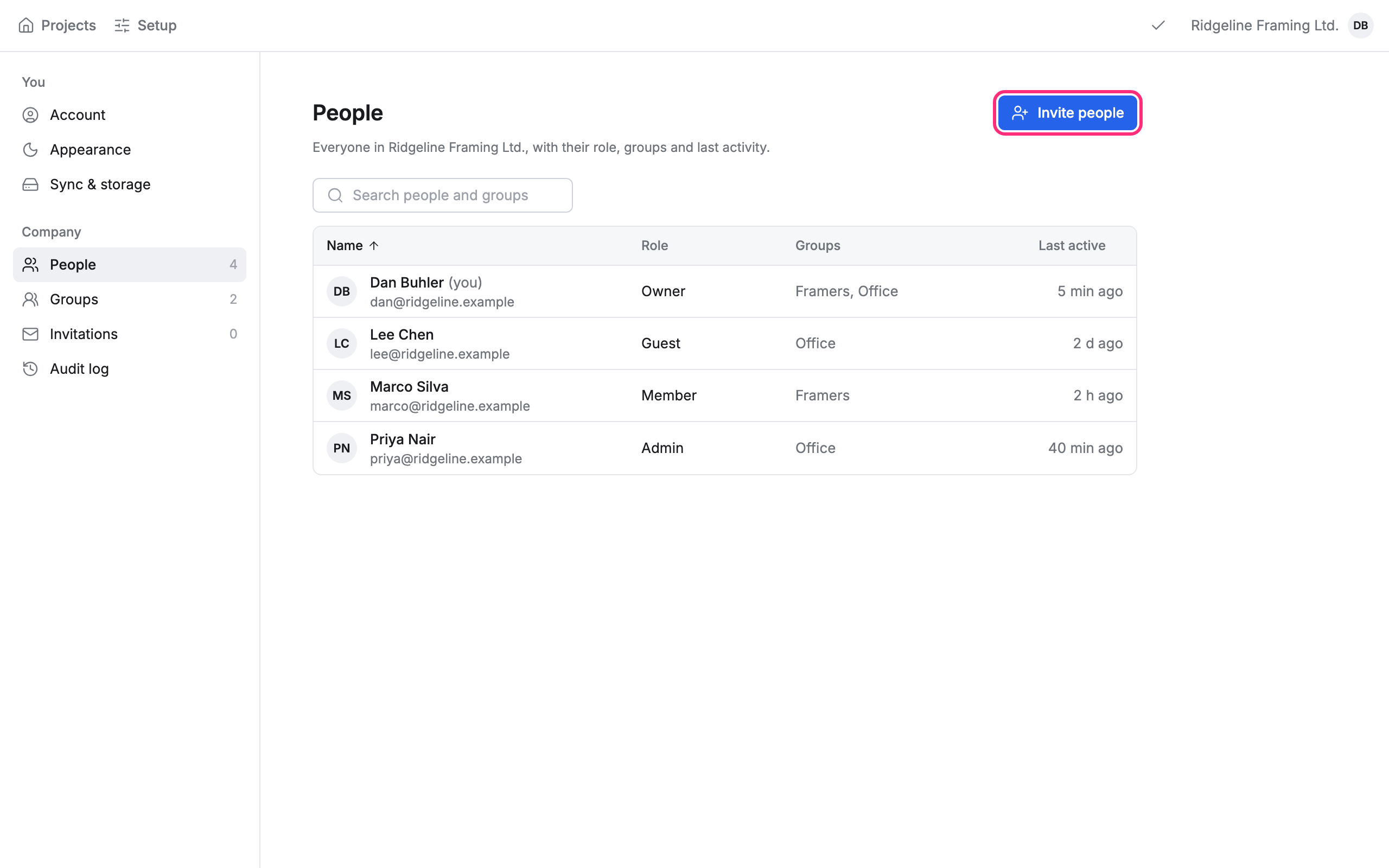
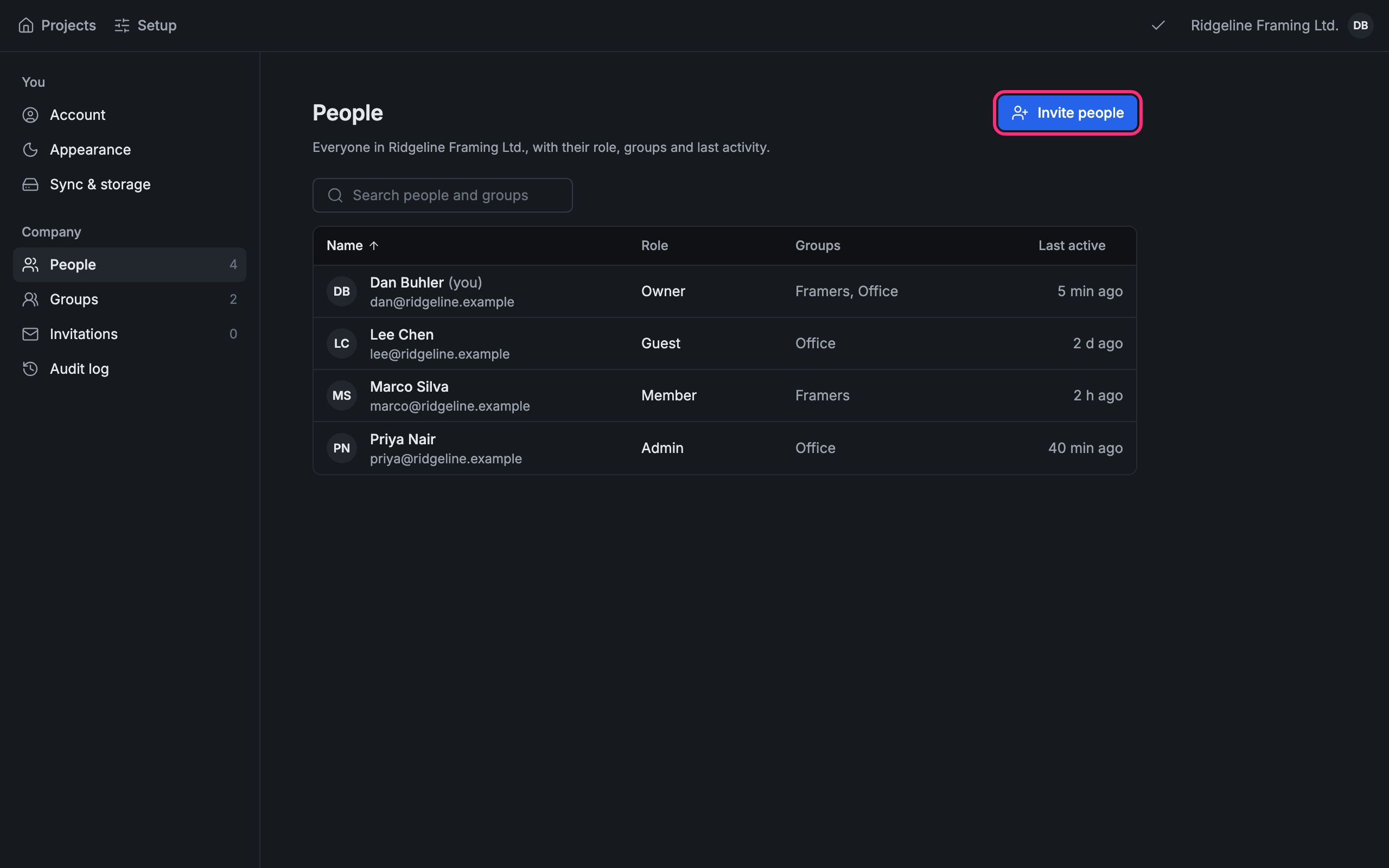
Click your initials at the top right, then Settings. Click People, then Invite people.
-
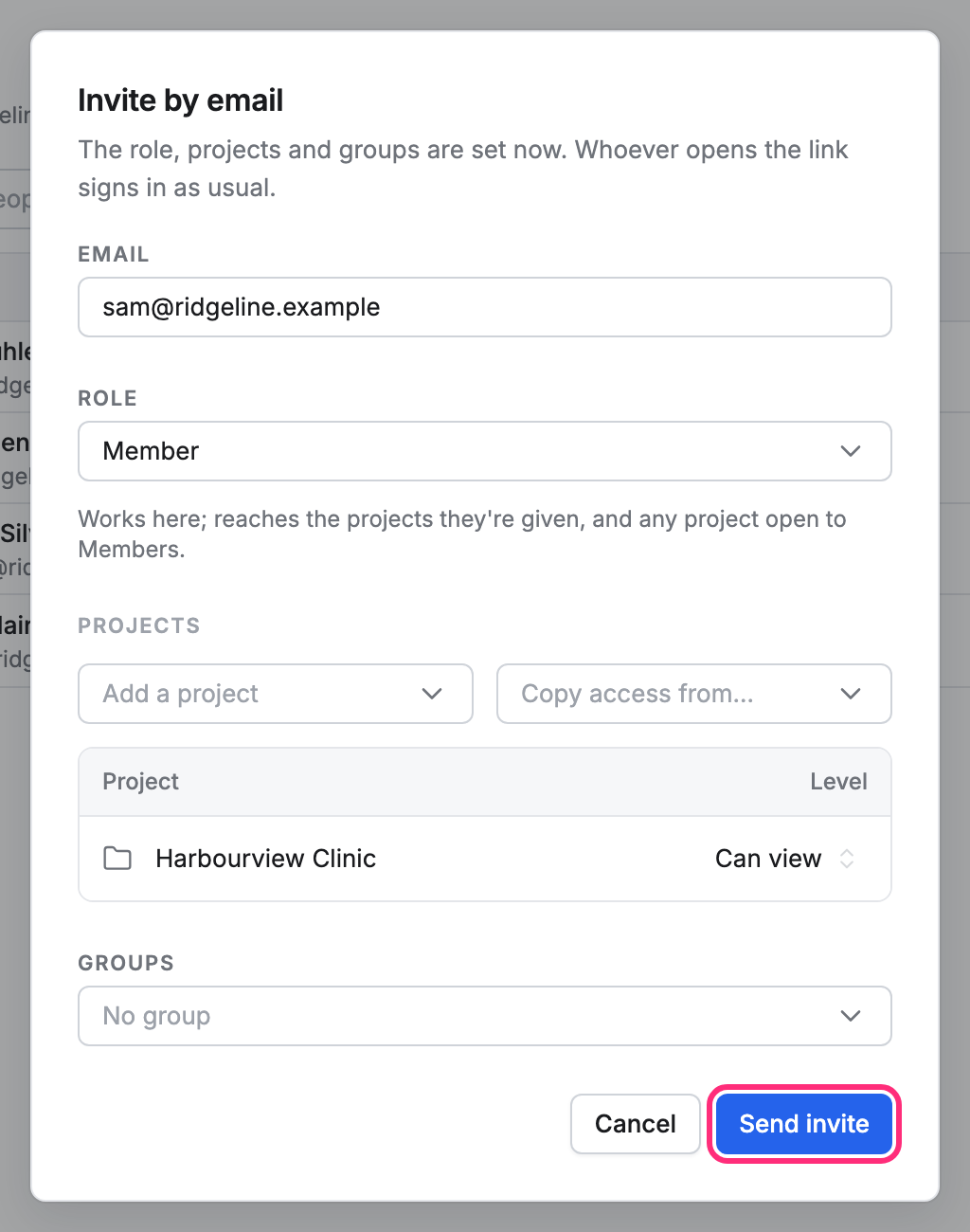
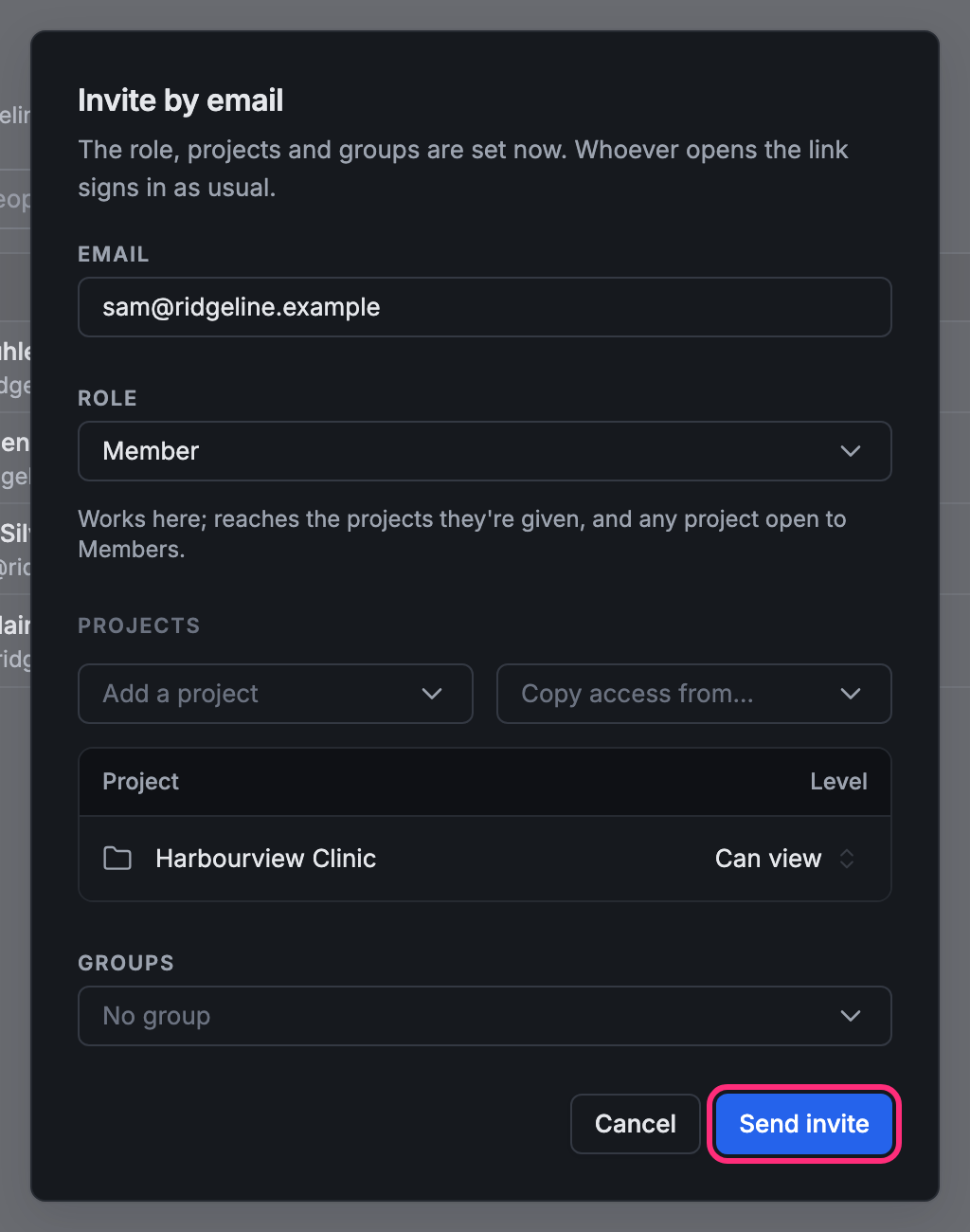
Type their Email.
-
Pick a Role. The line under it says what the role reaches. A Member reaches the projects they’re given and any project open to Members; a Guest reaches only the projects they’re given.
-
Under Projects, use Add a project to give them a project now, and pick its level (Can view to start). Copy access from… gives them the same projects as someone already here.
-
Add them to a group under Groups if you like.
-
Click Send invite.
The invite shows under Invitations in the sidebar until they join.
Make a join code
Section titled “Make a join code”-
Go to Settings › Invitations and click Make a join code.
-
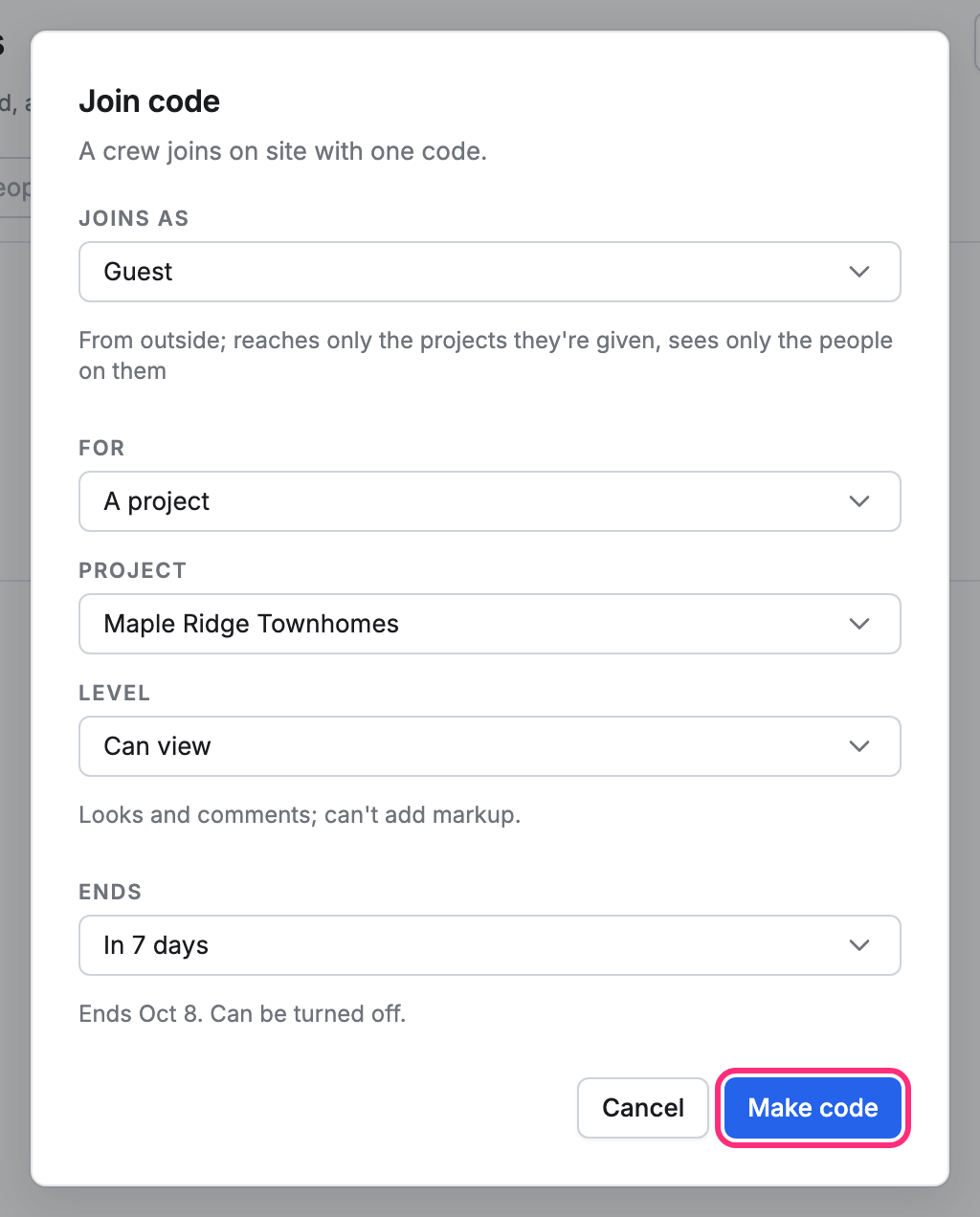
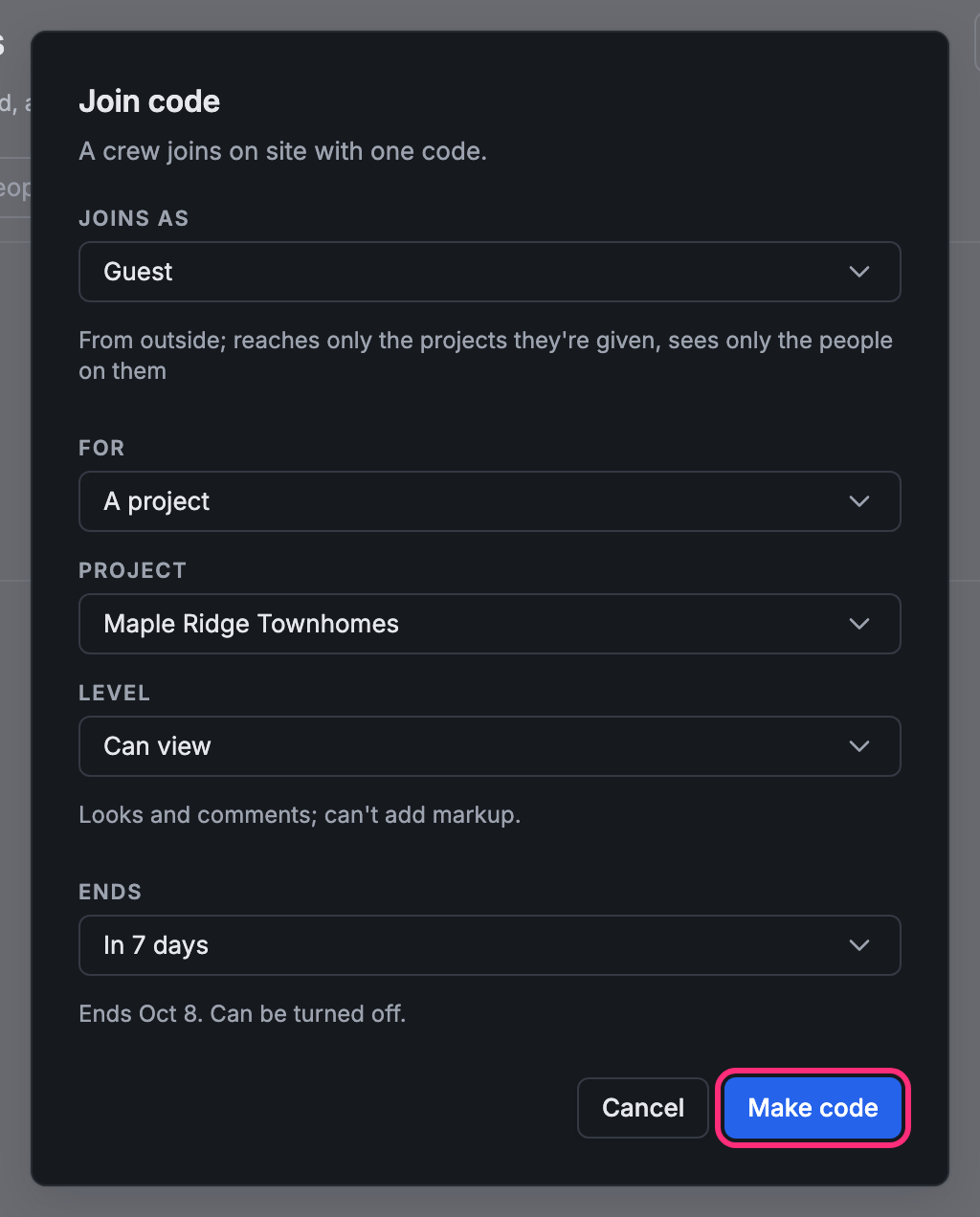
Joins as starts at Guest, and For at A project. Pick the Project.
-
Pick the Level people get on it, and when the code Ends: in a day, a week, 30 or 90 days, Never, or On a date….
-
Click Make code.
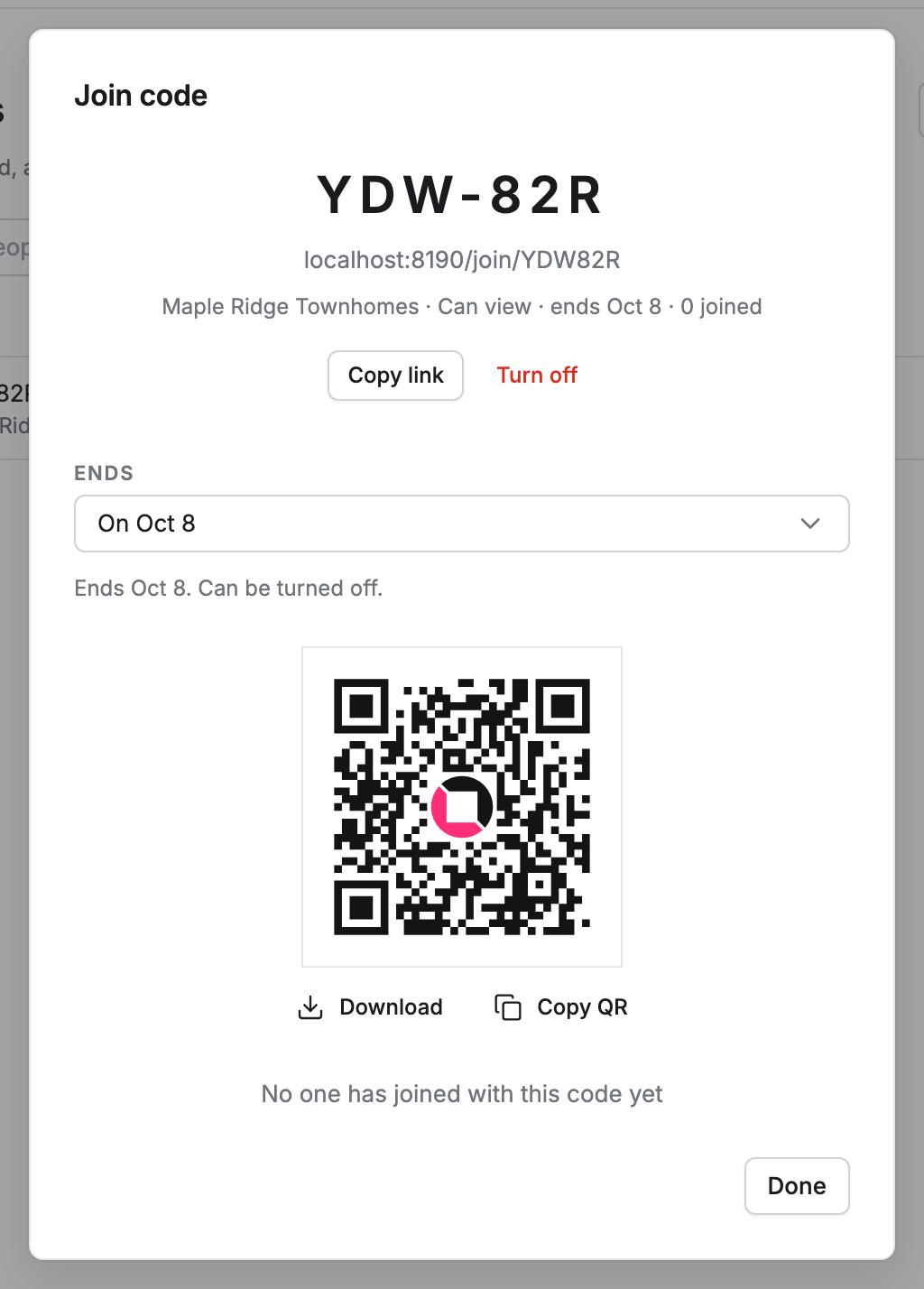
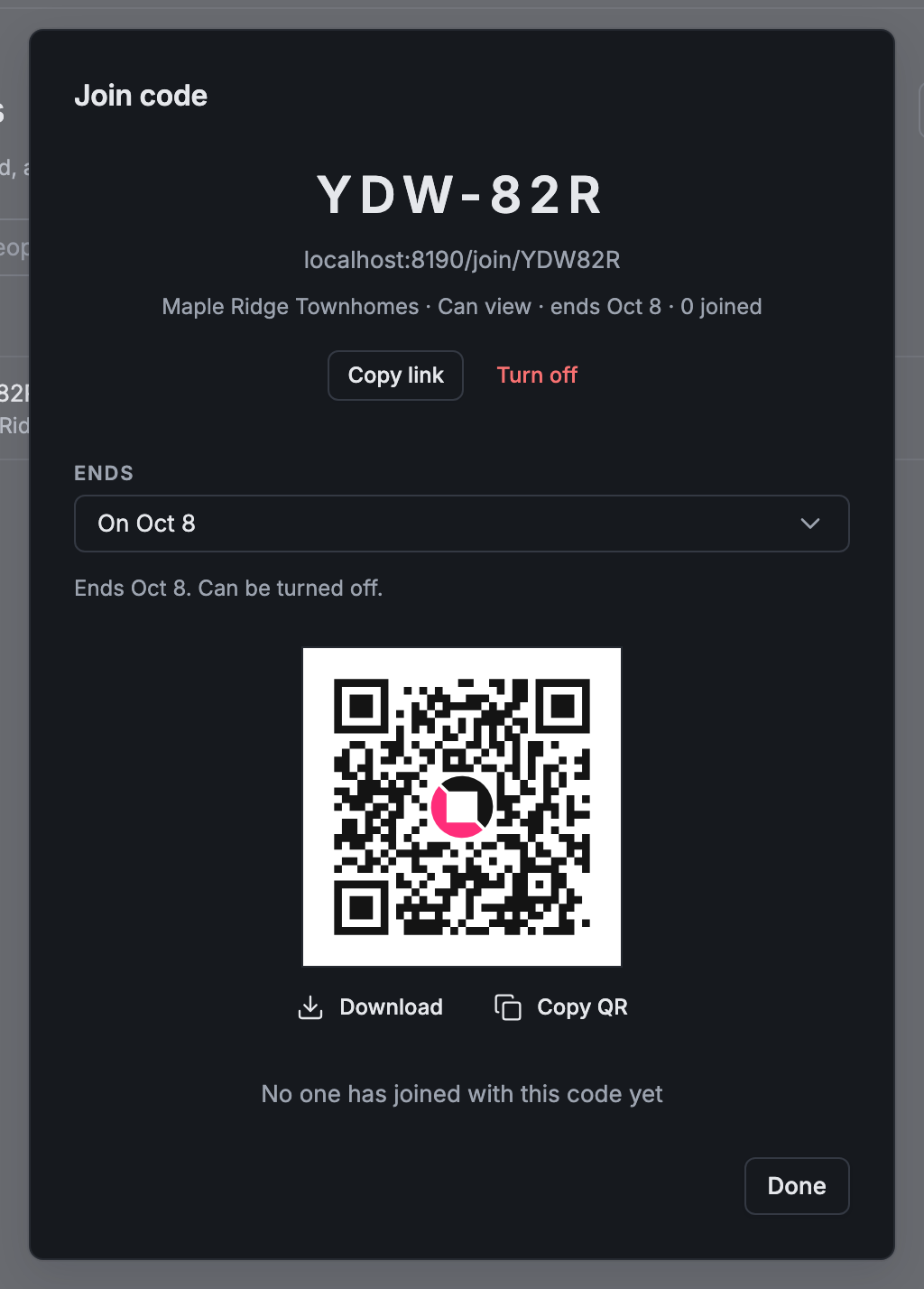
You get the code, its link and a QR code. Click Copy link to send the link, or Download or Copy QR to print the QR code for the site. The line under the code counts how many people joined with it.
You can also make a code for one project from the project itself: open its Access and click Join code for this project….
Change or turn off a join code
Section titled “Change or turn off a join code”Open the code from Settings › Invitations.
- To change when it ends, pick another time under Ends.
- To stop it working, click Turn off. People who already joined stay.
- To take back everyone who joined with it, click Remove everyone who joined…, then Remove. They show in the list as former members.