Check who can see a point, a page or a layer
Access is set on projects, layers, folders and card types, so it isn’t always obvious what one person ends up with. These checks answer it from where you are on the plan.
Who can see this point
Section titled “Who can see this point”-
On the plan, click the point to open its card.
-
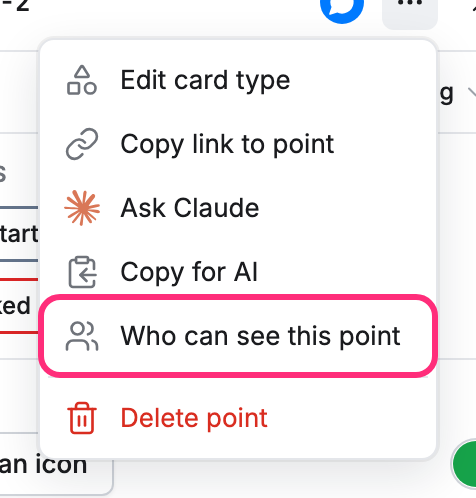
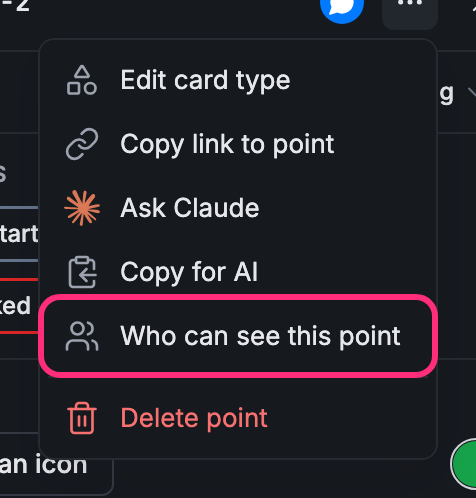
Click ⋯ at the top of the card, then Who can see this point.
The list shows everyone in your company, each tagged Can change, Can see or Can’t see. Type in Search people to find someone.
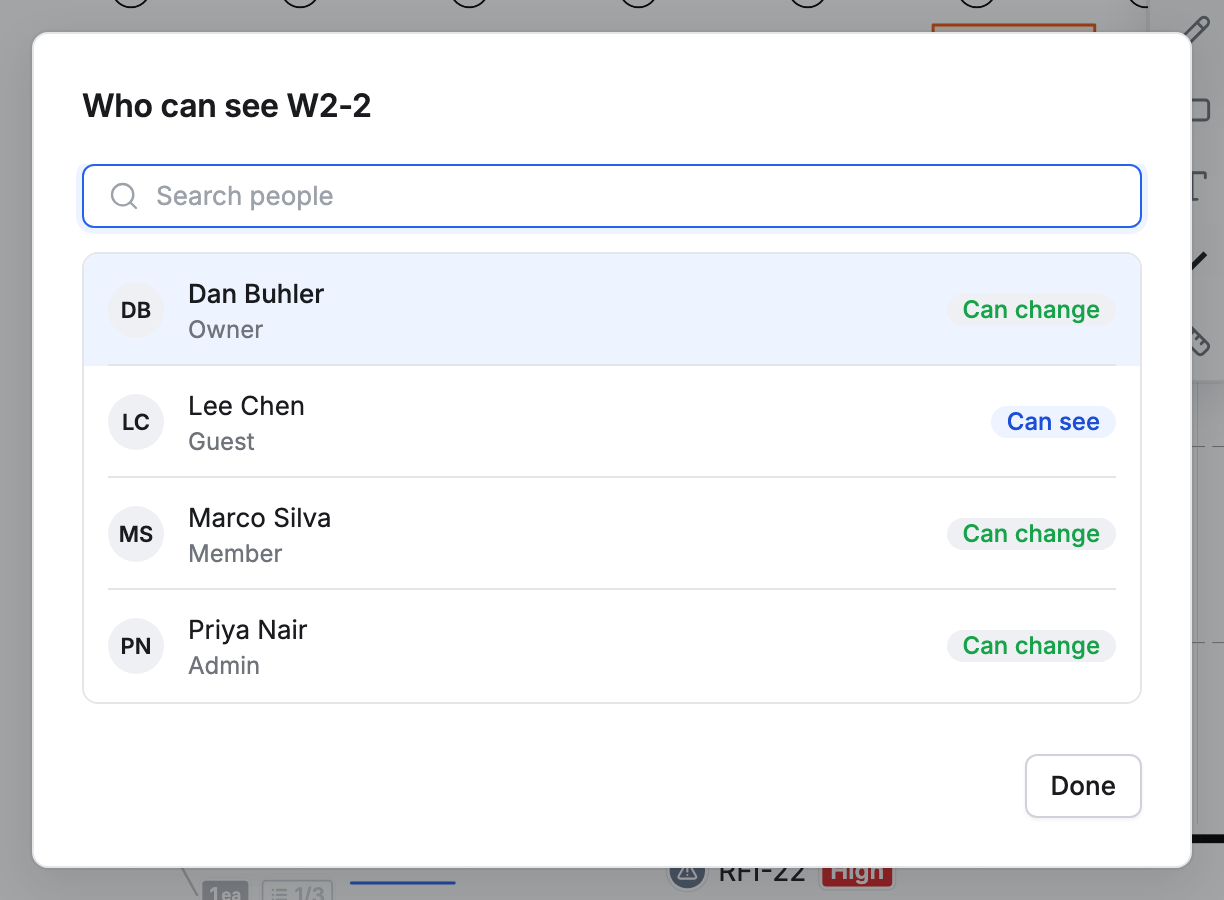
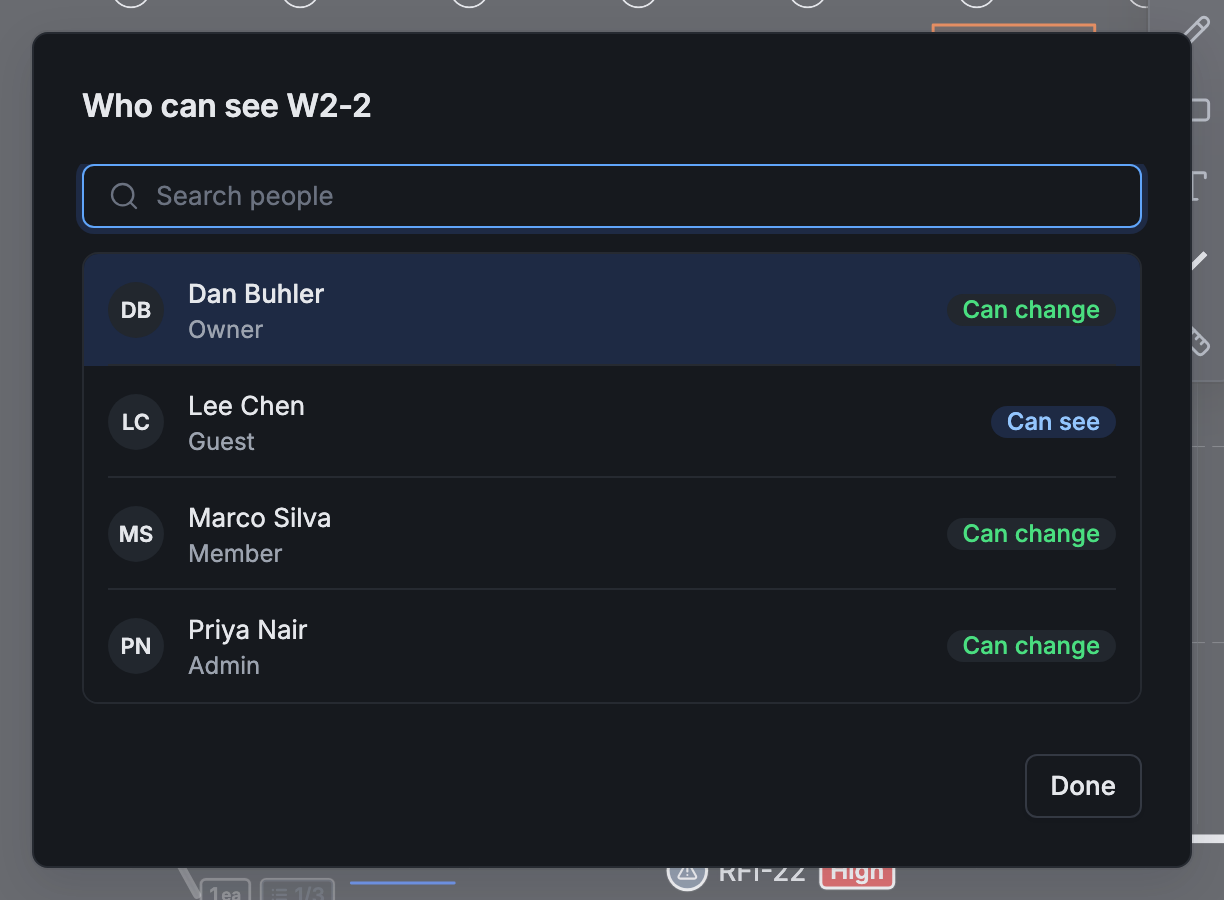
- Click a person to see what they can do with the point: see it, move it, change its card, see and add comments.
Under Why, each step from the person’s role down to the card type shows its level. The step marked Decides is the one that sets what they get. Click Change… on it to open that project’s Access on the line to change.
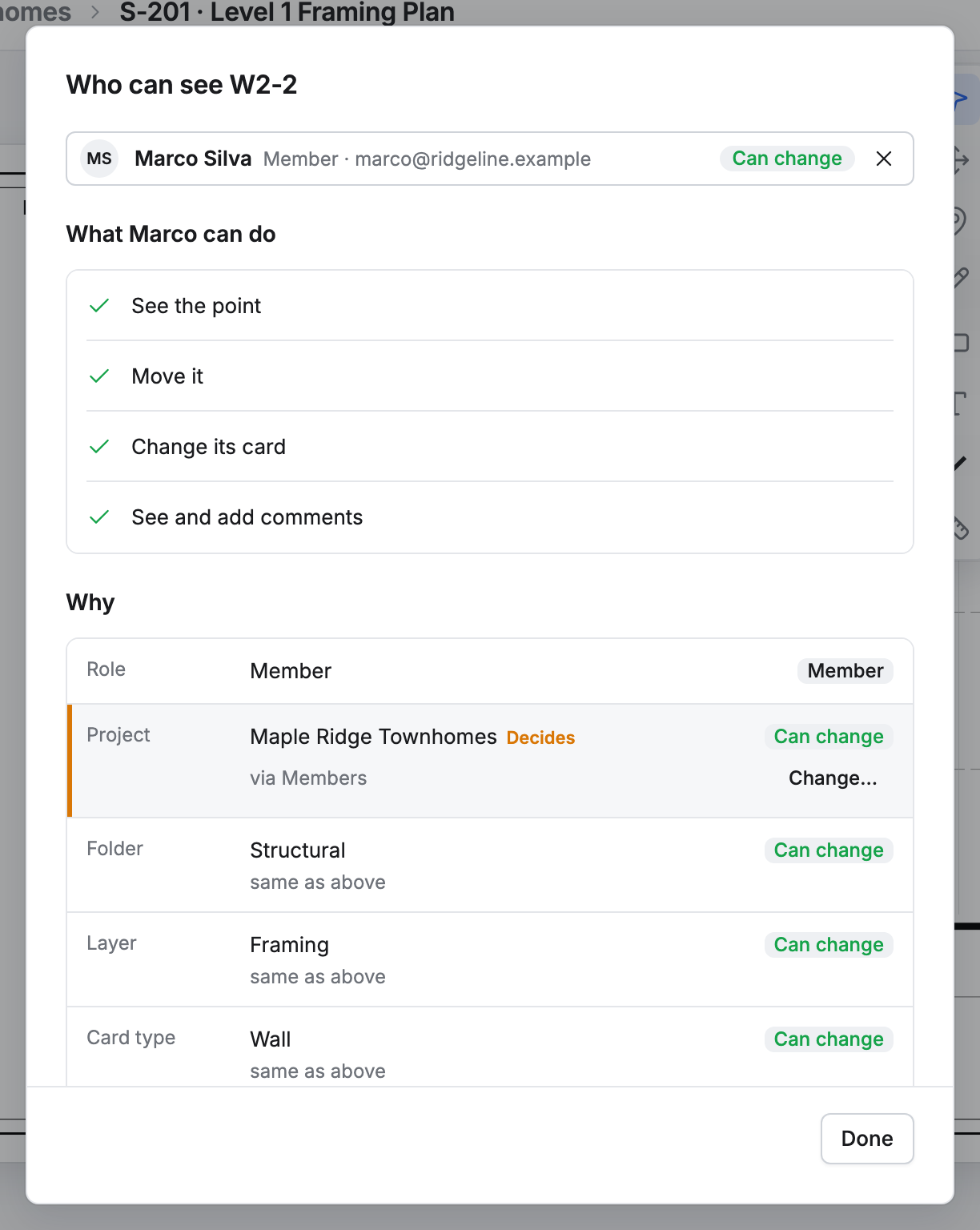
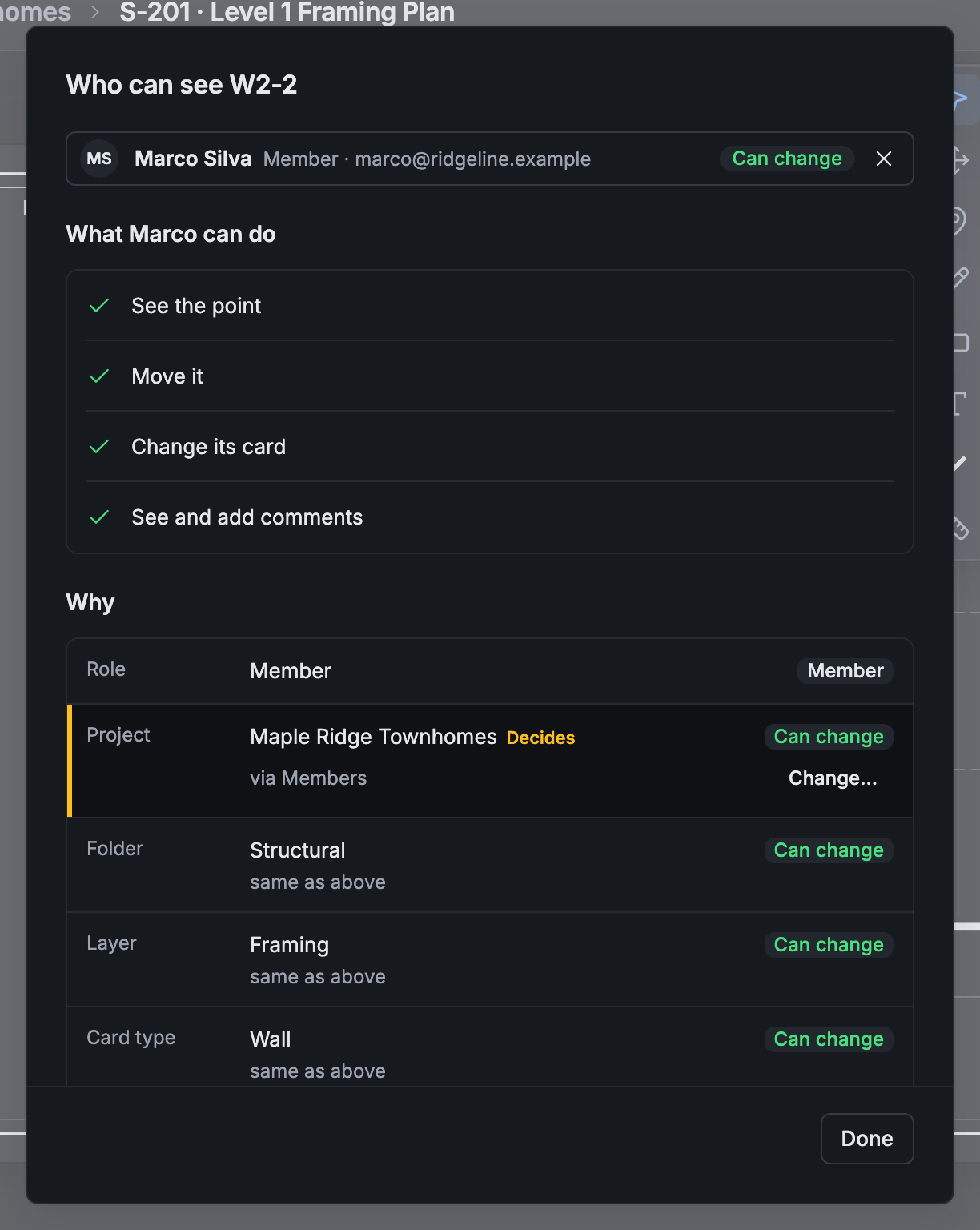
Click × next to the person to go back to the list, and Done to close.
What one person reaches on a page
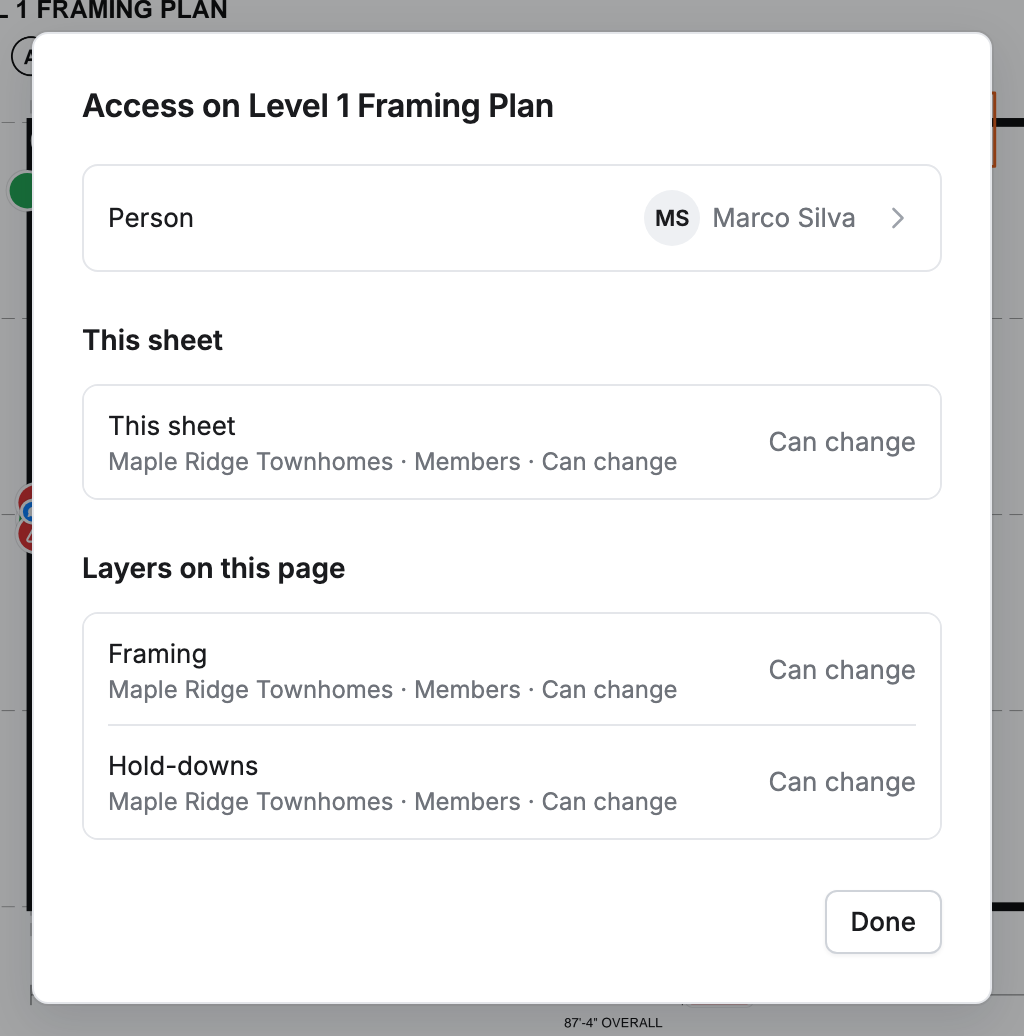
Section titled “What one person reaches on a page”- In the pages list, hover the page and click ⋯, then Access on this page….
- Click Person and pick someone.
The sheet shows their level on the page and on each layer on it, with the line that decides it.
Who sees a layer
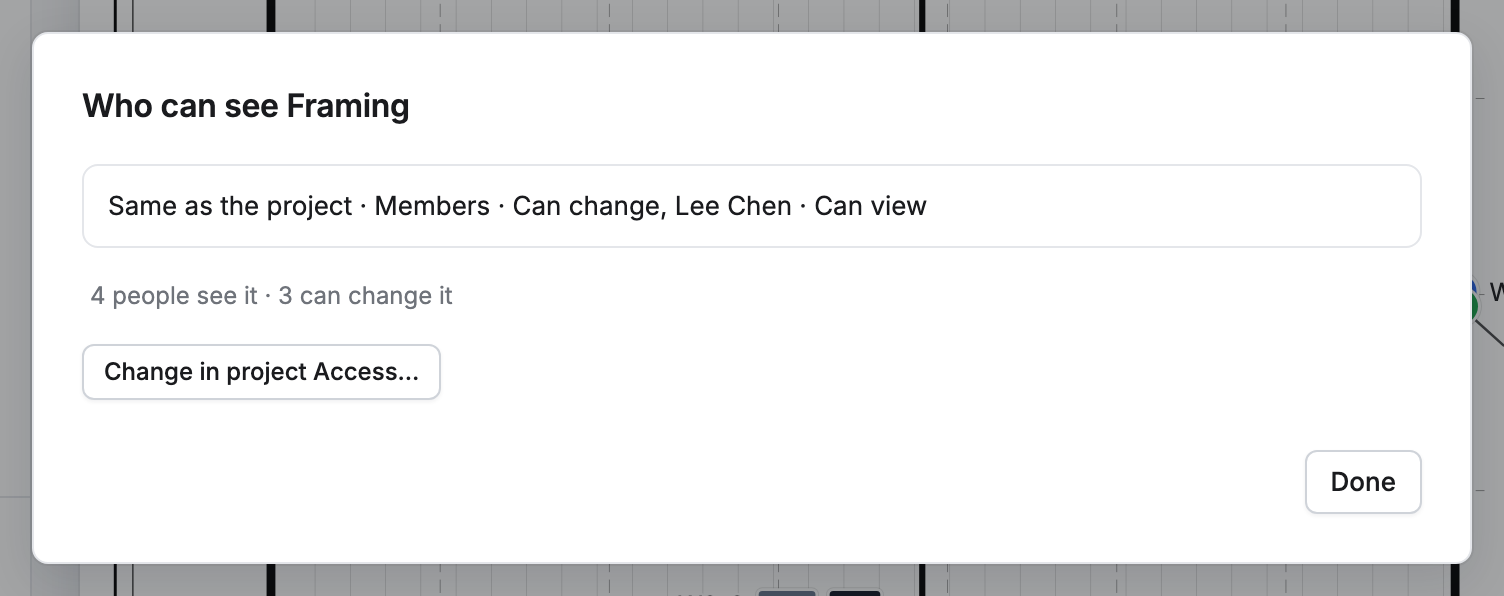
Section titled “Who sees a layer”In the layers list, click ⋯ next to the layer, then Who can see this. It lists the lines that reach the layer and how many people see it and change it. Click Change in project Access… to change them.