Make and change a card type
A card type is a kind of point, like a wall, a hold-down or an issue. It sets the questions every card of that kind asks, and how its points look on the drawing. Card types live in Setup, and every project in your company uses them.
Make a card type
Section titled “Make a card type”-
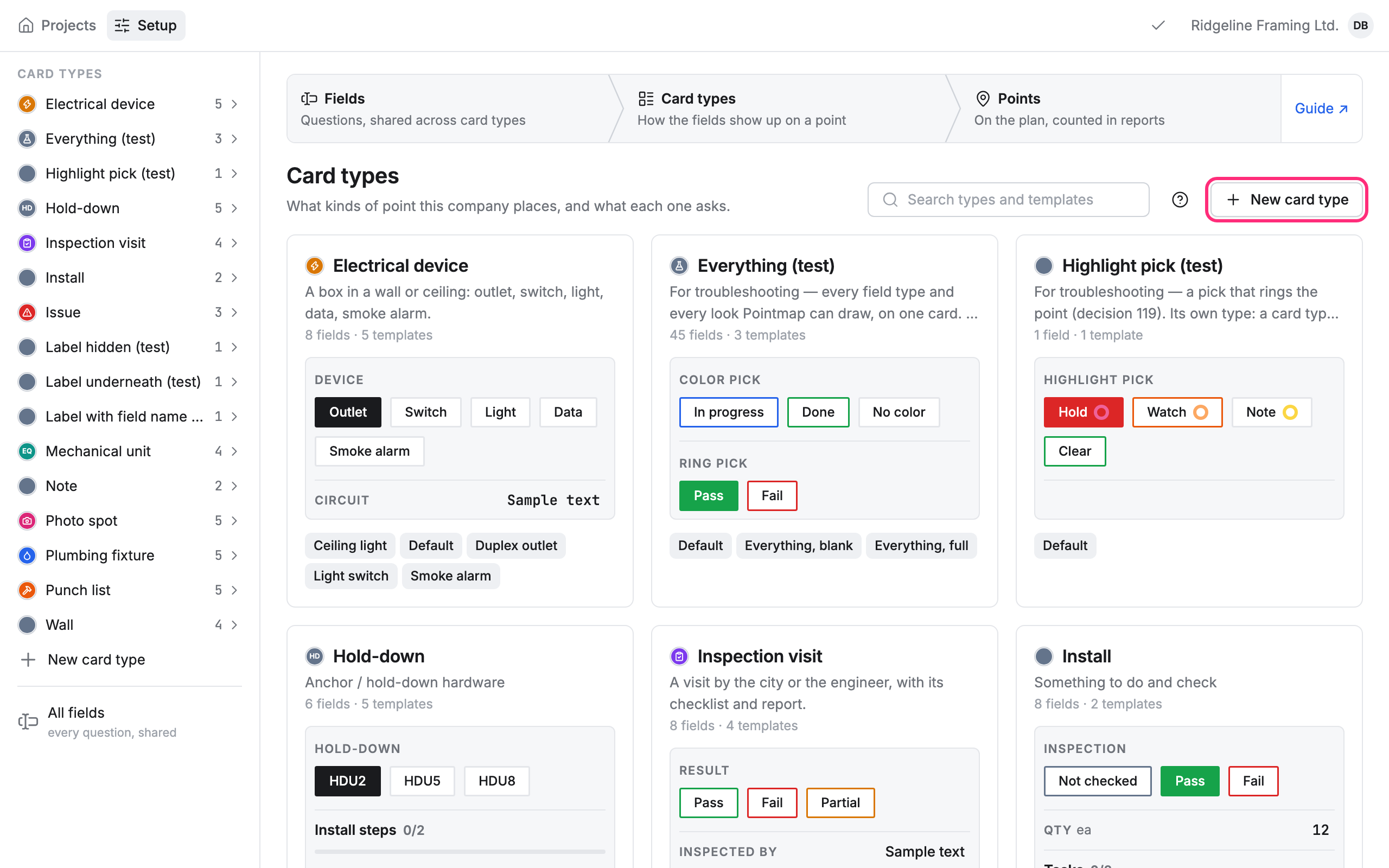
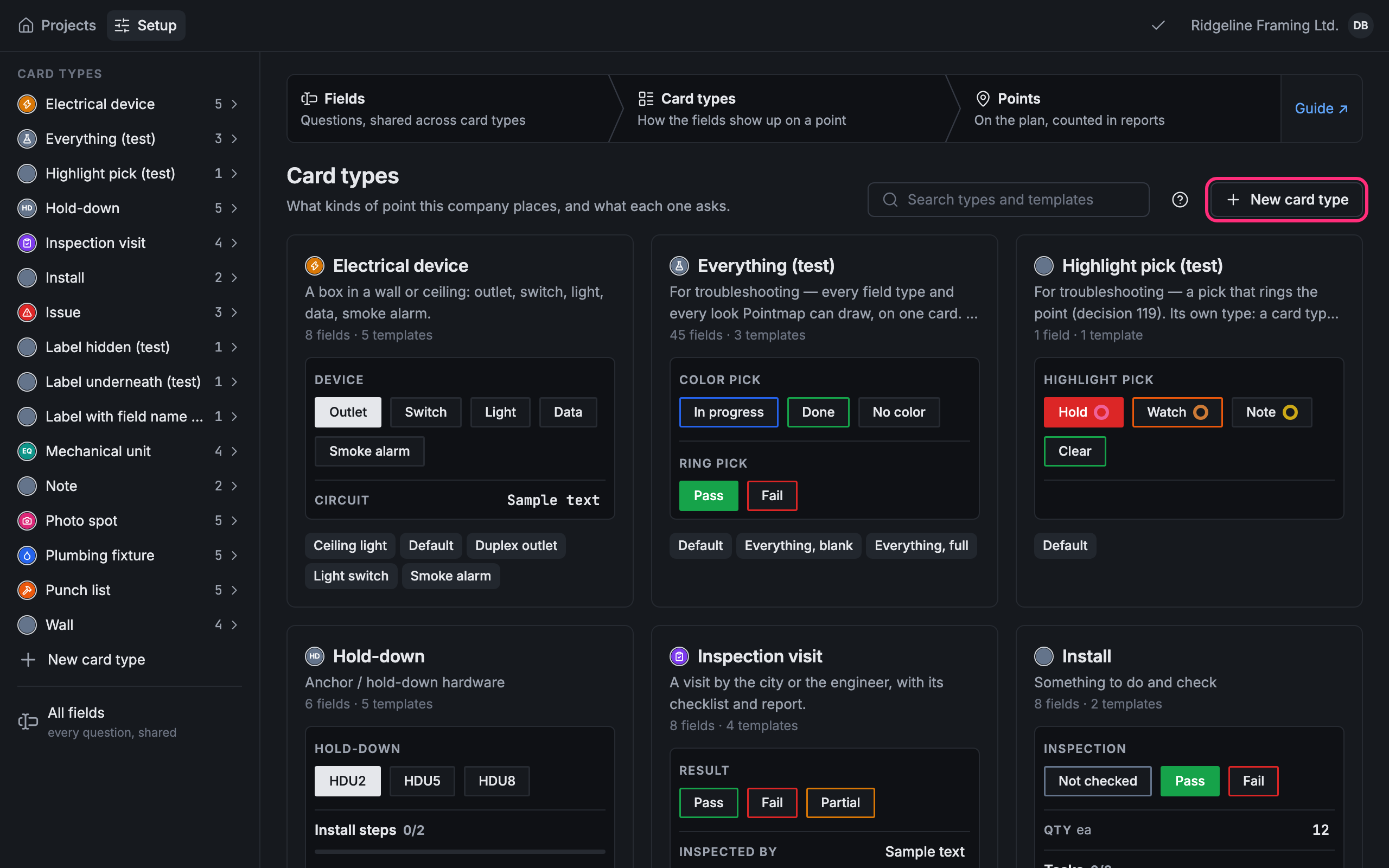
Click Setup at the top of the screen. It opens on Card types, with a tile for each one.
-
Click + New card type.
-
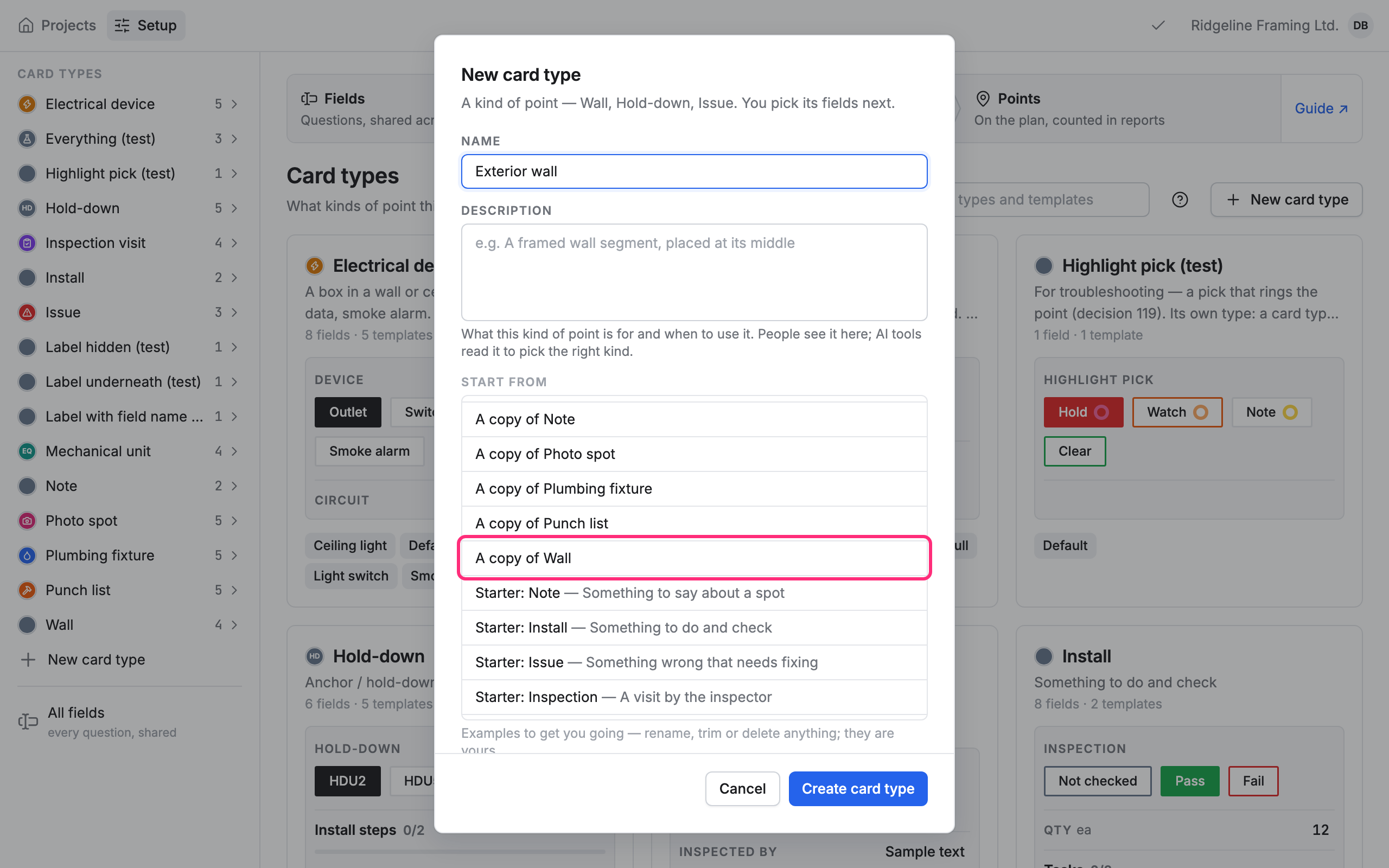
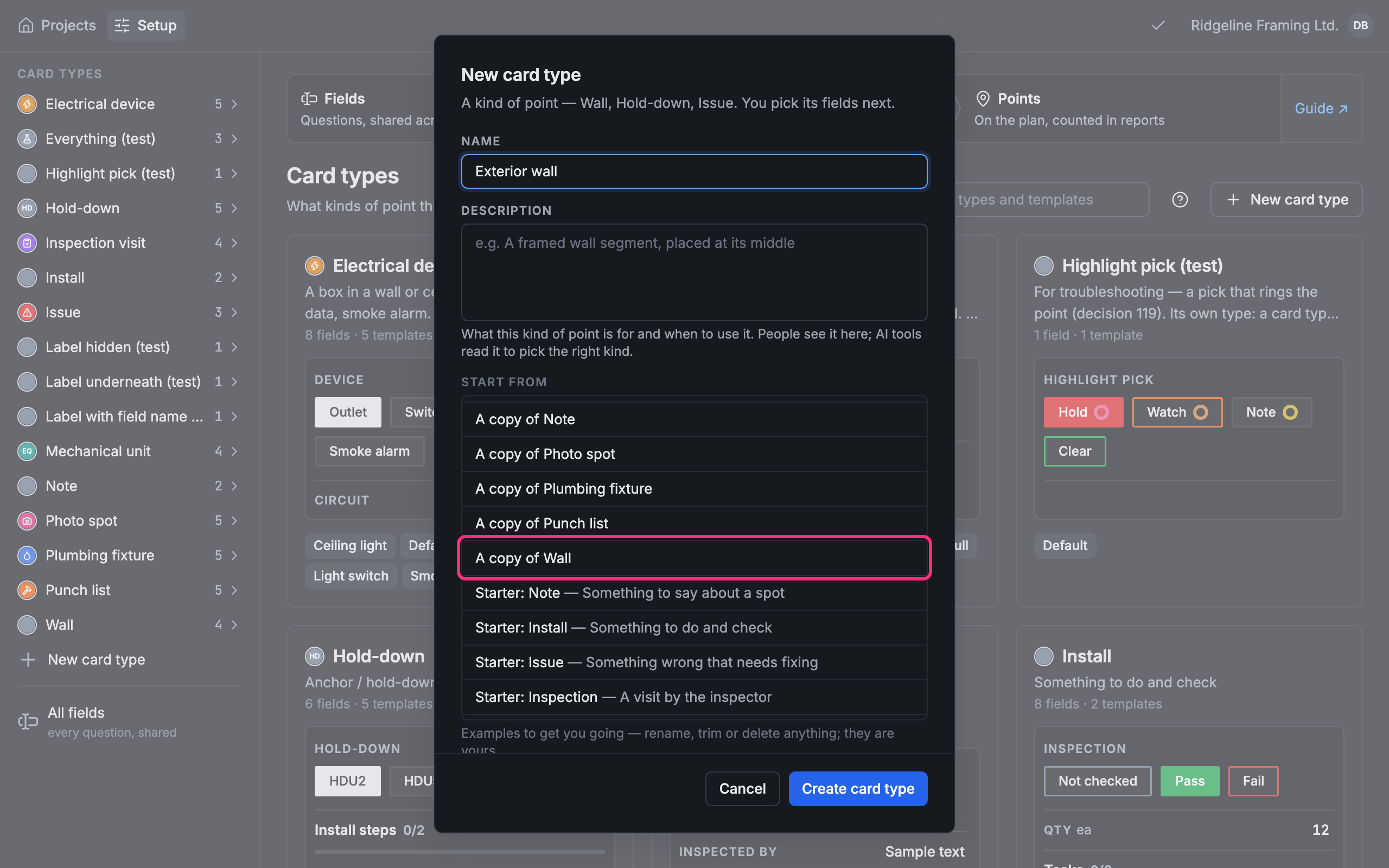
Type a Name, and a Description that says what this kind of point is for.
-
Under Start from, pick a copy of a card type you already have, or a starter that comes with examples.
-
Click Create card type.
The new card type opens on its card.
Change the card
Section titled “Change the card”The page shows the card as people will see it on a point, with the point above it. Template above the card picks the template you’re looking at: answers typed on the card go in that template (see Save time with templates).
-
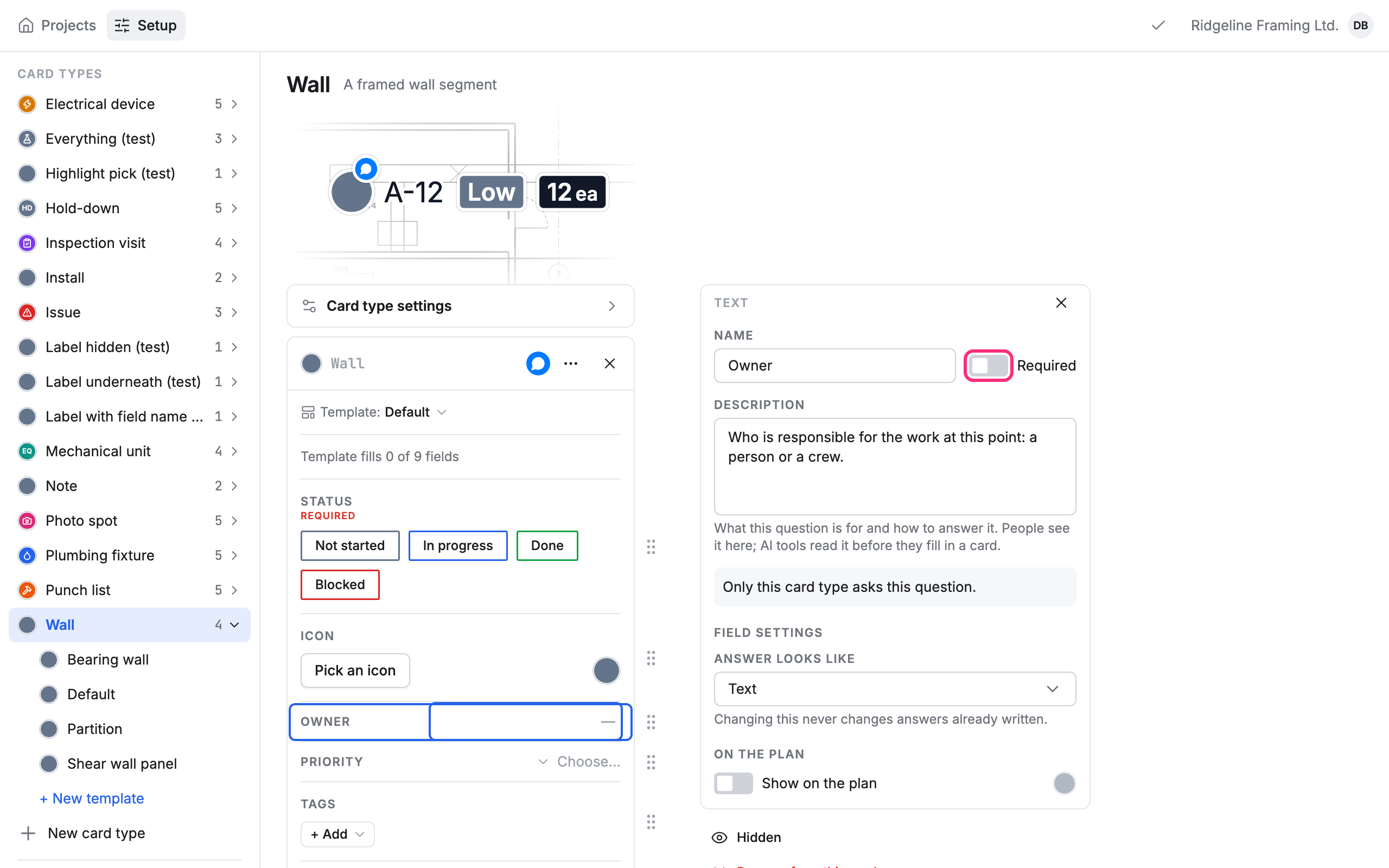
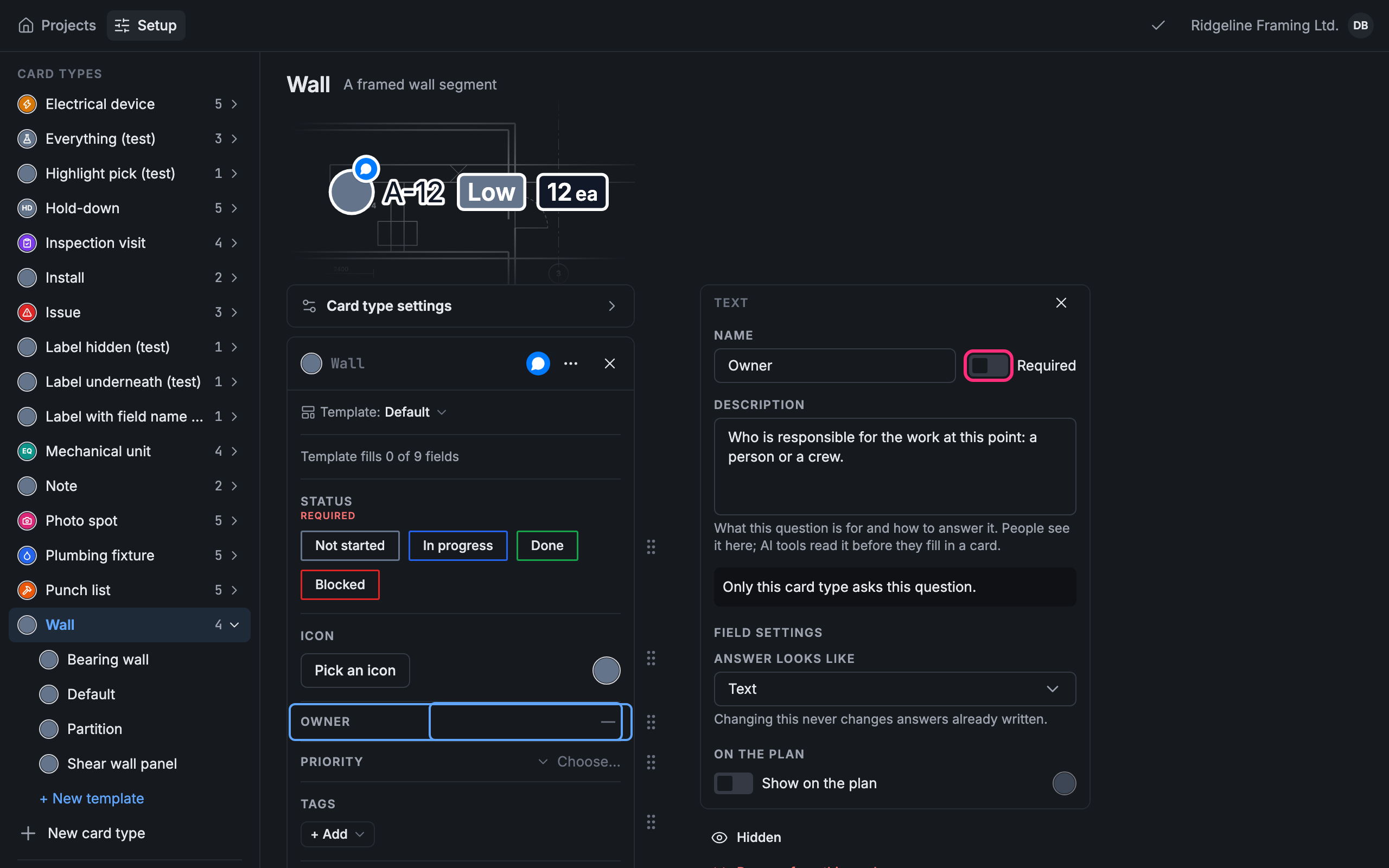
Click a line of the card. Its settings open on the right.
-
Change what you need: its Name, its Description, Required to make people answer it, or Hidden to keep it off the card for now.
-
To add a question, click + Add a field under the card: see Create a field.
-
To move a line, drag it by the dots at its right.
A field’s name and choices are shared by every card type that asks it: changing them here changes them everywhere, and Pointmap asks first.
Choose what the field shows on the point
Section titled “Choose what the field shows on the point”What a field puts on the point is this card type’s own choice. Changing it here changes no other card type.
- Click a line of the card.
- Under On the plan, turn Show on the plan on or off.
- While it’s on, set what you need: Color or Initials or icon under In the point, and Also shows as for places like a Ring, a Corner flag or a Label.
The options depend on the field. For what each one does and how to choose, see Choose what a point shows.
Save your changes
Section titled “Save your changes”Nothing is saved until you say so. The bar at the top counts your changes. Click Save to keep them, or Discard to undo them all.


If you leave the page with changes not saved, Pointmap asks first: Keep editing stays, Discard goes.
Card type settings
Section titled “Card type settings”Click Card type settings above the card.
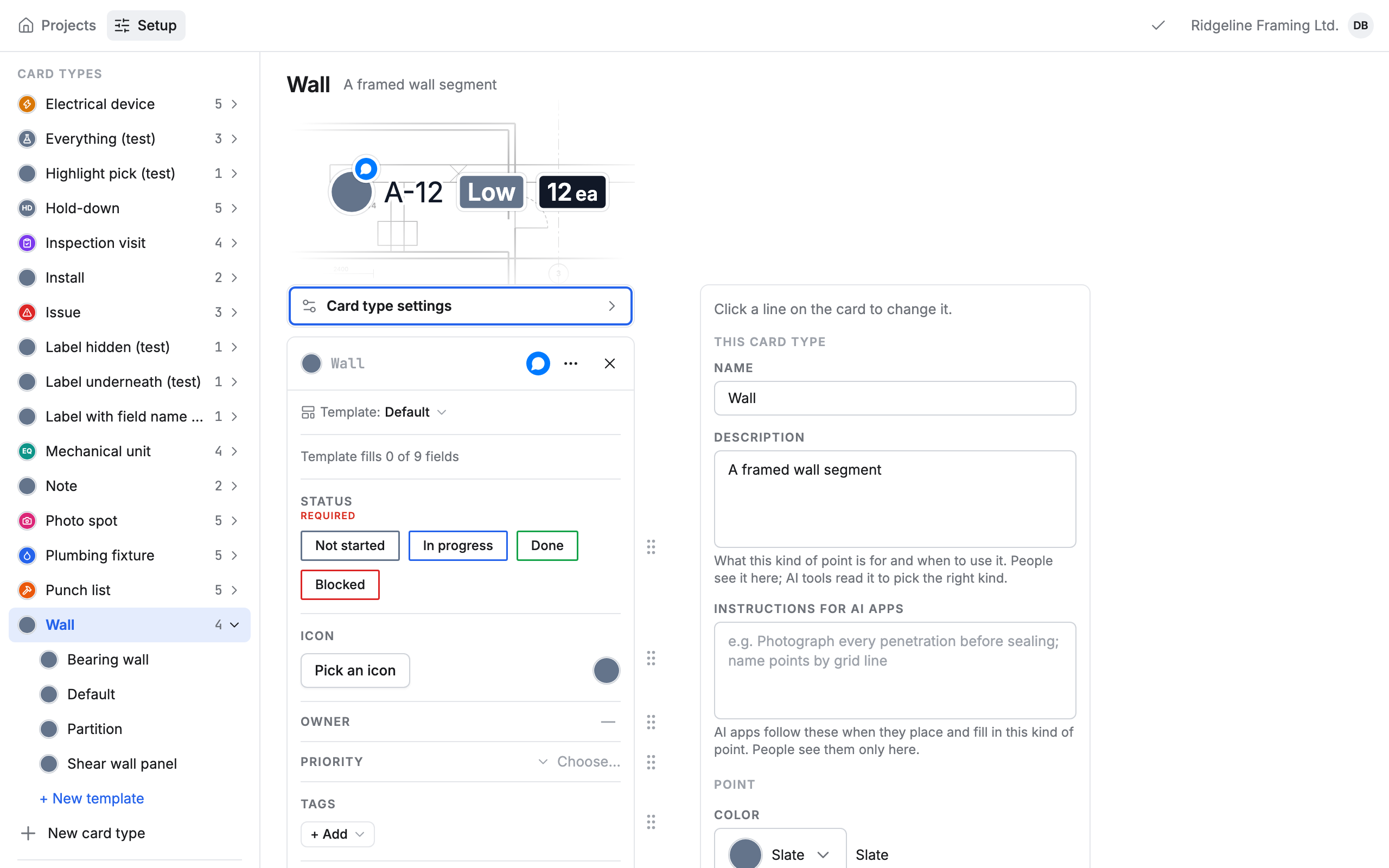
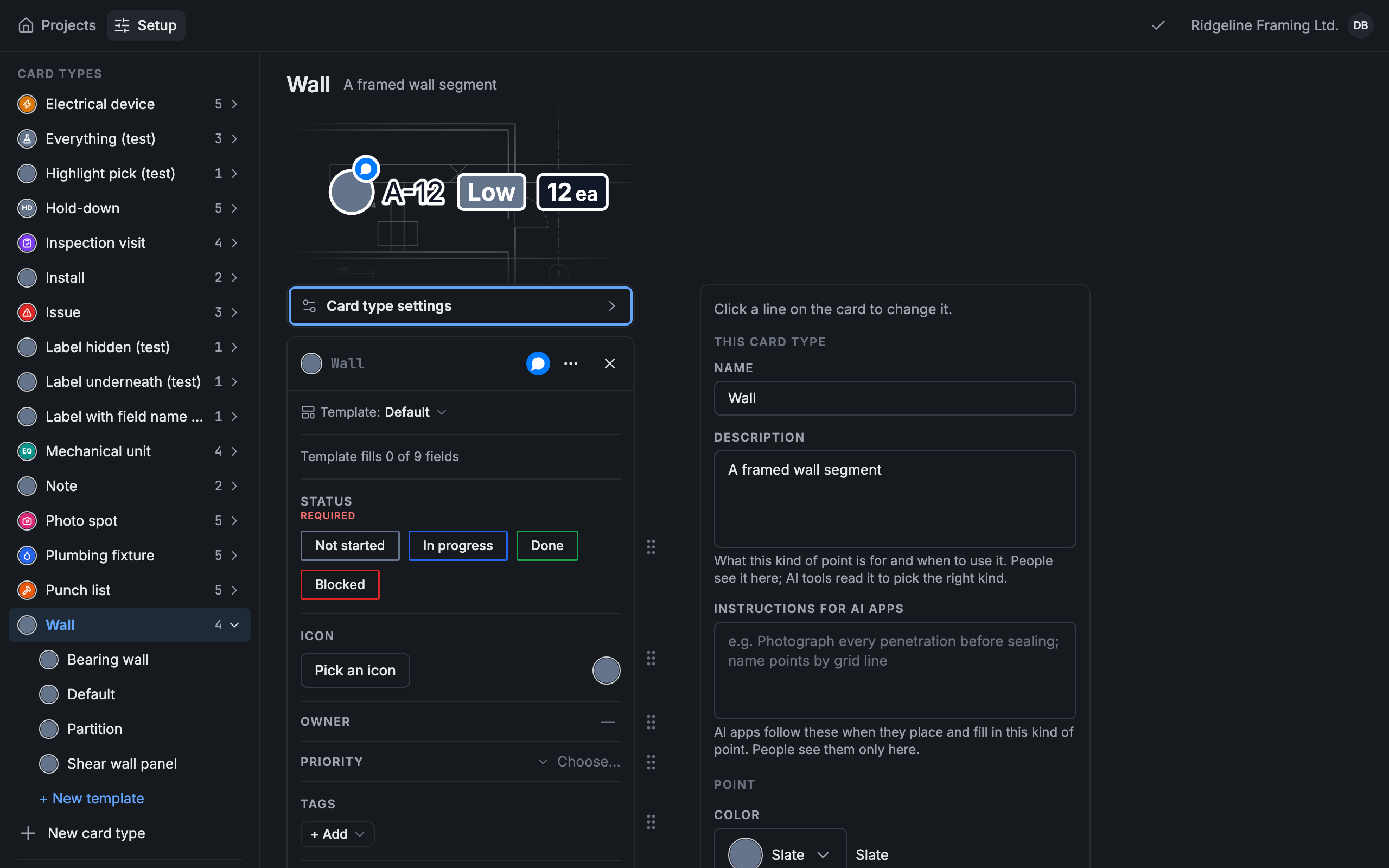
- Name and Description.
- Color and Initials or icon: how every point of this card type starts on the drawing.
- Instructions for AI apps, under the description: see below.
- Comments: turn off A conversation on every Wall point to take the comment thread off these cards.
- Archive card type, at the bottom: takes it off the list of things to place. Click Archive to confirm.
These changes are part of the same draft: click Save in the bar at the top.
Instructions for AI apps
Section titled “Instructions for AI apps”Under the description in Card type settings (on a phone, on the card type’s page) is Instructions for AI apps. Write what an AI app should do when it places and fills in points of this kind: what counts as one point, how to name them, which fields to fill first. People see these only here.
Your AI app reads them, and each field’s description, before it places points of this card type or fills in their cards. They are advice to the app, not a rule: Pointmap still checks every value. Like the rest of the settings, they are saved with the draft: click Save in the bar at the top. For setting up a company through an AI app, see Set up your company with an AI app.