Create a field and add it to a card type
A field is one question a card asks: a count, a date, a status, a checklist. You make a field once, then any card type can ask it. The quickest way to make one is from the card type that needs it. Not sure you need a new one? See Make a new field or reuse one.
Create a field from a card type
Section titled “Create a field from a card type”-
Go to Setup, then pick the card type under Card types.
-
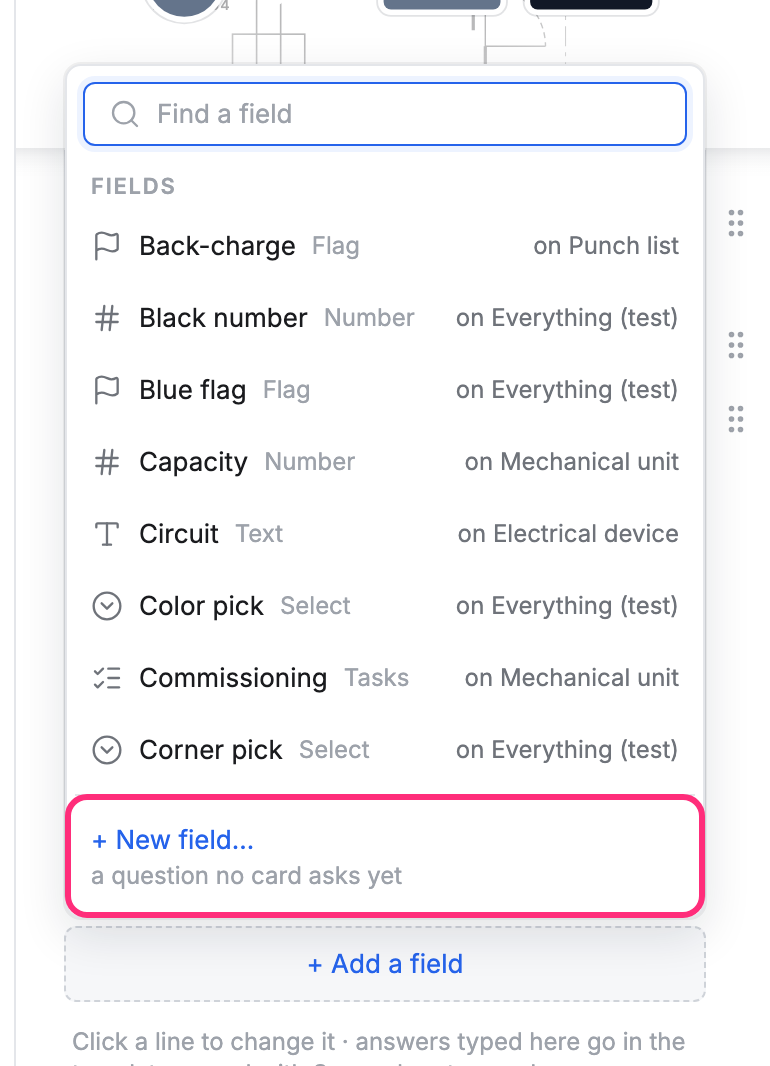
Under the card, click + Add a field. The list shows the fields you already have.
-
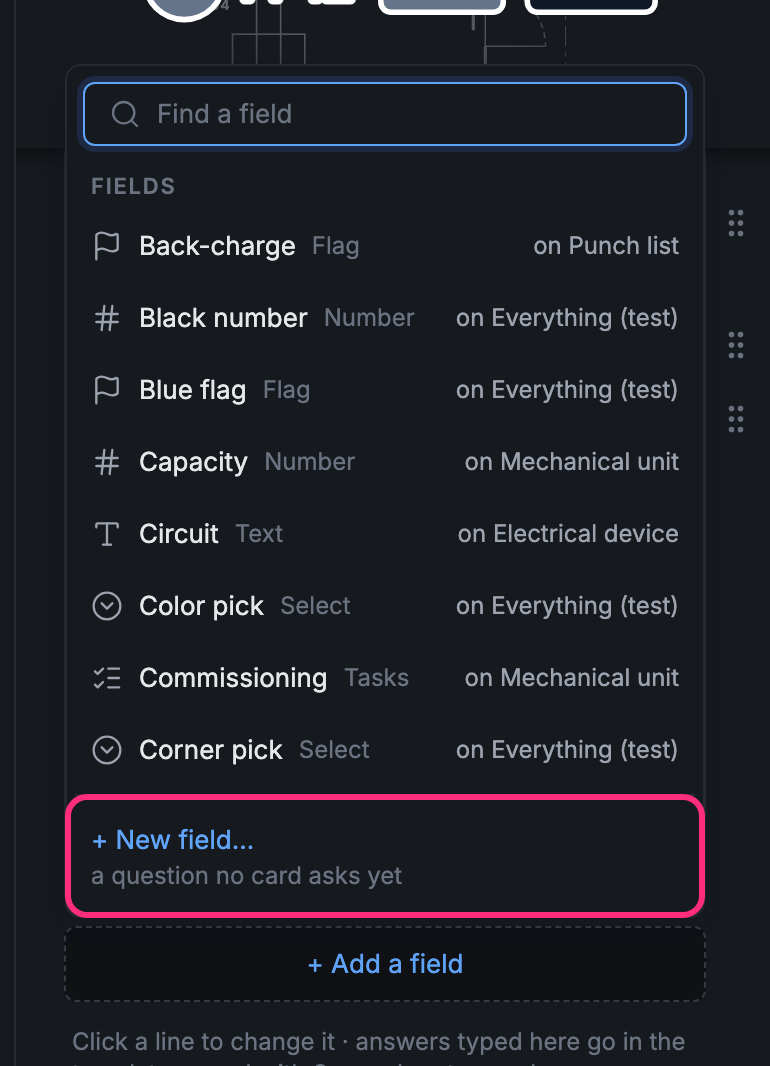
If the question isn’t there yet, click + New field… at the bottom of the list.
-
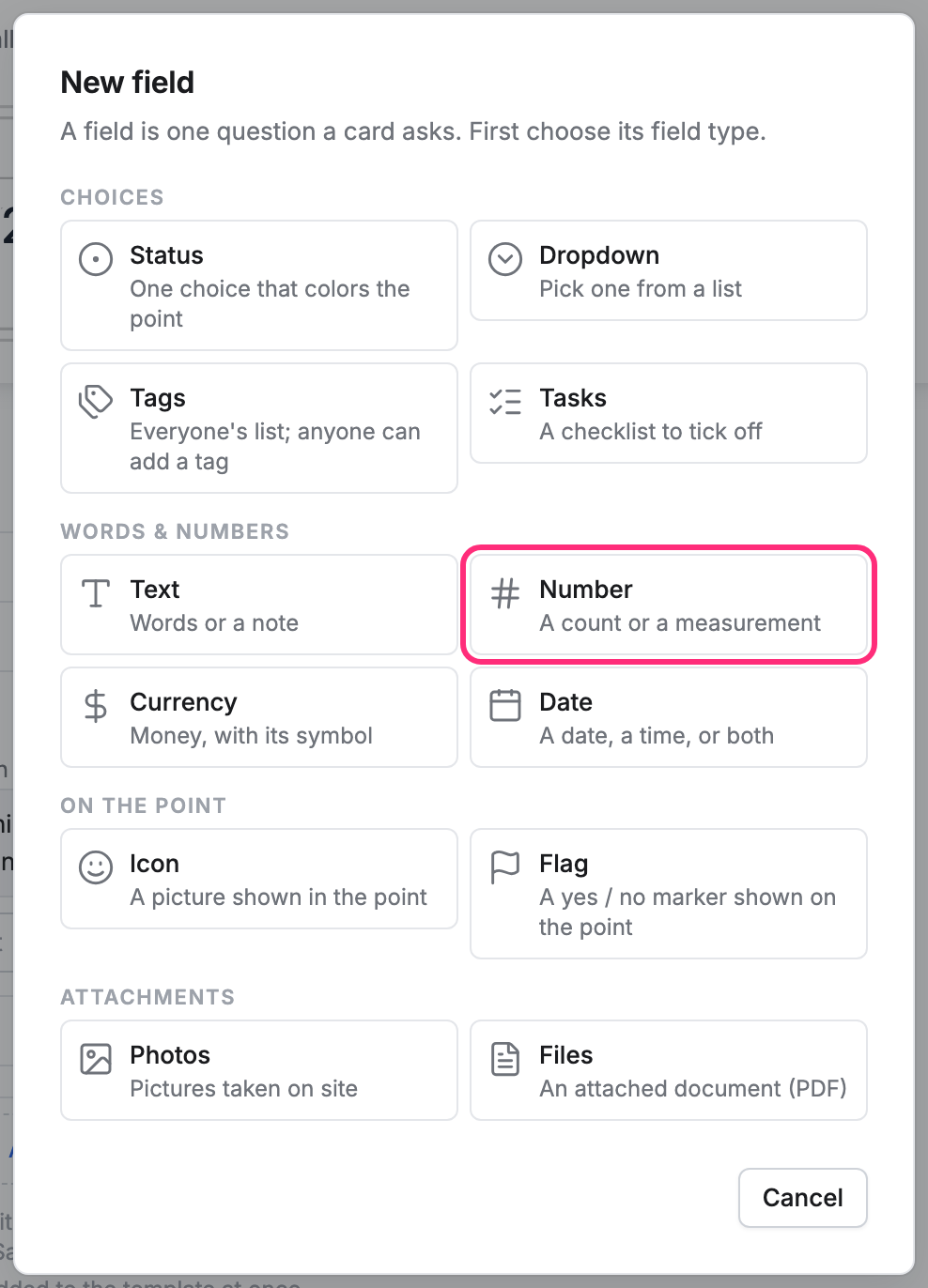
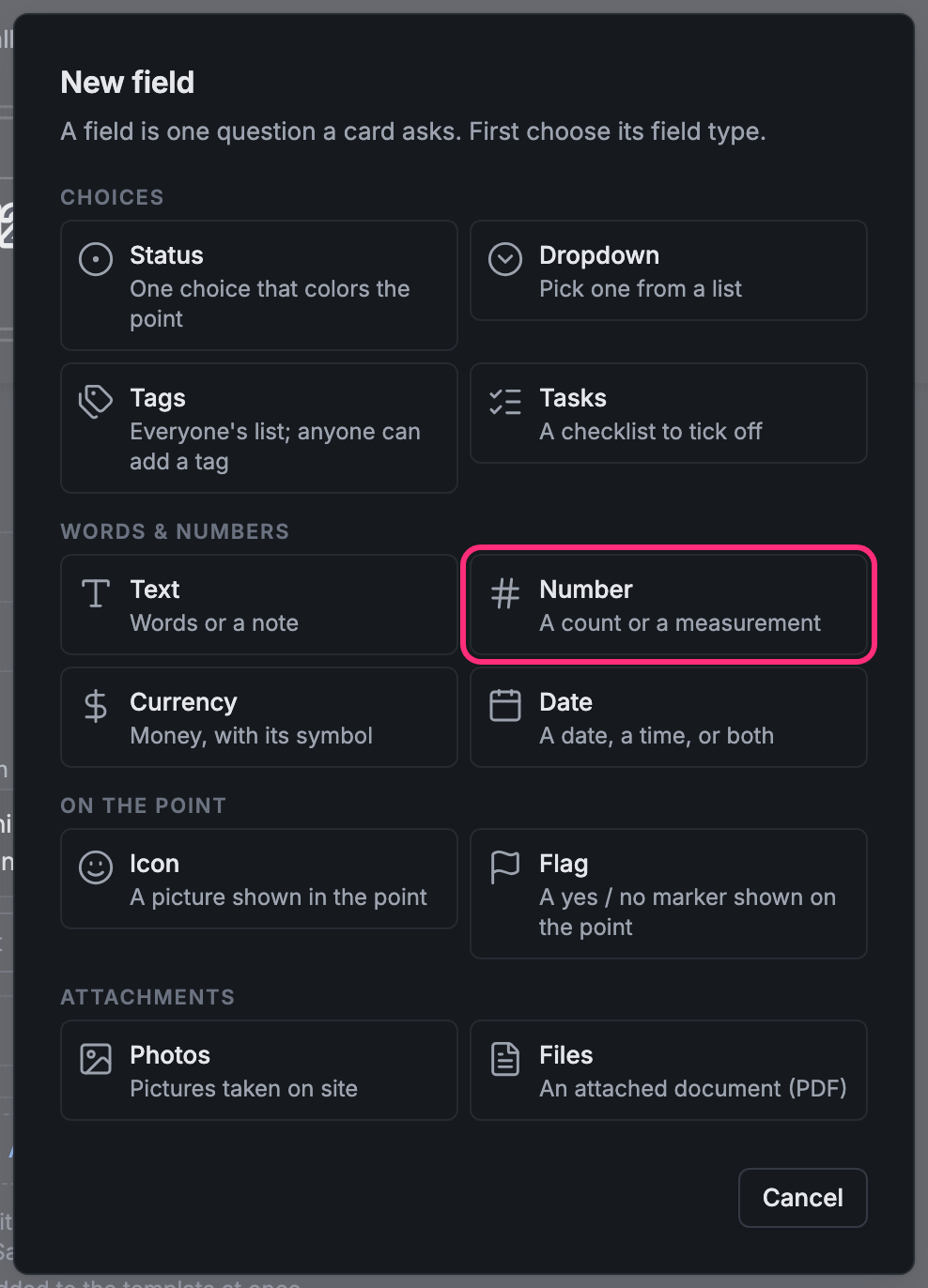
Choose the field type. Status and Dropdown are choices, Text and Number are words and numbers, Icon and Flag show on the point, and Photos and Files are attachments.
-
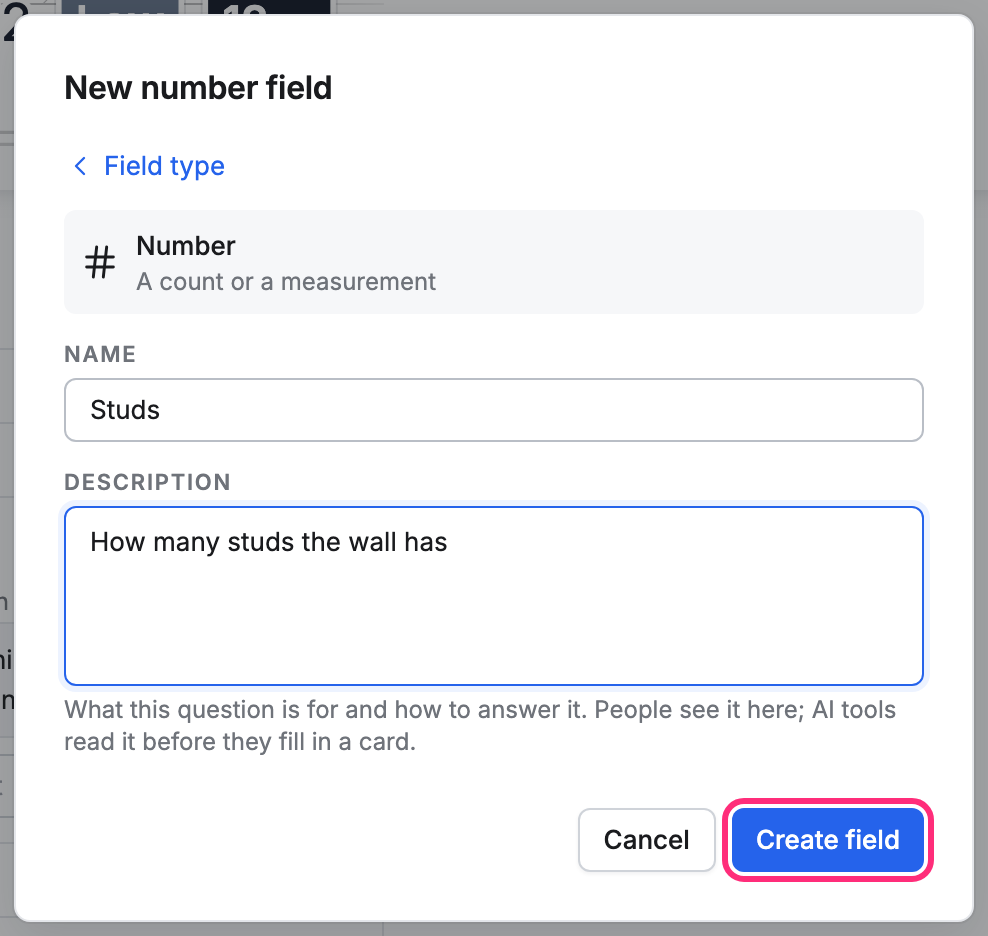
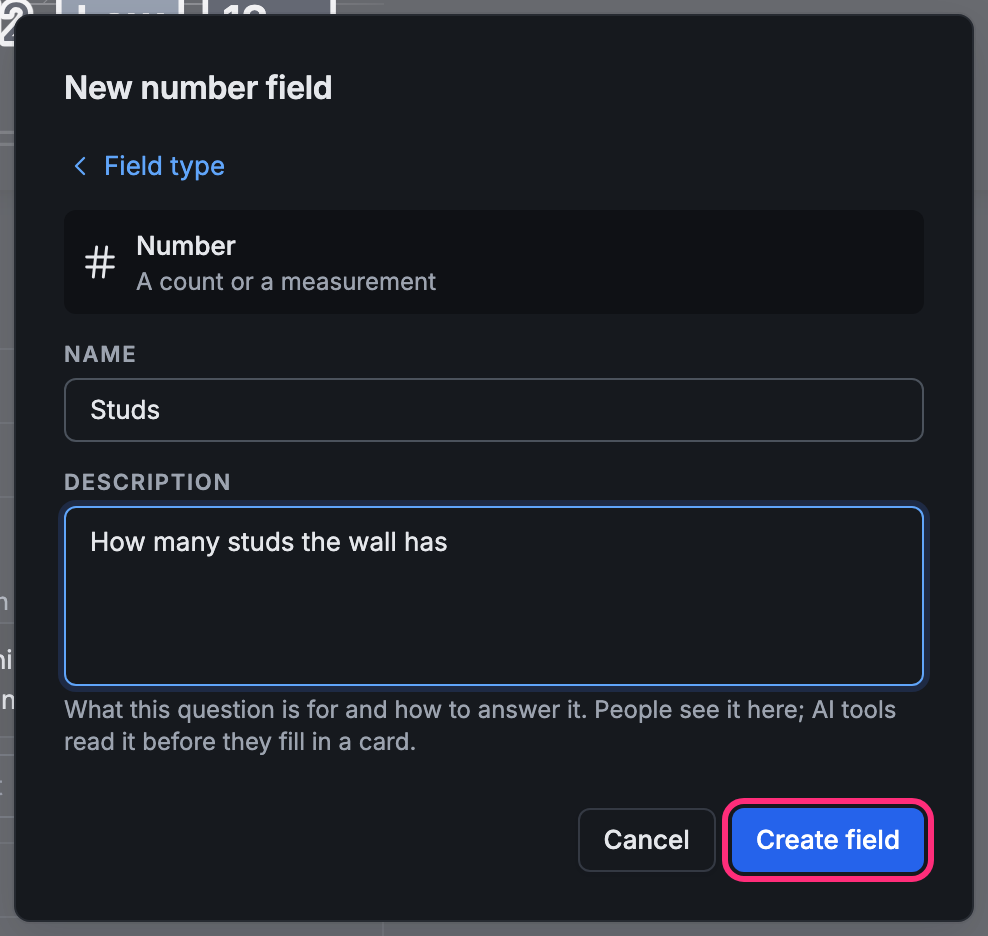
Type a Name. Add a Description if it helps: people see it on the card, and AI tools read it before they fill one in. Picked the wrong type? Click Field type to go back.
-
Click Create field.
Save the card type
Section titled “Save the card type”The new field is now on the card, and the bar at the top counts your Unsaved changes. Click Save to keep them, or Discard to undo them all.
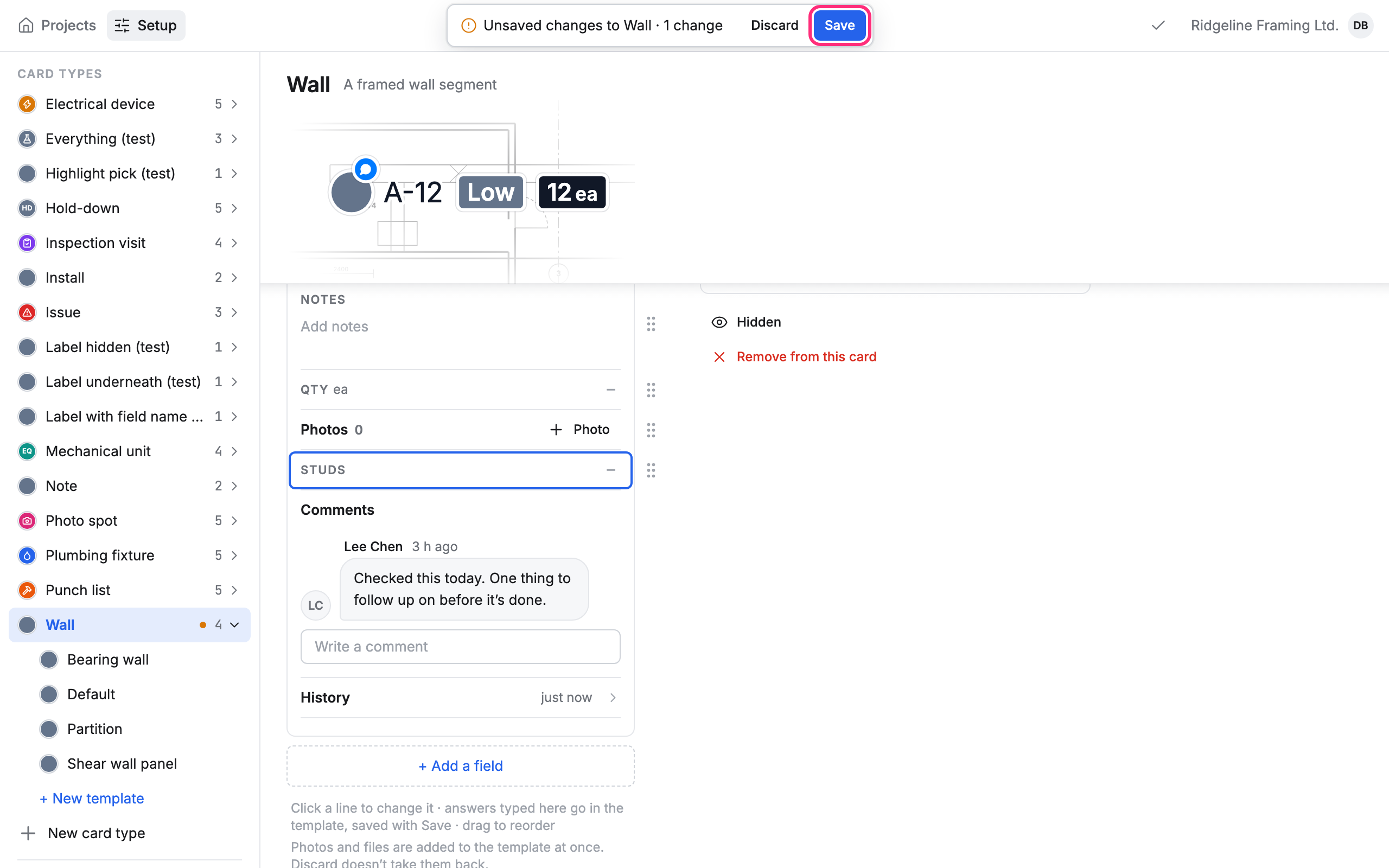
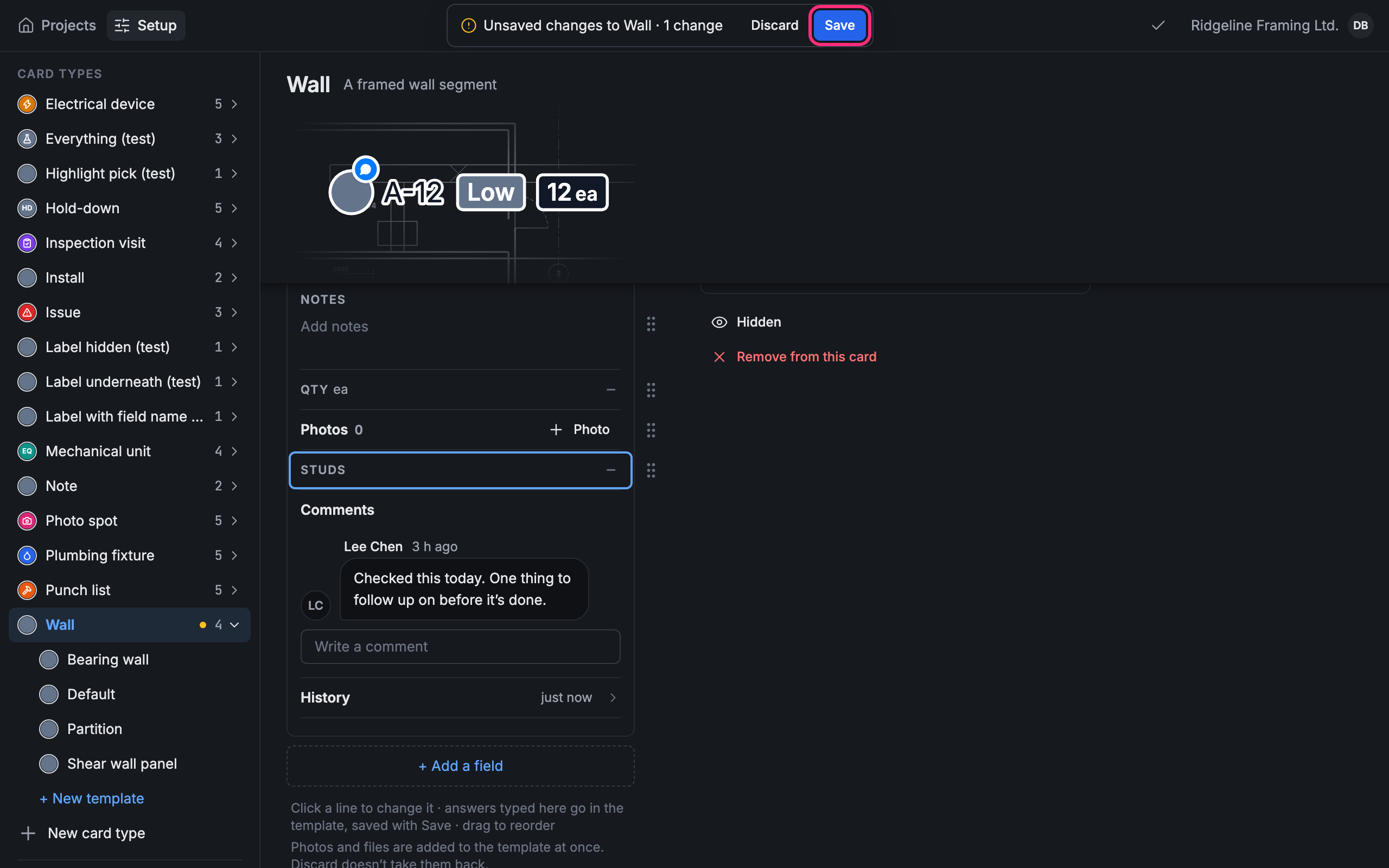
The field also shows in All fields under Setup, where any other card type can add it.
On a phone
Section titled “On a phone”+ Add a field opens as a sheet. Tap the field to add it, or New field to make one, then close the sheet. To make a field without adding it to a card type, go to Setup › Fields and tap +.