Manage layers
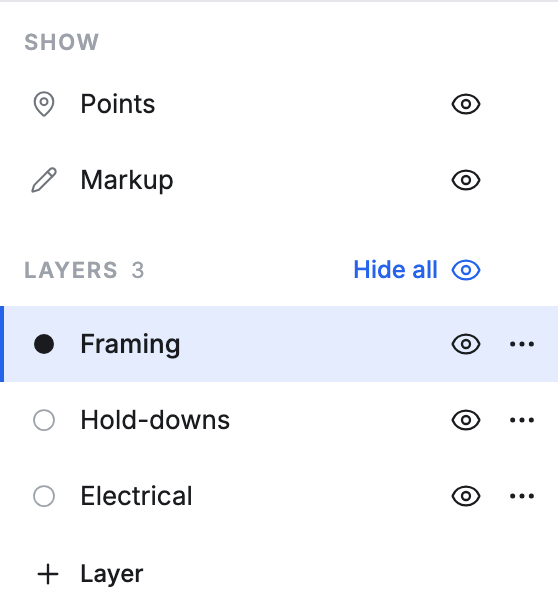
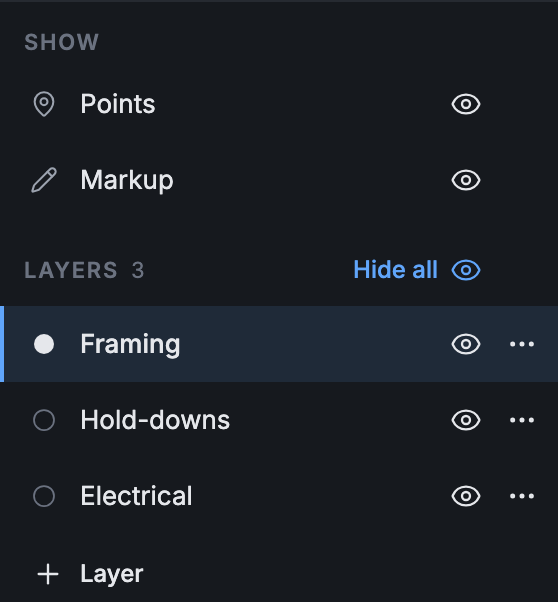
Layers belong to the project, not to one page: the same layers are on every page. They’re listed under Layers, below the pages. The number beside Layers counts them.
Add a layer
Section titled “Add a layer”-
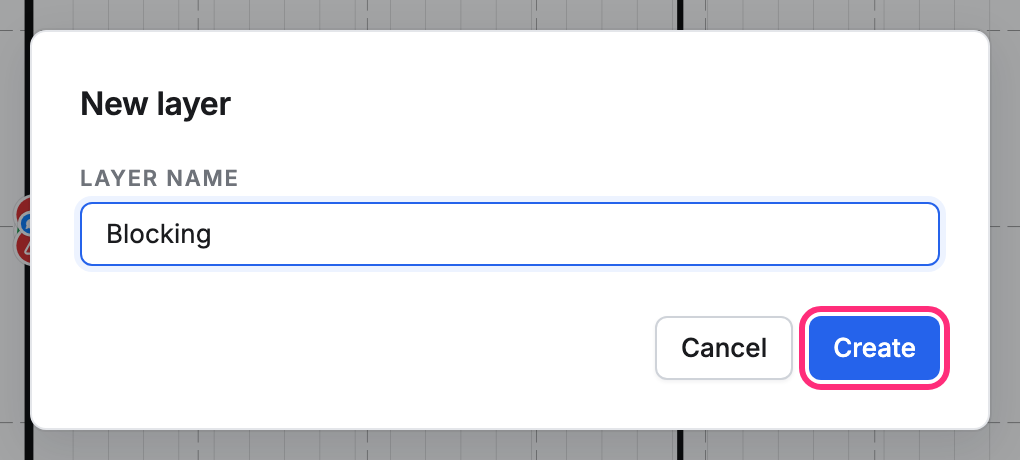
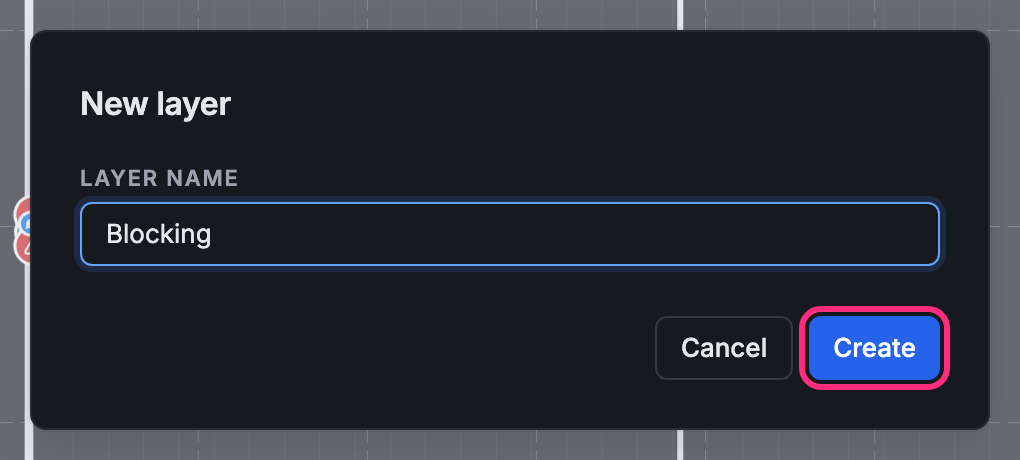
Under the layers, press Layer.
-
Type the Layer name, then press Create.
Choose the layer new points go on
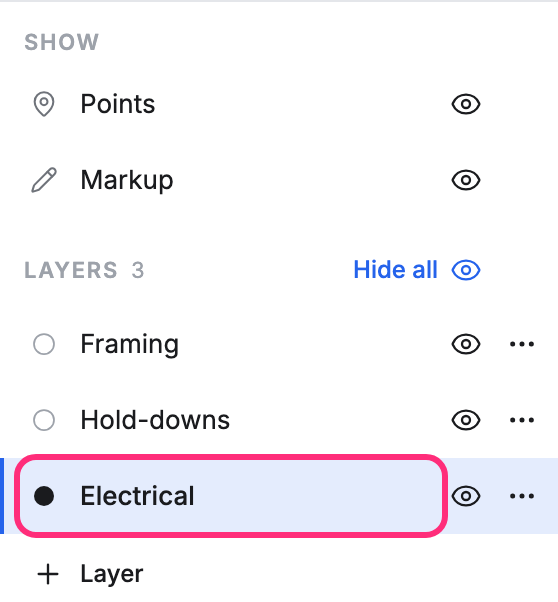
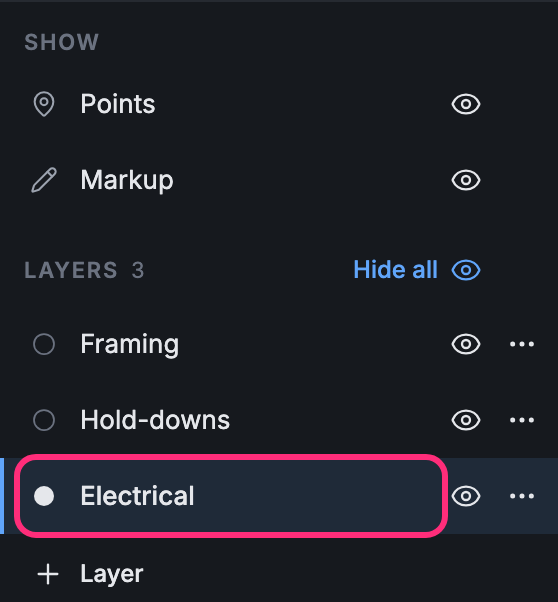
Section titled “Choose the layer new points go on”Press a layer’s name. Its dot fills in and the row is marked: that’s the active layer, and the points and markup you add go on it.
Hide and show layers
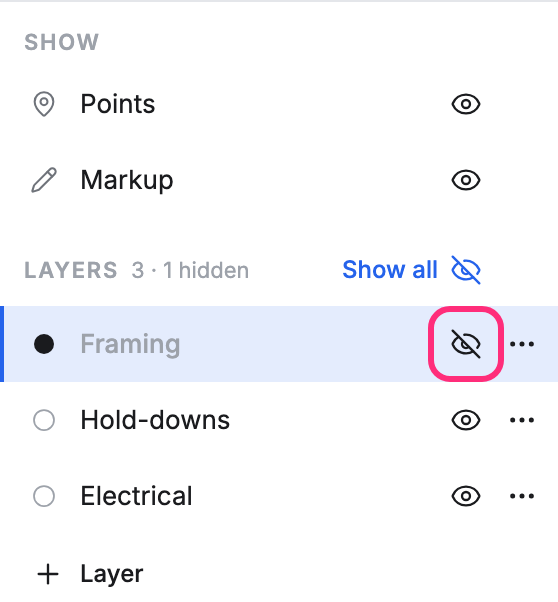
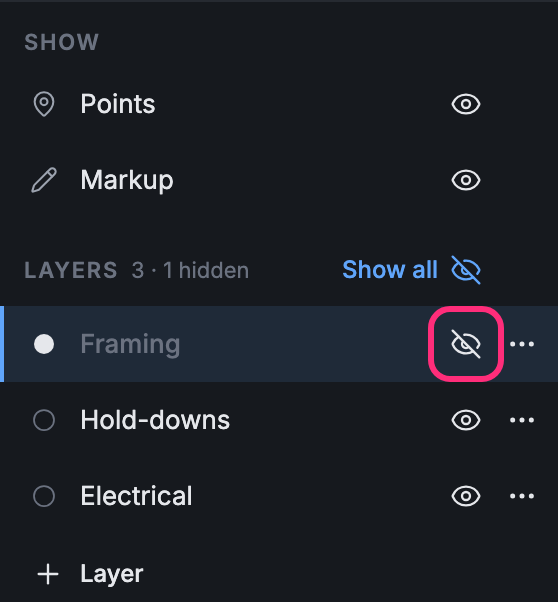
Section titled “Hide and show layers”- Press the eye beside a layer to hide it. Its points and markup leave the drawing, its name dims, and the count says how many are hidden, such as 3 · 1 hidden.
- Hide all hides every layer. While any layer is hidden, the same button says Show all: press it to bring them all back.
If you place a point while the active layer is hidden, the layer shows again so you can see the new point.
Show above the layers turns all Points or all Markup off and on, whatever their layer.
Rename or archive a layer
Section titled “Rename or archive a layer”-
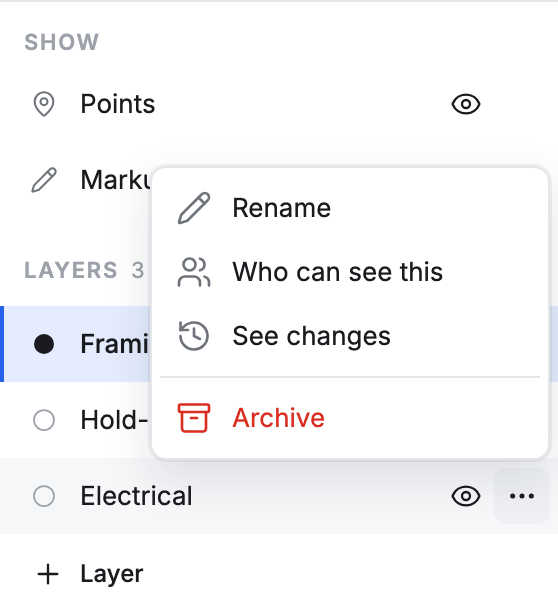
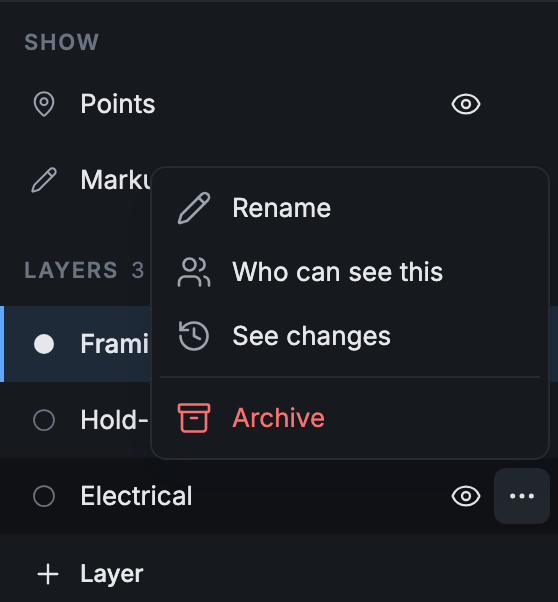
Point at the layer and press its ⋯.
-
Press Rename to change its name, or Archive to take it off the list.
-
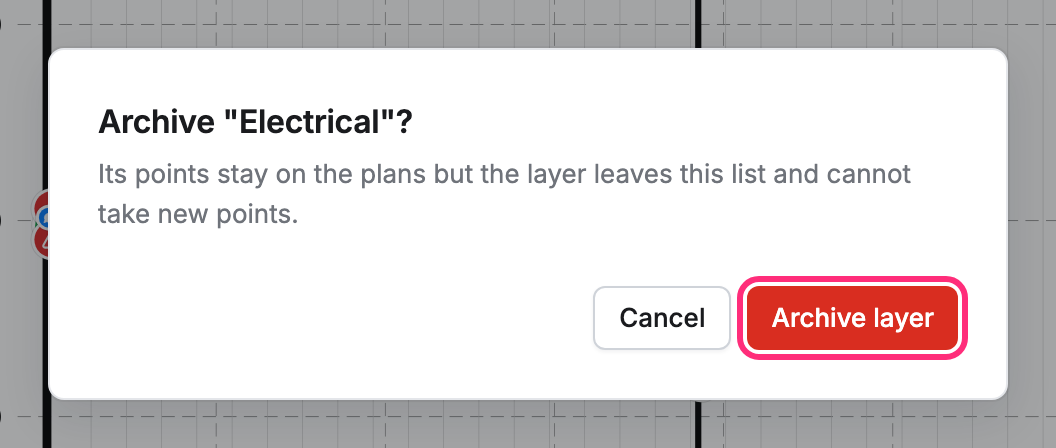
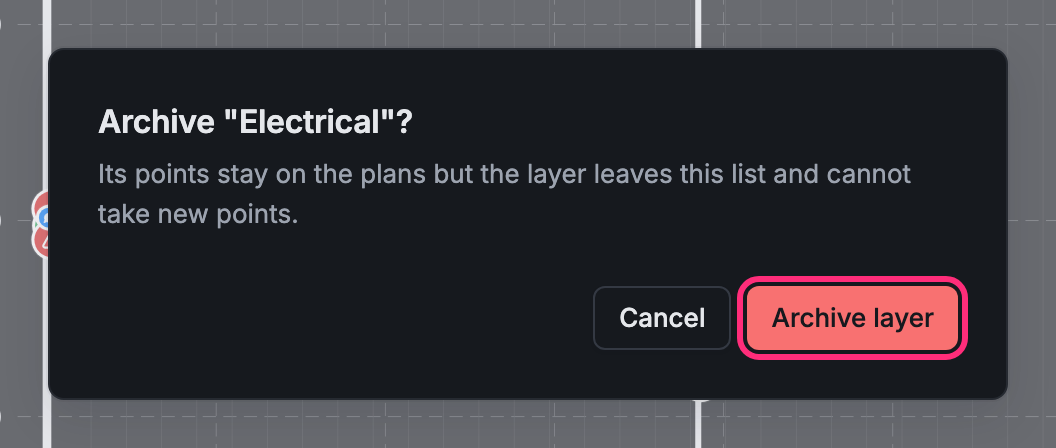
To archive, press Archive layer. Its points stay on the plans, but the layer leaves the list and can’t take new points.
Who can see this, in the same menu, sets who can see the layer.