Start a company
The first person from a company starts it, and becomes its owner. Everyone else joins it from an invite or a join code (see Join a company).
Start your company
Section titled “Start your company”- On the sign-in screen, press New to Pointmap? Start a company.
- Step 1 of 3: Pointmap is invite-only while we test it. Type the Early access password that came with your invite, then press Continue. A wrong one says “That’s not the password.”
- Step 2: type your email and press Send code, then type the six-digit code from the email.
- Step 3 of 3, Name your company: type the Company name and Your name, then press Start and your company’s name (for example Start Reyes Drywall). Your crew sees your name on every invite and join code.
Your first drawing
Section titled “Your first drawing”Pointmap then walks you through your first project.
-
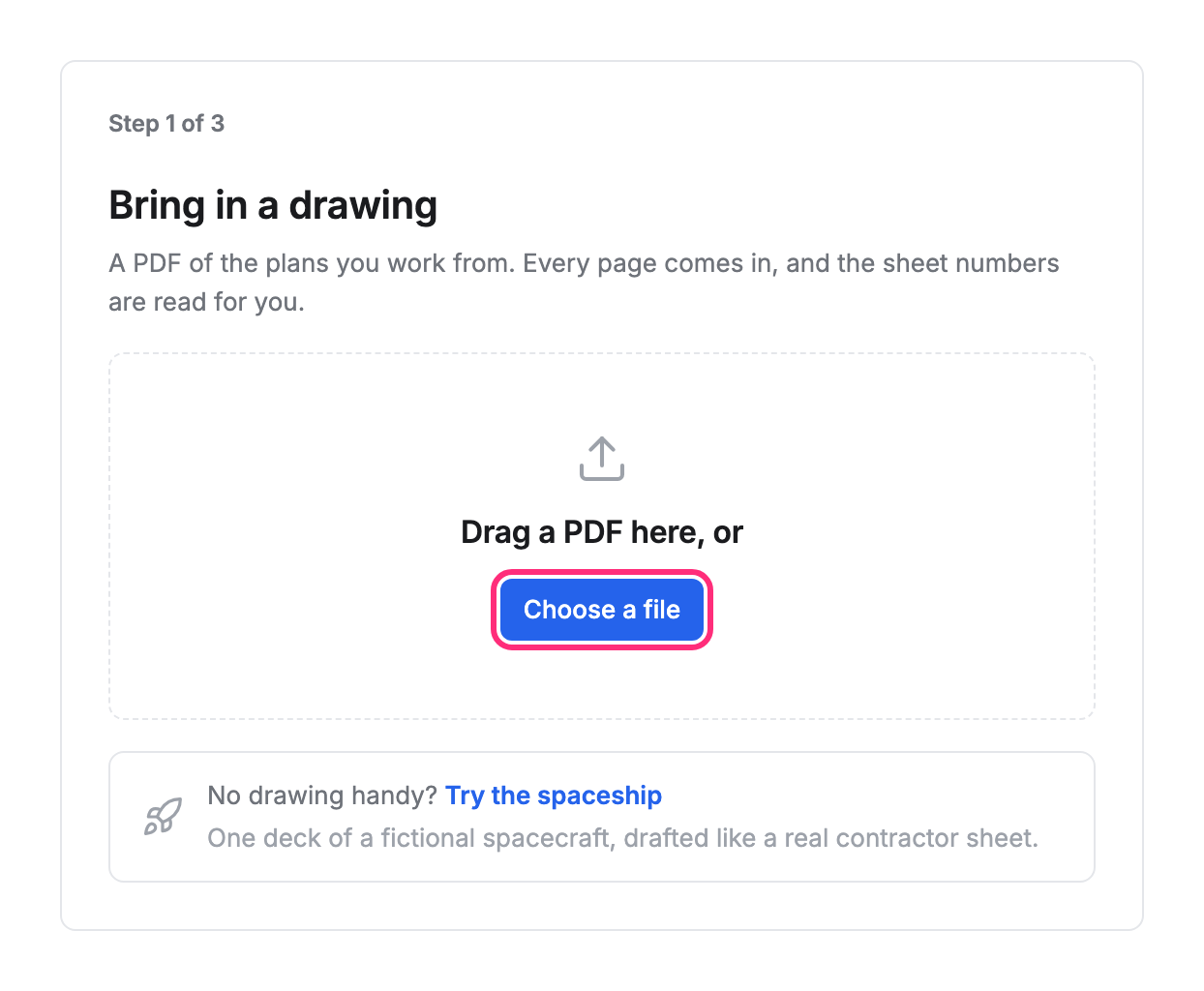
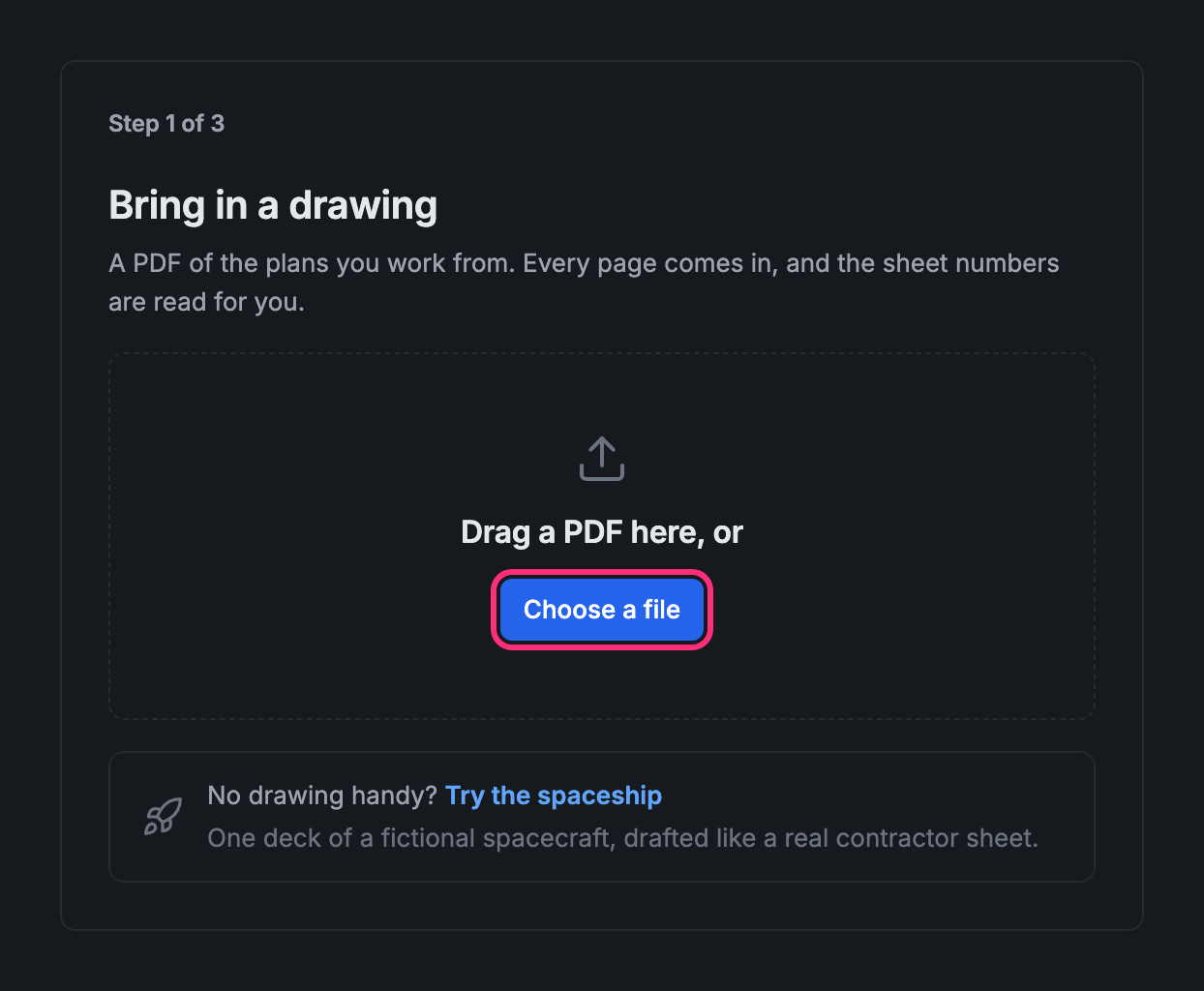
Step 1 of 3, Bring in a drawing: drag a PDF of your plans onto the box, or press Choose a file. Every page comes in, and the project takes its name from the file. No drawing handy? Press Try the spaceship for a sample.
-
Step 2 of 3, What will you mark on your drawings?: pick your trade under Start from your trade (for example Electrical). It ticks the kinds of point that trade places. Tick or untick any of them, then press Create (the button counts them: Create 3 kinds of point).
-
The drawing opens with the Point tool on. Tap the drawing where something is to place your first point, then fill in its card.
You can rename the kinds of point, change them or add more any time in Setup.
Start another company
Section titled “Start another company”Already in a company? Open the account menu at the top right and press Start a new company. You type the password and the company’s name; you’re signed in already, so there’s no email step.