Move points, one or many at once
A point stays where it is until you mean to move it. With Select on, a drag on the drawing always pans, even over a point. To move a point, use Move.
Move a point
Section titled “Move a point”- Press Move on the right (or press G). The bar at the bottom says Drag a point or shape to move it · Esc to stop.
- Click the point to select it. Its card opens.
- Drag the point to its new place.
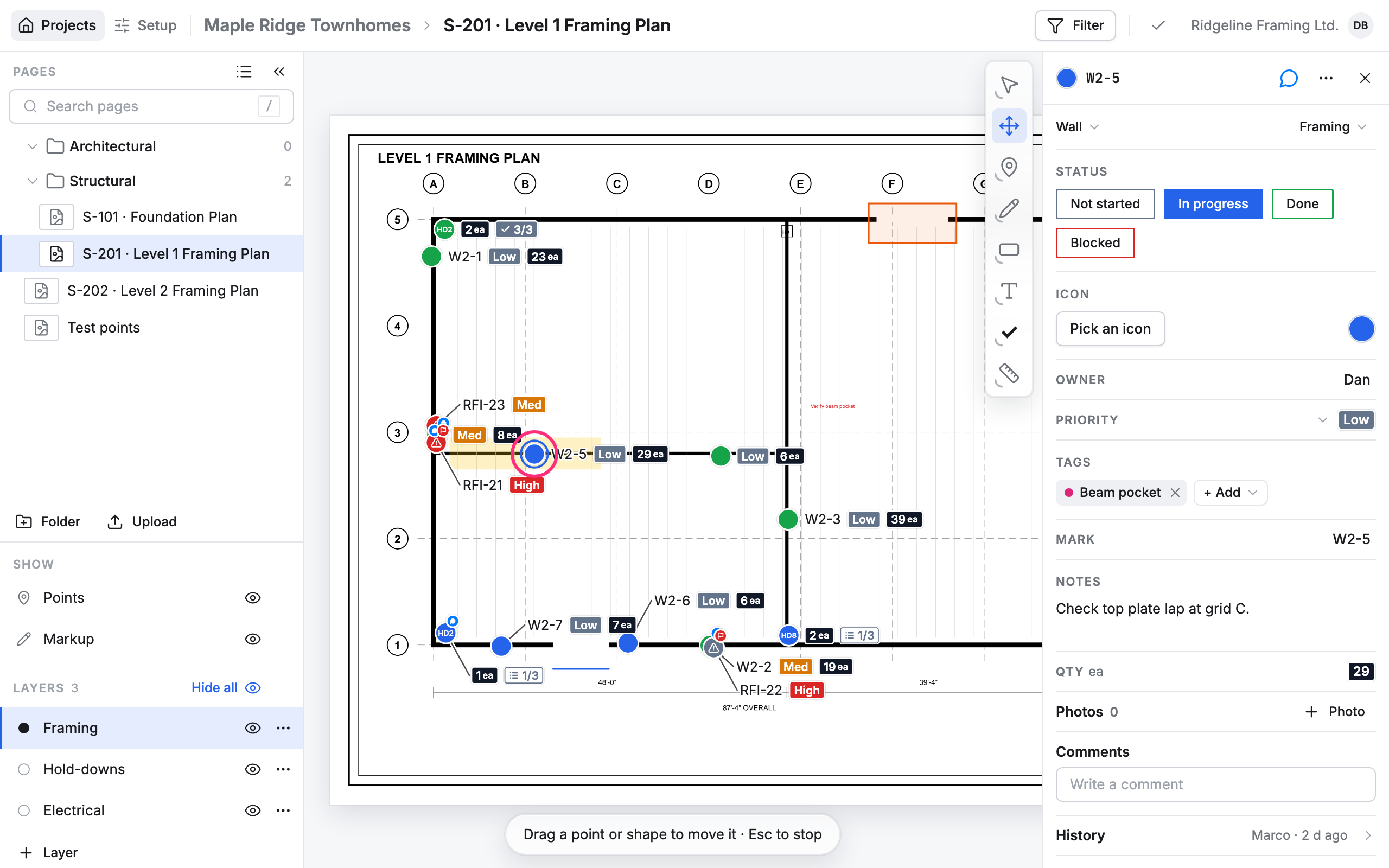
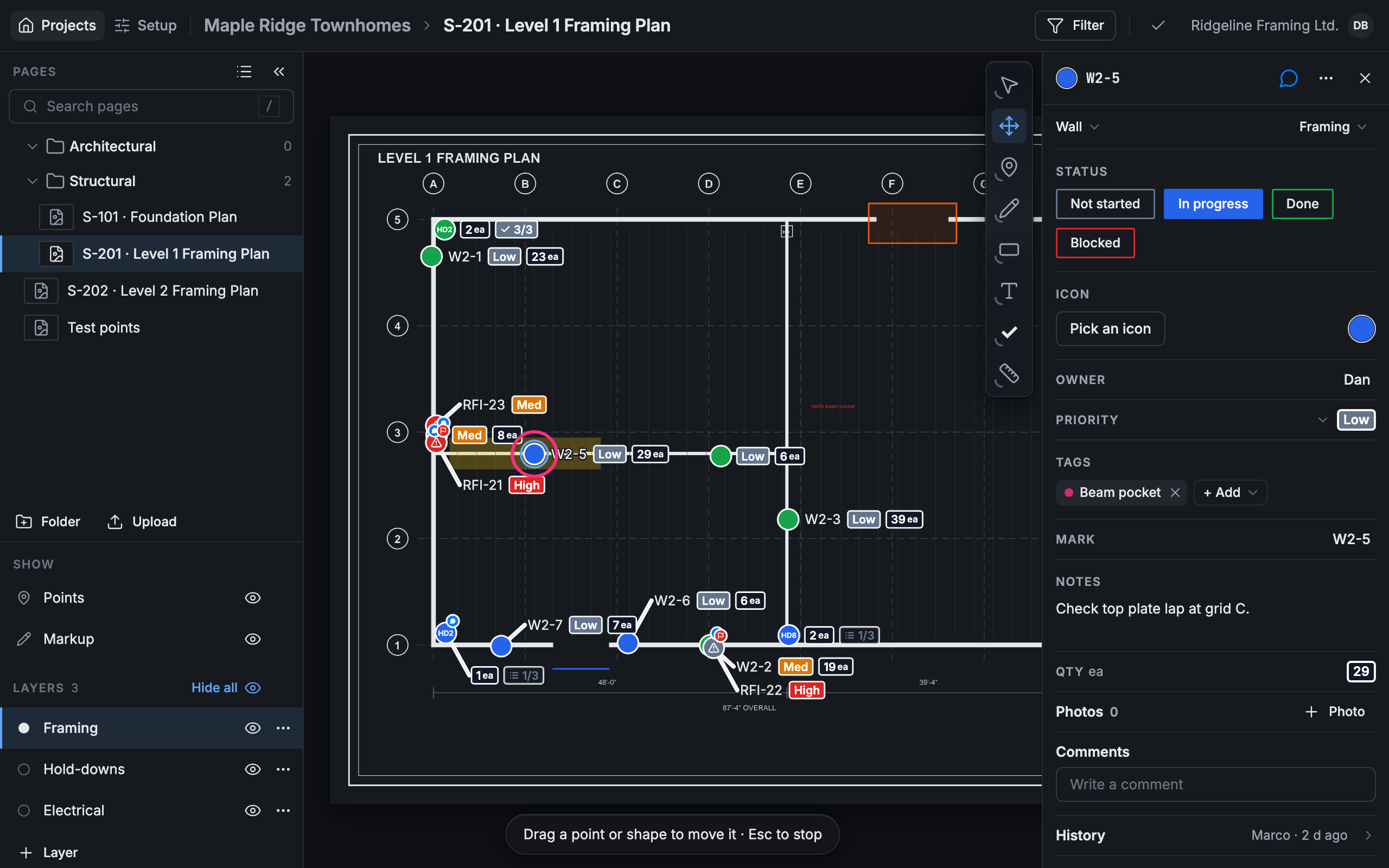
A drag on a point that isn’t selected pans the drawing, so select it first. Move stays on for the next point; press Esc to go back to Select.
The point you just placed is the exception: while it’s still selected, you can drag it with Select on.
Select many points
Section titled “Select many points”-
Shift-click or Ctrl-click points to add them to the selection, and again to take one off.
-
Shift-drag on an empty part of the drawing to draw a loop round the points you want.
-
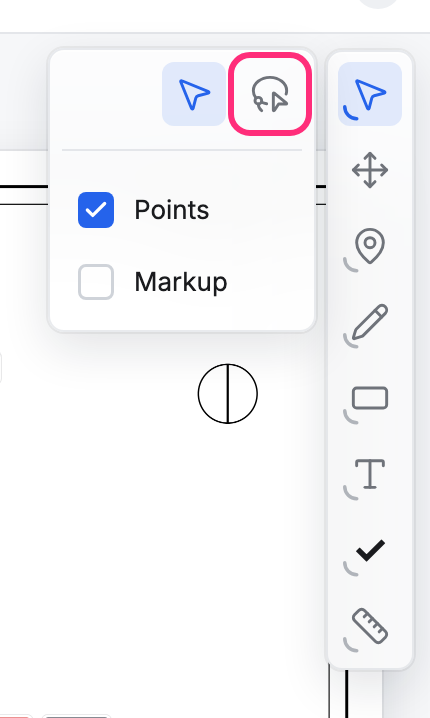
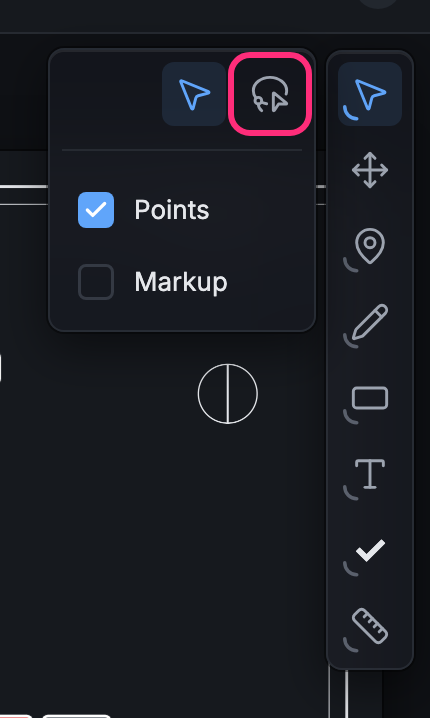
Or use the Lasso: press Select again to open its panel and pick the lasso (or press Shift+V), then draw a loop. Tick Markup to take the markup inside the loop too. Press V to go back to Select and keep the points selected.
With two or more points selected, the right side shows how many (3 points) instead of a card:
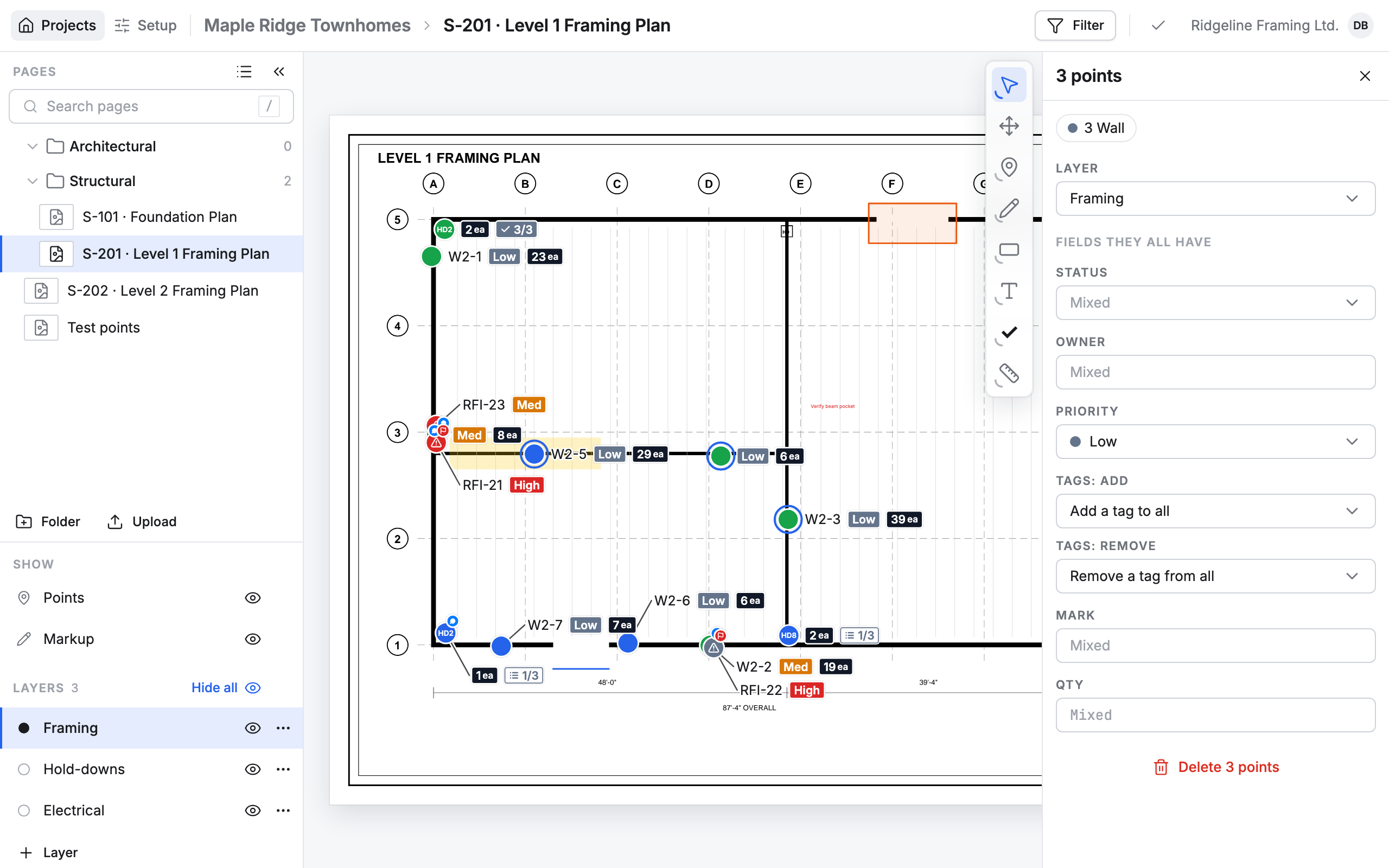
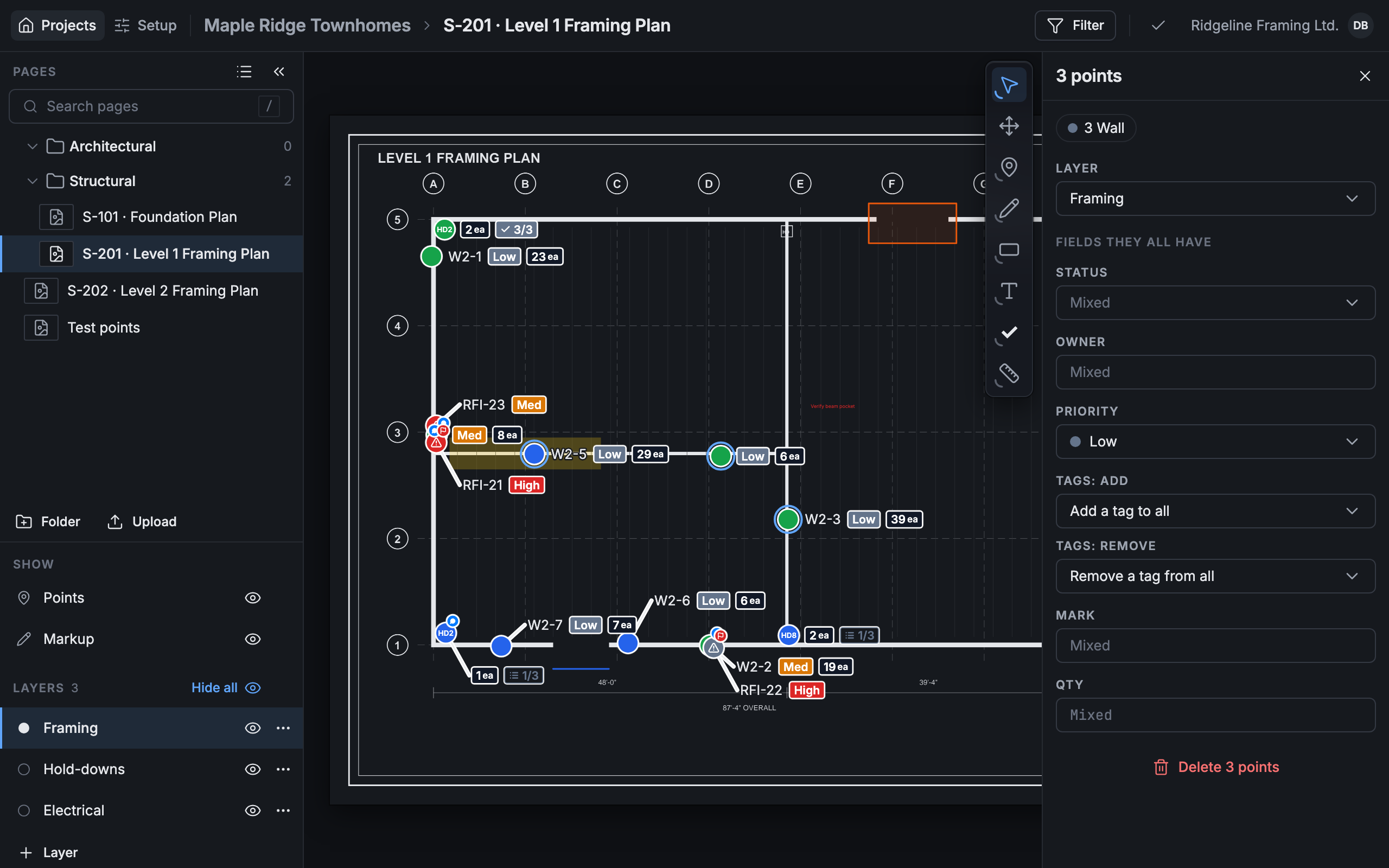
- Layer moves them all to another layer.
- Fields they all have sets a field on every card at once. Mixed means the cards hold different answers.
- Delete 3 points deletes them (so does the Delete key).
To move them together, press Move and drag any one of the selected points: the others go with it. Press Esc to let the selection go.
Undo a change
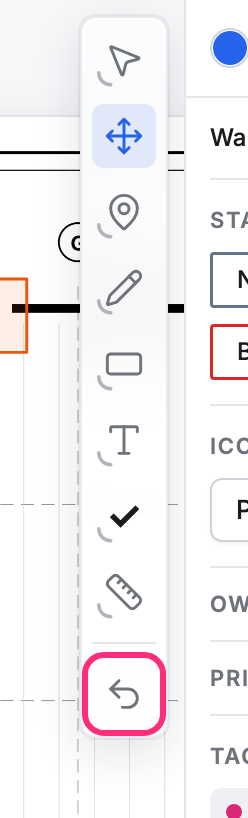
Section titled “Undo a change”Once you’ve changed something on the page, Undo appears at the foot of the tools. Press it to take back the last change, or press ⌘Z (Ctrl+Z). A redo button appears beside it; ⇧⌘Z (Ctrl+Y) also redoes.
A change to many points at once (a move, a field, a delete) is one step: one Undo takes it back for all of them, and they’re selected again.