Organize pages
A project’s pages are listed under Pages, on the left of the drawing. Folders hold pages, and the number beside a folder counts its pages. The page that’s open is marked.
Make a folder
Section titled “Make a folder”-
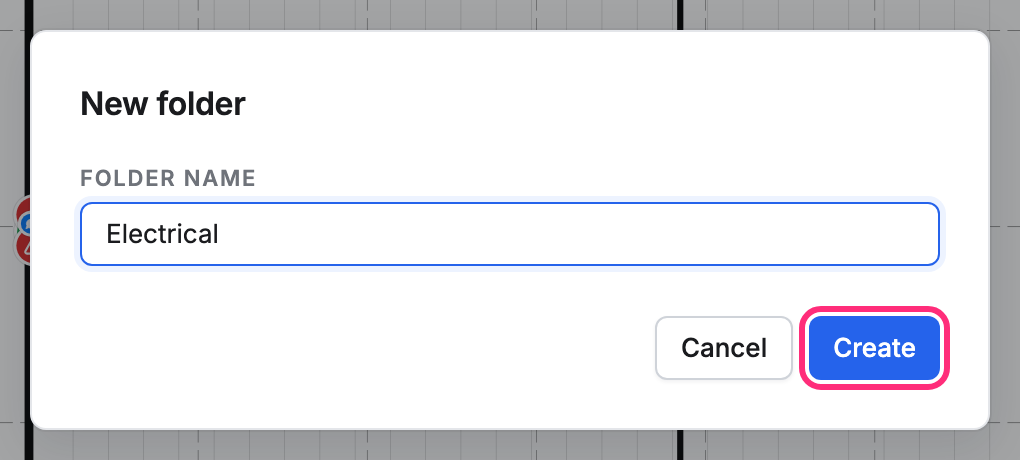
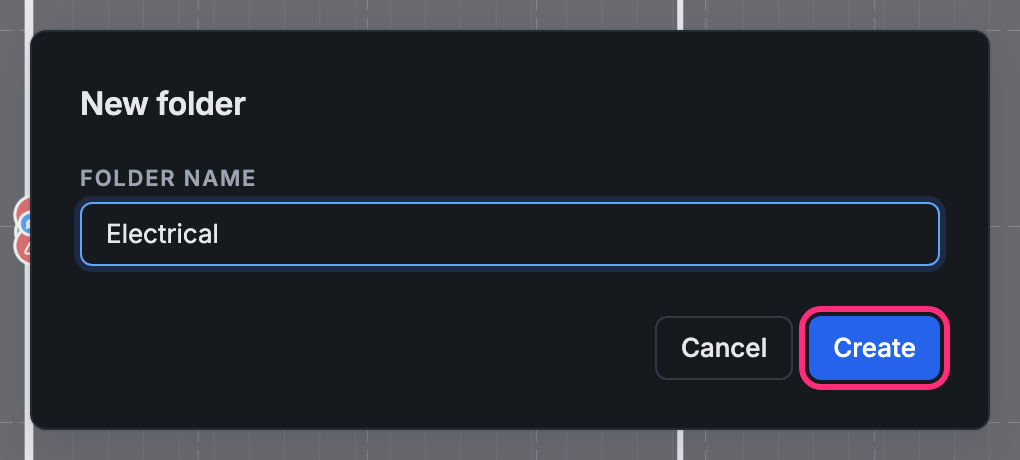
Under the page list, press Folder.
-
Type the Folder name, then press Create.
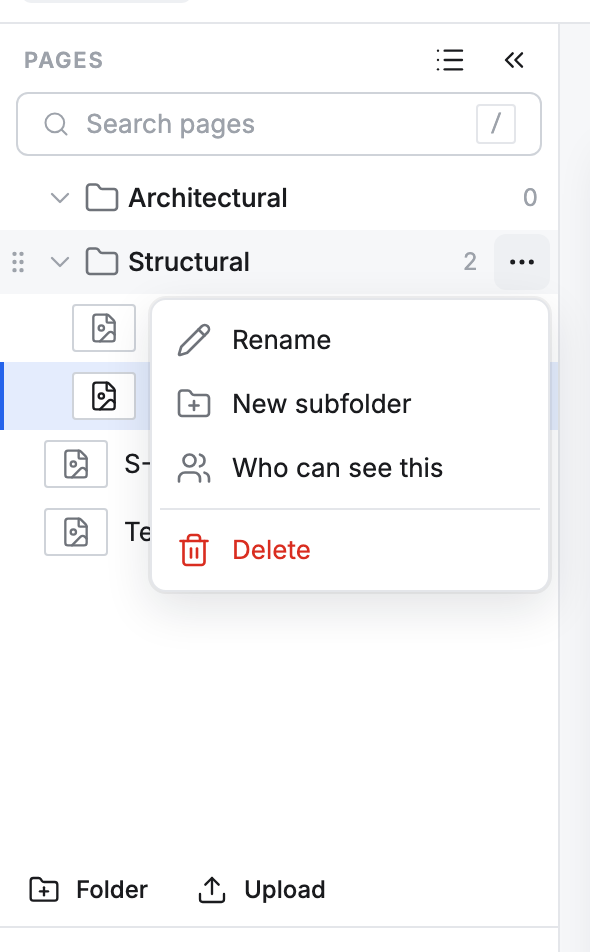
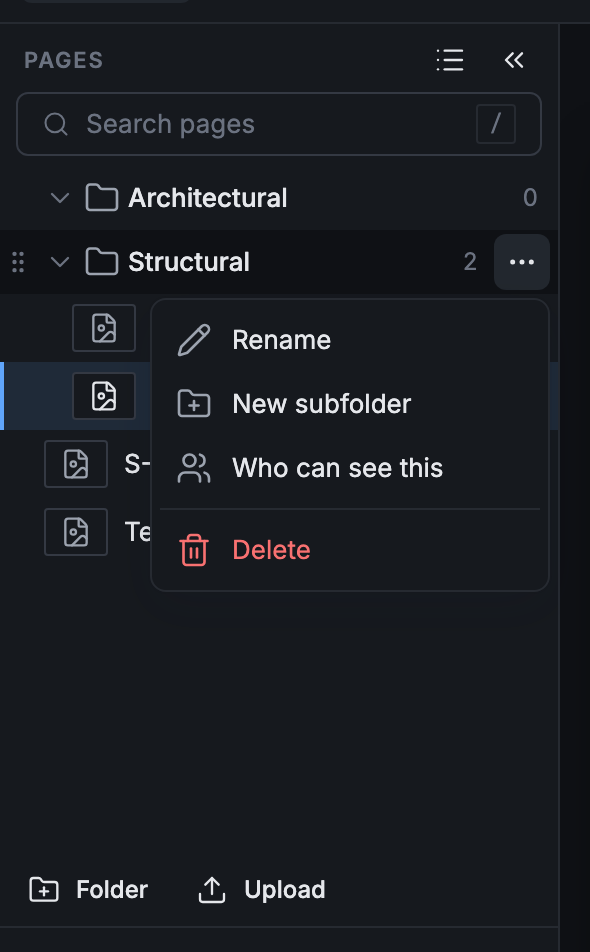
To put a folder inside another, open the folder’s ⋯ menu and press New subfolder. The same menu has Rename and Delete.
Rename a page or move it to a folder
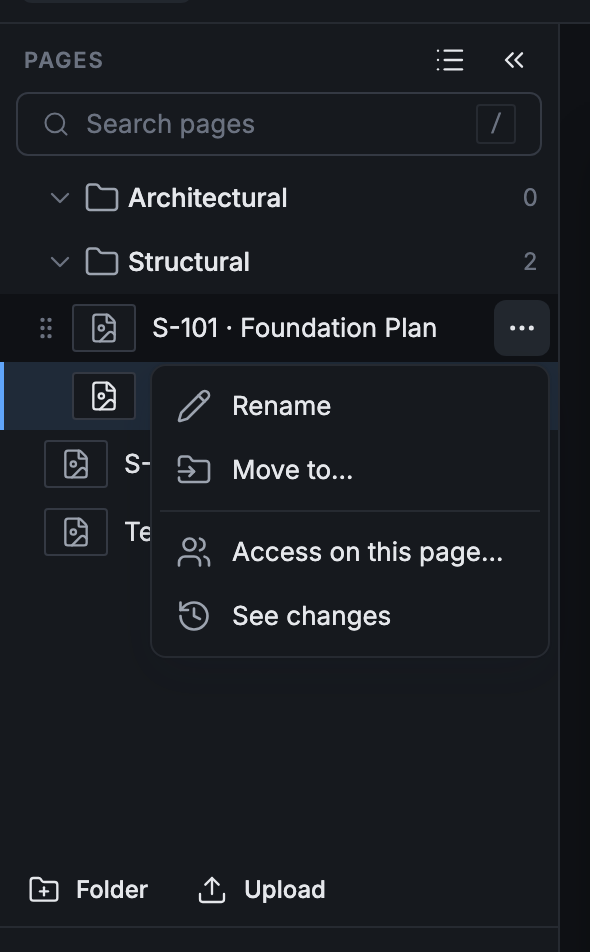
Section titled “Rename a page or move it to a folder”- Point at the page and press its ⋯, or right-click the page.
- Press Rename to change its Sheet number and Name, then press Save. Or press Move to… to put it in another folder.
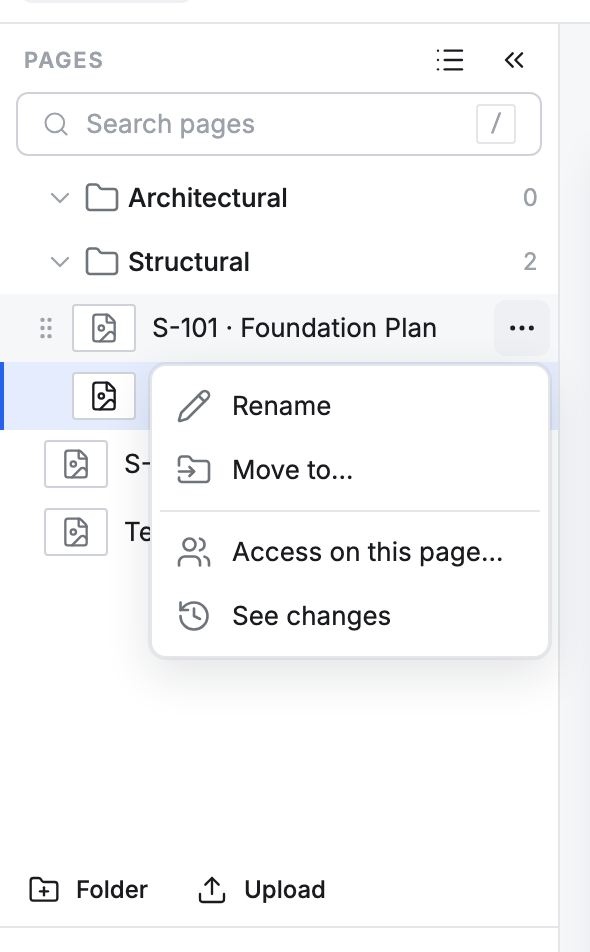
The next upload finds each sheet by its number, so two sheets of a project can’t share one: a number another sheet has is refused. Clear the number to leave the page without one.
Move several pages at once
Section titled “Move several pages at once”-
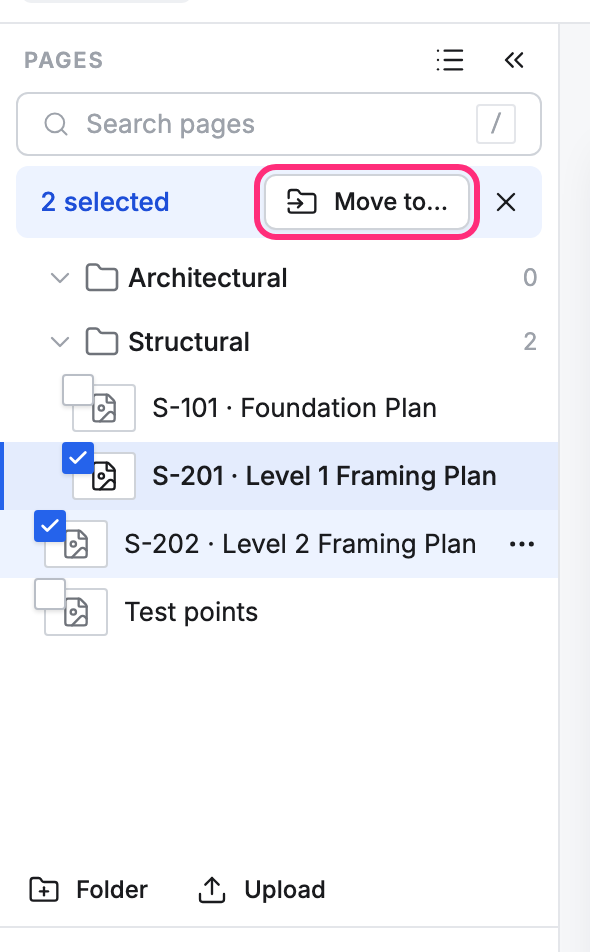
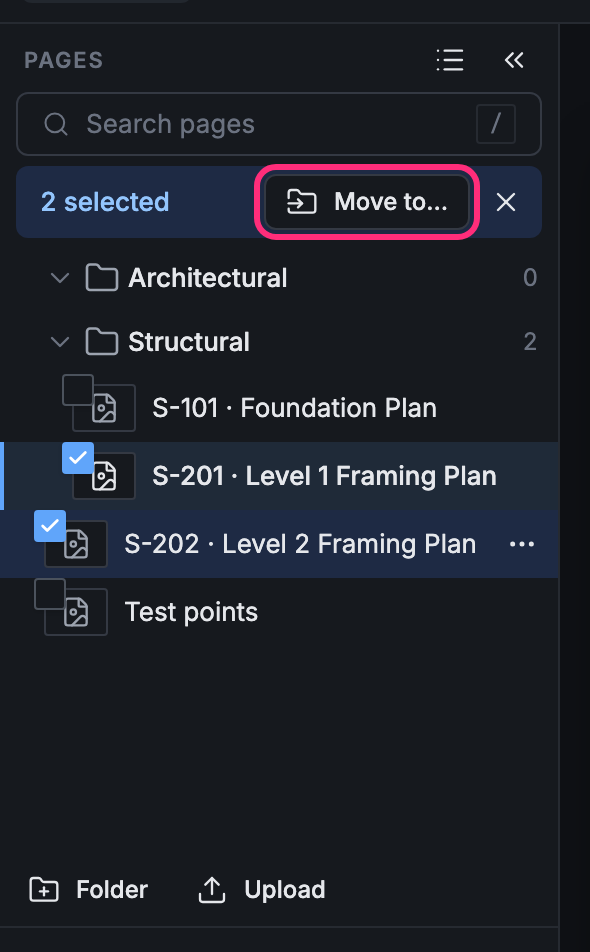
Hold ⌘ (Ctrl on Windows) and click each page. A bar shows how many are picked, such as 2 selected. Shift-click picks a run of pages.
-
Press Move to…, choose the Folder, then press Move.
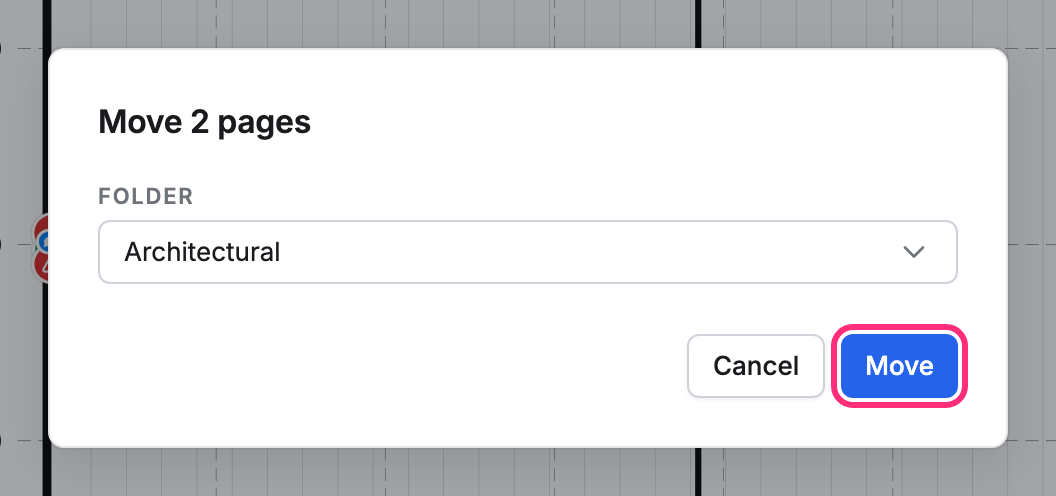
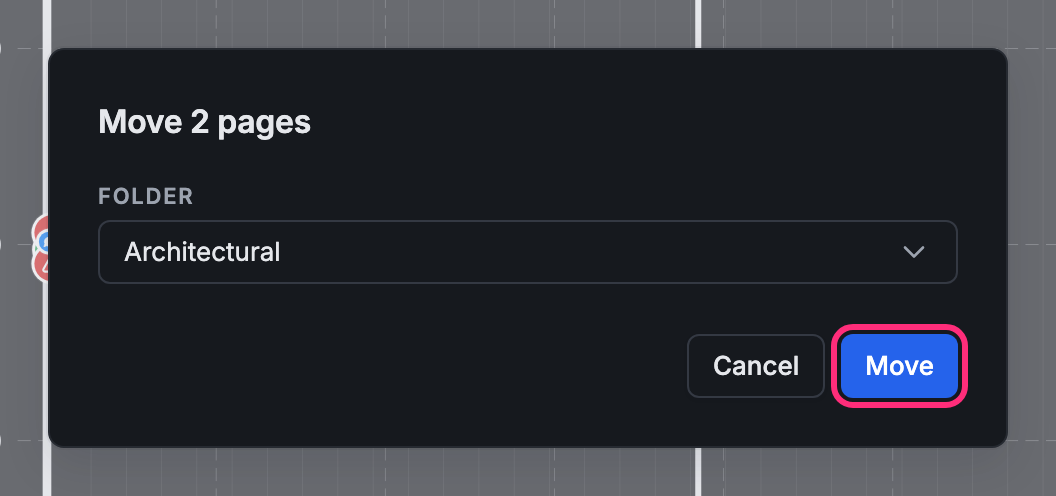
The pages go into that folder, and a message says so, such as Moved 2 pages to Architectural. Press ✕ or Esc to let the picked pages go.
Drag pages into order
Section titled “Drag pages into order”Point at a page or a folder: a grip shows in the margin on its left. Drag the grip to move the row. A page let go on a folder goes into it. Undo takes the move back.
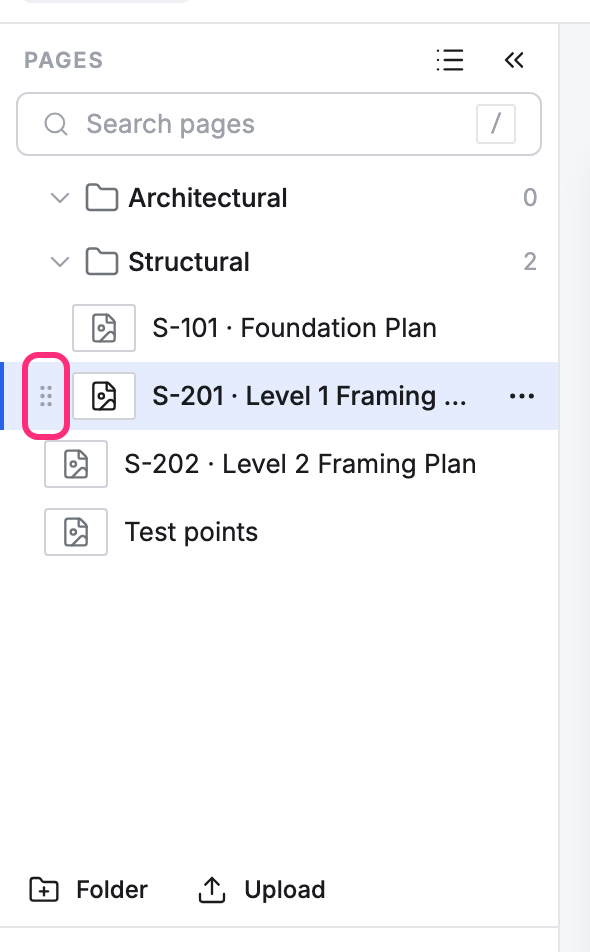
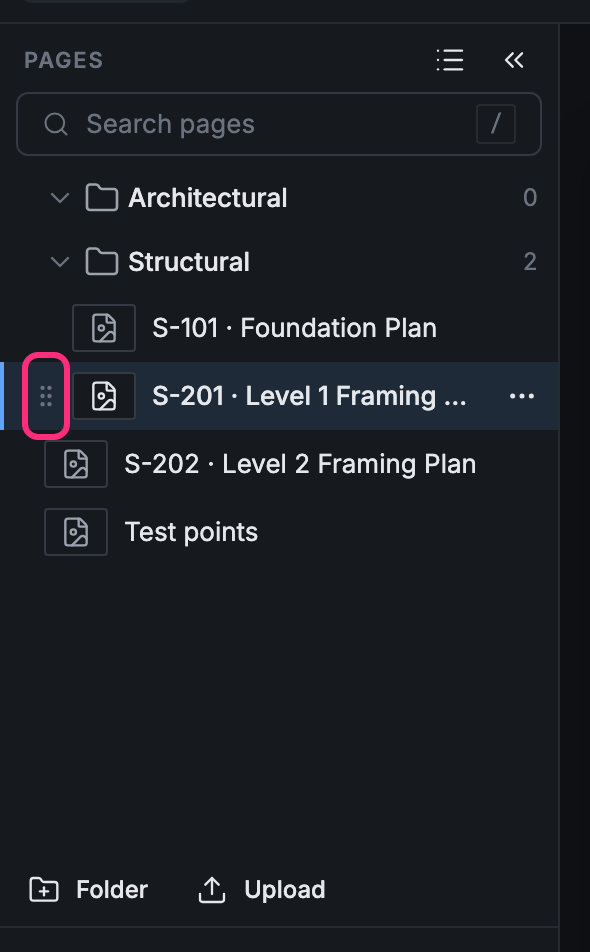
People who can only view a folder don’t get the grips.
Search for a page
Section titled “Search for a page”Type in Search pages (or press /). The list narrows to the pages that match. Press Esc to bring the whole list back. If nothing matches, the list says No pages match.


While searching, the arrow keys step through the pages found and Enter opens one.
Show pages as pictures
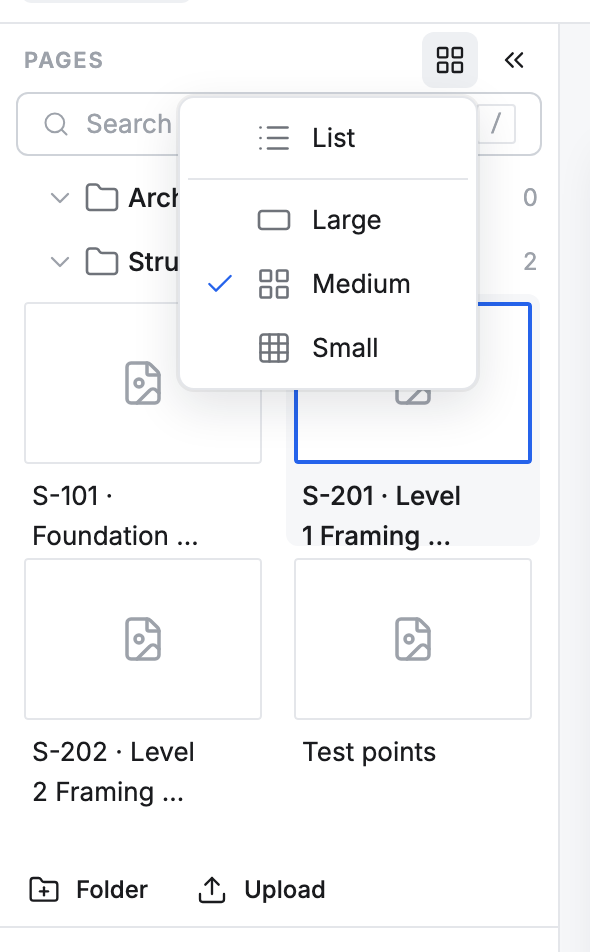
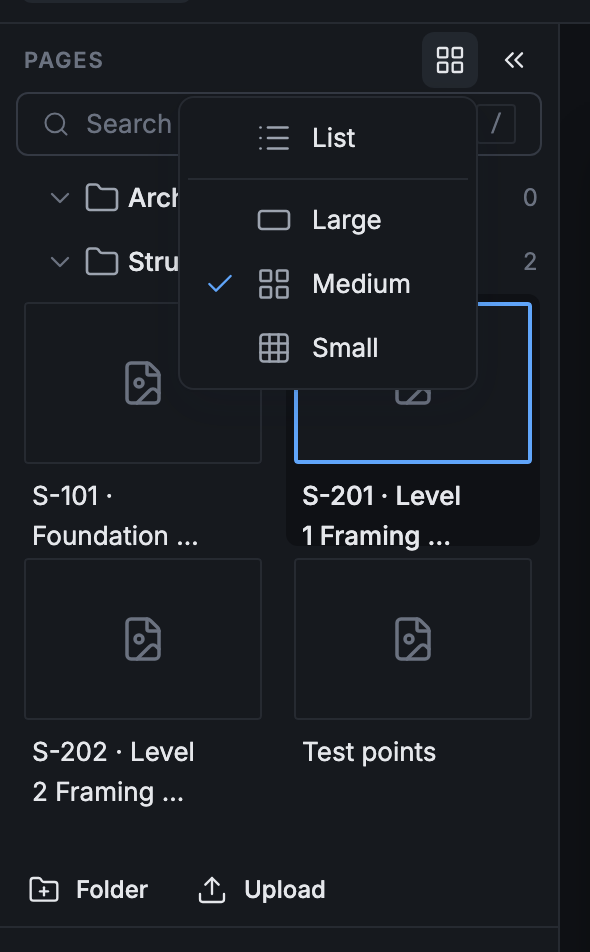
Section titled “Show pages as pictures”Press the view button beside Pages and pick List, or Large, Medium or Small pictures. The tick shows the view you have. Pointmap remembers it on this device.
Turn to the next page
Section titled “Turn to the next page”Click a page in the list to open it. On a keyboard, X opens the next page and Z the previous one.