Change a role, suspend or remove someone
Settings › People lists everyone in your company with their role, their groups and when they were last active. Owners and admins change people here.
Change someone’s role
Section titled “Change someone’s role”-
Click your initials at the top right, then Settings, then People.
-
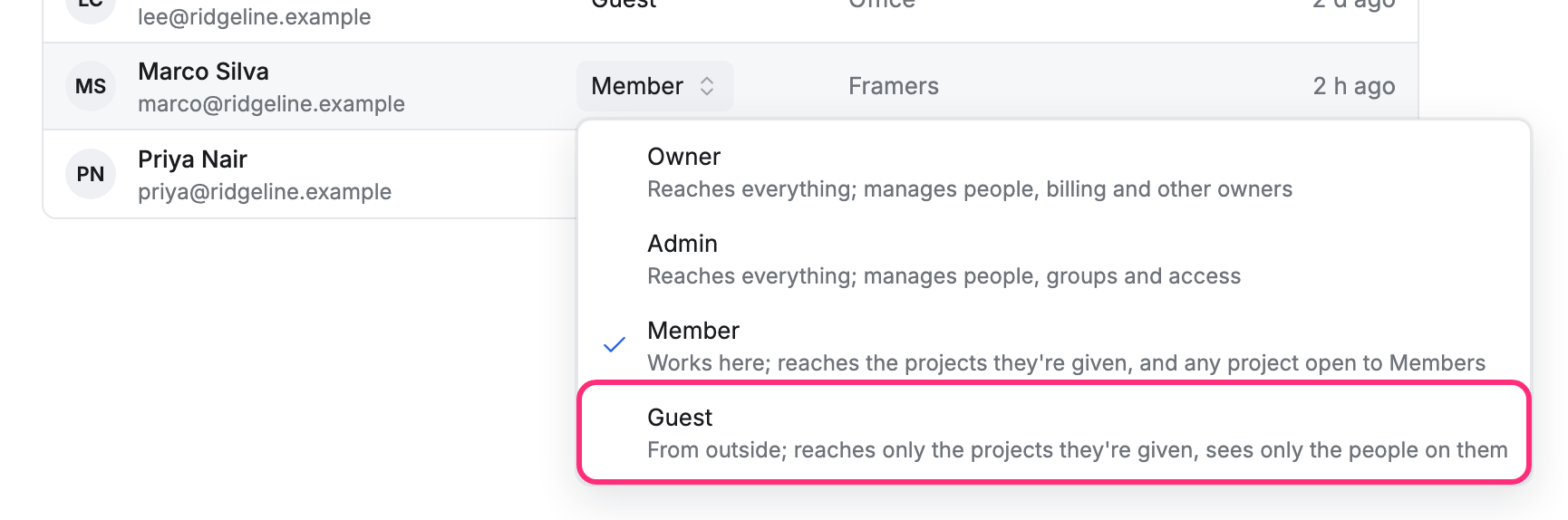
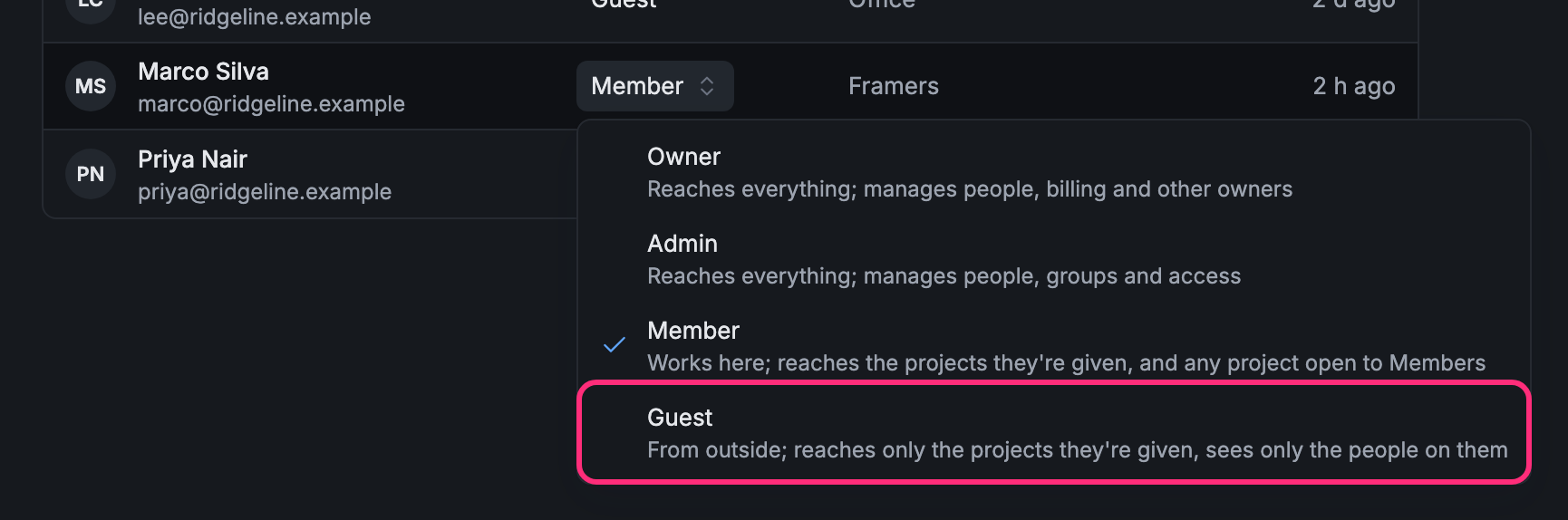
Click the person’s role in the Role column and pick the new one:
- Owner: reaches everything; manages people, billing and other owners.
- Admin: reaches everything; manages people, groups and access.
- Member: works here; reaches the projects they’re given, and any project open to Members.
- Guest: from outside; reaches only the projects they’re given, sees only the people on them.
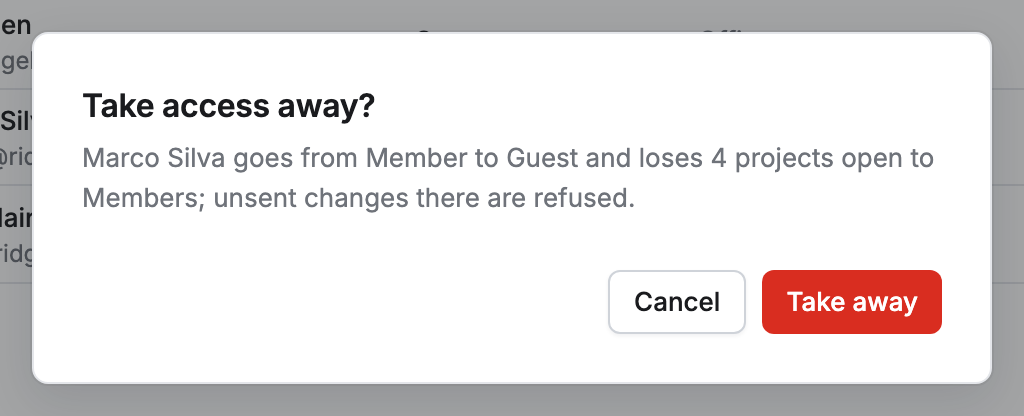
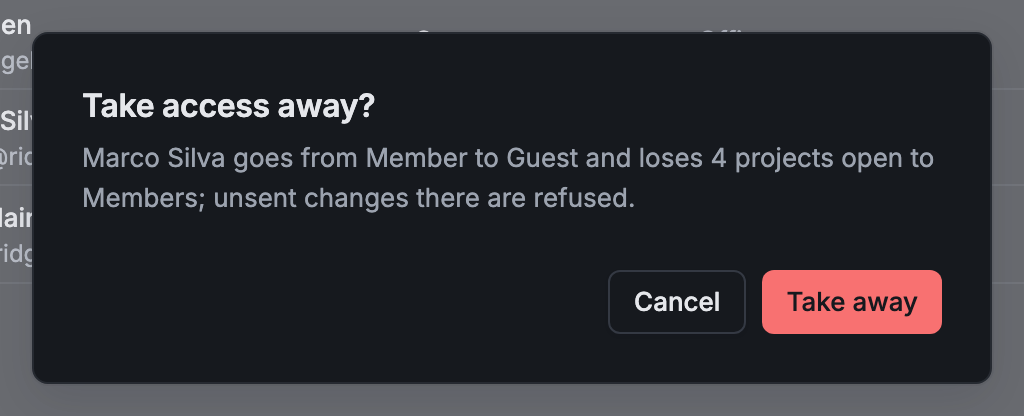
If the change takes projects away, Pointmap asks first. Turning a member into a guest, for example, names how many projects open to Members they lose. Click Take away to go ahead, or Cancel.
See a person’s projects, groups and devices
Section titled “See a person’s projects, groups and devices”Click a person’s name. Their page shows:
- Access: each project they reach, its Level, and How they get it (shared with them, through a group, or through Members). Click Add a project to give them one, or Copy access from… to give them the same projects as someone else.
- Groups: the groups they’re in. Add to a group puts them in another.
- Devices: each phone or computer they use, and when it last synced.
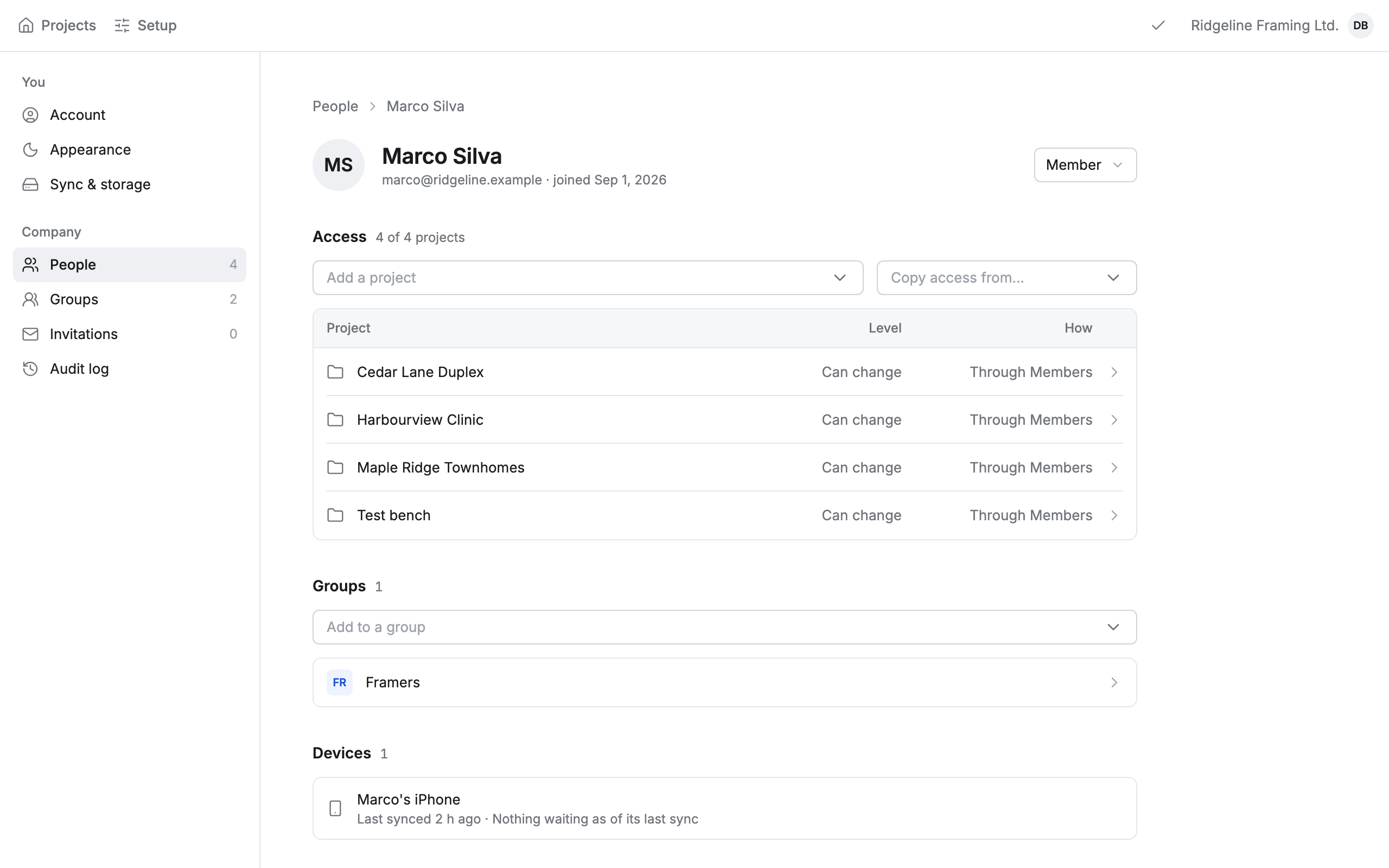
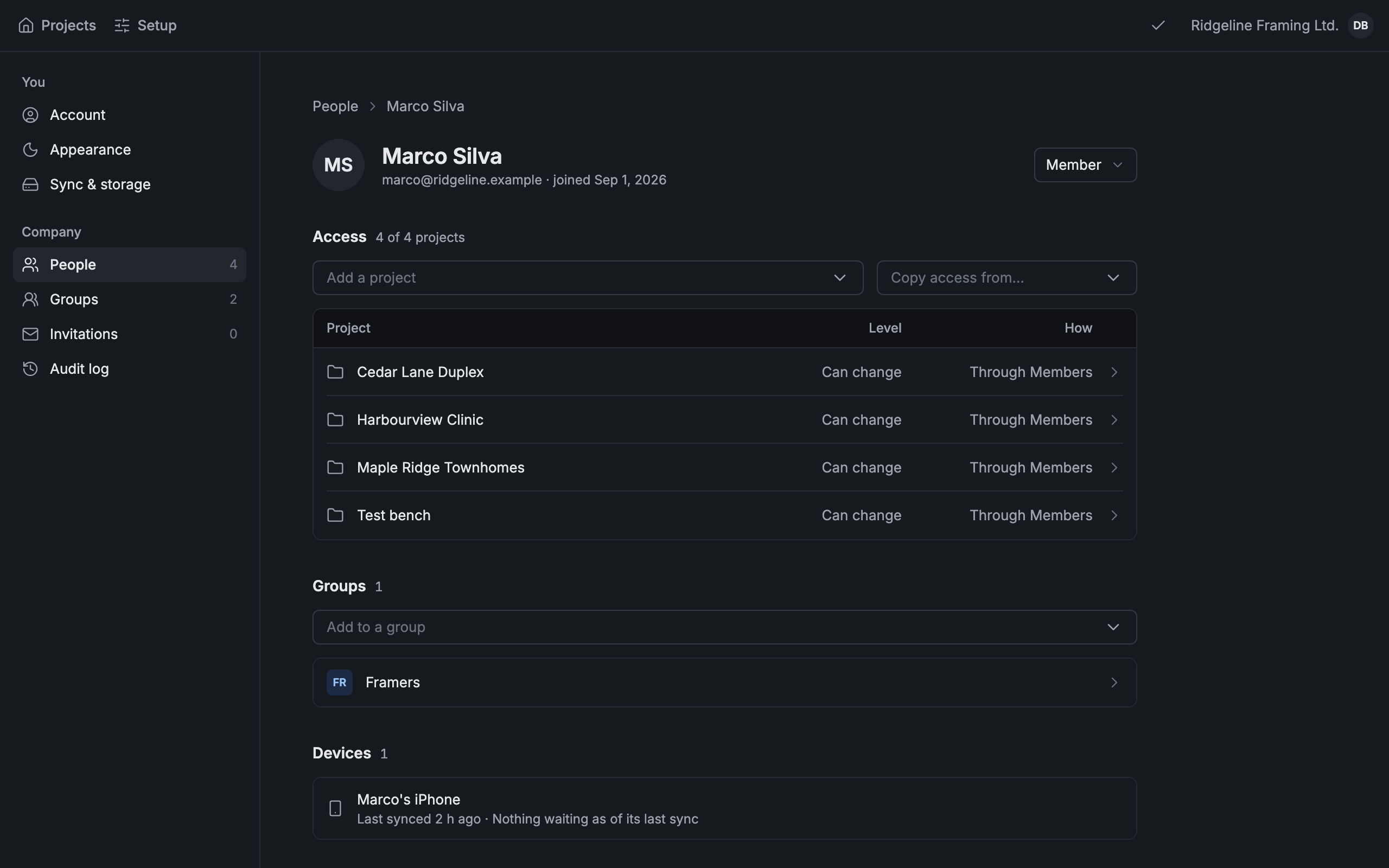
An owner’s or admin’s page has a single Access line: every project, folder and layer, at Can change.
Suspend someone
Section titled “Suspend someone”Suspend a person who shouldn’t get in for a while, for example between jobs.
-
Open their page and click Suspend and their name, at the foot of the page.


-
Click Suspend.
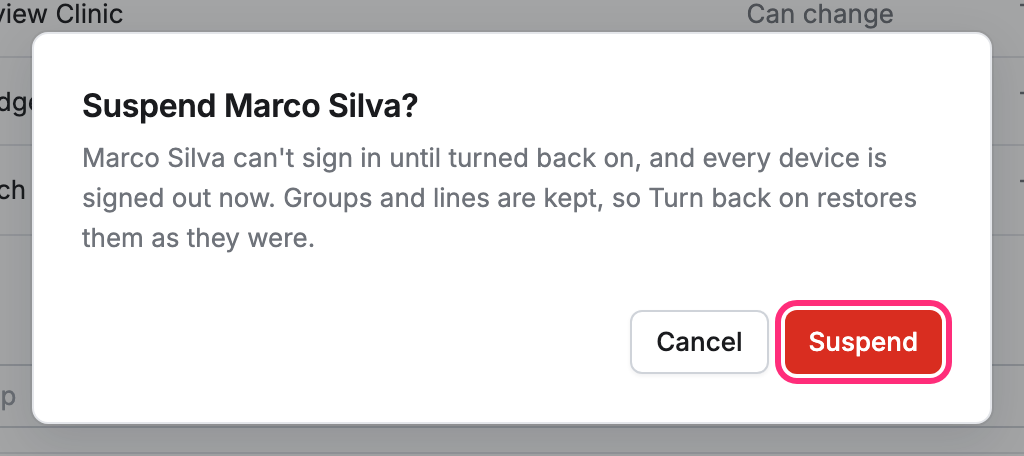
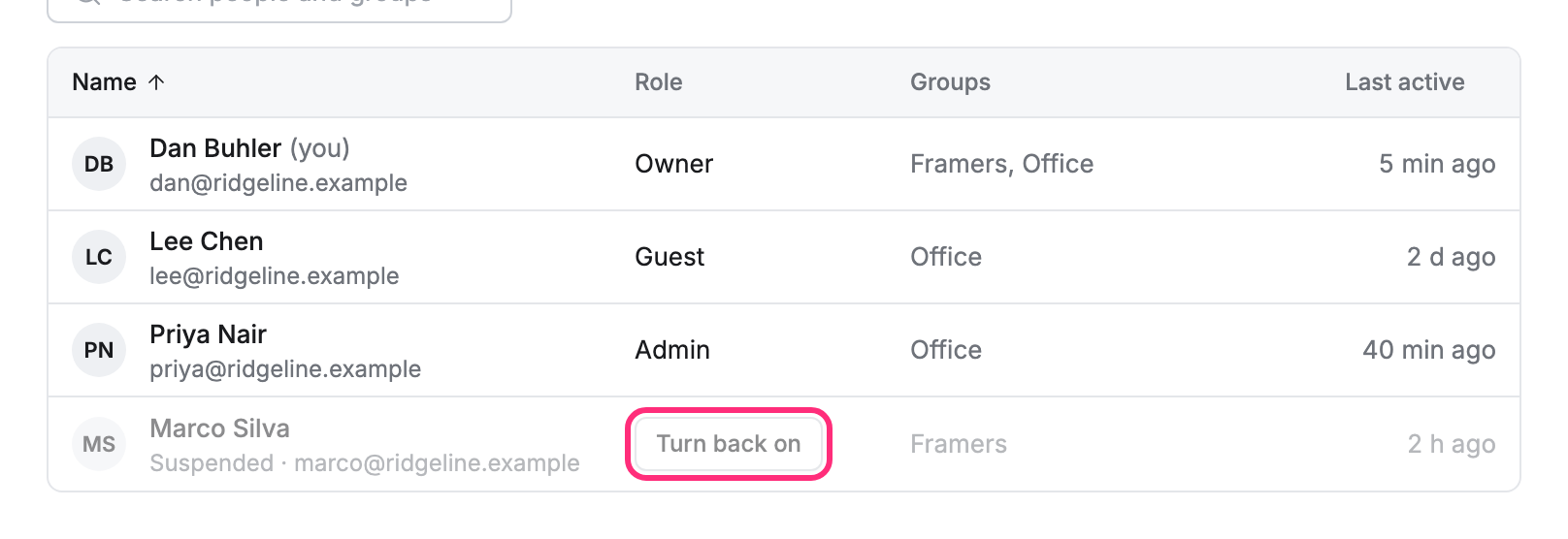
They can’t sign in, and every device they use is signed out. Their groups and access are kept. In People they show grayed at the foot of the list, marked Suspended.
To let them back in, click Turn back on on their row. They come back with everything they had.
Remove someone
Section titled “Remove someone”-
Open their page and click Remove from and your company’s name, at the foot of the page.
-
Click Remove.
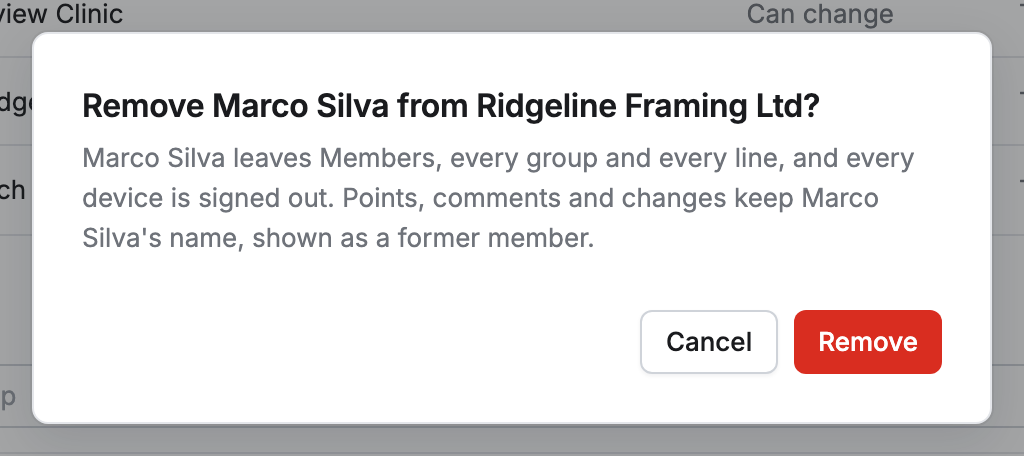
They leave Members, every group and every project, and every device they use is signed out. Their points, comments and changes keep their name, shown as a former member.