Fill in a point’s card
Every point on a drawing has a card. The card asks the questions its card type sets up: a status, an owner, a count, some tags. Fill it in as the work moves, and the point on the drawing follows.
Open a point’s card
Section titled “Open a point’s card”Click a point on the drawing. Its card opens on the right.
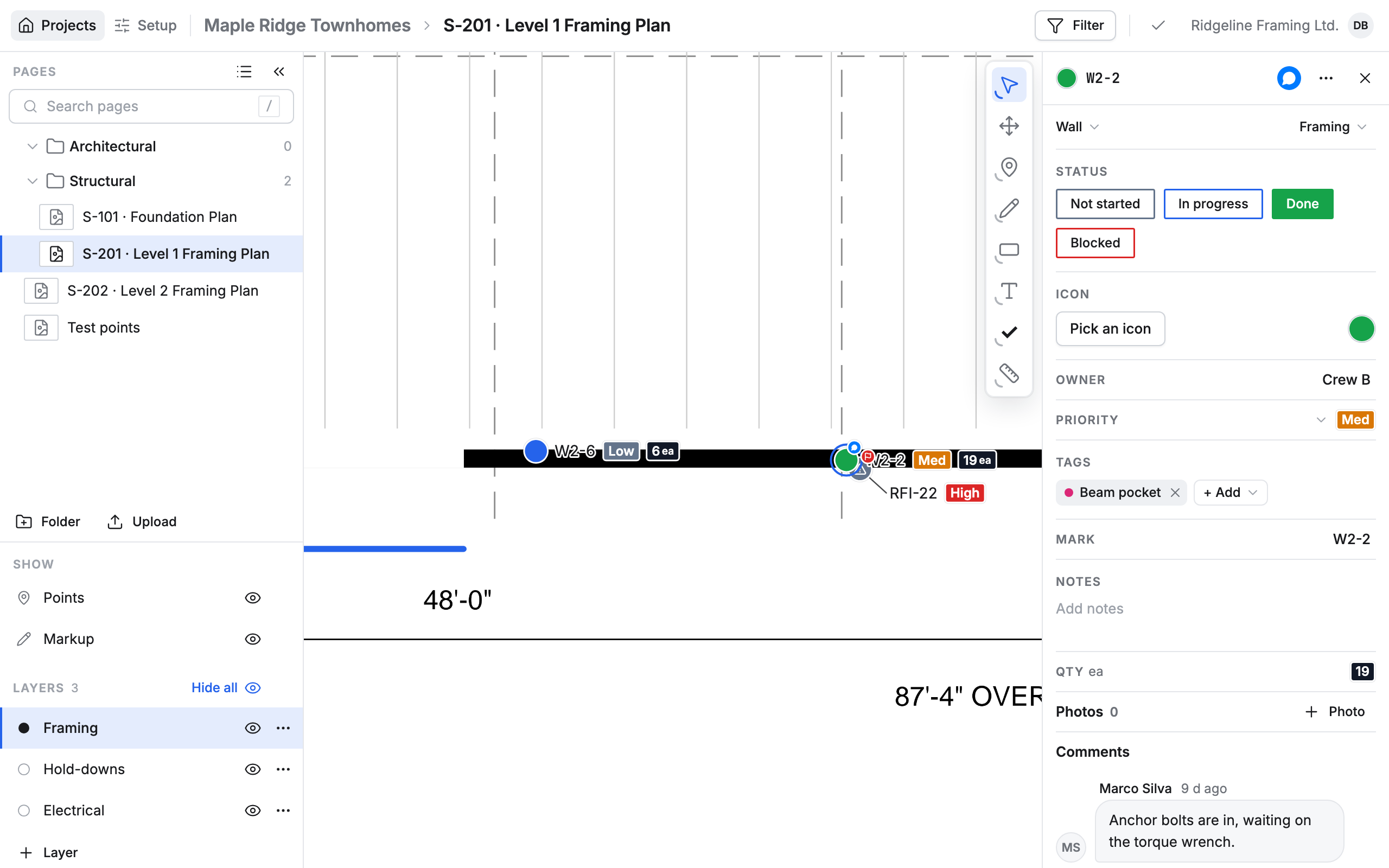
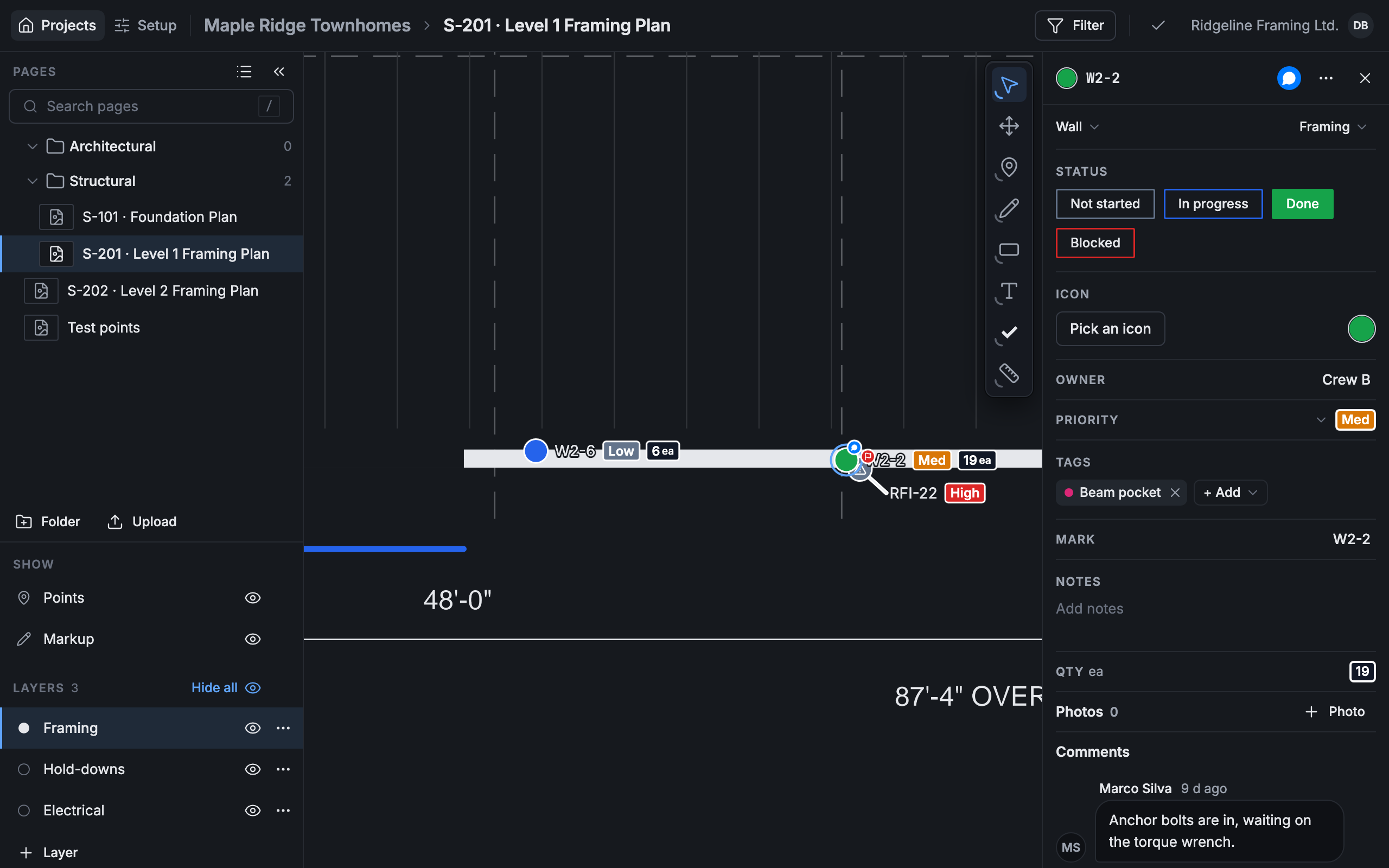
The top line is the point’s name, here W2-2. Click it to change it. Under it are the card type (Wall) and the layer the point is on (Framing).
Fill in the card
Section titled “Fill in the card”Each line of the card is one question. Your changes save as you make them: there is no Save button on a card.
-
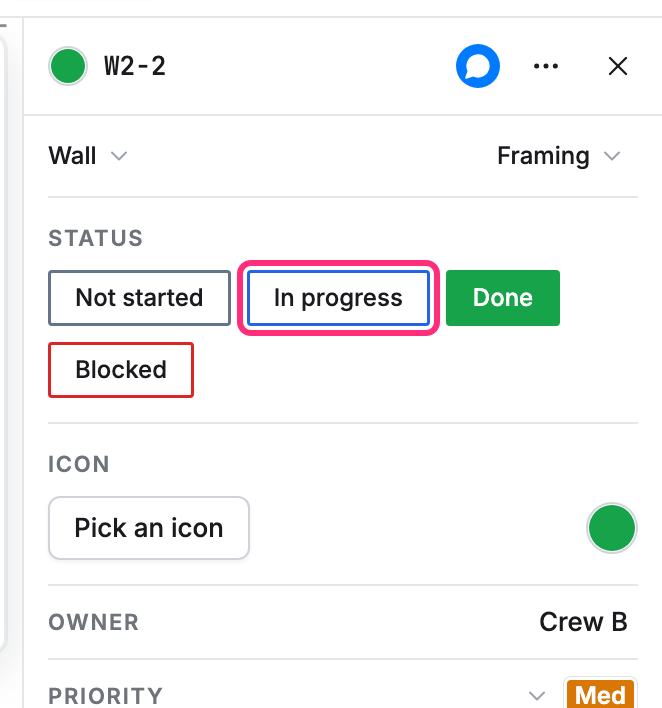
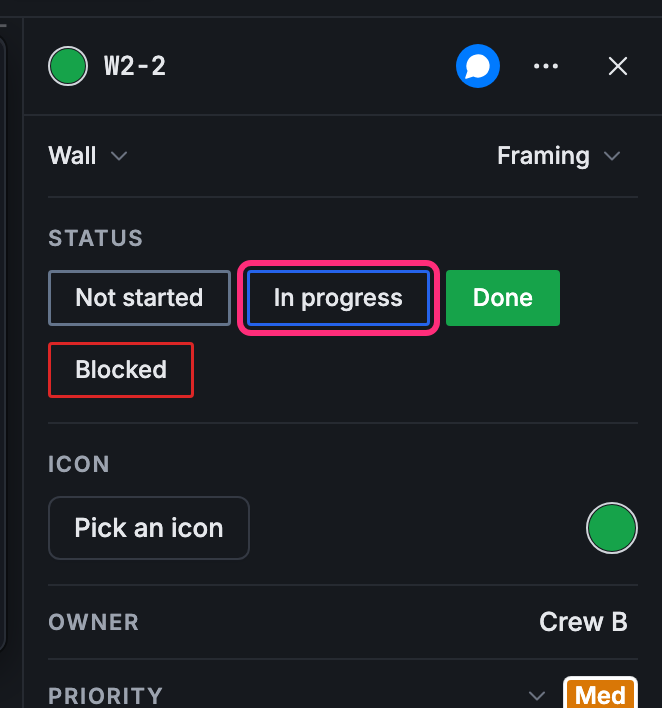
Click a choice to pick it. For a status, the point on the drawing takes the color of the choice.
-
Click a line with a dash or an empty box, like Owner or Notes, and type. Notes grow as you write.
-
Lists with more choices, like Priority, open when you click them. Pick one.
-
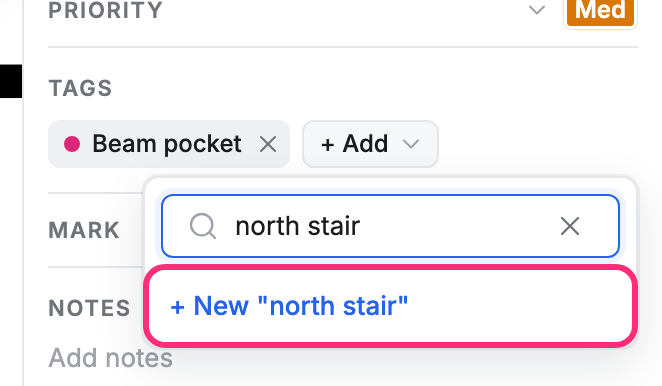
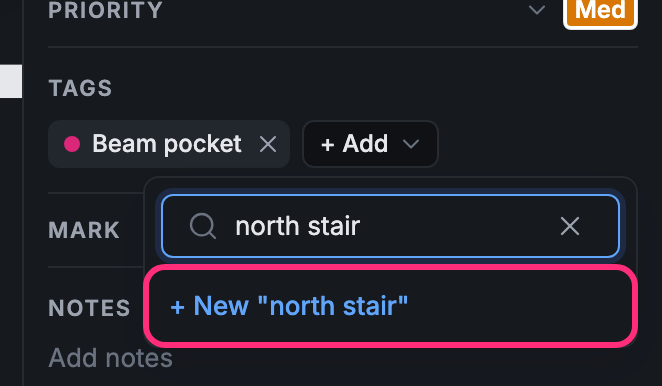
To add a tag, click + Add under Tags. Pick a tag, or type a new one and click + New with your words.
A line marked REQUIRED still needs an answer. Some card types also have a task list, photos or files: see Tasks on a point and Photos and files on a card.
Delete a point
Section titled “Delete a point”-
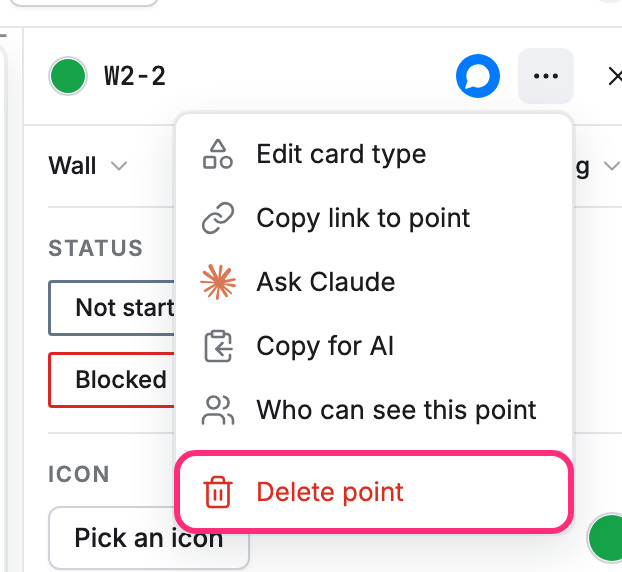
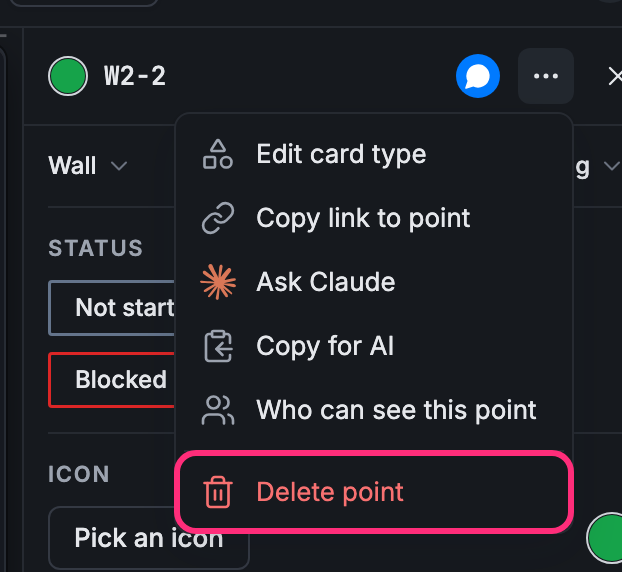
Click ⋯ at the top of the card.
-
Click Delete point.
The point and its card are gone. Changed your mind? Click Undo in the message at the bottom of the screen.
To switch or save a template, click the name under the point’s title: see Templates.