Choose who can see and change a project
Each project has an Access list: who reaches it, and what they can do there. Owners and admins always have full access. Guests reach only what names them.
Open a project’s Access
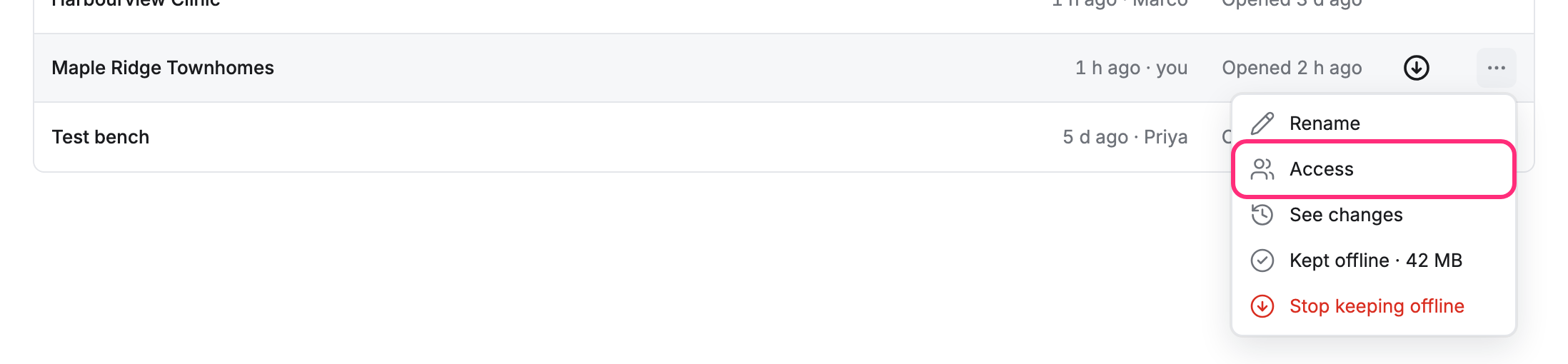
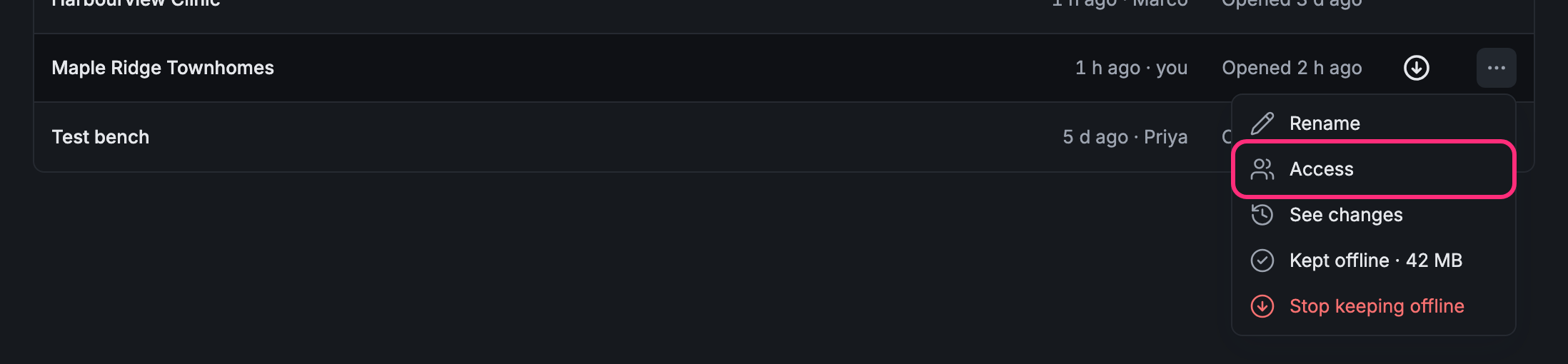
Section titled “Open a project’s Access”On Projects, click ⋯ on the project’s row, then Access.
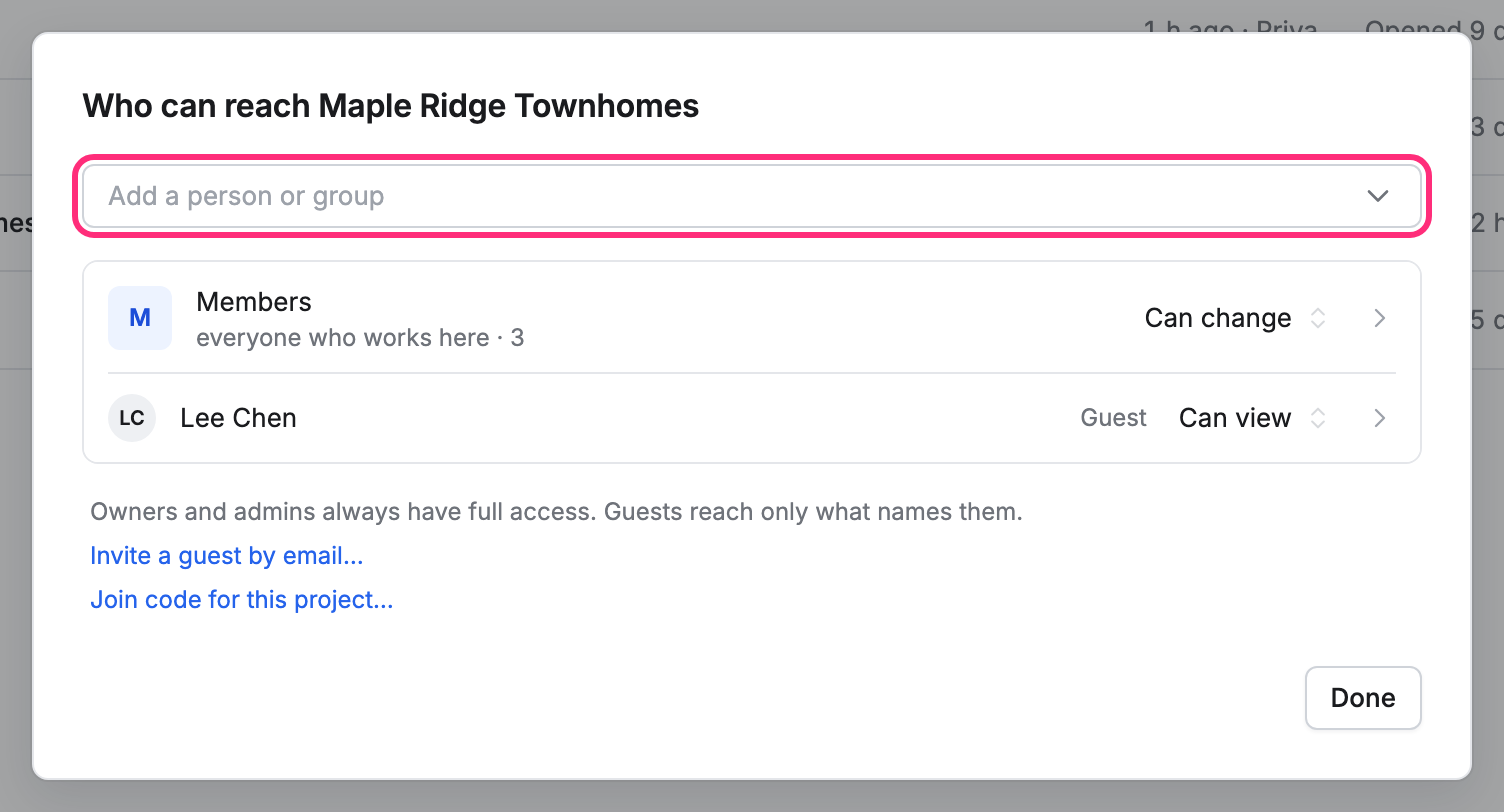
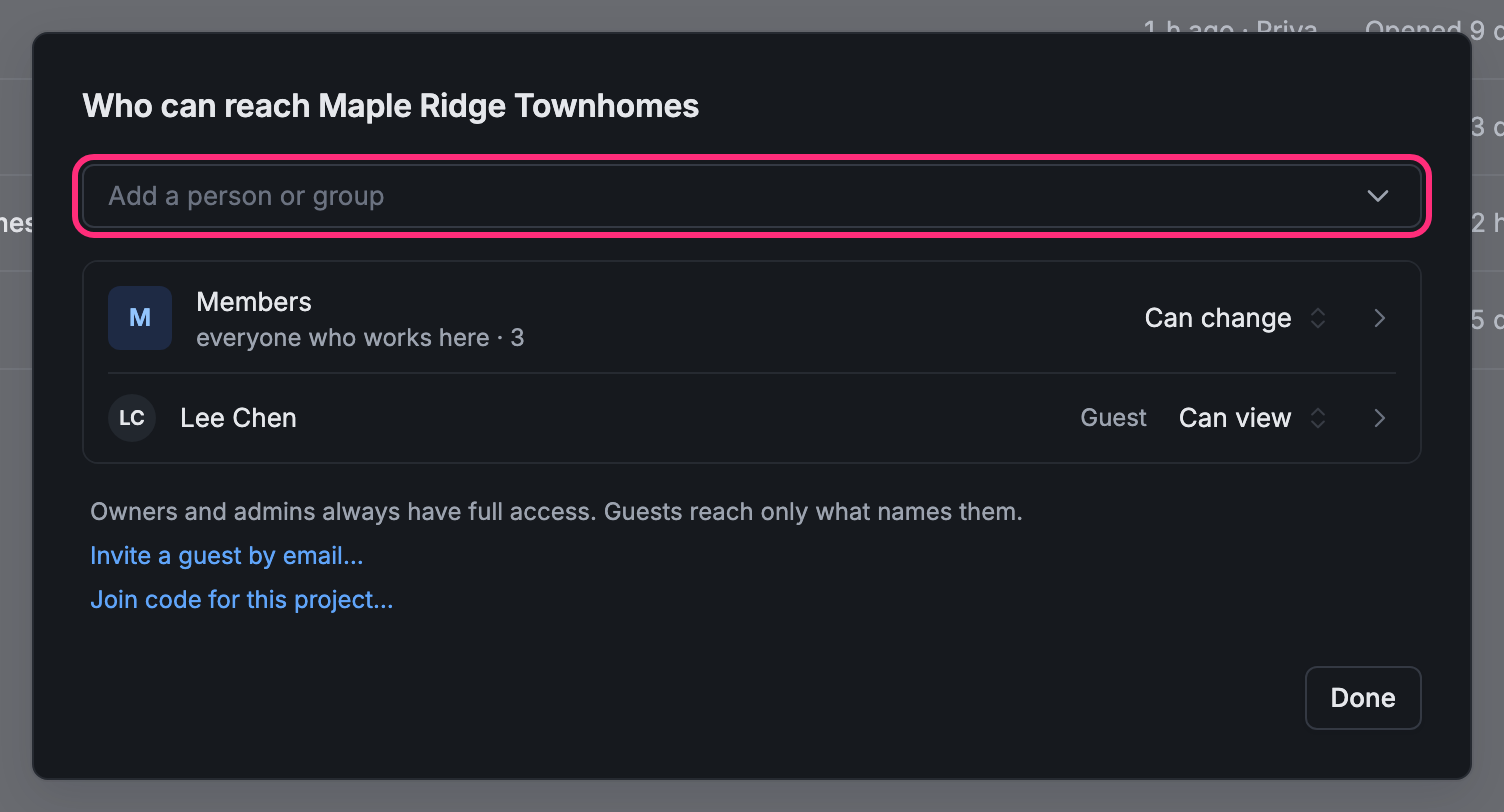
The list starts with Members, everyone who works in your company, then the people and groups the project is shared with.
A new project starts closed to Members: only owners and admins can open it until you share it. Its Members row reads No access.
Share it with a person or group
Section titled “Share it with a person or group”-
Click Add a person or group and type a name.
-
Pick them.
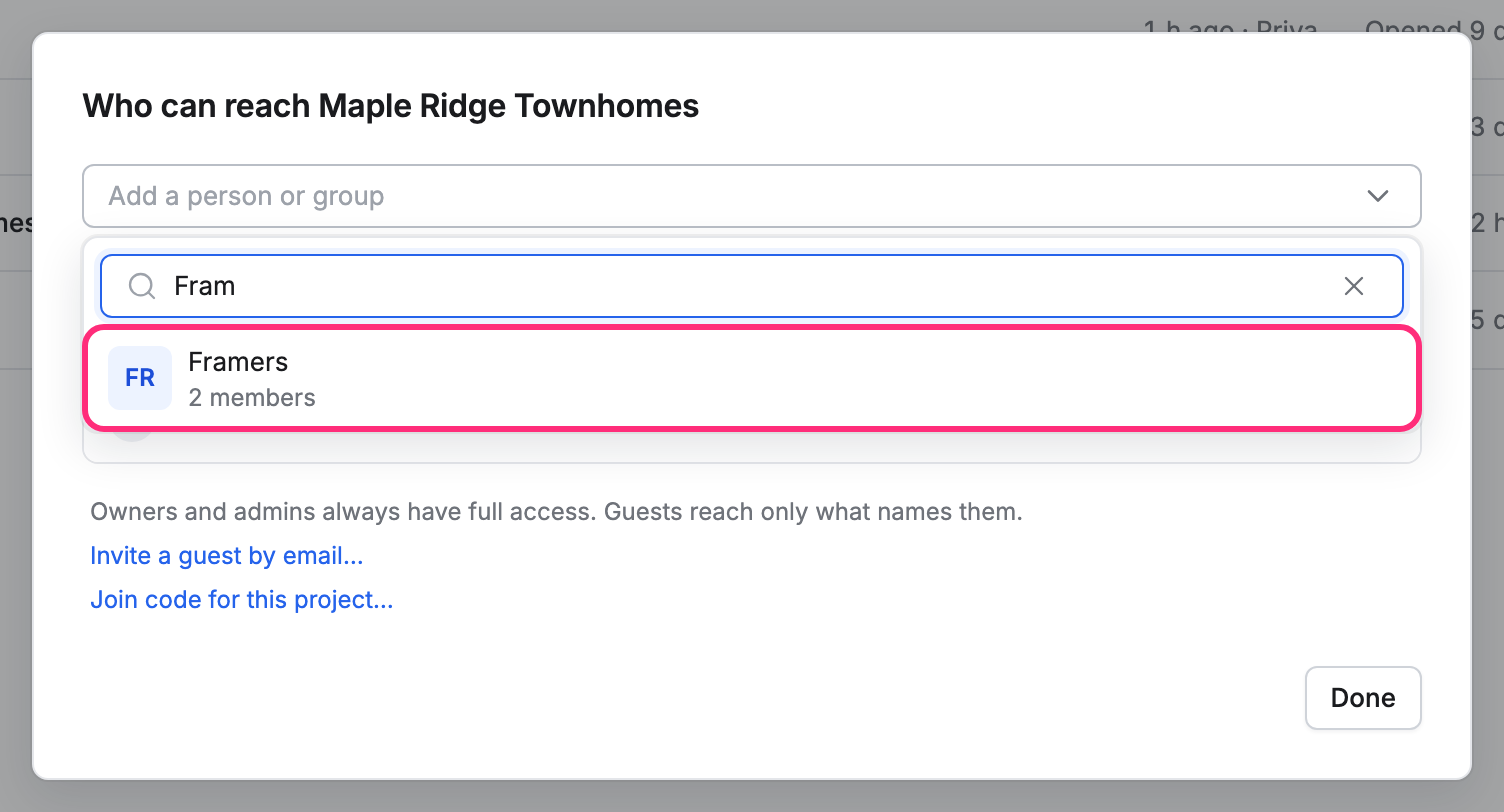
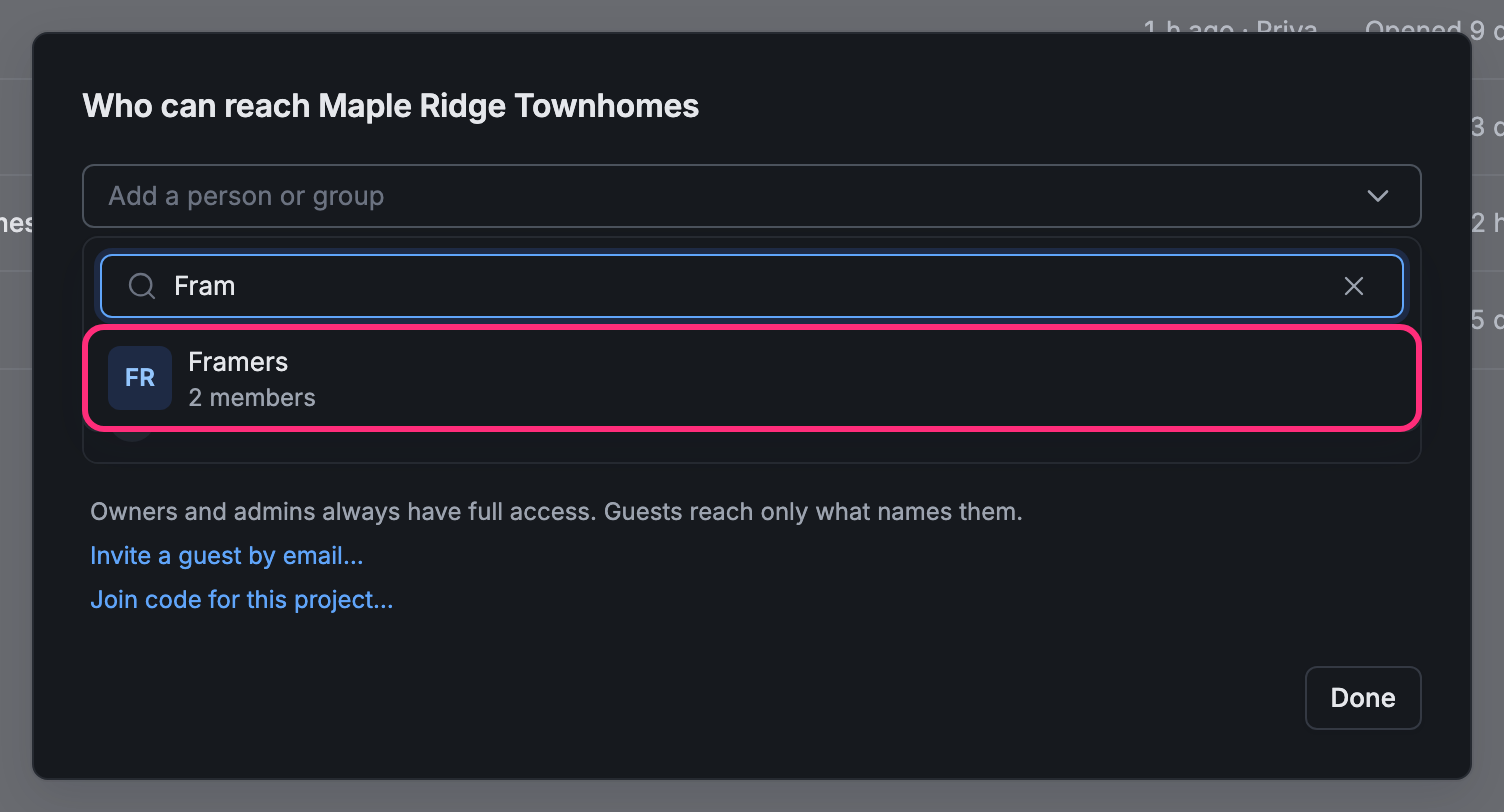
They’re added to the list, and their level opens so you can pick it (see below).
Someone who isn’t in your company yet: click Invite a guest by email…, or Join code for this project… for a crew. See Invite people and make join codes.
Pick a level
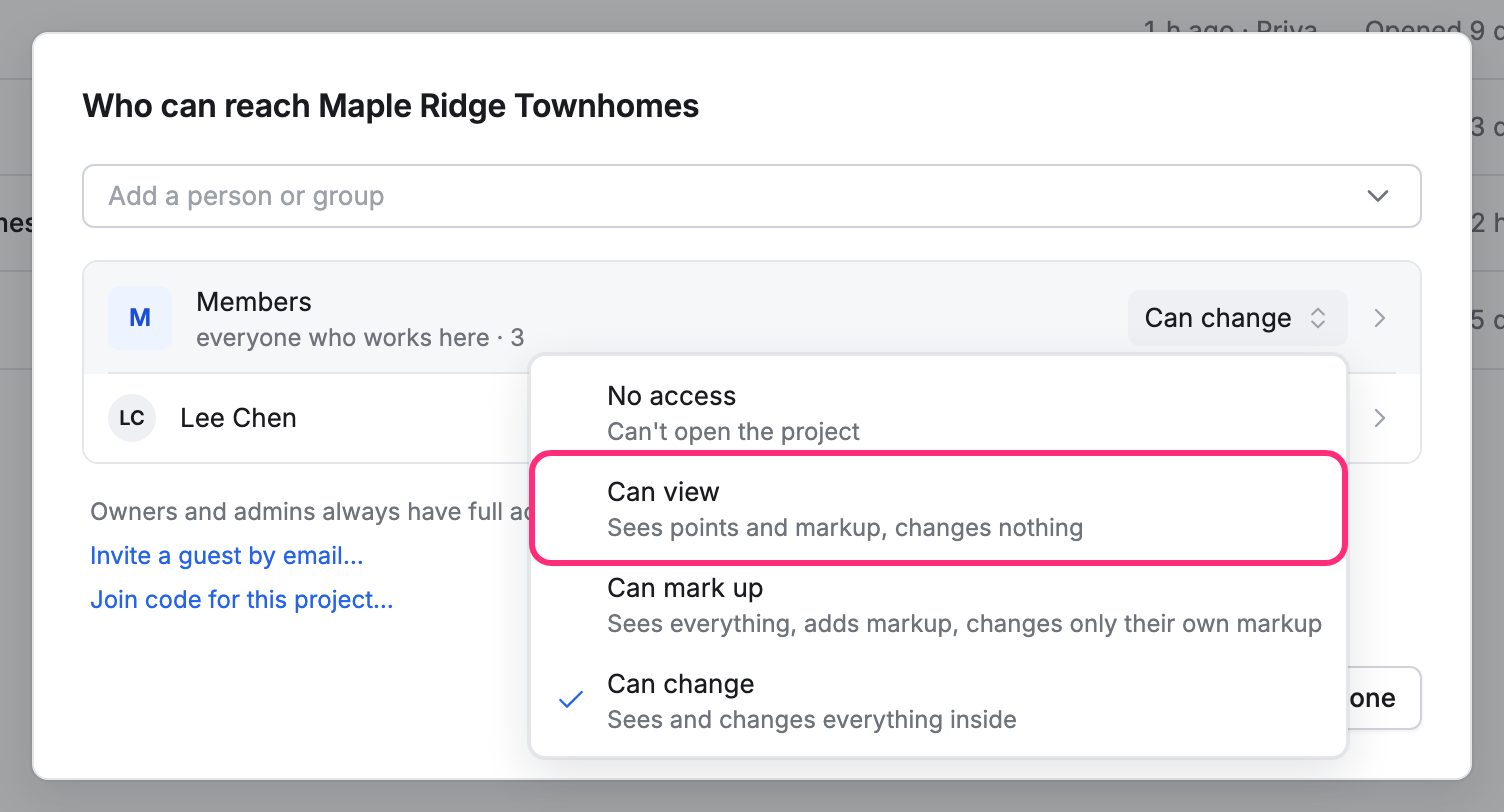
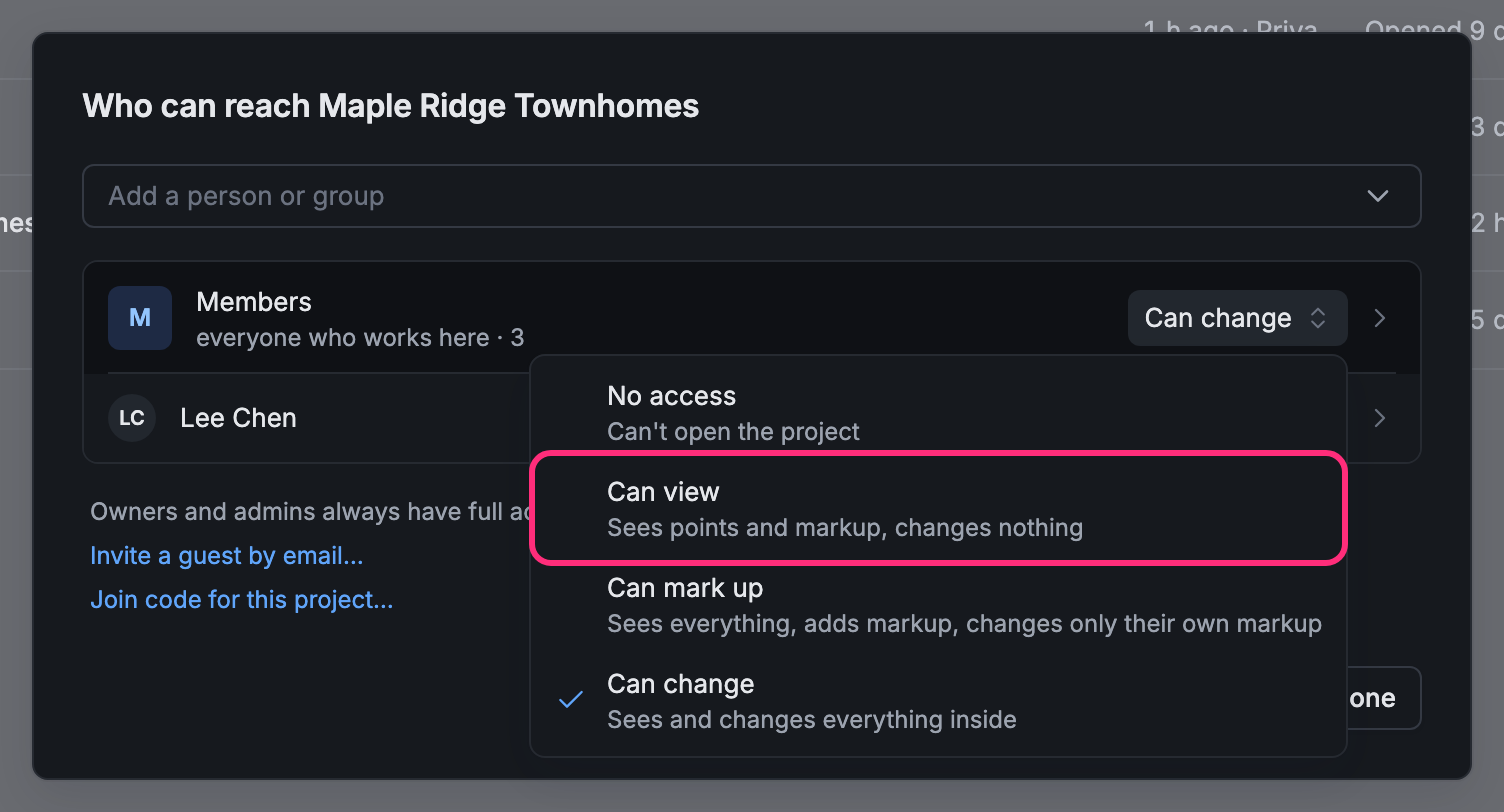
Section titled “Pick a level”Click the level on a row and pick one:
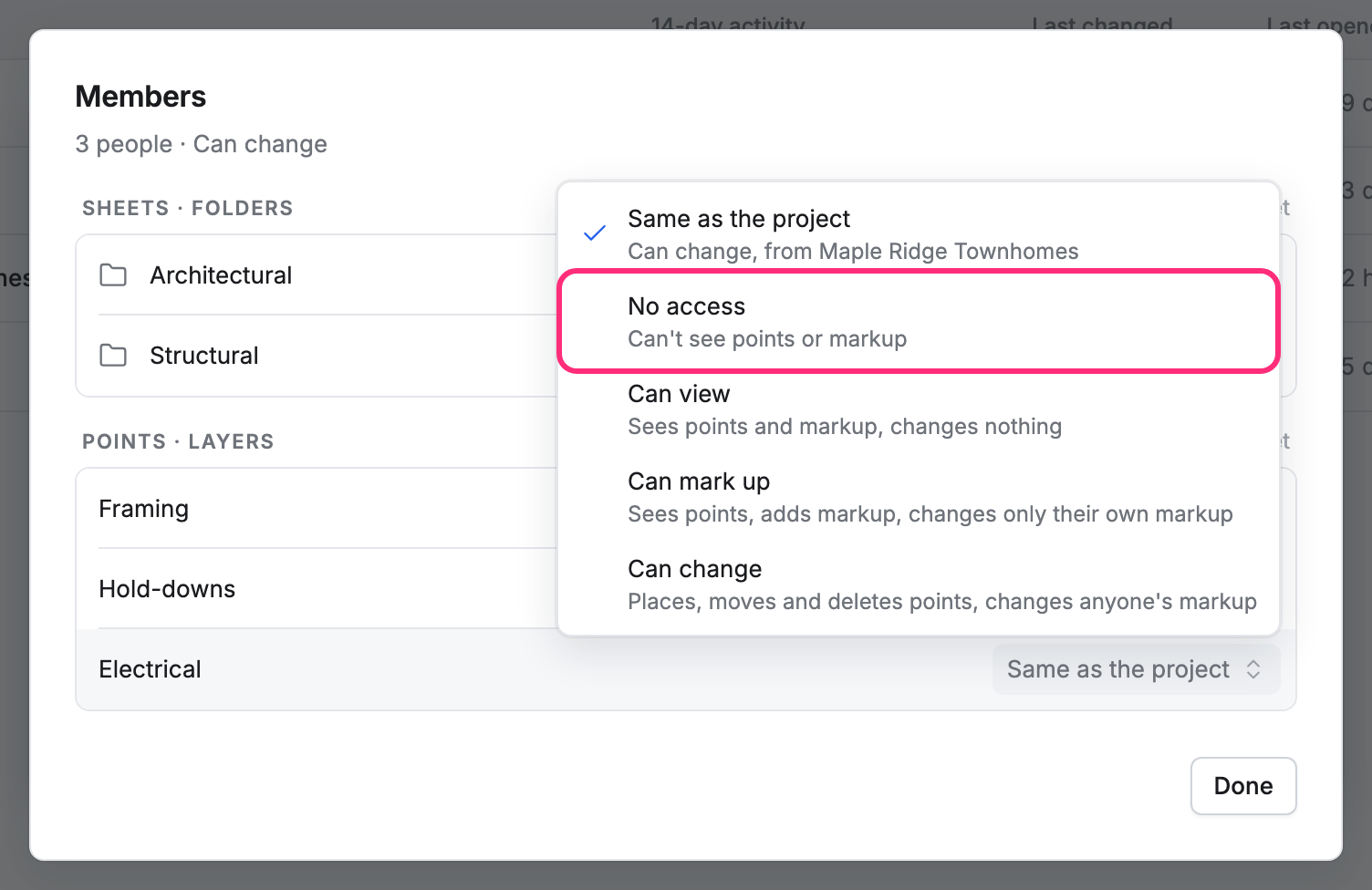
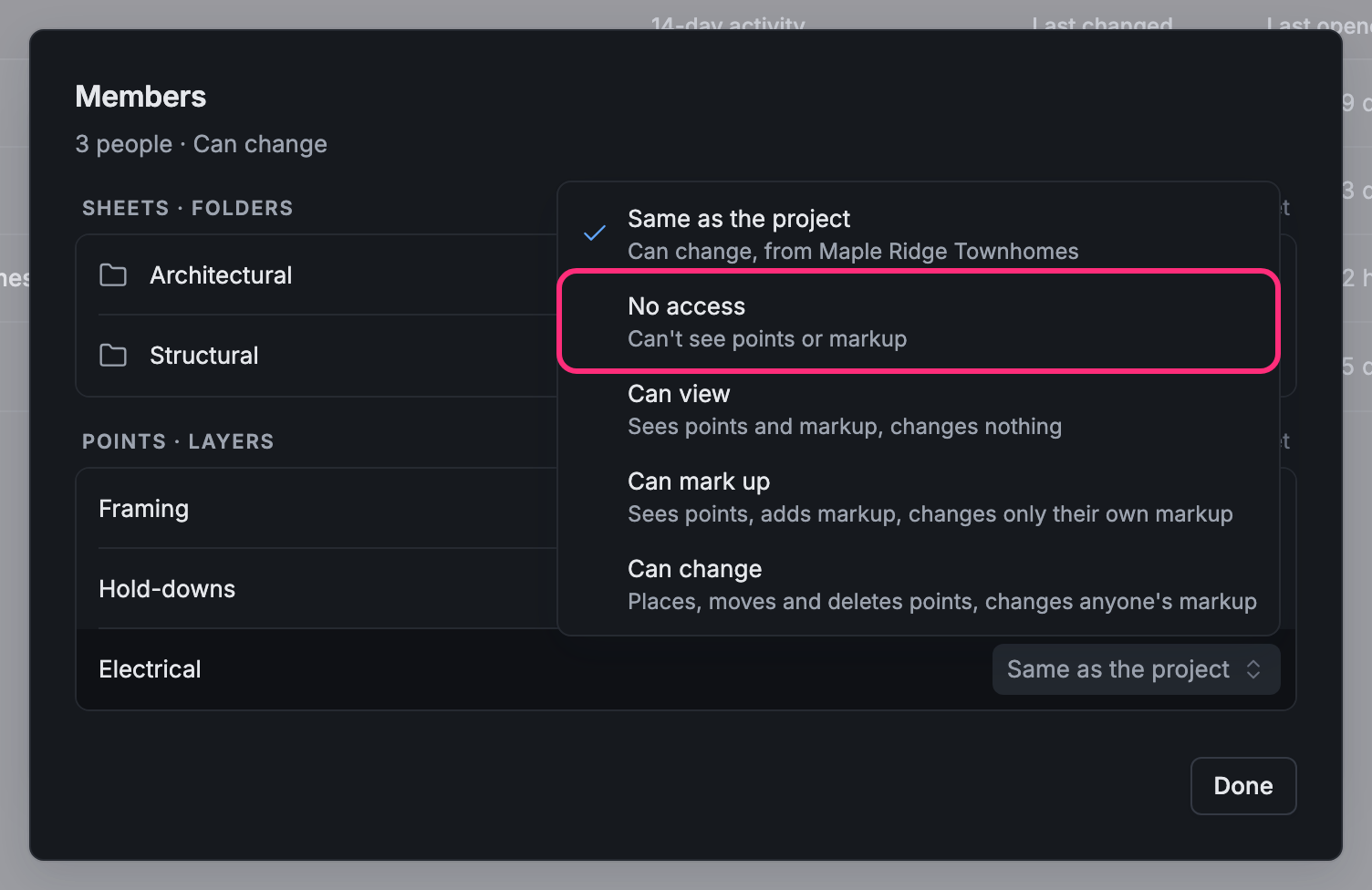
- No access: can’t open the project.
- Can view: sees points and markup, changes nothing.
- Can mark up: sees everything, adds markup, changes only their own markup.
- Can change: sees and changes everything inside.
When a change takes access away from someone, Pointmap names who loses it and asks first. Click Take away to go ahead. To take a person or group off the list, click their level and Remove line.
Change it for one layer or folder
Section titled “Change it for one layer or folder”A row can be different on one layer or folder, for example Members can see everything except Electrical.
-
Click the row (not its level). Its sheets and folders, and its layers, are listed under Sheets · Folders and Points · Layers.
-
Click the level next to a layer or folder and pick one. Same as the project follows the project’s level.
-
Click Done.
The row now says how it’s limited, for example Limited: can’t see Electrical.
Change it for one card type
Section titled “Change it for one card type”To hide or lock a kind of card, like hold-downs, from some people:
- Go to Setup and open the card type.
- Click Card type settings, then Access….
- Click Add a person or group, pick them, and pick their level.
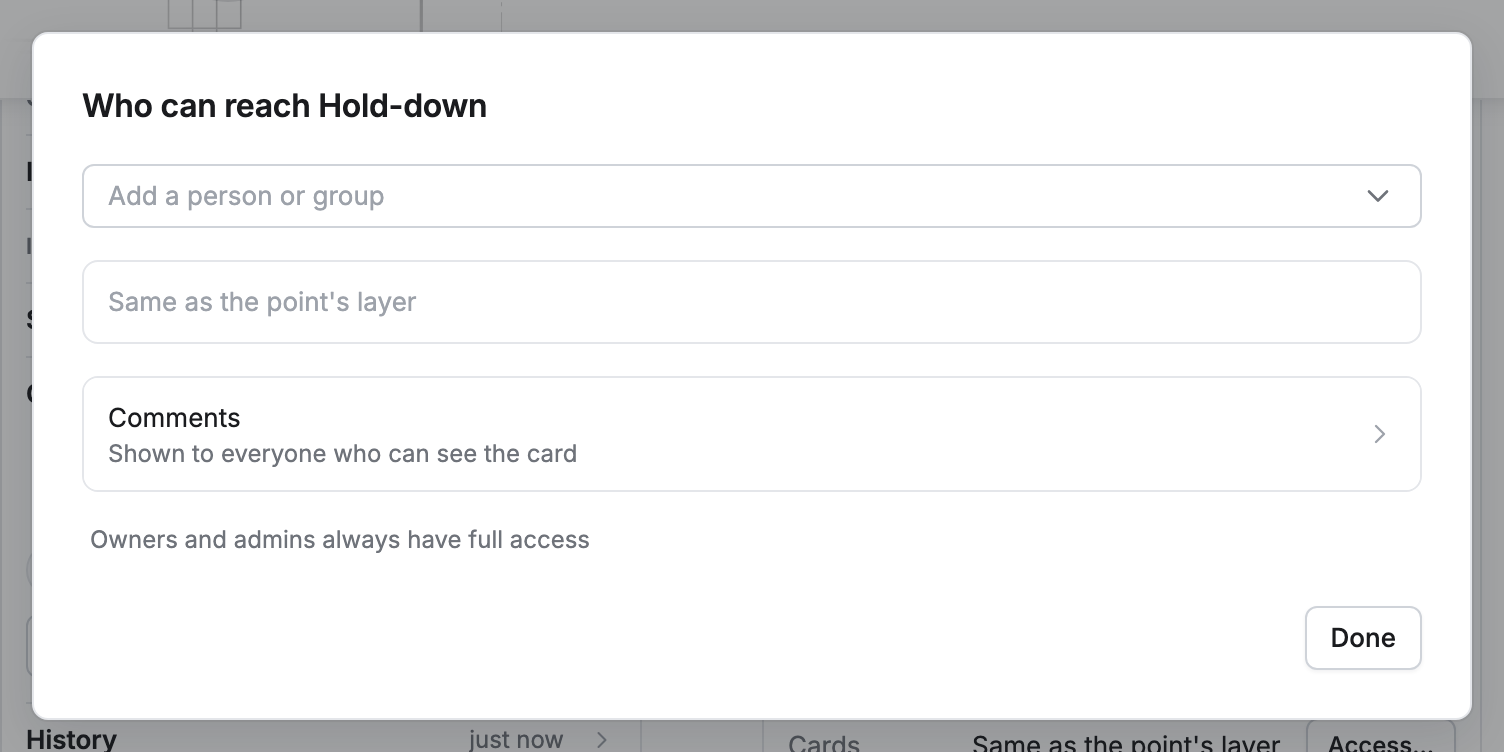
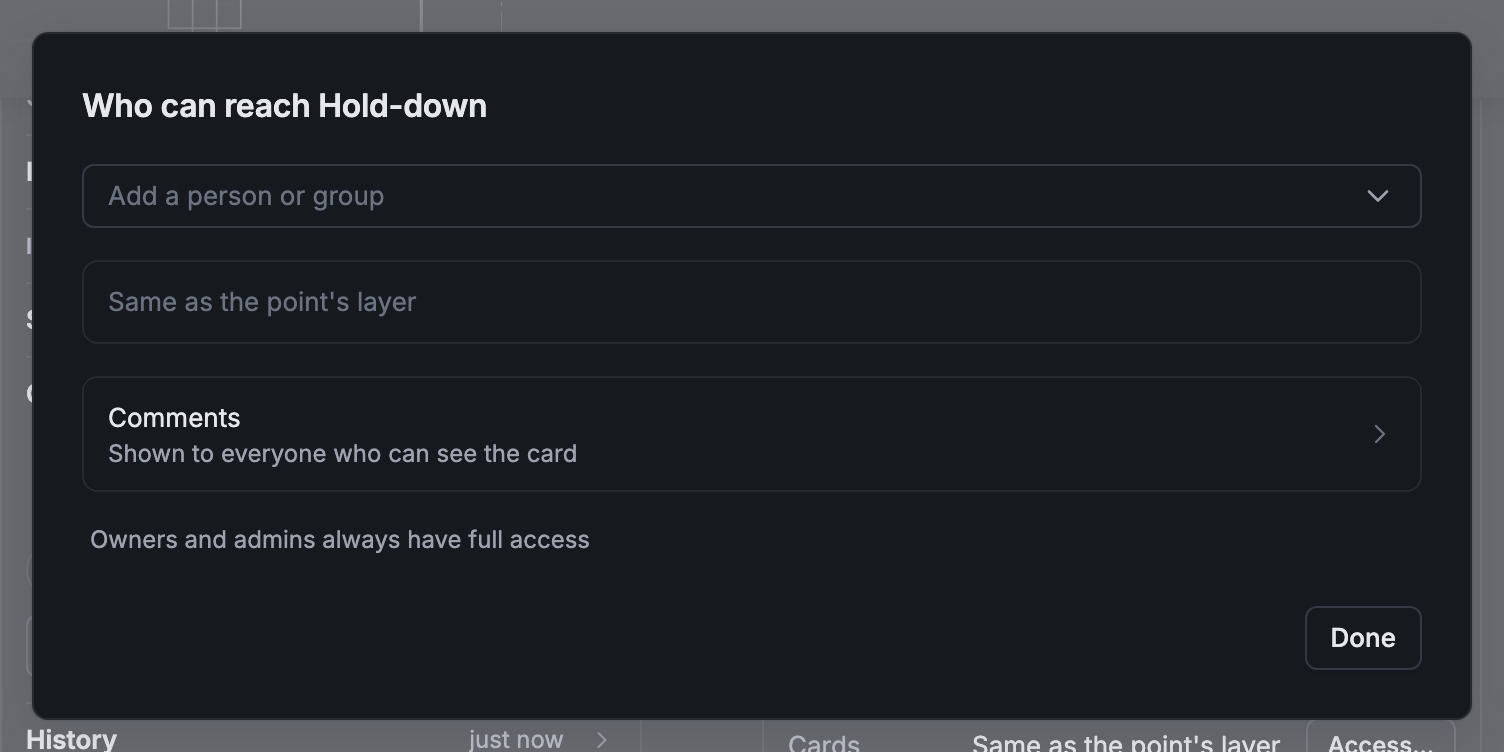
People at No access no longer see that card type’s points. Until you add someone, the card type is Same as the point’s layer.
Offline
Section titled “Offline”Changing access needs a connection. Offline, the Access list is dimmed, and a click on it says so.