Place a point on a drawing
A point marks one thing on a drawing: a wall to frame, a hold-down to install, an issue to fix. Each point has a card that holds what you know about it. You pick what kind of point it is the first time you tap, and Pointmap keeps placing that kind until you choose another.
Place your first point
Section titled “Place your first point”-
Open a drawing, then press Point in the toolbar on the right (or press F).
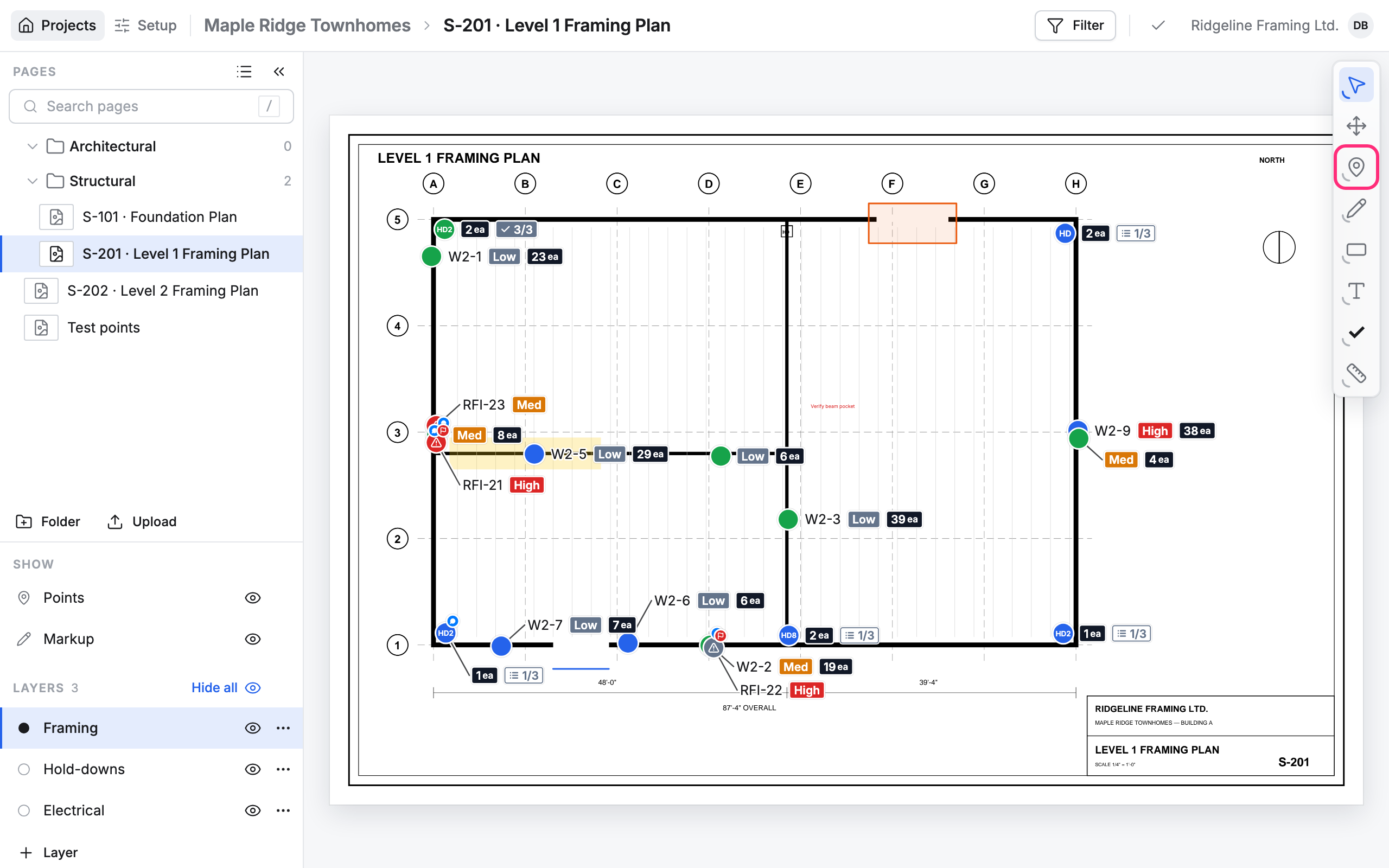
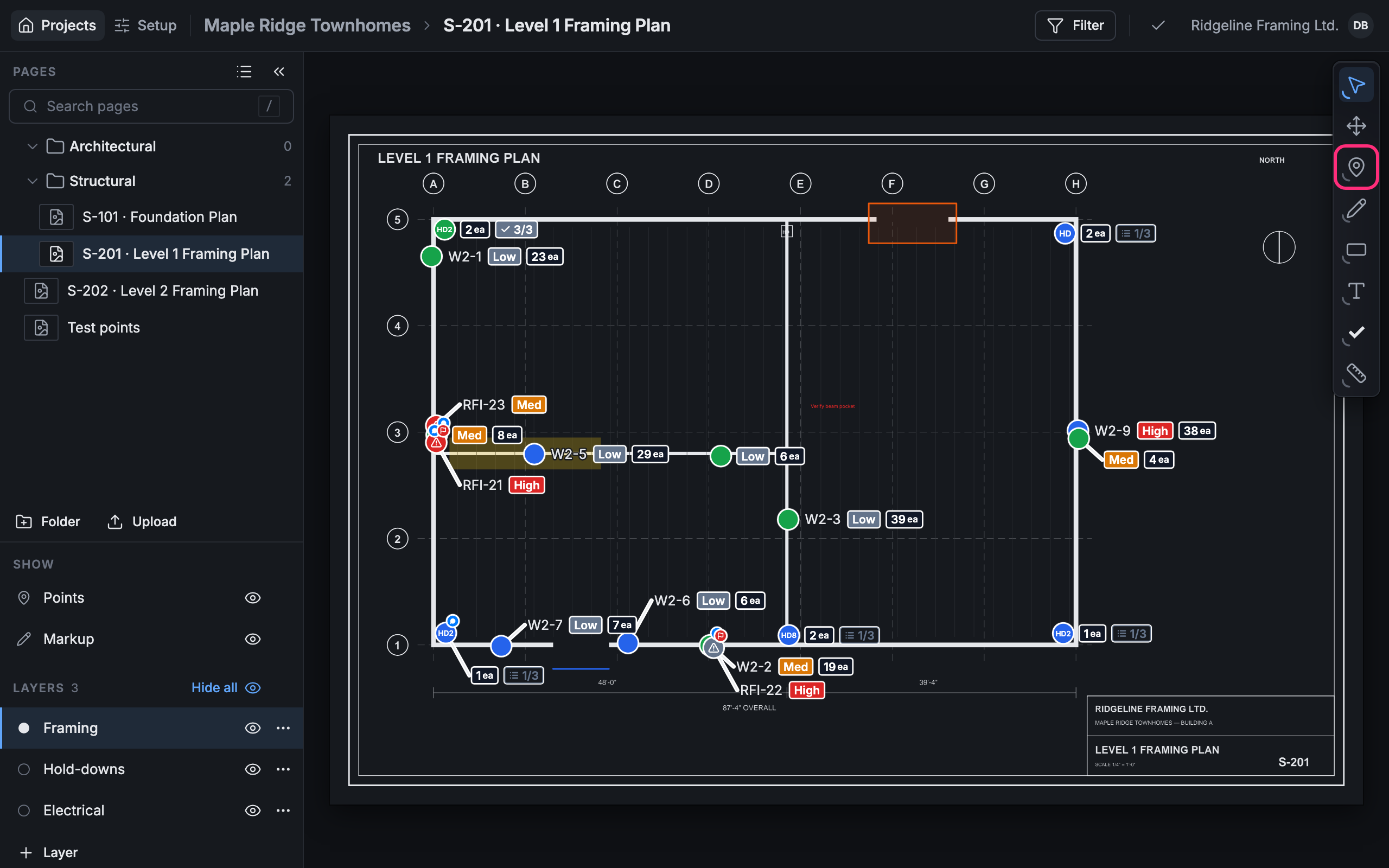
-
Click where the point goes on the drawing.
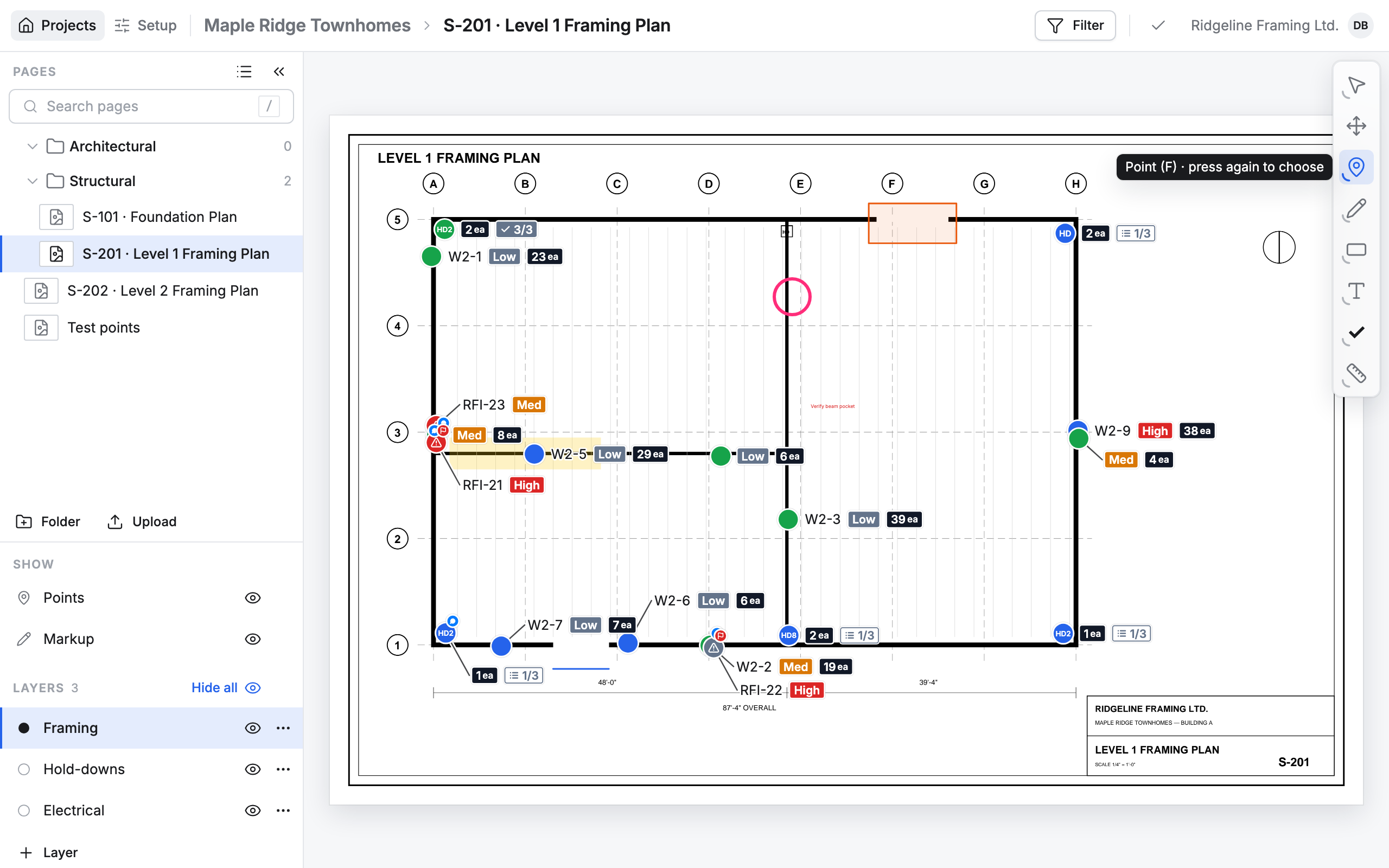
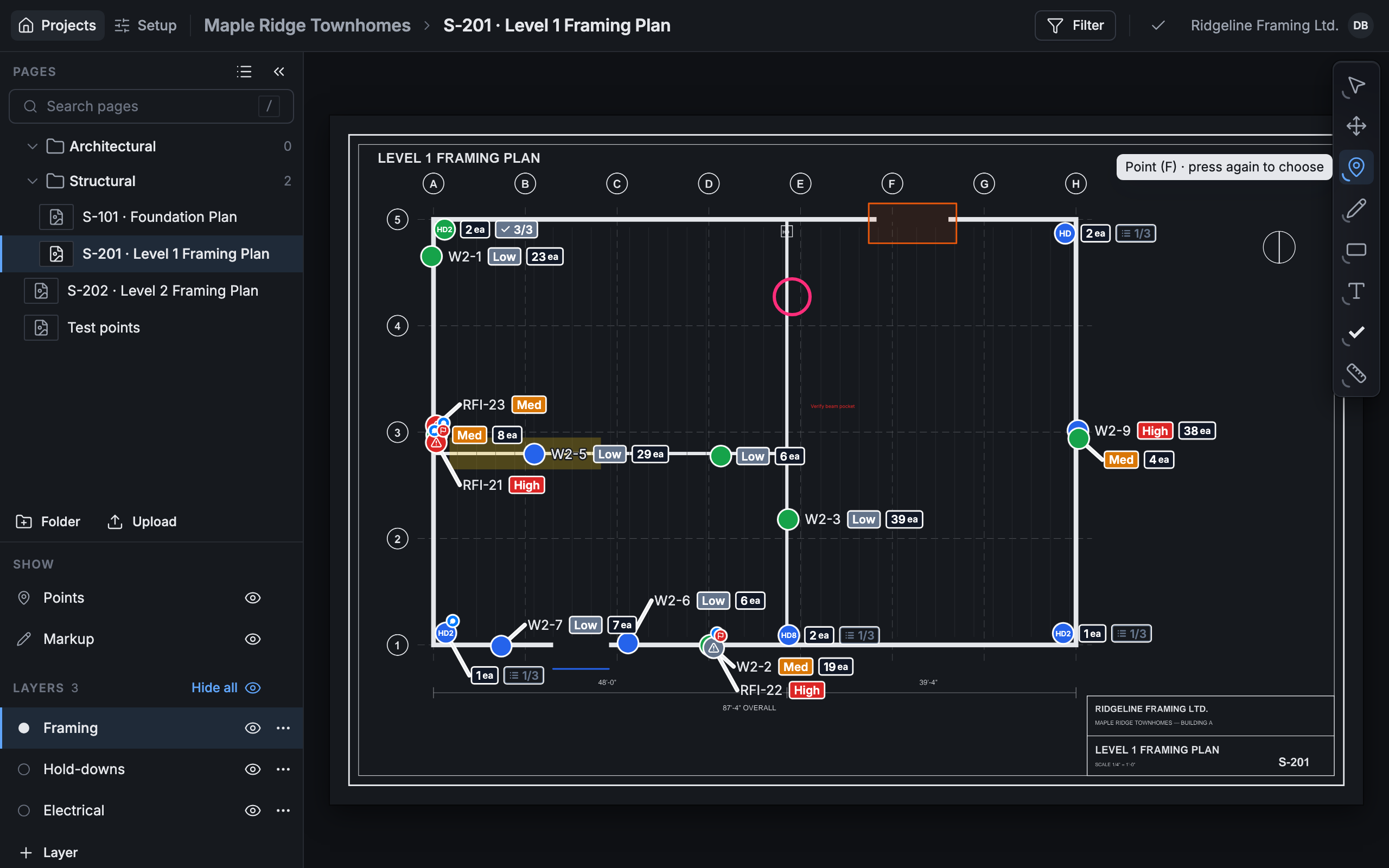
-
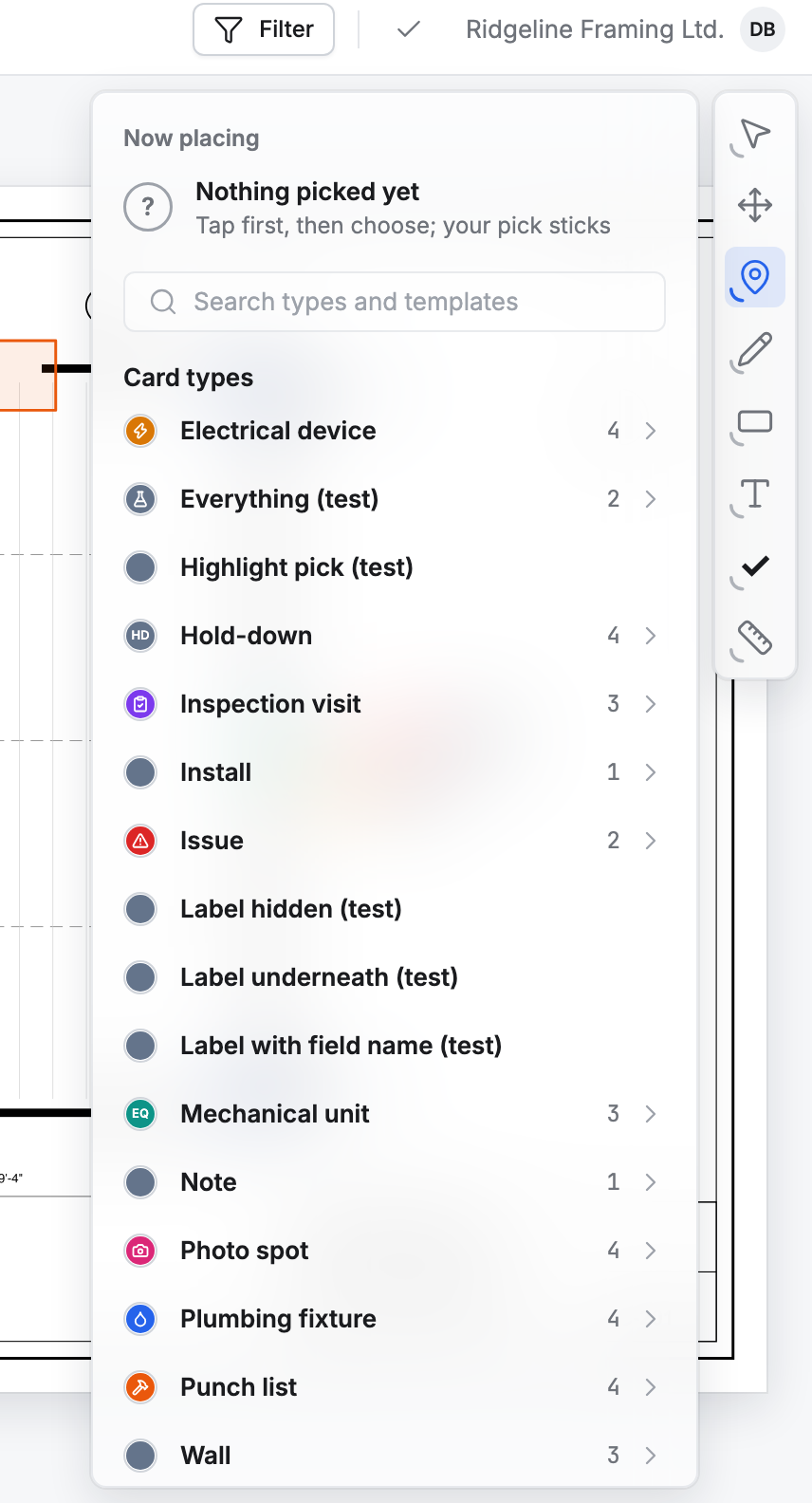
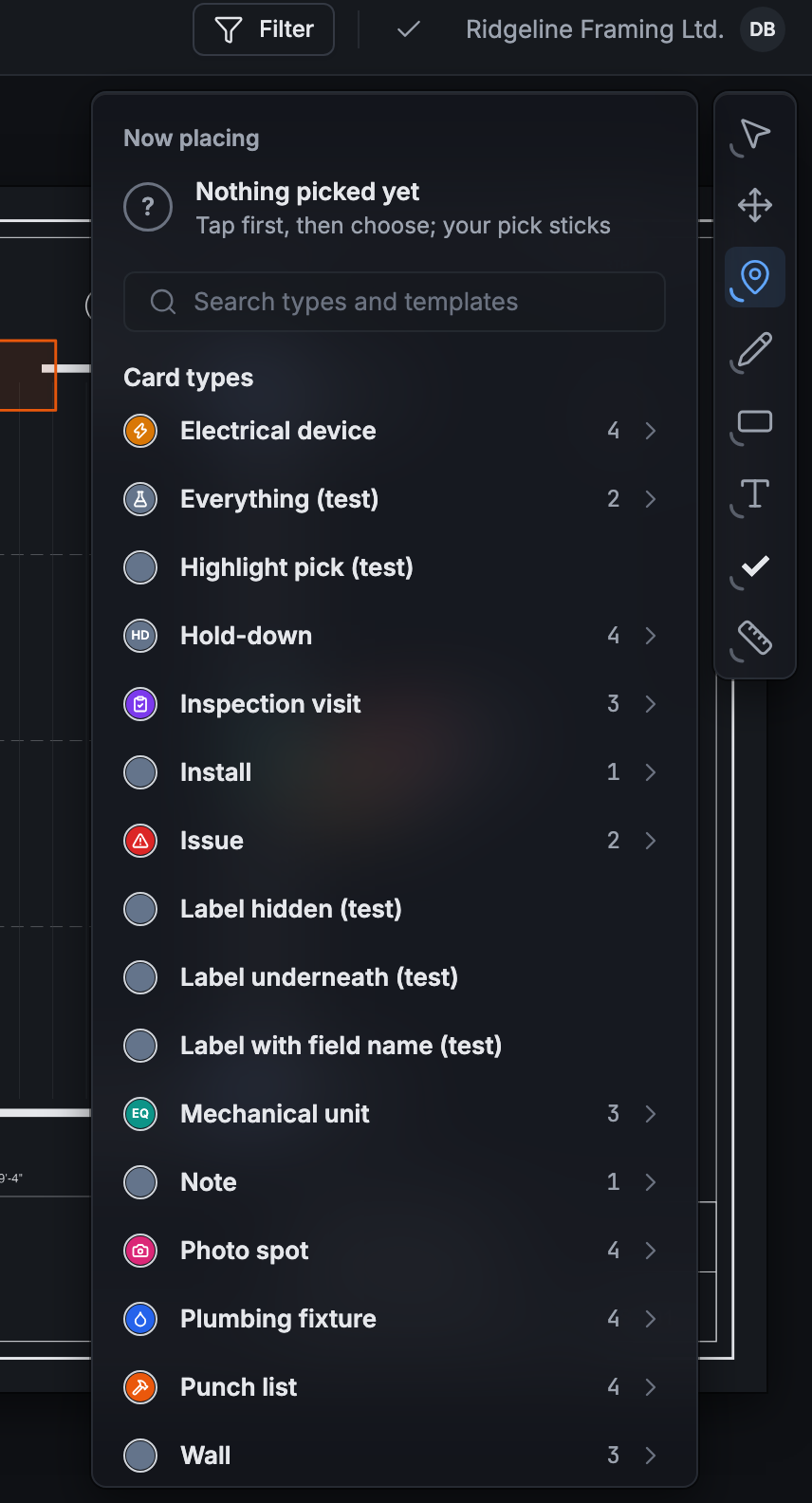
A point appears, with a list of Card types beside it. Pick the kind of point, for example Wall. In a long list, type in the search box to find it.
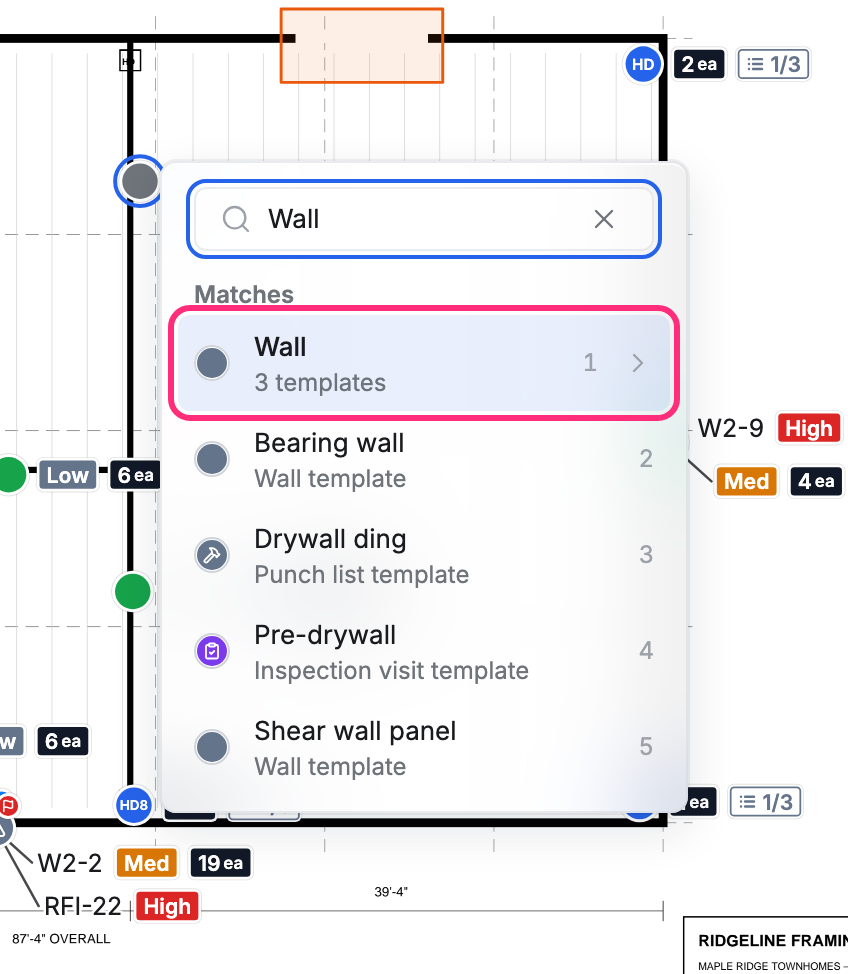
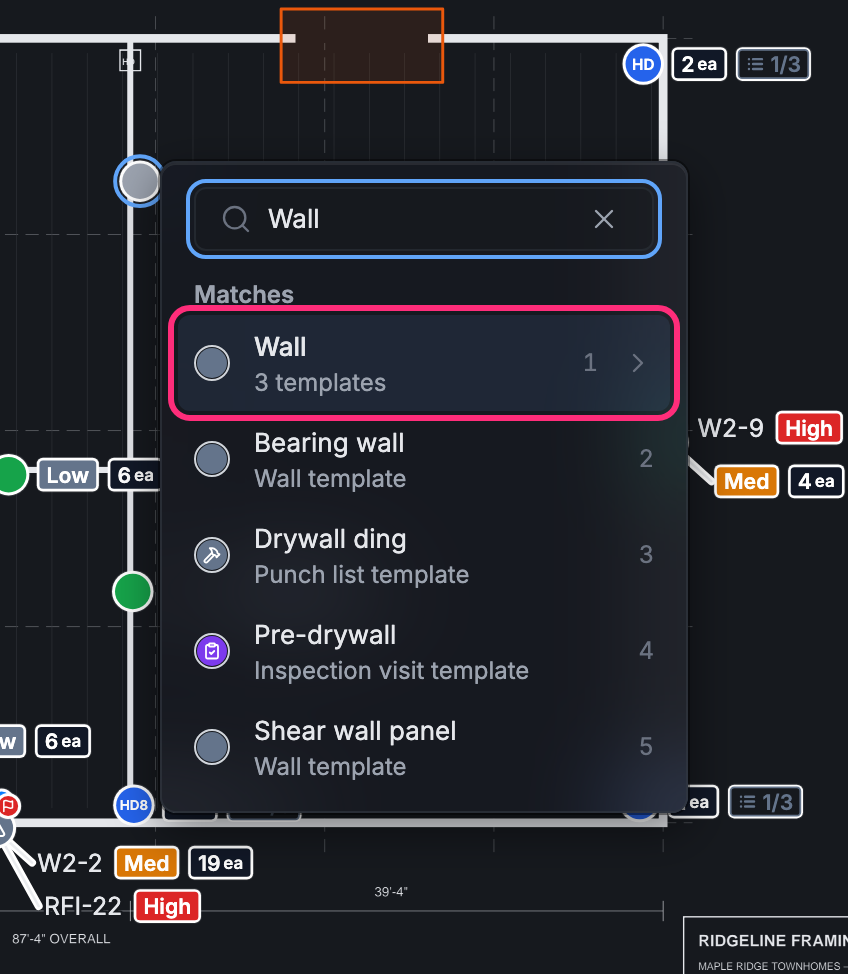
-
Pick a template, for example Bearing wall, or Blank card.
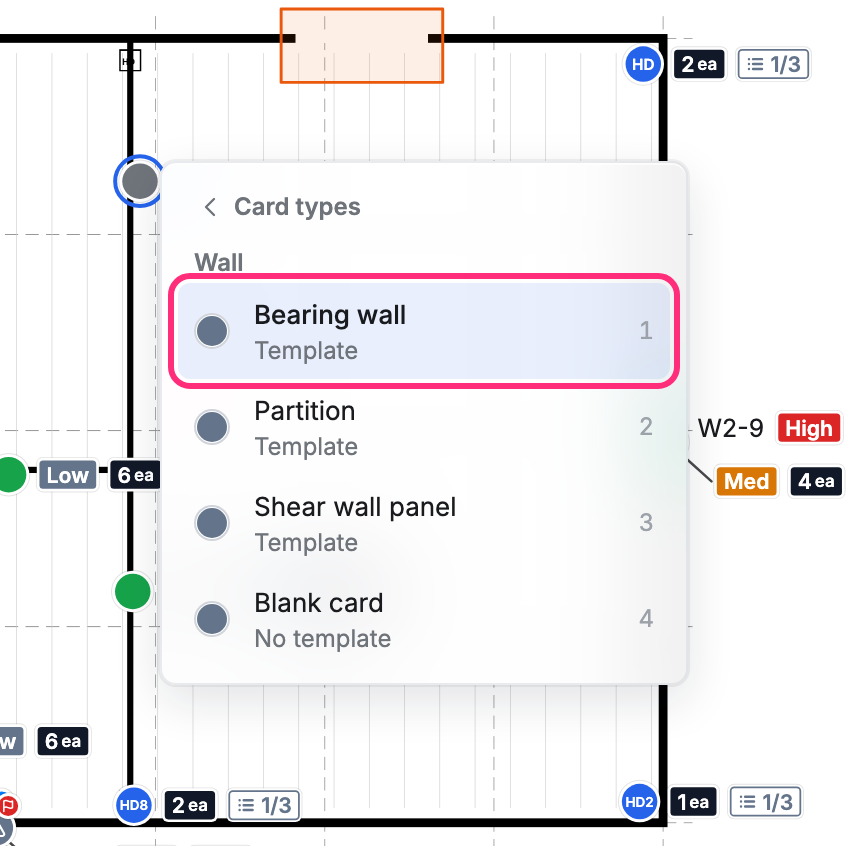
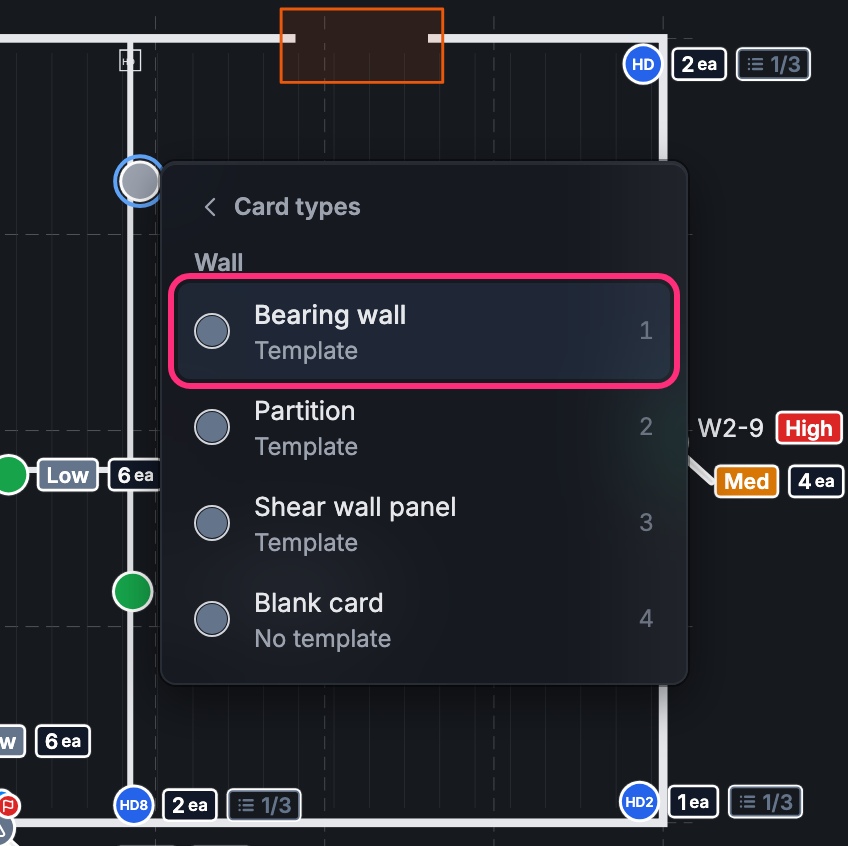
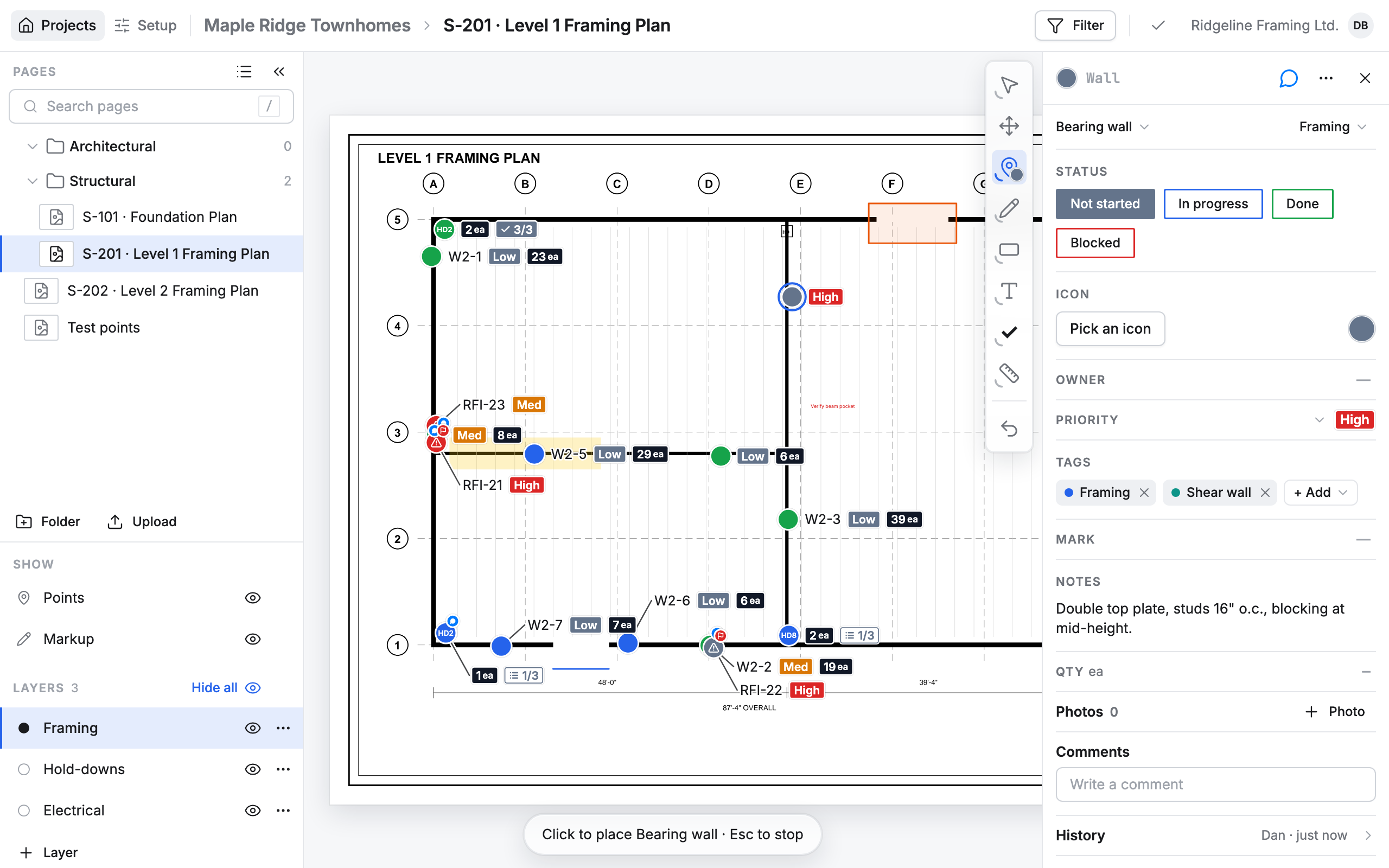
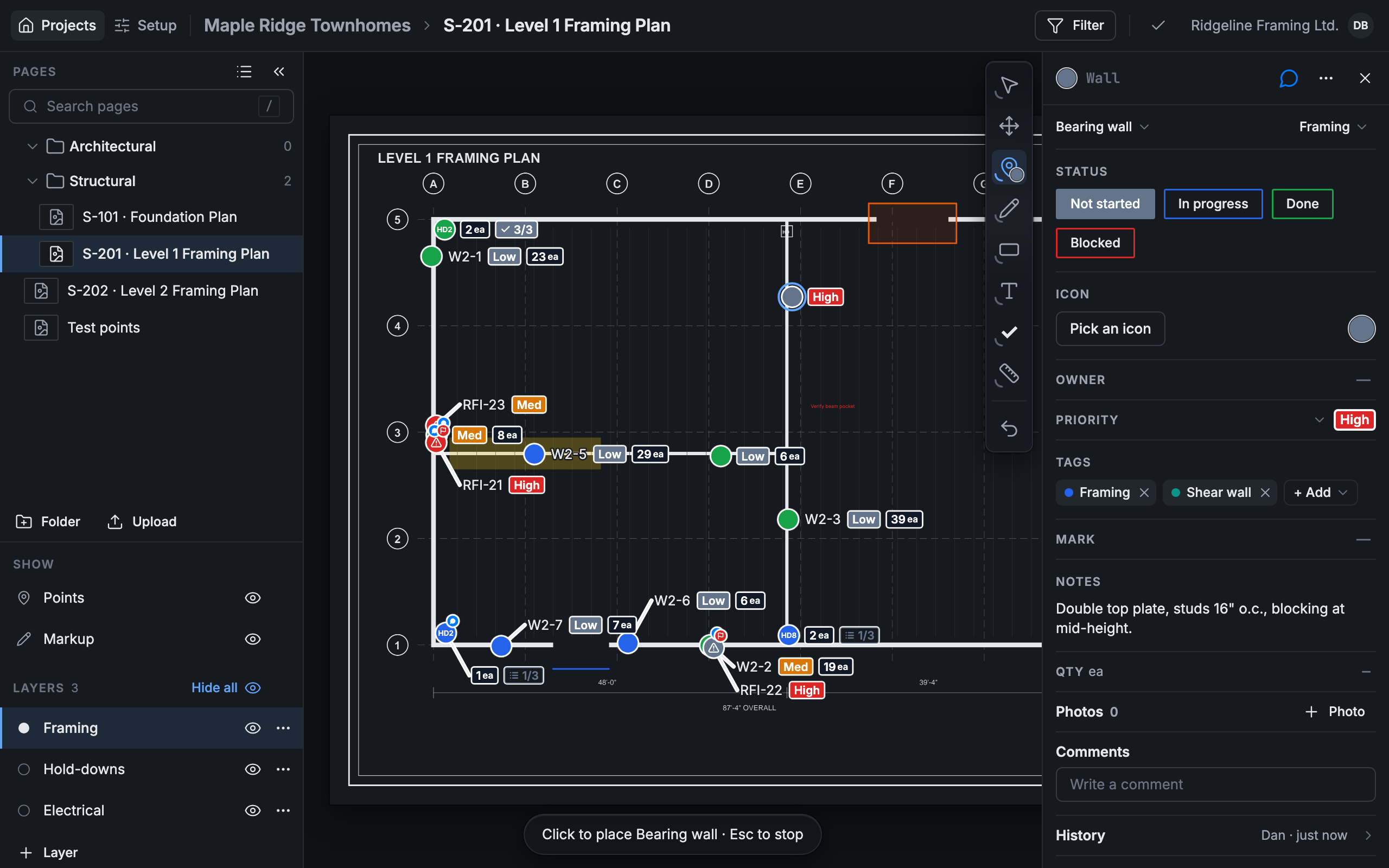
The point’s card opens on the right, filled in from the template. The line under its title names its template (or its card type, on the Default template) and its layer. Give it a title, or change any line on it.
Place more of the same
Section titled “Place more of the same”Your pick sticks. The bar at the bottom says what you’re placing (“Click to place Bearing wall”), and the Point button shows a small dot in its color. Each click on the drawing places another one, and the card moves to the new point. Press Esc to stop placing.
Choose something else to place
Section titled “Choose something else to place”Press Point again while it’s on. The list shows what you’re placing now, a search box, and every card type. Pick another type or template, and the next click places that.
Turn on Ask after each tap to pick a card type for every point you place, instead of keeping one.