Filter the points on a drawing
A filter picks out the points you want to see on a drawing: the blocked ones, the high-priority ones, one card type. The points that match stand out, and the rest fade into the background.
Filter by a field
Section titled “Filter by a field”-
Open a drawing, then press Filter at the top right.
-
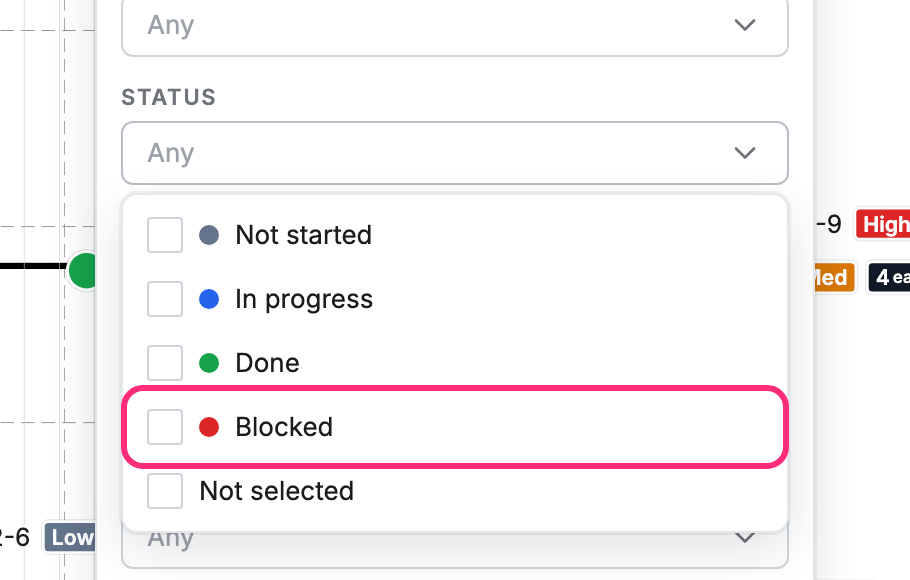
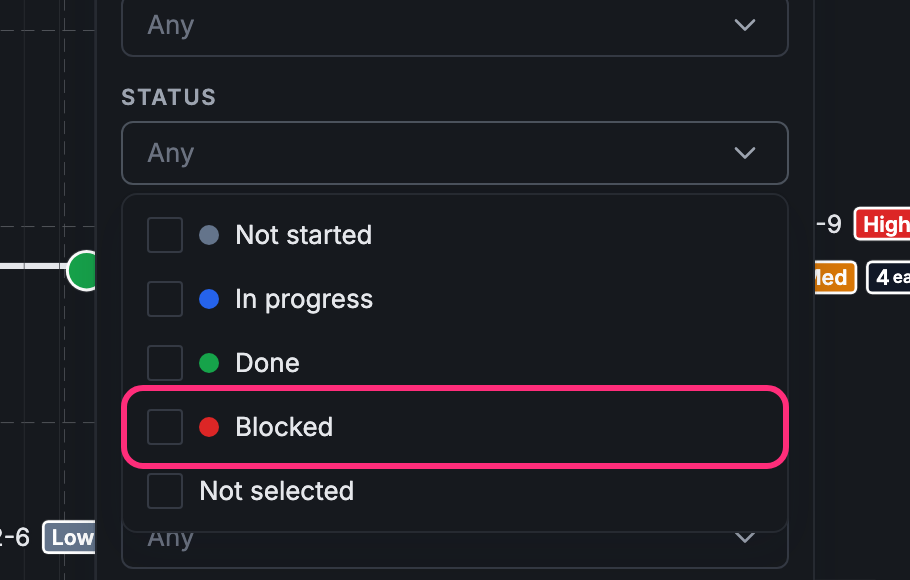
The panel lists a row for each field you can filter by, such as Status and Priority, plus Layers and Card types. Open a row and tick what you want, for example Blocked under Status.
-
Press Esc to close the list, and Esc again to close the panel.
The points that match get a yellow halo, and every other point fades. Each thing you picked shows as a chip at the top left of the plan (Blocked, or Priority: High), and the Filter button shows a count.
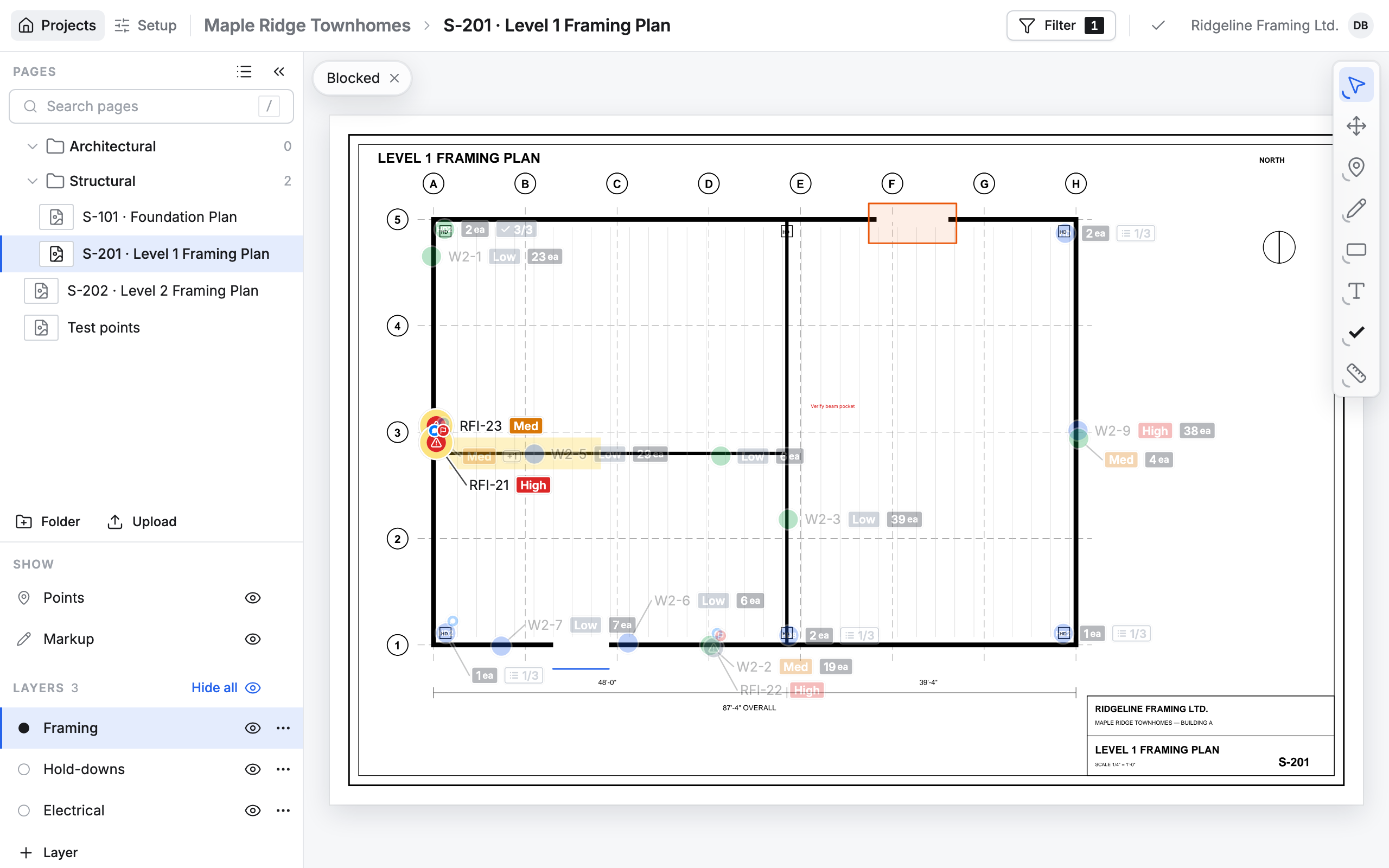
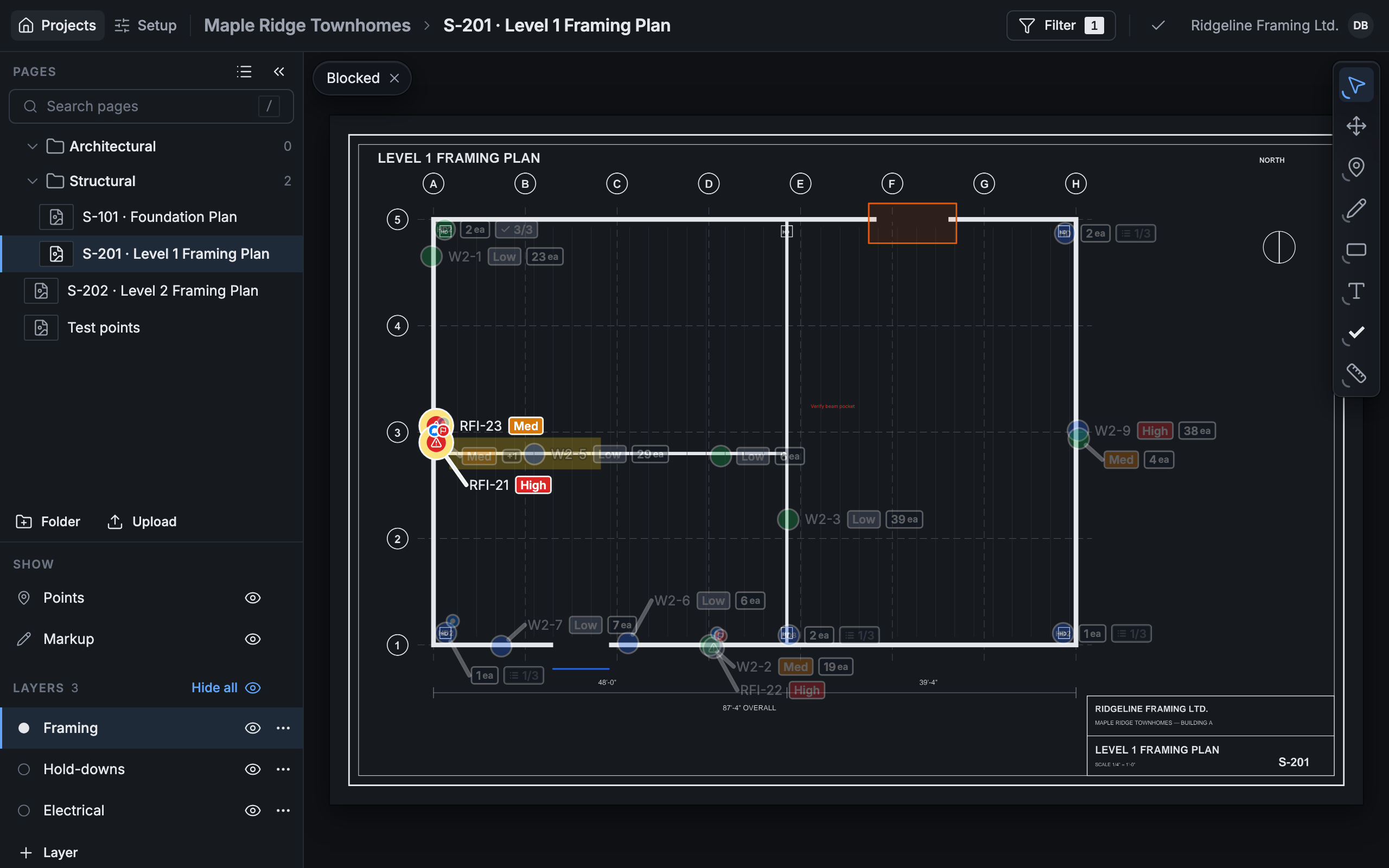
A faded point can’t be clicked: a click there lands on the plan.
The panel also has Flagged only and Highlighted only switches, and Field equals to match one field’s value.
Hide the rest
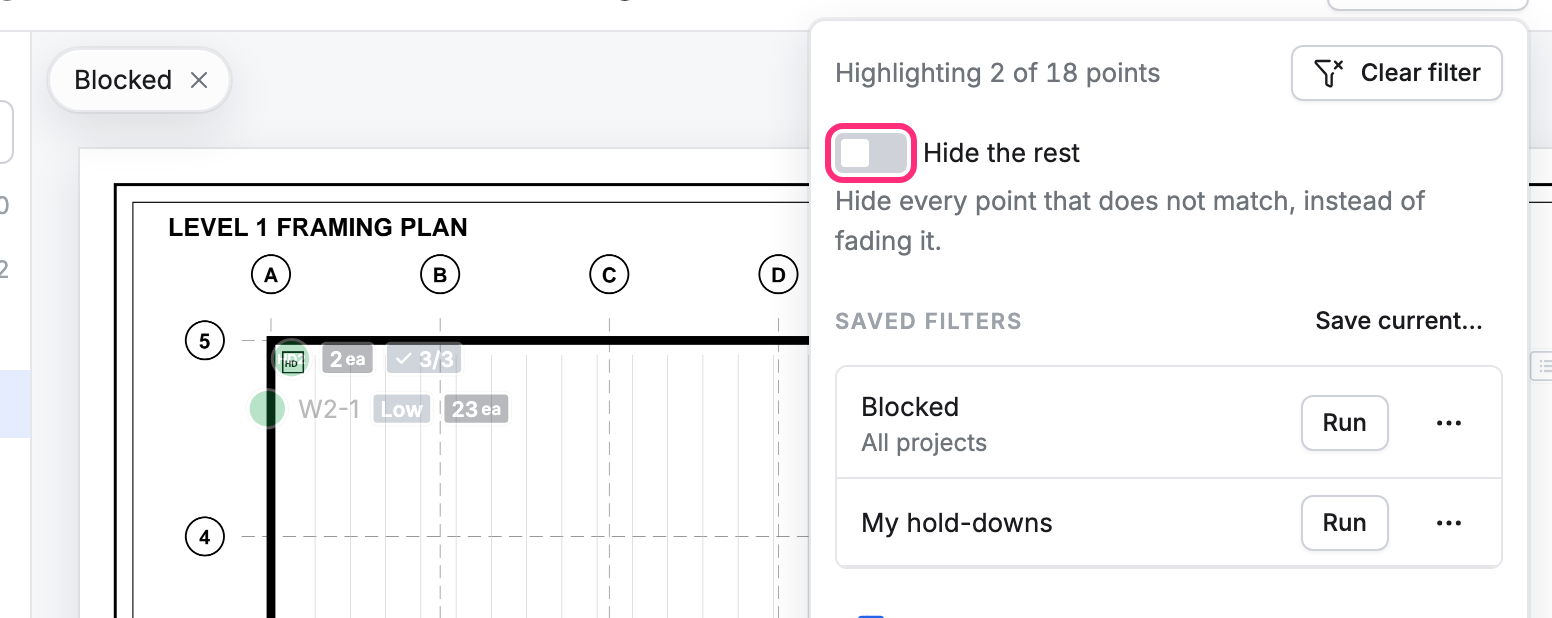
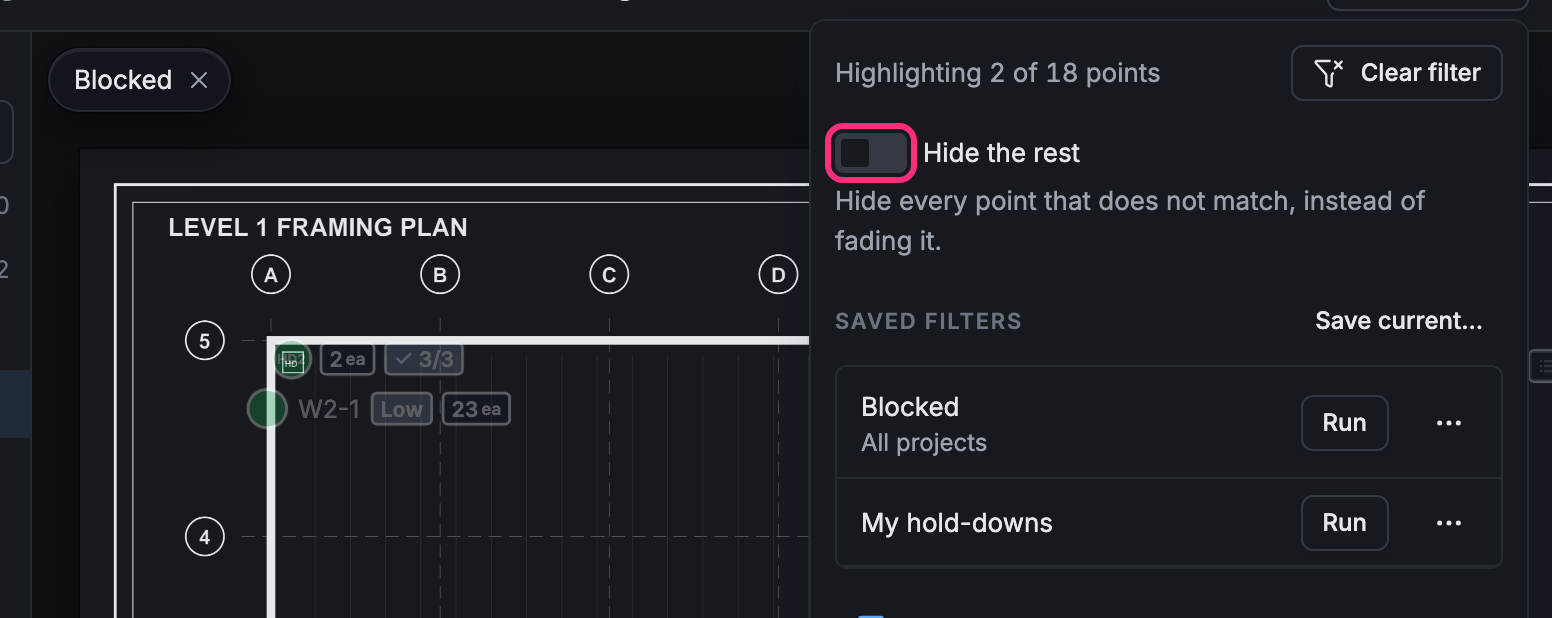
Section titled “Hide the rest”The top of the panel counts what you see: All 18 points shown with no filter, Highlighting 2 of 18 points with one. Turn on Hide the rest to hide the points that don’t match instead of fading them. The count then reads Showing 2 of 18 points.
If the open point stops matching
Section titled “If the open point stops matching”You can change a point’s card while a filter is on. With Hide the rest on, if the change takes it out of the filter, the point stays on the plan, dimmed, and the bar at the bottom says Point hidden by filter. Once you close its card, the point goes. The message that follows has a Clear filter button to bring every point back.
Use a saved filter
Section titled “Use a saved filter”Under Saved filters, press Run beside a filter to put it on. When what you picked is exactly a saved filter, the plan shows one chip with the filter’s name. Press Save current… to keep the filter you have on for next time.
Clear the filter
Section titled “Clear the filter”Press Clear filter at the top of the panel, or the × on a chip to take off just that part.