Change or delete markup
Markup is changed with the Move tool. With Select on, a click on markup does nothing and a drag pans the drawing, so you can’t move a mark by accident.
Select a mark
Section titled “Select a mark”-
Press Move on the right (or press G).
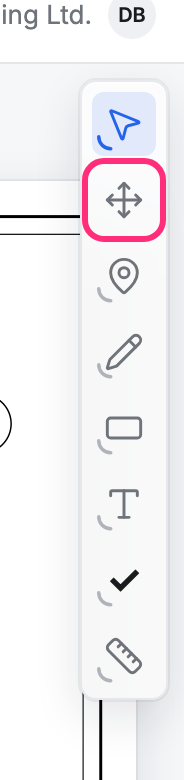
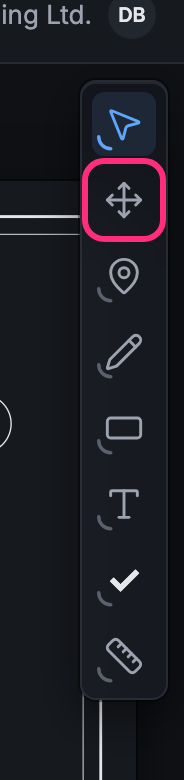
-
Click the mark.
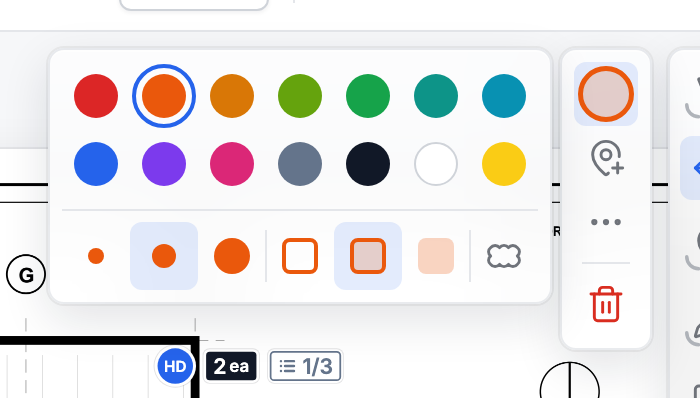
The mark shows a handle at each corner or end, and its options open beside the tools: Color and style, Create point from markup, More (⋯) and Delete markup.
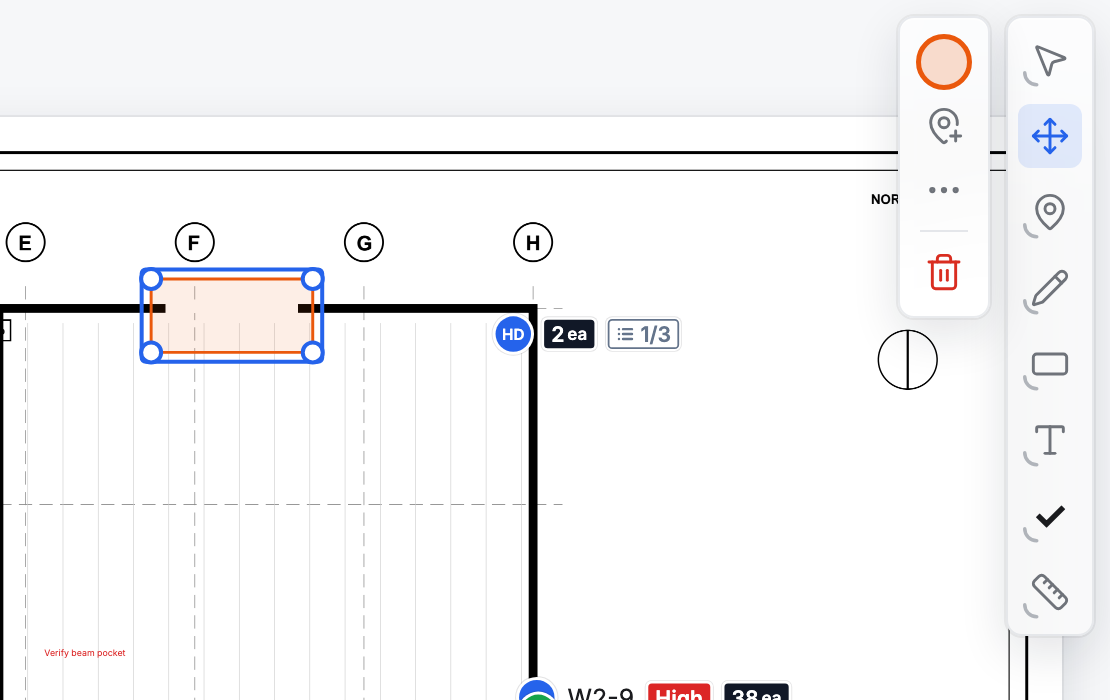
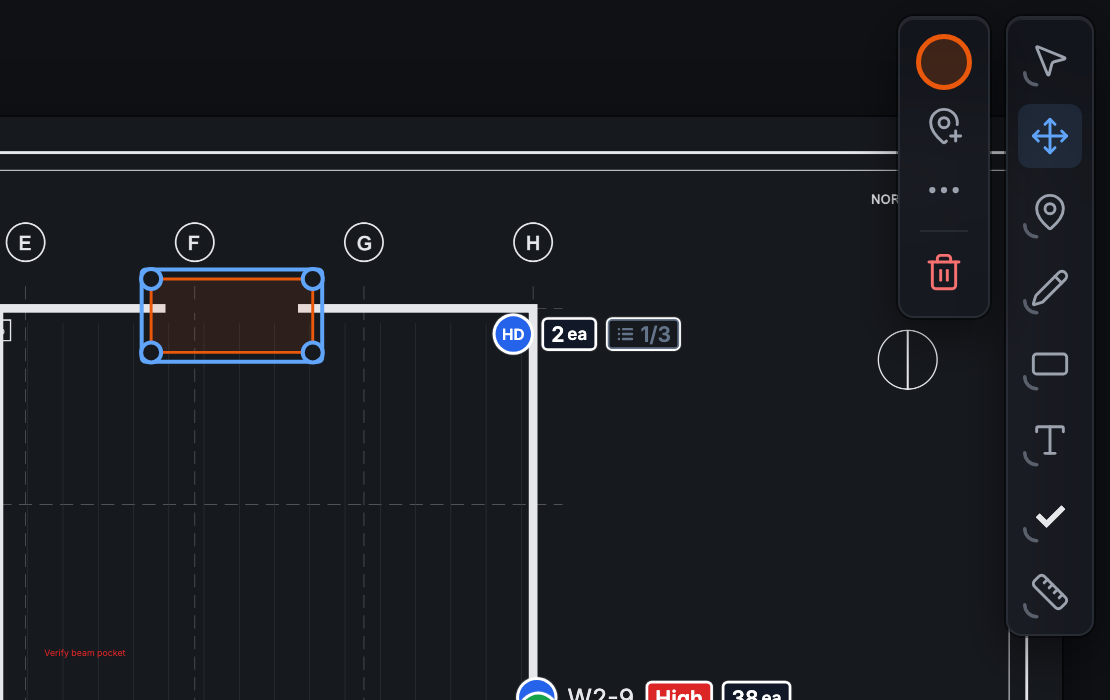
On a phone the options are a bar in the bottom-right corner. On a tablet held upright they sit at the top right, beside the tools, and Color and style opens below them.
The mark you just drew is still selected while its tool is on: you can drag it or its handles straight away, without picking Move.
Move or reshape it
Section titled “Move or reshape it”- Move it: drag the selected mark by its outline or its inside.
- Reshape it: drag a handle. A line’s end moves and the other end stays put. A rectangle’s corner resizes it against the opposite corner.
- A callout: drag the handle at its tip to point it somewhere else, or drag its words to move them. Let the tip go on the edge of a shape, a line, a pen stroke, a dimension or a point and it attaches: the target lights up as you reach it, and the callout’s line stays on that spot when the target moves. Drag the tip onto empty paper to detach it, or hold Option / Alt to let it go free on top of something.
- Text or a callout’s width: drag the handle on the right edge of its words. The words wrap to fit. Drag it narrower than a word and the word breaks across lines with a hyphen. It works while you type the words too. Double-click the handle (double-tap on a phone or iPad) to fit the box to its words again.
Change its color and weight
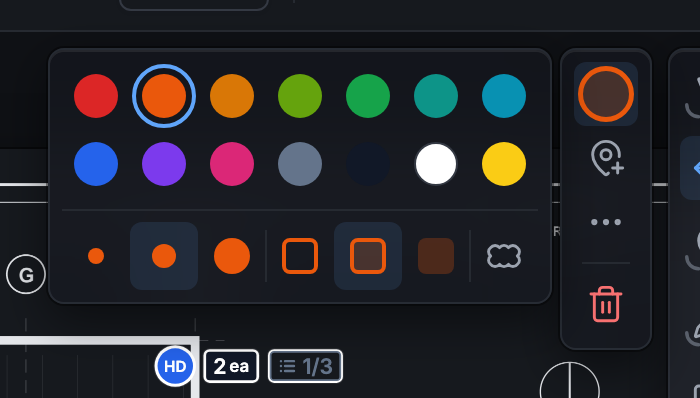
Section titled “Change its color and weight”Press Color and style to open the mark’s colors, weights and, for a shape, its fill. A rectangle or an area also has a Cloud edge switch, which turns its outline into a cloud and back. A pick changes the mark straight away, and the next mark you draw with that tool takes it too. Press Color and style again to fold the rows away.
Edit the words
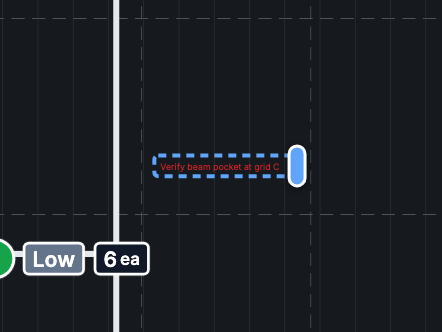
Section titled “Edit the words”With Move on, double-click a text or a callout and change its words right there on the plan. Enter starts a new line. Press Esc, or click anywhere off the words, to keep them; Undo puts the old words back.
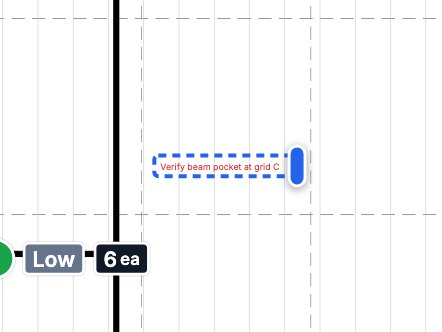
You can also select the mark and press Enter, or open More (⋯) and pick Edit text. Take every word out to delete the mark; Undo brings it back.
Delete markup
Section titled “Delete markup”Select the mark, then press Delete markup, or press Delete, Backspace or E. It goes at once, and the message Markup deleted has an Undo button to bring it back.
Every change to a mark is one step that Undo takes back: see Move points.